Your iPhone is plugged in, but it still isn’t charging. A faulty cable, trapped debris, or an intentional charging pause can produce the same result as a damaged port. Start with these connection checks, then work through the fixes that match what your phone is doing.
Start with the power connection
Start here whether your iPhone uses Lightning or USB-C. If you see a liquid-detection alert, disconnect the cable and follow the drying instructions below before testing wired charging again.
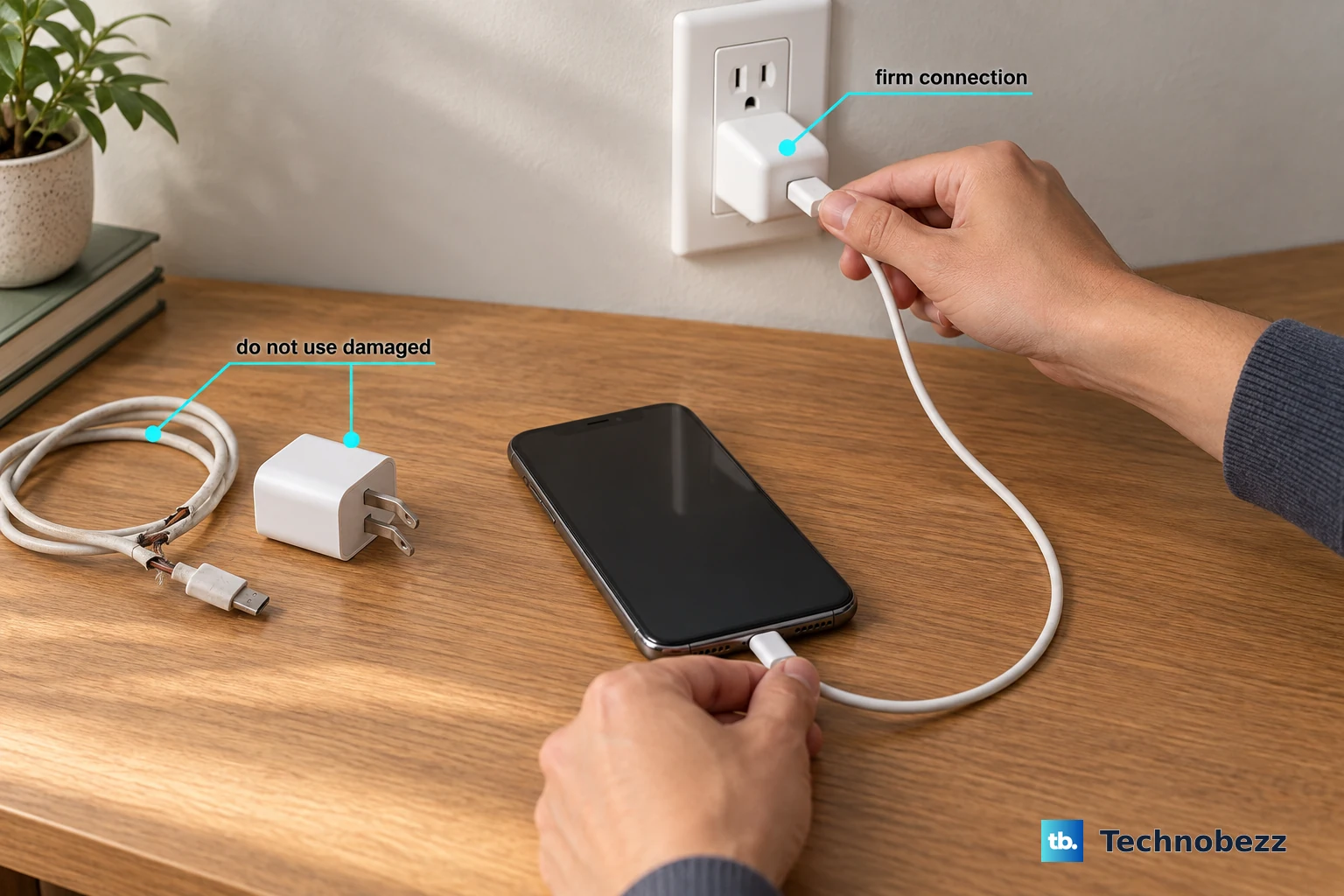
Reseat the charging cable at both ends.
Plug the power adapter firmly into the wall outlet.
Try another outlet.
If charging still doesn’t start, test another power source, such as a different wall adapter or a computer.
Rule out the cable and accessories
Work through these checks to narrow down which part of the connection is failing.
- 1.Inspect the cable and adapter for fraying, breaks, or bent prongs. Stop using damaged accessories.
- 2.Test another compatible cable and charger.
- 3.Connect the iPhone directly to the charger, bypassing intermediate adapters and other equipment, especially after an unsupported-accessory alert.
- 4.Remove the case or cover and repeat the connection test.
- 5.Unplug the connector, reverse its orientation, and reconnect. Gently check for intermittent contact with a working cable. An unstable connection warrants a check for connector damage.
Read the charging messages
Open Settings > Battery to check charging holds, estimates, and charger messages. Slow Charger, available in iOS 18 and later, does not by itself indicate a defective port. iOS 26 and later also display Incompatible Charger messages and charging time estimates.
For slow charging, test a dedicated USB-C Power Delivery adapter with a USB-C cable for a USB-C iPhone or a USB-C-to-Lightning cable for a Lightning model. Car ports and hubs do not always supply as much power.
For an iPhone 15 or later that stops at its charge limit, select 100% under Settings > Battery > Charging. Choose Allow Until Tomorrow for a temporary override or Set Limit to 100% to retain it. For an Optimized Battery Charging pause around 80%, hold its Lock Screen notification to access Charge Now, which overrides the pause for that session.
For a temperature-related hold, move the phone into an environment between 32°F and 95°F (0°C–35°C), away from direct sunlight. Remove a heat-trapping case from a hot phone; let a cold phone warm gradually indoors. Charging resumes automatically once the temperature allows it, and these protections cannot be disabled.
Respond to a liquid-detection alert
A liquid alert means it’s time to stop cable tests and let the connector dry. Liquid detection is supported on iPhone XS, XS Max, XR, and later models, including Lightning and USB-C iPhones.
Disconnect the cable from both your iPhone and the power adapter.
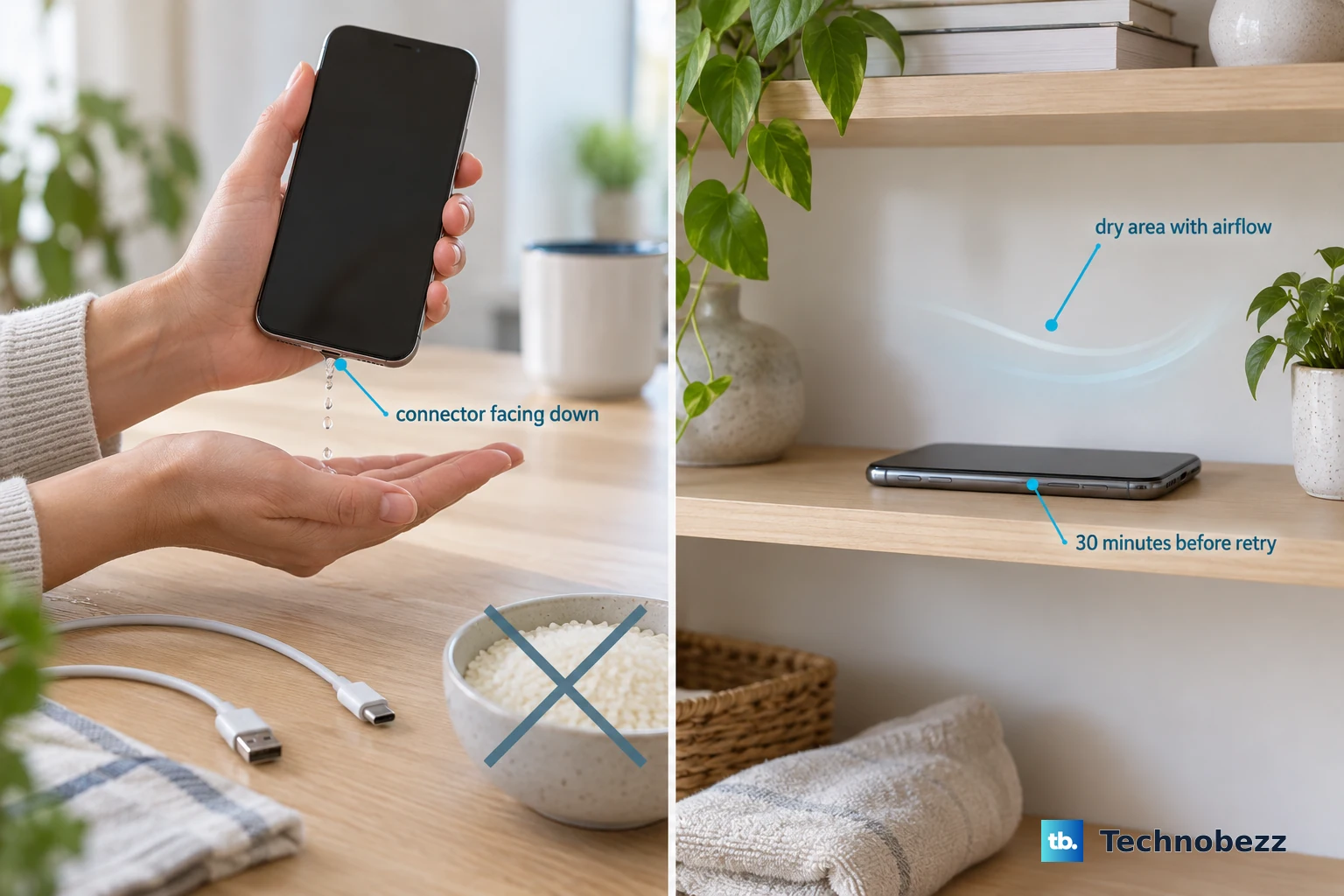
With the port facing downward, gently tap the phone against your hand to remove excess liquid.
Leave the phone somewhere dry with airflow. Do not use rice, external heat, compressed air, or objects inserted into the wet port.
Retry charging after at least 30 minutes.
If the alert returns, allow up to 24 hours for drying before trying again.
Once everything is dry, disconnect and reconnect the adapter and cable if charging still doesn’t start.
If one cable or accessory repeatedly triggers the alert when dry, contact its manufacturer.
Arrange service if alerts persist with Apple cables or accessories after drying.
Clear dry debris from the port safely
Dry debris inside the port interferes with the cable’s connection.
Disconnect all cables before cleaning.
On a responsive phone, open Settings > General > Shut Down.
Drag the shutdown slider to switch off the iPhone.
Use a clean, dry, small nonmetallic brush with soft bristles to gently loosen and lift dry debris outward. Insert only enough bristles to fit.
Keep liquids out of the port and do not use compressed air. This brush method is for dry debris only; a liquid alert calls for drying instead.
Hold the side button until the Apple logo appears to turn the phone back on.
Reconnect a working cable to test charging.
Give a depleted battery time to respond
This sequence addresses a depleted battery or an unresponsive iPhone.
Leave the iPhone connected to a working charger for a full 30 minutes.
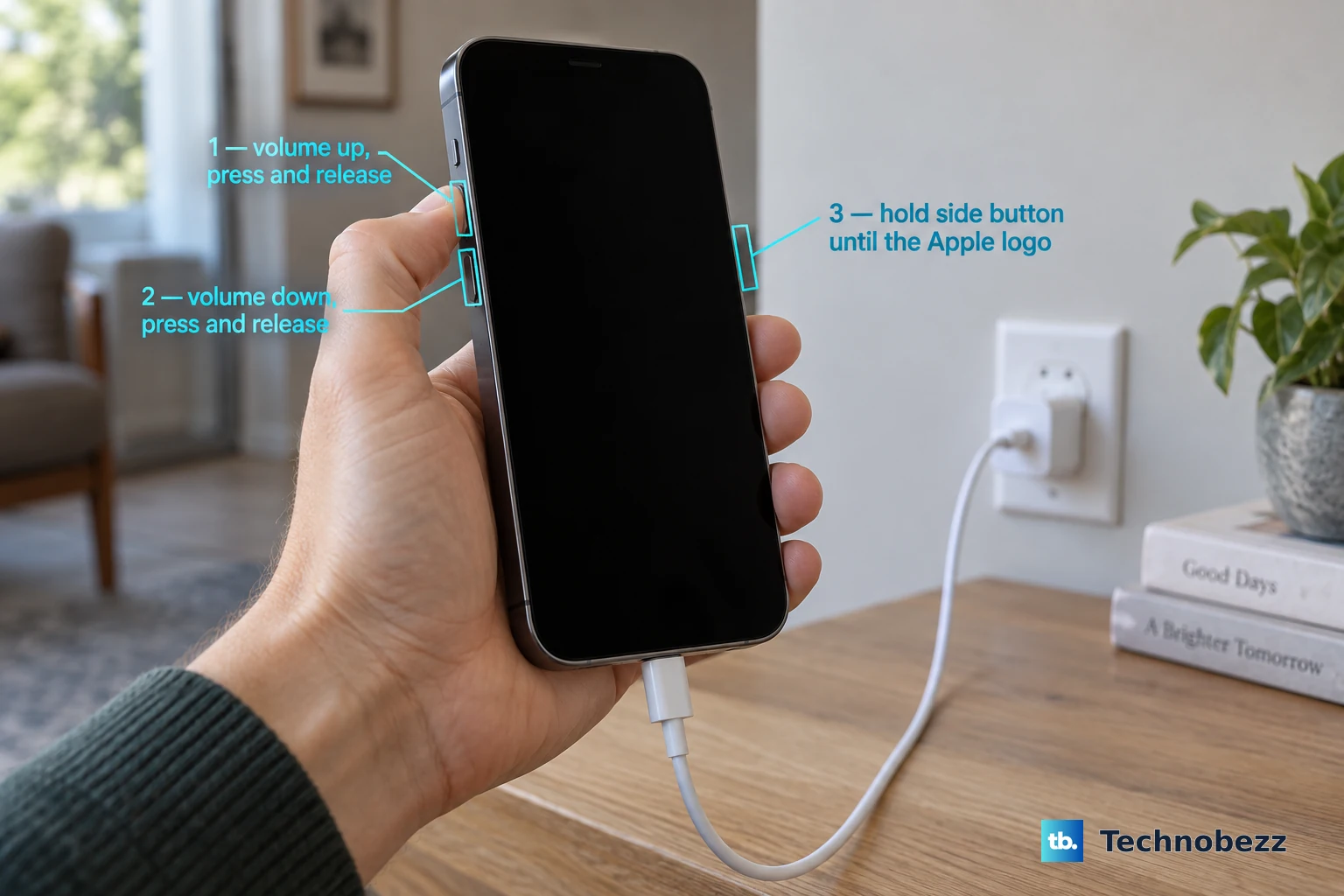
If it remains unresponsive, start a force restart on iPhone 8 and later, including iPhone SE second generation and later: quickly press and release the Volume Up button.
Quickly press and release the Volume Down button.
Hold the Side button until the Apple logo appears.
Let the phone charge for another 30 minutes.
Use wireless charging to keep going
On iPhone 8 and later, including iPhone SE second and third generations, wireless charging gives you another way to power the phone while you troubleshoot. For a wet-port workaround, first make sure the phone’s back is dry.
Disconnect the USB cable completely.
Remove any obstructing thick, metal, or battery case.
Power a Qi-certified charger with its recommended adapter.
Place the iPhone faceup and centered on the charger. Successful wireless charging provides a comparison, but it does not conclusively identify which component has failed.
If an unsupported-accessory problem persists, Apple recommends updating iOS. Back up your iPhone before updating.
Connect the phone to Wi-Fi.
Connect it to power, using working wireless charging if the port is unavailable.
Open Settings > General > Software Update.
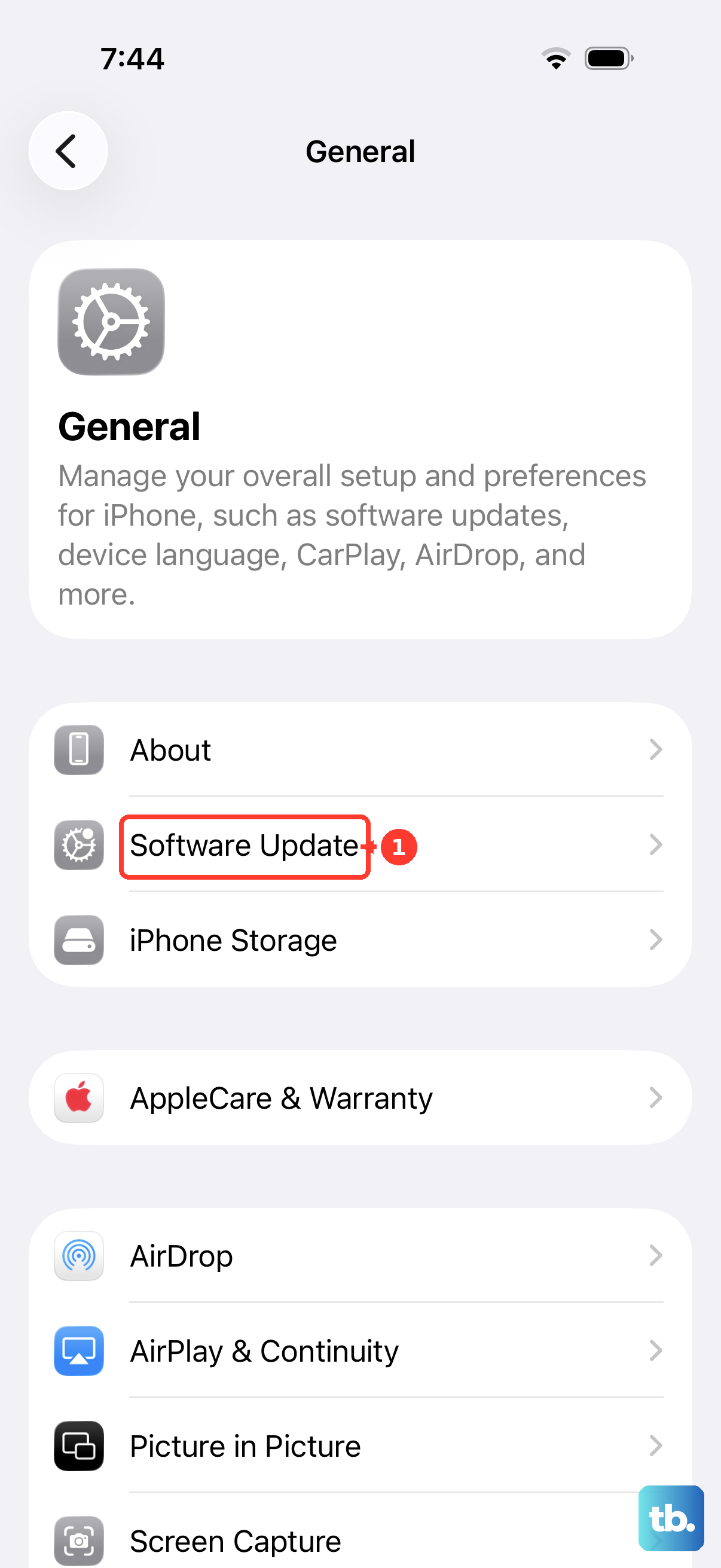
Tap Download and Install when a compatible update is offered.
Follow the onscreen prompts to complete the update.
Arrange professional attention for the port
Book a diagnosis if multiple working cables and power sources fail, the connection remains intermittent, or liquid alerts persist with Apple accessories after drying. These symptoms need investigation before deciding which component to replace.
Open Apple’s iPhone service and repair page.
Select Get started.
Describe the charging problem.
Follow the available service choices. Apple Store and Apple Authorized Service Provider options depend on your location, model, and coverage.
If the website route doesn’t work for you, try the Apple Support app for guided troubleshooting, support chat, or repair reservations. The app requires iOS 18 or later, and availability varies by country or region.
Frequently Asked Questions
Why does my iPhone charge from the wall but not from a computer?
Accessory restrictions can block charging through connected equipment. Disconnect the accessory, unlock your iPhone, then reconnect it. Ordinary USB power adapters do not require the phone to be unlocked. For a supervised work or school phone, ask your administrator to review accessory restrictions if the problem continues.
Can I override a liquid-detection alert to charge in an emergency?
Apple provides an emergency override after you reconnect the cable. Use it only when necessary: charging wet contacts risks corrosion and permanent damage.
Will a factory restore fix a broken charging port?
A factory restore cannot repair damaged contacts. It is a last step for isolating software problems after other troubleshooting, requires a working computer connection, and erases your data. Back up before restoring.
Can I run Apple Diagnostics if the port is completely dead?
Apple Diagnostics requires a wired connection to enter diagnostics mode. If the failed port prevents that connection, you cannot start diagnostics. Arrange professional diagnosis instead.











