

To fix Apple CarPlay not working in your Hyundai Tucson, check the USB cable or wireless settings for your infotainment system, enable Siri, and allow CarPlay through any active iPhone restrictions. If it still will not connect, restart the phone and vehicle, rebuild the pairing, and update their software.
Your Tucson’s connection requirements depend on its infotainment system, market, and trim. Start by identifying the fitted system, because a USB cable will not launch CarPlay on a wireless-only Display Audio Gen2V unit.
The short version
- Match the system: Wireless Display Audio Gen2V, Standard Gen5W, and ccNC have different connection requirements.
- Check the connection: Try another cable for wired CarPlay or enable Bluetooth, Wi-Fi, and Auto-Join for wireless CarPlay.
- Check permissions: Enable Siri and allow CarPlay through any active Screen Time restrictions.
- Escalate gradually: Restart both devices, rebuild the pairing, and check for software updates before seeking Hyundai service.
| Fix | When to use it |
|---|---|
| Confirm the connection type | CarPlay never starts |
| Launch CarPlay manually | The connection is established but CarPlay stays closed |
| Replace the cable or bypass an adapter | Wired CarPlay fails or disconnects |
| Select USB data mode | Your Tucson has the USB port selection button |
| Enable wired CarPlay on Standard Gen5W | Your navigation system has the matching projection menu |
| Select the iPhone and connect through USB on ccNC | Wired CarPlay fails or you need an alternative to wireless |
| Enable wireless settings on the iPhone | Wireless CarPlay fails to connect |
| Enable vehicle Wi-Fi projection | Display Audio Gen2V has the matching Wi-Fi menu |
| Refresh Bluetooth | Wireless discovery or pairing fails |
| Generate a new Wi-Fi passkey | Display Audio Gen2V has authentication errors or poor wireless connections |
| Resolve broader iPhone Wi-Fi problems | Wi-Fi also fails outside CarPlay |
| Enable Siri | Siri is disabled on the iPhone |
| Allow CarPlay through Screen Time | Content restrictions are enabled |
| Unlock and charge the iPhone | ccNC does not recognize the phone |
| Restart the vehicle | CarPlay still fails after connection checks |
| Restart the iPhone | The connection still fails after restarting the vehicle |
| Reconnect from the projection list | Display Audio Gen2V shows a black screen or connects another phone |
| Restart frozen infotainment | Your ccNC or Display Audio Gen2V system has the documented reset button |
| Pair through Phone Projection | Display Audio Gen2V has only a Bluetooth registration |
| Forget the vehicle on the iPhone | Saved CarPlay or Bluetooth registrations need rebuilding |
| Delete and rebuild ccNC registrations | Pairing failures persist |
| Pair wireless CarPlay on ccNC | Your wireless-equipped system needs a new registration |
| Update iOS | An update is available for your iPhone |
| Find the matching Hyundai software | You need the package for your exact vehicle and system |
| Install a navigation update | Your listed navigation system has an available update |
| Install a Display Audio update | Your eligible non-navigation system has an available update |
| Restart the affected app | One connected app freezes |
| Update the affected app | One app still fails after reopening it |
| Retry with better cellular reception | Online apps malfunction on ccNC during weak reception |
| Contact Hyundai | Vehicle faults persist after restarting and updating |
Check which connection your Tucson supports
Identify your infotainment system before switching between USB and wireless. On Display Audio Gen2V variants equipped with wireless phone projection, CarPlay works wirelessly only, so plugging in a USB cable will not start it. These systems include applicable 2022 to 2024 configurations, but equipment varies by market and trim.
For Standard Gen5W navigation systems, use the wired CarPlay procedure below. Tucson ccNC systems support the documented wired connection and, when equipped for it, wireless CarPlay. Follow the menu path for your system rather than choosing a procedure solely by model year.
Once the connection is established, select the CarPlay logo on the vehicle display if it does not open automatically. On ccNC, open Apple CarPlay from the vehicle Home screen.
Check the cable and enable wired CarPlay
For a Tucson that supports wired CarPlay, reconnect your iPhone with a different USB cable. Try another CarPlay-capable USB port if your vehicle has one. If a USB-C-to-Lightning adapter connection is unreliable, connect the iPhone directly with an appropriate cable.
On a 2025 Tucson equipped with the USB port selection button, Hyundai describes the upper portion of the button as charging only and the lower portion as charging with a media connection. With the engine running, press the lower portion of the USB port selection button, marked with USB and battery symbols, wait for its indicator to illuminate, then connect the phone through that port. Check this setting when your phone charges but CarPlay fails.
For Standard Gen5W, disconnect the USB cable before changing projection settings. Open All Menus > Setup > Device Connections > Phone Projection Settings > Apple CarPlay, then check Enable Apple CarPlay. Reconnect the iPhone and select OK at the vehicle’s initial notification.
On ccNC, open Setup > Device Connections > Phone Projection > Apple CarPlay Options and select the intended iPhone. Connect it to the vehicle’s data USB port, select Yes at the initial vehicle prompt, and agree to Enable Apple CarPlay on the phone. Open Apple CarPlay from the vehicle Home screen. You can also try this connection when wireless CarPlay fails on a ccNC system supporting wired operation.
Restore the wireless connection
Wireless CarPlay needs both Bluetooth and Wi-Fi enabled on the iPhone. Open Settings > Bluetooth and turn on Bluetooth, then open Settings > Wi-Fi and turn on Wi-Fi. Open the CarPlay network’s details and turn on Auto-Join.
On Display Audio Gen2V with the Wi-Fi menu, open All Menus > Setup > Wi-Fi in the vehicle. Select Use Wi-Fi for Phone Projection. Bluetooth calling alone does not establish CarPlay on this system.
If discovery or pairing keeps failing, open Settings > Bluetooth on the iPhone, turn Bluetooth off, then turn it back on and reconnect. For poor wireless connections or authentication errors on Display Audio Gen2V, Hyundai also recommends generating a new passkey when that option is present.
Generating a new Wi-Fi passkey replaces the existing passkey. Open All Menus > Setup > Wi-Fi > Generate New Wi-Fi Passkey, then retry the wireless connection.
When the iPhone also has broader Wi-Fi problems, open Settings, turn off Airplane Mode, and confirm Wi-Fi is on. Turn off Connectivity Assist if that setting is present. Resolve the broader Wi-Fi failure before retrying wireless CarPlay.
Check Siri and iPhone restrictions
Make sure Siri is enabled on your iPhone. On the current Siri interface, open Settings > Siri > Requests and turn on Press Side Button for Siri. You can also configure voice activation under Requests.
Other software versions place Siri preferences under Apple Intelligence & Siri. Depending on your software, hardware, language, and region, the voice activation control may be labeled Talk & Type to Siri, Talk to Siri, or Listen for Siri.
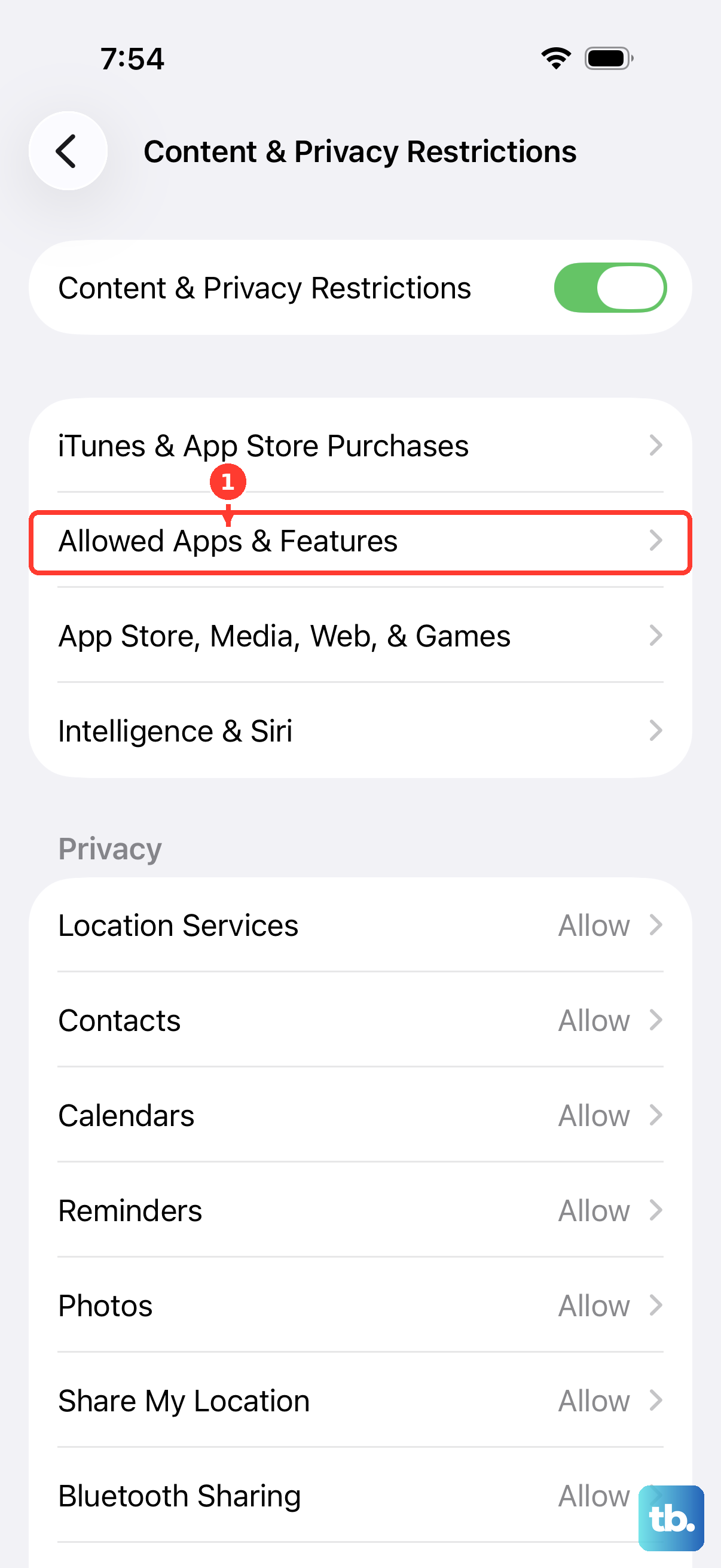
Screen Time restrictions can also block CarPlay. Open Settings > Screen Time > Content & Privacy Restrictions; if restrictions are enabled, tap Other Features on iOS 27 and allow CarPlay. On earlier iOS versions, open Allowed Apps (labeled Allowed Apps & Features on some versions) and enable CarPlay. You may need the Screen Time passcode or help from the family organizer.
For ccNC recognition failures, unlock the iPhone before reconnecting it. If its battery is nearly empty, charge it before trying again. Reconnect using the wired or wireless procedure for your system.
Restart the phone and vehicle
Park safely, turn the Tucson off, then restart it and try CarPlay again. Restart your iPhone too if the connection still fails.
On iPhone X and later Face ID models, hold either Volume button and the Side button until the power slider appears. Drag the slider, wait 30 seconds, then hold the Side button until the Apple logo appears. On iPhone SE models from the second or third generation, hold the Side button alone to display the power slider, then follow the same shutdown and startup sequence.
For a black screen on wireless Display Audio Gen2V, open All Menus > Setup > Device Connections > Phone Projection. Select the connected iPhone’s name to disconnect it, then select the intended iPhone’s name to connect. The same controls let you switch away from another registered phone.
If ccNC is slow or unresponsive, locate the infotainment reset button identified in your vehicle manual. Press it with a pen or paperclip to restart the system. On Display Audio Gen2V with the documented Reset button, press and hold that button using a suitable tool such as a pen or paperclip.
Rebuild the CarPlay pairing
Removing a Bluetooth-only registration deletes that saved registration. If wireless Display Audio Gen2V has your iPhone registered only for Bluetooth, remove that registration before adding it through phone projection. Open All Menus > Setup > Device Connections > Phone Projection > Add New.
Enable Bluetooth and Wi-Fi on the iPhone, then select the vehicle in the phone’s Bluetooth list. Check that the pairing codes match and select OK at the vehicle notification. Complete this projection pairing even if Bluetooth calls previously worked.
Forgetting the vehicle removes its saved CarPlay and Bluetooth registrations from the iPhone. For persistent connection failures, open Settings > General > CarPlay, select your vehicle, then tap Forget This Car. Next, open Settings > Bluetooth, open the vehicle’s information button, and tap Forget This Device.
On ccNC, deleting a registered device also removes its vehicle-stored contacts, messages, and call history. Open Setup > Device Connections > Device Connections > Delete Device(s), select the affected phone, then select Delete and Yes. Rebuild the connection using Add New in the same Device Connections menu.
For wireless-equipped ccNC, enable Wi-Fi and Bluetooth on the iPhone, then select the vehicle under Settings > Bluetooth. Check that the pairing codes match, select Yes at the vehicle’s initial CarPlay prompt, and agree to Enable Apple CarPlay on the phone. Open Apple CarPlay from the vehicle Home screen.
If ccNC connection failures persist, Hyundai recommends removing all registered devices. This removes the vehicle-stored contacts, messages, and call history for every deleted device. Return to Delete Device(s), select Mark All, then select Delete and Yes. Re-pair your iPhone through Add New.
Update iOS and Hyundai software
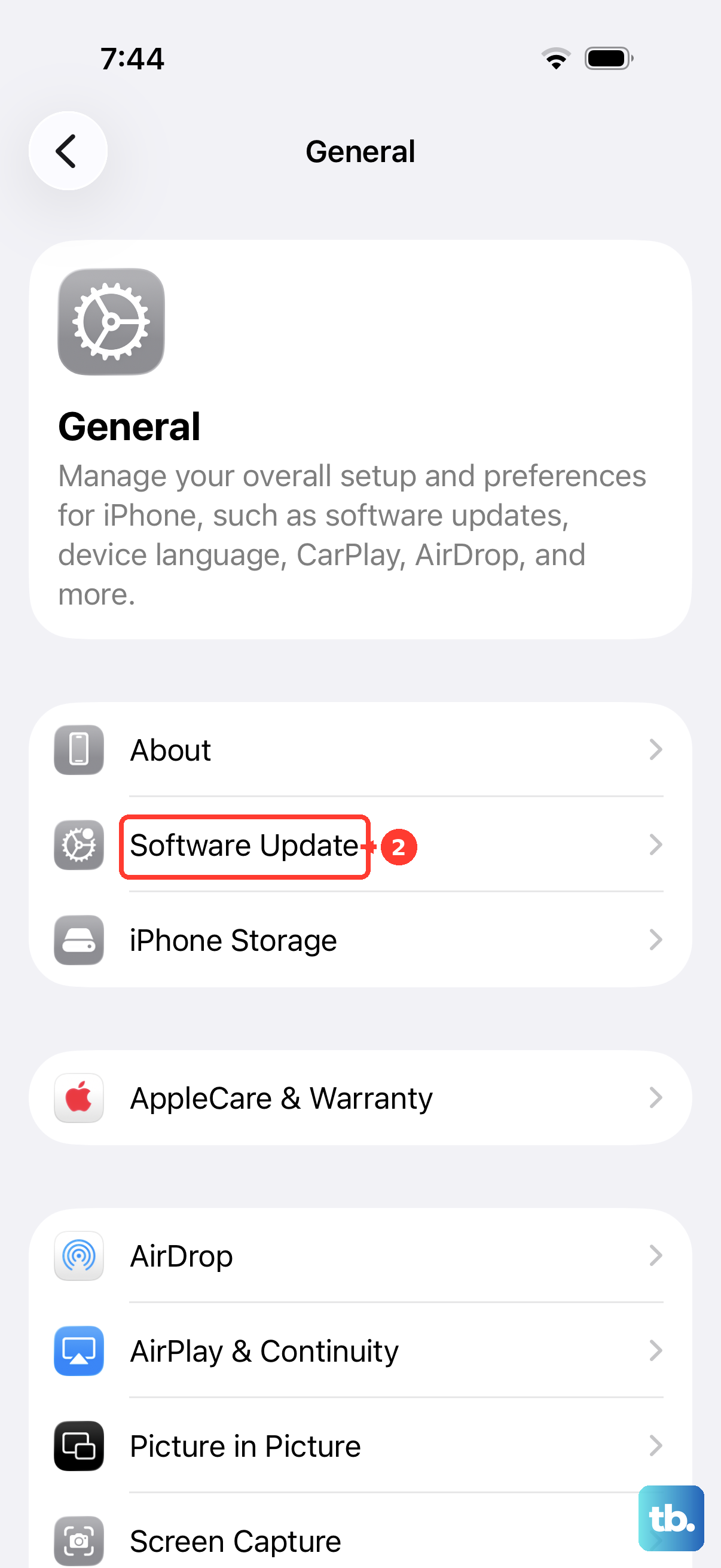
Back up your iPhone, then connect it to power and Wi-Fi. Open Settings > General > Software Update and tap Download and Install when an update is offered. Install the latest release available for your iPhone model.
For a US-market Tucson, open Hyundai’s software download site and use Search by VIN or Search by Vehicle Type to find the exact vehicle and infotainment package. For other markets, use the corresponding regional Hyundai site. Follow the preparation procedure for your package, since navigation and Display Audio updates use different instructions.
For listed navigation systems, use Hyundai’s Navigation Updater to download the matching package to the required media. Gen5W and ccNC use USB; insert it, then open Setup > General > SW Info/Update > Update. On ccNC, the section may be labeled Software Info/Update.
For an older Standard Gen5 system, prepare the matching update on SD media. Insert it, then open All Menus > Setup > General > SW Info/Update > Update.
For eligible Display Audio systems, download the exact vehicle package and follow the matching Display Audio update procedure. The two-package Gen2V procedure requires both ZIP files unchanged on an empty USB drive of at least 4 GB. The separate DAUDIO-folder procedure requires extraction, so follow only the preparation instructions matching your package.
Insert the prepared USB, then open All menus > Setup > General > SW Info/Update > Update and select Yes. Keep the vehicle running in a safely ventilated location and leave the USB inserted until completion.
Fix an app that fails after CarPlay connects
When CarPlay opens but one app freezes, restart that app on the iPhone. Swipe up from the bottom to access recent apps, or double-click the Home button on a Home-button model, then swipe the affected app’s preview upward. Reopen it and retry CarPlay.
Next, open App Store, select your profile icon, and open App Updates to install the affected app’s available update. Contact its developer if it still fails. For online app malfunctions on ccNC during weak cellular reception, retry where reception is better.
Get help for persistent vehicle faults
Contact an authorized Hyundai dealer if restarting and updating do not resolve the infotainment fault. If the unit will not power on, Hyundai directs you to a service shop for a correctly rated fuse replacement.
Frequently Asked Questions
Why does CarPlay display correctly but have no sound?
On Tucson Display Audio systems, ensure the system is powered on, unmute with the steering-wheel Mute button, and raise the volume while the affected audio is playing. On ccNC systems with the matching sound menu, open Setup > Sound > Connected Devices > Apple CarPlay and adjust the affected function’s volume.
How do you restore an app missing from the CarPlay screen?
On iPhone versions with the Customize menu, open Settings > General > CarPlay, select your vehicle, and open Customize. Use the Add button beside the supported app, then reconnect CarPlay. Only CarPlay-compatible apps can appear.
How can you turn message announcements back on?
On iOS 27, open Settings > Announce Messages on your iPhone and turn on Announce Notifications. On earlier versions from iOS 15 with these announcement settings, open Settings > Notifications > Announce Notifications > CarPlay and turn on Announce Messages. You can also open Settings > Announce Messages inside CarPlay and turn on Announce Messages there.
Can the steering wheel start first-time wireless pairing?
On wireless Display Audio Gen2V systems, press and hold the steering-wheel Voice recognition button to start first-time iPhone pairing. Then complete the Phone Projection pairing procedure. Hyundai describes this shortcut specifically for first-time pairing.
Can a Tucson install an infotainment update wirelessly?
An OTA-equipped ccNC Tucson with the required Bluelink service and network connection can download an update wirelessly. Check download progress under Setup > General > Software Info/Update. Hyundai says the update can begin automatically after the download; if an update notification appears when you turn the vehicle off, select Update Now. Do not drive until installation finishes. If the installed software is too old for OTA updates, Hyundai directs you to update by USB first.