You tap Speaker during a call and still hear nothing, or the audio stays stuck in the earpiece, earbuds, or car. On Android, the usual causes are call routing, low in-call volume, Bluetooth, Wi-Fi Calling, a blocked opening, app permissions, software, or hardware. Start with the fast call-screen checks, then move through the slower settings and reset options only when needed.
Start with the call audio button
This fixes calls that are still using the earpiece or a connected Bluetooth device instead of speakerphone.
Place or answer a call, then look at the active call screen. Tap Speaker once to switch call audio to the speakerphone. If the audio still sounds wrong, tap Speaker again to turn it off. Tap Speaker one more time to route the call back through the speakerphone.
Raise the in-call volume while the call is active
Use this when the speaker works but the caller sounds extremely quiet. Android call volume is adjusted during the call.
Stay on the call and press the Volume up button on the side of the phone. Keep raising the volume until the call audio reaches a normal level. On Samsung Galaxy phones, use the side Volume buttons during the active call to adjust call volume.
Cut off unwanted Bluetooth routing
Swipe down from the top of the screen to open Quick Settings. Tap Bluetooth to turn Bluetooth off, then test the call again.
To disconnect only one accessory, swipe down from the top and touch and hold Bluetooth. Next to the listed device, tap Settings. Then tap Disconnect.
When earbuds, a car, or a speaker keeps taking call audio, open the same device settings and tap Forget. If you still want to use a Bluetooth car or headset for calls, open Settings and tap Connected devices. Tap the accessory Settings and turn on Phone audio.
Audio switch only shows up for audio-switch-enabled headphones connected through Fast Pair on Android 8 and above with Google Play services, and every device has to be signed in to and synced with the same Google Account. If your headphones do not meet that, use the Bluetooth steps above instead.
For Fast Pair headphones that jump between devices, open Settings and tap Connected devices. Tap the headphone Settings, tap Audio switch, and turn Use audio switch off. If speakerphone starts working the moment Bluetooth is off, the phone speaker is not the broken part.
Try the other call connection path
This fixes call audio that drops, goes silent, or becomes unclear because call quality changes between Wi-Fi and cellular service.
When Wi-Fi is on, turn Wi-Fi off, then make the call again. When Wi-Fi is off, turn Wi-Fi on, then place another test call.
On Samsung Galaxy phones, open Settings. Tap Connections. Tap Wi-Fi Calling. Turn the switch off.
On Samsung phones that show it in Quick Settings, swipe down from the top of the screen with two fingers. Tap the Wi-Fi Calling icon to turn it off.
Remove anything blocking the speaker or receiver
A case, screen protector, film, or cover can block the receiver or speaker opening enough to make a call sound broken. Remove the case and any screen protector or film, inspect the speaker and receiver area, then test another call.
Check the speakers, microphones, and USB-C port. When you see dirt or debris, gently clean the area with a soft, lint-free cloth.
Unplug wired headphones or disconnect wireless headphones, then test the call without them. If headphone audio is still part of the problem, try a different pair.
On Pixel phones, normal calls held to your ear use the top receiver speaker. The bottom speaker makes noise during a call only when Speaker is turned on.
If the audio still fails after the openings are clear, restart the phone and test the same call again.
Restart the phone and close stuck apps
The most common software cause is a temporary audio or app state that survives until you restart or clear recent apps.
On Pixel 5a and earlier, press the Power button for about 30 seconds, or until the phone restarts. On Pixel 6 and later, including Pixel Fold, press and hold Power and Volume up for a few seconds. Tap Restart.
On Samsung Galaxy phones, press and hold Volume down and the Side or Power button at the same time. Tap Restart, then tap Restart again.
When a Samsung phone is frozen, press and hold Volume down and the Side or Power button together until the device turns off and turns back on.
After the restart, swipe up from the bottom, hold, and let go. Swipe from left to right. Tap Clear all.
Update Android and the calling app
Open Settings. Tap System. Tap Software updates. Follow the on-screen instructions.
On Samsung Galaxy phones, open Settings. Tap Software update or System updates. The label varies between models.
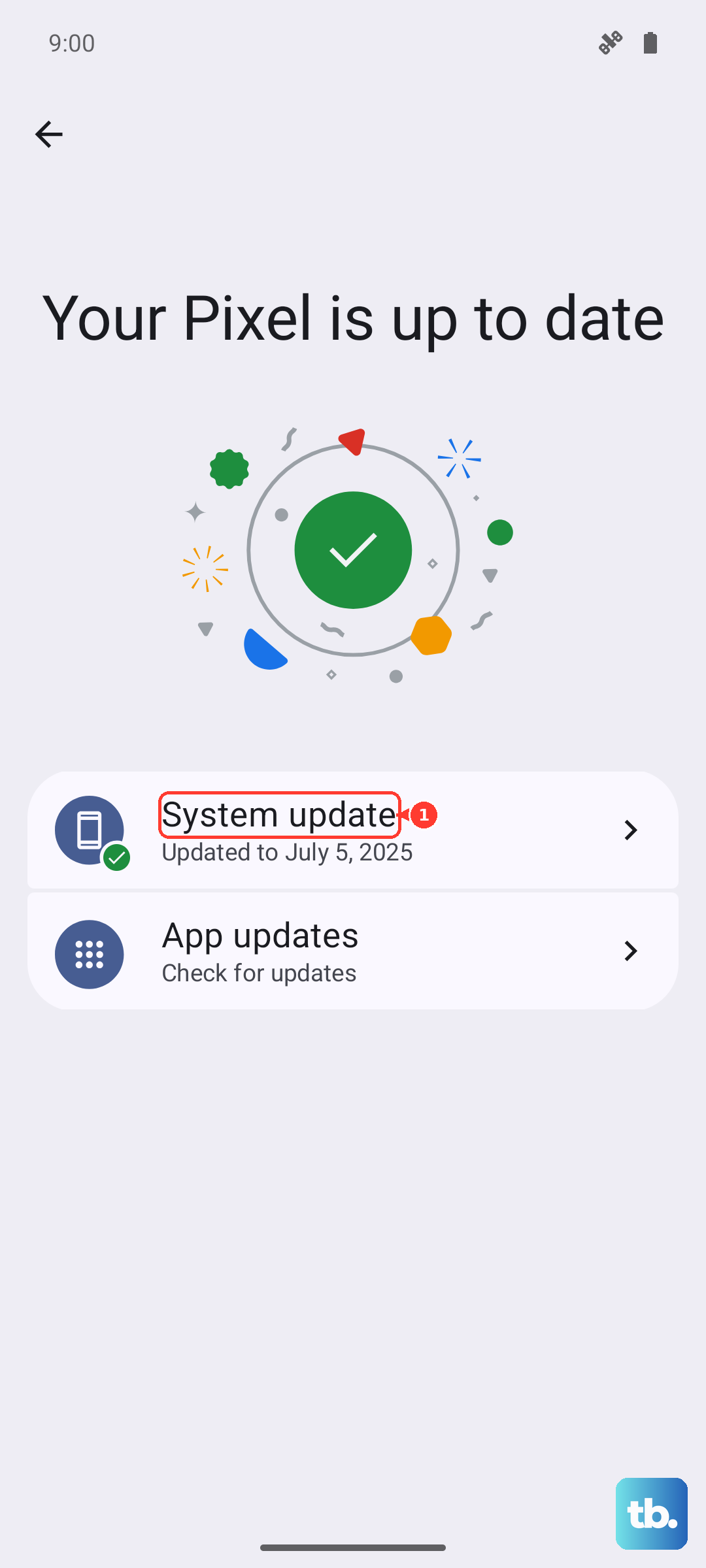
Tap Download and install, Check for system updates, or Check for software updates, depending on your carrier. Follow the on-screen instructions.
Update the Phone app or calling app by opening Google Play Store. Tap the profile icon. Tap Manage apps & device.
Under Updates available, tap See details. Next to the app, tap Update, or tap Update all.
To keep the calling app current, open the app's Google Play details page. Tap More. Turn on Enable auto update. After updating, make one test call before changing more settings.
Fix microphone and app permission problems
Sometimes speakerphone seems broken because the other person cannot hear you after you switch to speaker. That points to microphone access, especially in calling apps such as Meet, Skype, WhatsApp, Zoom, Teams, and carrier or VoIP apps.
Open Settings, tap Apps, tap the calling app, tap Permissions, tap Microphone, and choose Allow.
Turn system microphone access back on by opening Settings, tapping Security and privacy, tapping Privacy, tapping Privacy controls, and turning on Microphone access.
On Android 12 and later, use Privacy dashboard by opening Settings, tapping Security and Privacy or Privacy, tapping Privacy dashboard, selecting Microphone, tapping the calling app, and updating the permission. You may need to tap Privacy again to find the dashboard. On older Android versions, use the per-app Permissions steps above instead.
If one calling app still fails, remove it by opening Google Play Store, tapping the profile icon, tapping Manage apps & devices, tapping Manage, selecting the app, and tapping Uninstall. Reinstall it afterward from Google Play.
If permissions do not solve it, test the regular Phone app and then move to Safe mode or diagnostics.
Use diagnostics, resets, and support as the last steps
Use this when the speaker still fails after routing, volume, Bluetooth, Wi-Fi, cleaning, restart, and updates. These steps are slower because they change settings, test hardware, or erase data.
On Samsung Galaxy phones, open Samsung Members, tap Diagnostics on the Discover tab, tap Phone diagnostics, then test Speaker, Mic, or Test all. If Samsung Members is not installed, get it from the Galaxy Store or Play Store. The available tests vary by model.
To check whether a third-party app is interfering on Samsung, open the power menu, touch and hold Power off, then tap Safe mode. In Safe mode, remove apps that were installed or updated when the problem started, then restart to exit.
For Samsung Bluetooth routing problems, open Settings, tap General management, tap Reset, tap Reset Wi-Fi and Bluetooth settings, review the information, and tap Reset settings. Reconnect Wi-Fi and Bluetooth accessories afterward.
For Samsung accessibility audio changes, open Settings, tap General management, tap Reset, tap Reset accessibility settings, review the information, tap Reset settings, and tap Reset to confirm. This erases accessibility preferences such as TalkBack and spoken assistance settings.
Before a factory reset, back up Android data by opening Settings, tapping Google, tapping All services, tapping Backup under Backup and restore, and tapping Back up now.
Use a factory reset only after the simpler fixes fail, because it erases phone data. On Samsung, open Settings, tap General management, tap Reset, tap Factory data reset, review the information, tap Reset, and tap Delete all.
For work or managed phones, ask your IT admin to confirm that microphone use, volume adjustment, and microphone permissions are allowed. Managed policies can block microphone access or volume controls.
If diagnostics point to a speaker or mic hardware failure, or every software step here fails, contact Pixel support or Samsung Support, or visit a Samsung service center.
Frequently Asked Questions
Why is my Android phone speaker not working only during calls?
Call audio is usually being routed to the earpiece, Bluetooth earbuds, a car, or a speaker. It can also be caused by low in-call volume, Wi-Fi Calling or connection quality, a blocked speaker or receiver, app permissions, or hardware.
Why can I hear media but not phone calls on speaker?
Media audio and call audio can use different routes. During a call, tap Speaker, turn off Bluetooth, raise the in-call volume with the side buttons, and check Wi-Fi or Wi-Fi Calling before assuming the speaker is broken.
Why can the other person not hear me on speakerphone?
That is usually a microphone issue, not a speaker issue. Allow microphone permission for the calling app and make sure system-wide Microphone access is turned on.
Can I make every Android call start on speakerphone?
No current vendor-supported setting was found for making every Google Phone call start on speakerphone. The supported method is to tap Speaker during an active call.