An iPad that will not turn off leaves you stuck in a frozen app or dragging a power-off slider that does nothing. The right fix depends on whether the screen still responds. Start with the shutdown controls below, or jump straight to the force restart if touch has stopped working completely.
Try the shutdown buttons for your iPad
This opens the shutdown slider when your buttons and touchscreen work.
On an iPad without a Home button, hold the top button together with either volume button until the power-off slider appears.
On an iPad with a Home button, hold only the top button until the power-off slider appears.
Drag the power-off slider.
Wait 30 seconds for the iPad to shut down.
Use Settings when the screen still responds
Working touch gives you a shutdown route without physical buttons. Open Settings > General, scroll to the bottom, and tap Shut Down. Drag the power-off slider to turn off the iPad.
On iPadOS 18 and later, you also have a power control in Control Center. Swipe down from the upper-right corner of the screen. Press and hold the Power button at the upper right, then release it.
Drag the power-off slider and wait 30 seconds. Both routes require a responsive interface; if you cannot open the controls or move the slider, use the force restart below.
Force restart a frozen iPad
For an iPad without a Home button, quickly press and release the volume button nearest the top button.
Quickly press and release the volume button farther from the top button.
Hold the top button until the Apple logo appears.
For an iPad with a Home button, use this sequence instead: hold the Home button and top button together until the Apple logo appears.
After startup, open Settings > General > Shut Down.
Drag the power-off slider.
A force restart starts the iPad again, so finish with a normal shutdown when you want it to stay off.
Clear anything interfering with touch or buttons
These checks address blocked buttons and touch problems that prevent you from using the shutdown slider.
Remove the case, including any part obstructing a button.
Remove any protective film obstructing a button.
Clean dirt from around the buttons with a soft cloth.
Clear water and debris from the display.
Disconnect Lightning or USB-C accessories.
If touch starts working again, try a different cable, charger, or outlet.
Remove the screen protector if touch is still unreliable.
Retry the shutdown method for your iPad once the controls respond.
Arrange repair if a button remains damaged or works only intermittently.
Exit accessibility modes that limit the controls
Guided Access can disable touch and hardware buttons during a session. On iPadOS 26, triple-click the top button, or the Home button on a Home-button iPad. Authenticate with the Guided Access passcode, Face ID, or Touch ID.
Select Guided Access if an accessibility chooser appears. Tap End. Retry normal shutdown.
Assistive Access has a separate exit: triple-click the Home button on an iPad that has one, or the top button on other models. Choose Exit Assistive Access and enter its passcode. You can then open Settings > General > Shut Down and drag the power-off slider.
If you forgot that passcode and previously configured a recovery Apple Account, select Forgot Assistive Access passcode? after choosing Exit Assistive Access. Enter the recovery account credentials. Tap OK to regain access to ordinary Settings.
Address repeated freezes after the iPad responds
These follow-up steps address recurring app faults and slowdowns after the iPad responds again.
If only one app has stopped responding, open the app-switching view by swiping up from the bottom or double-clicking the Home button.
Swipe the affected app’s preview upward to close it; there is no need to routinely close every app.
For an app linked to repeated freezes, open App Store.
Tap My Account or your profile photo.
Open App Updates.
Select Update beside the affected app.
If slowdowns affect the whole device, open Settings > General > iPad Storage; Apple recommends keeping at least 1 GB available to avoid slowdowns.
Free space using a storage recommendation or by selecting an app to offload or delete; offloading preserves its documents and data, while deletion removes its associated data.
Back up your iPad before updating iPadOS.
Connect the iPad to power.
Connect it to Wi-Fi.
Open Settings > General > Software Update.
Select Download and Install for the update offered to your model.
If the iPad stays stuck during startup after restart attempts, connect it to a computer by USB.
Open Finder on macOS Catalina or later, or Apple Devices on Windows.
On an iPad without a Home button, quickly press and release the volume button nearest the top button.
Quickly press and release the farther volume button.
Hold the top button past the Apple logo until the recovery screen appears.
On an iPad with a Home button, begin the recovery sequence instead by holding Home and the top button together until the screen turns off.
Release the top button while continuing to hold Home until the recovery screen appears.
Choose Update when the computer offers recovery options.
If a download takes more than 15 minutes and the iPad exits recovery mode, let the download finish.
Repeat the recovery button sequence for your model.
If Update fails, choose Restore; this erases all data on the iPad.
Set up the iPad after restoration finishes.
If recovery cannot complete or broken buttons prevent recovery mode, follow Get service on Apple’s recovery troubleshooting page.
Frequently Asked Questions
What if I only want the iPad screen to turn off?
Press the top button once to lock the iPad and turn off its display. For automatic screen sleep, open Settings > Display & Brightness > Auto-Lock and choose a finite duration. Neither action completely powers off the iPad.
Can AssistiveTouch restart my iPad when the top button is broken?
Yes, while iPadOS responds. Open Settings > Accessibility > Touch > AssistiveTouch. Enable AssistiveTouch. Open Customize Top Level Menu and assign Restart to a menu icon. Open the floating menu, select Restart, and complete any confirmation shown. This restarts the iPad rather than leaving it off.
How do I turn the iPad back on after shutting it down?
Hold the top button until the Apple logo appears.
Should I reset all settings if my iPad will not turn off?
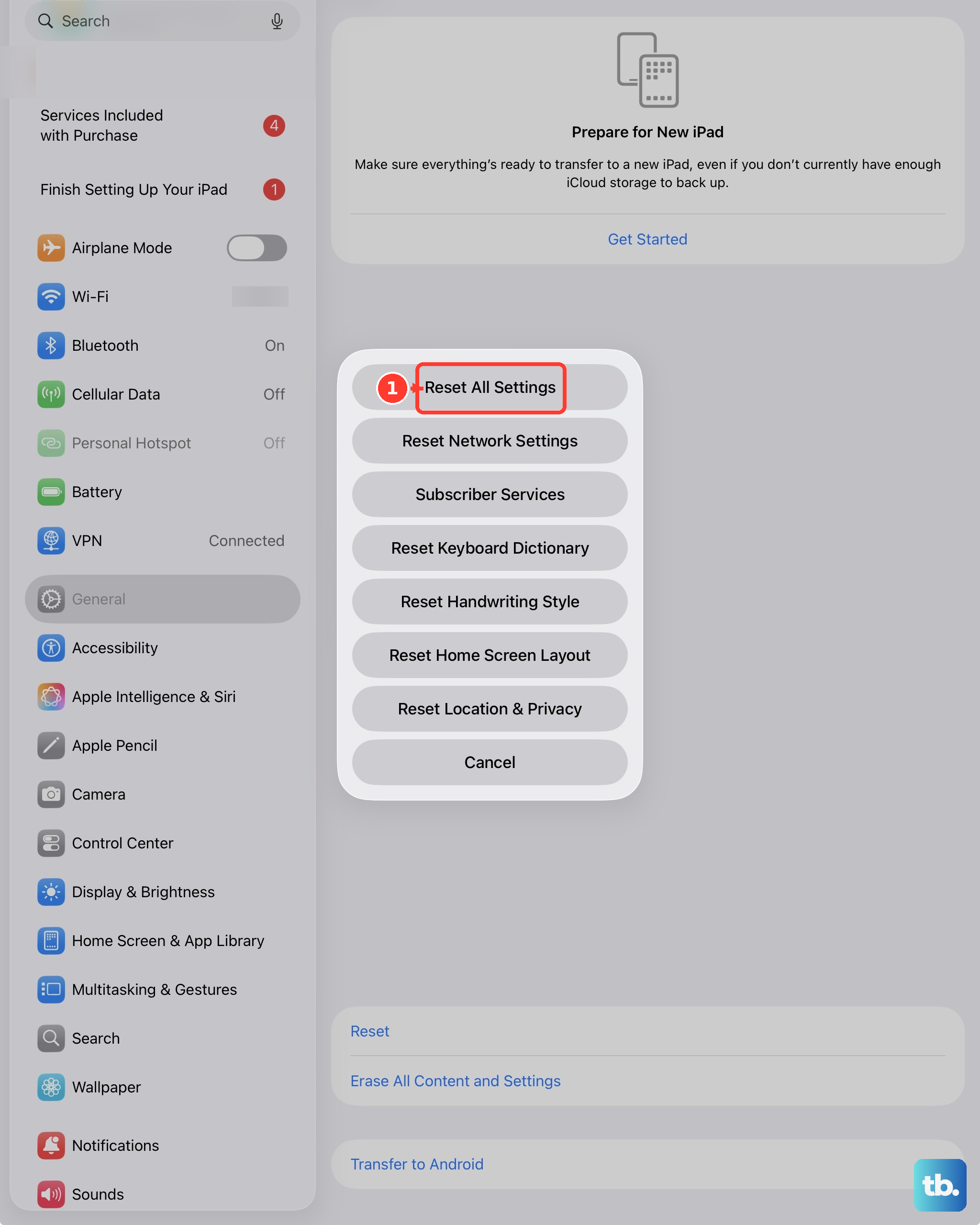
Keep this as optional later troubleshooting after simpler fixes. Apple does not identify Reset All Settings as a specific cure for shutdown failure. It resets preferences, networks, privacy settings, and Apple Pay cards without deleting media or other content. To use it while Settings responds, back up first, then open Settings > General > Transfer or Reset iPad > Reset > Reset All Settings.