


To fix an Intel Wi-Fi 6 AX201 adapter that isn’t working, enable its wireless controls, run Windows network diagnostics, and update or reinstall the computer manufacturer’s wireless driver. Choose the fixes that match a disabled adapter, a device error, or a connection that keeps dropping. The Windows troubleshooting steps below use Windows 11 menus.
The short version
- Check wireless controls: Turn on Wi-Fi, turn off Airplane mode, and check your laptop’s physical wireless switch.
- Run diagnostics: Open Get Help, search for
connect to network and internet, and select Run network diagnostics. - Prioritize the manufacturer’s driver: Install the wireless package for your exact computer model before trying Intel’s generic package.
- Prepare before uninstalling: Save a replacement driver before removing the AX201 device or its driver.
- Save network reset for later: It resets network adapters and configuration, and VPN software may need reinstallation.
| Fix | When to use it |
|---|---|
| Turn on wireless connectivity | Windows detects the adapter but wireless connectivity is off |
| Disable airplane mode | Airplane mode is enabled |
| Check the physical wireless switch | Your laptop has a hardware radio control |
| Enable the adapter | The AX201 is disabled in Windows |
| Cold reboot | Device errors such as Code 10 or Code 43 |
| Run network diagnostics | Windows cannot connect |
| Restart the wireless configuration service | Wireless connectivity still fails |
| Try another network | You need to isolate a router-specific failure |
| Improve signal and bypass an extender | Connections are weak, slow, or intermittent |
| Forget the saved network | A saved connection profile is damaged |
| Install Windows and optional driver updates | Applicable updates are offered |
| Install the manufacturer’s wireless driver | You need a driver for your exact computer model |
| Install extracted driver files manually | The manufacturer supplies a folder of driver files |
| Install Intel’s wireless driver | The manufacturer’s package has not resolved the problem |
| Roll back the driver | Failure began after an update and a previous driver remains |
| Reinstall the adapter | Windows needs to redetect the device |
| Clean reinstall the driver | You need to remove the installed driver package |
| Restore automatic IP configuration | Incorrect static addressing affects a functioning adapter |
| Restore recommended wireless settings | Your driver exposes advanced wireless properties |
| Reset networking | Earlier networking fixes fail |
| Get firmware troubleshooting instructions | Device errors persist after driver troubleshooting |
| Contact the manufacturer for service | The adapter remains unavailable or errors persist |
Turn on wireless controls and enable the adapter
On Windows 11, open Settings > Network & Internet > Airplane mode and turn it off. If your laptop has a physical wireless switch, turn it on too. Check the model’s manual for its location or keyboard equivalent, because software cannot override a hardware-disabled radio.
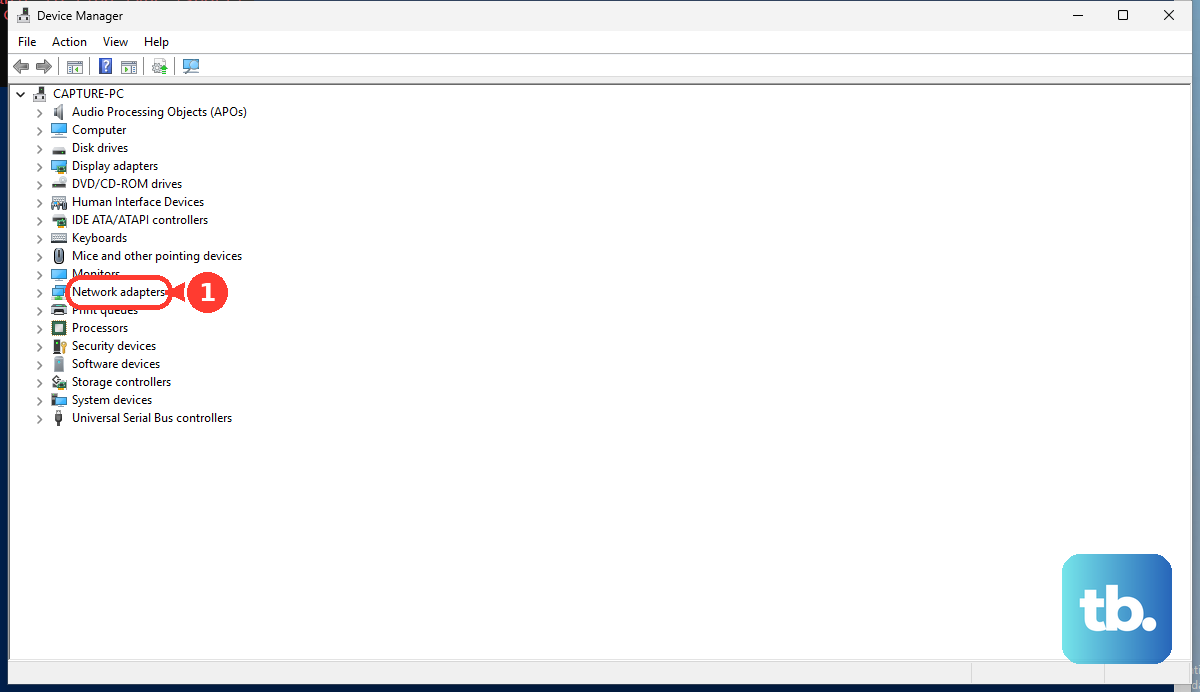
When Windows detects the AX201, select the taskbar’s Network, Sound, or Battery area and turn on Wi-Fi. Open the available-network list, select your network, choose Connect, and enter its password. If the adapter is disabled, open Device Manager, expand Network adapters, right-click the AX201, and select Enable device.
Cold reboot and run network diagnostics
For an adapter showing an error such as Code 10 or Code 43, fully shut down the computer. Disconnect external power and disconnect the battery only when it is removable under the manufacturer’s instructions. Reconnect power and start the computer.
Next, open Get Help and search for connect to network and internet. Select Run network diagnostics and follow the diagnostic results. Microsoft has retired or redirected the older MSDT troubleshooters, so use this current network diagnostic route.
You can also restart the wireless configuration service, which may require administrator access. Press Windows + R and run this command:
services.mscFind WLAN AutoConfig, right-click it, and select Restart. If the connection still fails, compare its behavior on another network.
Check whether the problem follows your network
Connect the computer to another available network or router and compare its behavior. If the failure follows one router, have its configuration checked by the router manufacturer or your internet provider. This comparison helps separate an adapter problem from a problem with a particular access point.
For intermittent connectivity or low speeds, improve a weak Wi-Fi signal by moving nearer the access point and reducing obstructions. Temporarily connect directly to the main router instead of through a wireless extender.
Forgetting a network removes its saved profile, so have its password ready to reconnect. To remove a damaged profile on Windows 11, open Settings > Network & internet > Wi-Fi > Manage known networks, select your network, and choose Forget. Reconnect to that network using its password.
Install Windows updates and the correct wireless driver
On Windows 11, open Settings > Windows Update and select Check for updates. For optional drivers on Windows 11, continue to Advanced options > Optional updates. Select an applicable Intel wireless driver offered for your computer, choose Download and install, and restart afterward.
Optional drivers appear only when offered for your computer, and their displayed names vary by package. If no applicable wireless update is offered, find your exact computer or motherboard model on its manufacturer’s support site. Download its wireless driver and install it using the model-specific instructions. Intel recommends trying the manufacturer’s driver before its generic package.
For a manufacturer package that supplies driver files instead of only an installer, download and extract the package. Open Device Manager > Network adapters, right-click the AX201, and select Update driver, then select Browse my computer for drivers. Choose Browse..., select the extracted folder, and select OK > Next > Close.
If the manufacturer’s package does not resolve the problem, get the compatible package from the Intel wireless driver download page. The AX201 package supports Windows 11 and Windows 10 64-bit. Download the installer and, if accepting the displayed agreement, select I accept the terms in the license agreement. Run the downloaded installer.
Roll back or reinstall the AX201 driver
Rolling back replaces the installed driver with the retained previous version, making it an option when the failure began immediately after an update. With administrator access, open Device Manager > Network adapters, right-click the AX201, and choose Properties > Driver > Roll Back Driver. Choose the applicable reason, select Yes, and restart if requested. If Windows has not retained a previous driver, continue with reinstallation.
Uninstalling removes the device from Windows, so keep a downloaded replacement driver available before proceeding. In Device Manager > Network adapters, right-click the AX201, select Uninstall device, then select Uninstall. Restart Windows so it can attempt to reinstall the device driver.
A clean reinstall also attempts to remove the installed driver package, so save the replacement package first, using another computer if necessary. In Device Manager > Network adapters, right-click the AX201, choose Uninstall device, check Attempt to remove the driver for this device, and select Uninstall. Restart and install the saved package.
The older removal checkbox reads Delete the driver software for this device. Removing further old packages deletes those driver packages, so keep the replacement package saved before repeating the removal. Remove further old packages only while that removal option remains available; Windows inbox drivers may remain. Use the current Wi-Fi driver package in place of the retired Intel PROSet/Wireless repair and diagnostic utilities.
Correct addressing and advanced wireless settings
If the adapter works but incorrect static addressing prevents a connection, restore automatic IP configuration unless your network requires specific addresses. On Windows 11, open Settings > Network & internet > Wi-Fi > Manage known networks and select your network. Beside IP assignment, select Edit; under Edit IP settings, choose Automatic (DHCP), then select Save.
To review the adapter’s advanced configuration, open Device Manager > Network adapters, open the AX201’s Properties, and select Advanced. For properties your driver exposes, Intel recommends Channel Width for 5GHz at Auto, Roaming Aggressiveness at Medium, and Throughput Booster at Disabled. Set Transmit Power to Highest and 802.11n/ac/ax Wireless Mode to 802.11ax. If your driver does not expose a listed property, continue with the other applicable fixes.
Reset networking after the earlier fixes fail
Network reset resets network adapters and their configuration, and VPN software may require reinstallation. On Windows 11, open Settings > Network & internet > Advanced network settings > Network reset. Select Reset now, select Yes, and allow the computer to restart.
Reserve this reset for a connection that remains broken after the earlier networking fixes. If the AX201 still reports a persistent device error, move to manufacturer support for model-specific troubleshooting.
Get model specific help for persistent errors
For persistent AX201 errors, get your computer or motherboard manufacturer’s BIOS update instructions and help checking that the Bluetooth component is enabled. Exact firmware labels and confirmation prompts depend on the model. Follow the manufacturer’s instructions for your specific hardware.
Contact the computer manufacturer if the adapter remains unavailable or device errors persist through troubleshooting. Provide the adapter error and the remedies you have already attempted. Get model-specific service instructions before any internal repair or replacement.
Frequently Asked Questions
Should you turn off power saving for the AX201?
Intel recommends retaining the default wireless power settings, and recent Windows versions may hide those controls. Where the device power checkbox is present, Microsoft suggests testing it unchecked, but Intel recommends leaving it checked because it affects suspend and hibernation behavior. Treat this as a conditional sleep-related test rather than a general AX201 fix.
Can Intel Driver & Support Assistant find a wireless update?
Yes, Intel Driver & Support Assistant provides hardware detection and driver-update assistance for supported Intel hardware on Windows 11 and Windows 10. With it installed and a working connection, select its tray icon, choose Check for new drivers, and inspect Available Updates in the browser dashboard. Download and install the wireless update offered for your hardware.
What should you use for an AX201 adapter on Linux?
Use your distribution’s supported kernel and firmware packages for iwlwifi. AX201 support starts with kernel 5.2, and the firmware package is linux-firmware or the distribution’s equivalent. Windows driver installers do not apply to Linux.
Can an ASUS computer run its own wireless diagnostic?
On a supported ASUS computer with ASUS System Control Interface, open MyASUS and its System Diagnosis feature. Under Diagnosis by scenario, choose Wireless connectivity problems, or choose Customized diagnosis and select Wi-Fi. Select Checkup, then Result, and follow the identified remedy or repair route. Diagnostic features vary by model.