

To fix an Apple TV remote that won’t charge, connect the correct USB-C or Lightning cable to a USB wall charger, leave it charging for 30 minutes, then check its battery level. If the battery level rises but the remote still does not respond, restart and pair the remote again. A remote that remains unable to charge may need professional service or replacement.
The short version
- Match the cable: Remote generations 3 and 4 use USB-C, while generations 1 and 2 use Lightning.
- Allow enough time: Give an unresponsive remote 30 minutes on a wall charger, with about three hours needed for a full charge.
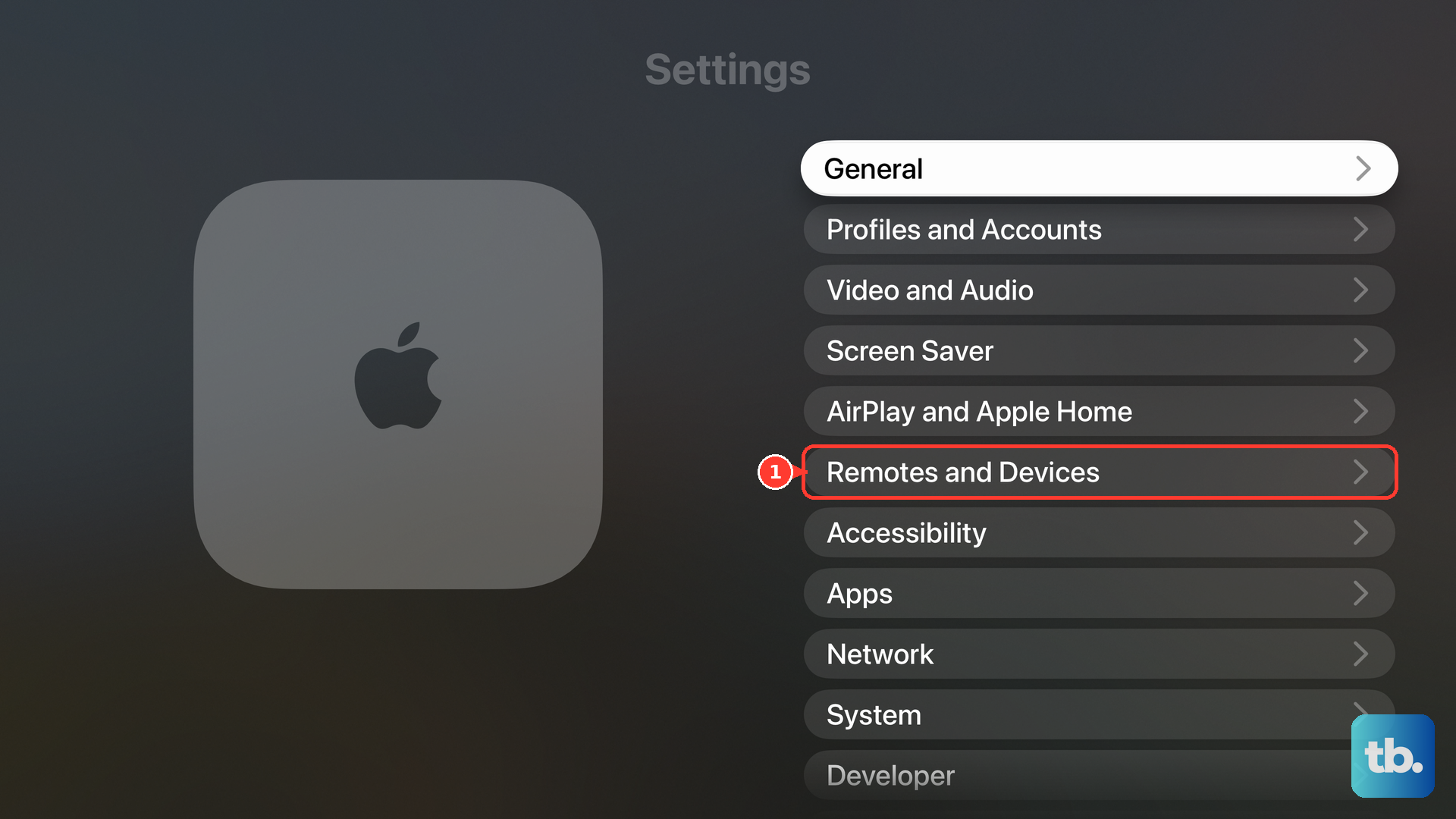
- Check the battery: On Apple TV 4K, open Settings > Remotes and Devices > Remote to compare the battery level before and after charging.
- Separate charging from connection trouble: Restarting and pairing are the next steps when the battery charges but the remote cannot control Apple TV.
| Fix or option | When to use it | What to do |
|---|---|---|
| Identify the remote | Before choosing a cable | Match USB-C or Lightning to the generation |
| Initial wall charge | Remote is unresponsive | Charge for 30 minutes |
| Full charging period | Battery needs a full charge | Allow about three hours using supported power |
| Accessory check | Charging fails | Check the connection and accessory condition |
| Lightning connector cleaning | Lightning connector is dirty | Disconnect and wipe with a dry cloth |
| Control Center remote | Physical remote cannot open settings | Use your iPhone or iPad on the same Wi-Fi network |
| Battery level comparison | You need to confirm charging | Compare Battery Level before and after charging |
| Remote restart | Remote has power but does not respond | Hold TV/Control Center and Volume Down |
| Pairing | Remote does not reconnect | Pair nearby and power-cycle Apple TV if pairing fails |
| Bluetooth reception | Connection remains unreliable | Check Bluetooth RSSI on tvOS 18.0 or later |
| Apple TV restart | Apple TV 4K itself is unresponsive | Restart the TV box |
| Software update | Remote compatibility needs attention | Install the update offered for your Apple TV |
| Apple TV Remote app | You use iOS 27 or iPadOS 27 | Download Apple’s app for temporary control |
| Apple Watch remote | Compatible watch is already paired | Open Remote and choose Apple TV |
| TV or receiver remote | Your equipment supports HDMI-CEC | Control Apple TV through its HDMI connection |
| Universal infrared remote | You have a compatible replacement controller | Set it up with Learn Remote |
| Network home-control remote | You have a supported Apple Home-compatible remote | Add it through Home |
| Hands-free Siri AI | You have Apple TV 4K with A19 and built-in microphones | Use voice control for viewing after setup |
| Professional service | Charging still fails | Arrange battery service or repair |
| Replacement Siri Remote | You need another physical remote | Check compatibility, update Apple TV, and pair |
Match the charging cable to your remote
Check which rechargeable remote you have before connecting a cable. Third-generation and fourth-generation Siri Remotes and Apple TV Remotes use USB-C, while first-generation and second-generation models use Lightning. For a first-generation or second-generation remote, use an Apple Lightning cable or a third-party Made for iPhone Lightning cable.
Give the remote time to charge
For first-generation through third-generation remotes, do not charge with damaged accessories or when moisture is present. Connect the matching cable to the charging port on the bottom of the remote, then fully insert the other end into the USB wall charger before plugging the charger into the outlet. Leave an unresponsive remote charging for 30 minutes before continuing with troubleshooting.
A full charge takes about three hours, so allow more time if the battery level is rising after the initial charge. Apple supports charging through an Apple USB or USB-C power adapter, or a computer’s USB or USB-C port. If the remote still cannot control Apple TV, use a working controller to check the battery reading before moving to connection fixes.
Check the connection and Lightning connector
If charging still fails on a first-generation through third-generation remote, check that the cable is fully inserted into the power adapter before plugging the adapter into the outlet. Check the accessories for damage and moisture, and stop charging if either is present.
If a Lightning cable connector is dirty and the cable will not charge your remote, disconnect the cable from its computer or power adapter. Wipe the connector with a soft, dry, lint-free cloth, without applying liquids or cleaning products. This cleaning step applies to the Lightning cable connector used with first-generation and second-generation remotes.
Use your iPhone to check the battery level
You can use an iPhone or iPad to reach Apple TV settings while the physical remote is unresponsive. Connect the iPhone or iPad and your Apple TV HD or Apple TV 4K to the same Wi-Fi network. Open Control Center, tap Apple TV Remote, select your Apple TV, and enter the displayed four-digit passcode if requested.
If the control is missing on current iOS or iPadOS, open Control Center > Add Controls > Add a Control, search for Remote, then tap Remote. On iOS 27 or iPadOS 27, you can also download Apple TV Remote by Apple from the App Store and open it from the Home Screen or App Library.
On Apple TV 4K, open Settings > Remotes and Devices > Remote and read Battery Level. Charge the physical remote, then return to the same screen and compare the reading. If the level increases but the remote remains unresponsive, continue with restarting and pairing. If it stays unable to charge after the charging and connector checks, move to professional service.
Restart and pair a charged remote
When the battery charges but the remote remains unresponsive, restart the remote using these steps, which require enough battery power to respond. Hold TV/Control Center and Volume Down together for about five seconds, until the Apple TV light turns off and back on. Release the buttons, wait five to ten seconds, then press TV/Control Center.
If the Remote Connected message does not appear, pair the remote again. Point it at Apple TV from about three inches away, then hold Back and Volume Up for five seconds. On a remote with Menu instead of Back, hold Menu and Volume Up for five seconds. Place the remote on Apple TV if prompted.
If pairing fails, unplug Apple TV, wait six seconds, then reconnect its power and retry pairing. If the powered remote still has connection trouble, check reception and software compatibility next.
Check reception and Apple TV responsiveness
For connection trouble on tvOS 18.0 or later, open Settings > Remotes and Devices > Remote and inspect Bluetooth RSSI. If the reading is weak or absent, move within 20 feet of Apple TV and remove obstructions. This checks the remote’s connection rather than repairing its battery.
If Apple TV 4K itself is unresponsive, use a working controller to open Settings > System > Restart. Alternatively, disconnect Apple TV from its power outlet, wait five seconds, then reconnect it. With a working Siri Remote, you can also hold TV/Control Center and Back, or TV/Control Center and Menu, until the Apple TV status light flashes rapidly. These procedures restart the Apple TV box.
Update Apple TV for remote compatibility
Check software compatibility if you have a newer or replacement remote. A fourth-generation Siri Remote requires tvOS 26.6.1 or later. Updating Apple TV addresses compatibility, but it does not repair a defective charging circuit.
On Apple TV HD or Apple TV 4K, use a working controller to open Settings > System > Software Updates > Update Software. If an update is offered, select Download and Install. Keep power and the network connected until installation finishes. For future updates, turn on Automatically Update under Software Updates.
Use another controller while arranging a fix
If you have a compatible Apple Watch already paired with Apple TV 4K, open Remote on the watch and choose your Apple TV. Swipe to navigate and tap to select, including when opening troubleshooting settings. You can also control Apple TV 4K over its HDMI connection with the remote supplied with an HDMI-CEC-compatible TV or receiver. The CEC setup labels depend on the equipment manufacturer.
To set up a compatible universal infrared remote for Apple TV 4K, use a working controller to open Settings > Remotes and Devices > Learn Remote. Follow the displayed button-learning instructions. Some universal remotes instead accept an Apple TV configuration code supplied by their manufacturer.
For a supported Apple Home-compatible network remote with Apple TV 4K, turn on the remote and connect it to your network. Open Home on your iPhone or iPad, tap Add > Add Accessory, and complete setup. Scan or enter the remote’s eight-digit setup code when required.
If you have the Apple TV 4K with A19 and built-in far-field microphones, you can use hands-free Siri AI for viewing after setting it up with your iPhone or iPad. For example, say Siri, which TV shows are trending right now? Siri AI is available in English, and usage limits may apply. These controls let you keep using Apple TV while you address the physical remote’s charging problem.
Arrange service if charging still fails
If the remote still will not charge after the applicable charging and connector checks, arrange professional service. Open Apple’s service page, select Get started, and describe the charging problem. Apple then shows solutions you can try or helps you arrange a repair or replacement, and service options vary by location and parts availability.
You can also obtain a compatible replacement through Apple’s Siri Remote product page. The fourth-generation model uses USB-C, and its charging cable and power adapter are sold separately. It supports Apple TV HD and Apple TV 4K generations 1 through 4 with tvOS 26.6.1 or later, so update Apple TV as needed before following the pairing procedure.
Frequently Asked Questions
Can you use the Apple TV remote while it is charging?
Yes, you can keep using a rechargeable Siri Remote or Apple TV Remote while it charges. This applies to both USB-C and Lightning models.
Does AppleCare cover an Apple TV remote battery replacement?
Eligible AppleCare coverage includes remote battery replacement when battery capacity falls below 80%. Eligibility and service options depend on your coverage and location.
Where can you find your connected remote’s serial number?
Open Settings > Remotes and Devices > Remote on Apple TV. You can find the serial number there when your remote is connected.
Do the older aluminum and white Apple Remotes charge by USB?
The older aluminum and white Apple Remotes use replaceable coin batteries. If you have either model, the rechargeable Siri Remote charging steps apply to a different remote family.
What software do second and third generation Siri Remotes require?
A second-generation Siri Remote requires tvOS 14.5 or later. A third-generation Siri Remote requires tvOS 15.4 or later.