

To fix an Apple TV picture that looks too dark, turn off unwanted display dimming, check HDR output, and adjust your television’s brightness and power-saving controls. On Apple TV 4K and Apple TV HD, start with Light Sensitivity and Reduce White Point, since both can reduce the picture’s intensity. If you watch through the Apple TV app on a smart TV or another streaming device, start with your television’s picture controls, then use app troubleshooting if playback malfunctions.
The short version
- Check dimming: Turn off unwanted Light Sensitivity and Reduce White Point on Apple TV 4K or Apple TV HD.
- Check HDR: On Apple TV 4K, enable Match Dynamic Range, then compare SDR output if HDR still looks too dark.
- Adjust the television: Increase brightness and disable unwanted automatic or energy-saving dimming using your TV’s controls.
- Follow the symptom: Check HDMI equipment for signal problems, or reopen the affected app when other apps look normal.
| Fix | When to use it |
|---|---|
| Turn off Light Sensitivity | It dims your Apple TV 4K or HD picture |
| Turn off Reduce White Point | Bright colors look subdued on Apple TV 4K or HD |
| Turn off Color Filters | A filter alters colors on Apple TV 4K or HD |
| Select Light appearance | Only Apple TV 4K menus look too dark |
| Enable Match Dynamic Range | Apple TV 4K should match the content’s range |
| Compare SDR output | HDR presentation looks too dark on Apple TV 4K |
| Test Unverified Formats | Apple TV has not determined supported formats |
| Reduce room lighting | Glare makes dark HDR scenes harder to evaluate |
| Display Color Bars | You need a reference for TV picture adjustments |
| Increase Samsung Brightness | Your Samsung TV offers the matching controls |
| Change Samsung Picture Mode | You want a brighter available preset |
| Change LG picture mode | Your compatible LG TV needs a brighter preset |
| Adjust Sony brightness and contrast | Your Sony TV uses the matching menu layout |
| Disable Samsung Adaptive Picture | AI picture adjustments affect brightness |
| Disable Samsung energy-saving dimming | Automatic or power-saving controls dim the picture |
| Disable Samsung Contrast Enhancer | Brightness fluctuates with this feature enabled |
| Disable LG Energy Saving | Energy saving dims your LG TV |
| Choose fixed Roku TV brightness | Ambient sensing changes brightness automatically |
| Disable Sony Power saving | Power saving dims your compatible Sony TV |
| Correct HDMI Output | Apple TV 4K and TV color ranges need matching |
| Check the HDMI cable and port | Your Apple TV 4K connection needs HDR support |
| Run Check HDMI Connection | Apple TV 4K has signal trouble with a 4K TV |
| Try 4:2:0 chroma | You need another signal compatibility check |
| Connect directly to the TV | Intermediate HDMI equipment may affect the picture |
| Restart Apple TV 4K | The device is malfunctioning |
| Update tvOS | Your Apple TV 4K or HD has an available update |
| Force-quit and reopen an app | Only one Apple TV 4K app malfunctions |
| Reinstall a downloadable app | A deletable Apple TV 4K app still malfunctions |
| Run Video Troubleshooting | Apple TV app playback fails on a supported third-party device |
Turn off unwanted display dimming
On Apple TV 4K or Apple TV HD, open Settings > Accessibility > Display > Light Sensitivity. Turn off Light Sensitivity if it is dimming the picture. Return to Display, select Reduce White Point, and turn it off to remove its reduction of bright-color intensity.
If colors also look altered, open Color Filters in the same Display menu and turn off Color Filters if an enabled filter is changing the picture. This corrects the color alteration rather than the television panel’s brightness.
If only the menus look too dark on Apple TV 4K, open Settings > General > Appearance and select Light. This changes menu backgrounds rather than movie footage. Continue with the video settings when the darkness affects playback.
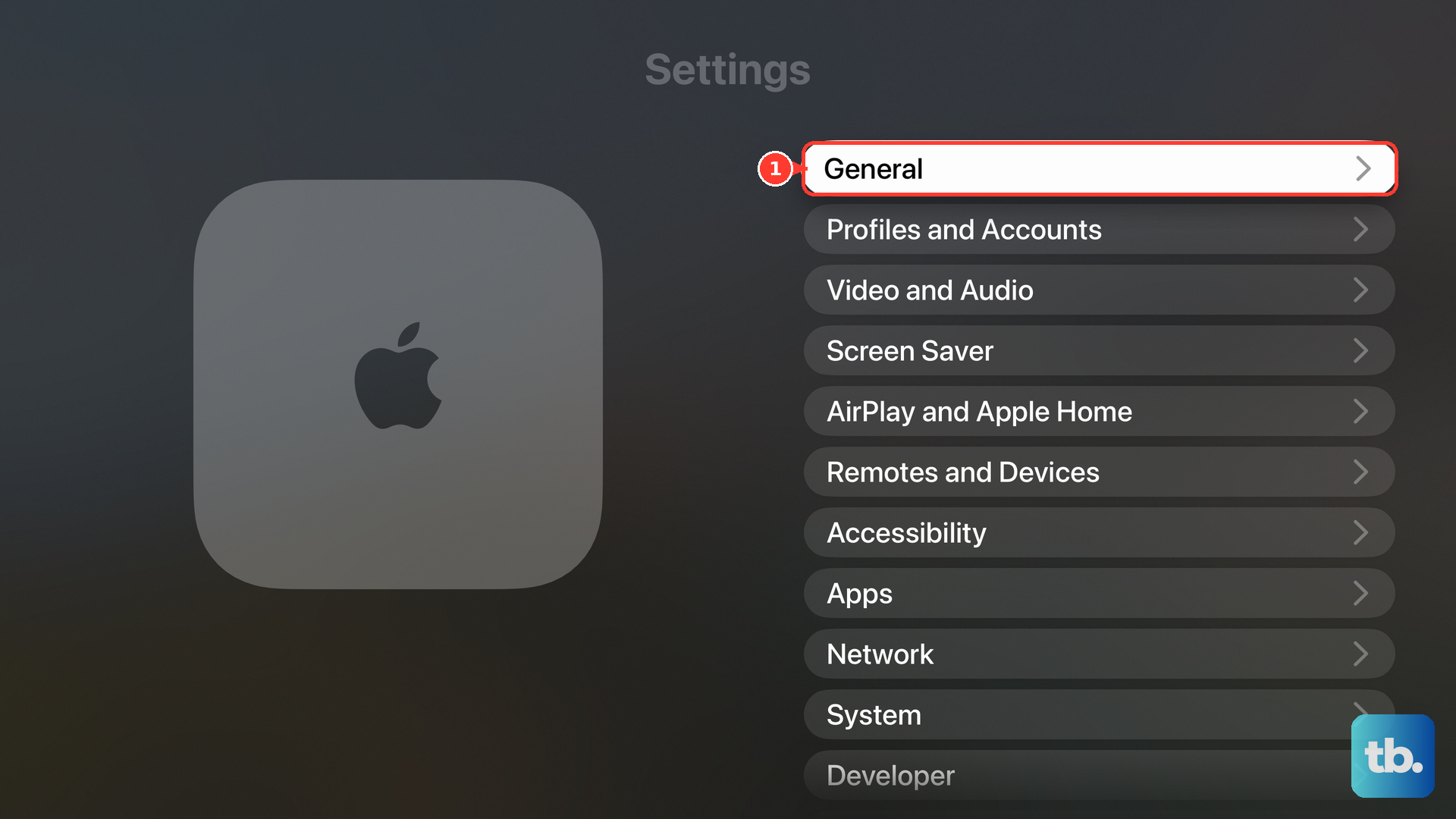
Check HDR and compare SDR output
On Apple TV 4K connected to a compatible display, open Settings > Video and Audio > Match Content. Turn on Match Dynamic Range so supported content uses its original dynamic range instead of always using the configured output range. This adjustment applies to Apple TV 4K, not Apple TV HD.
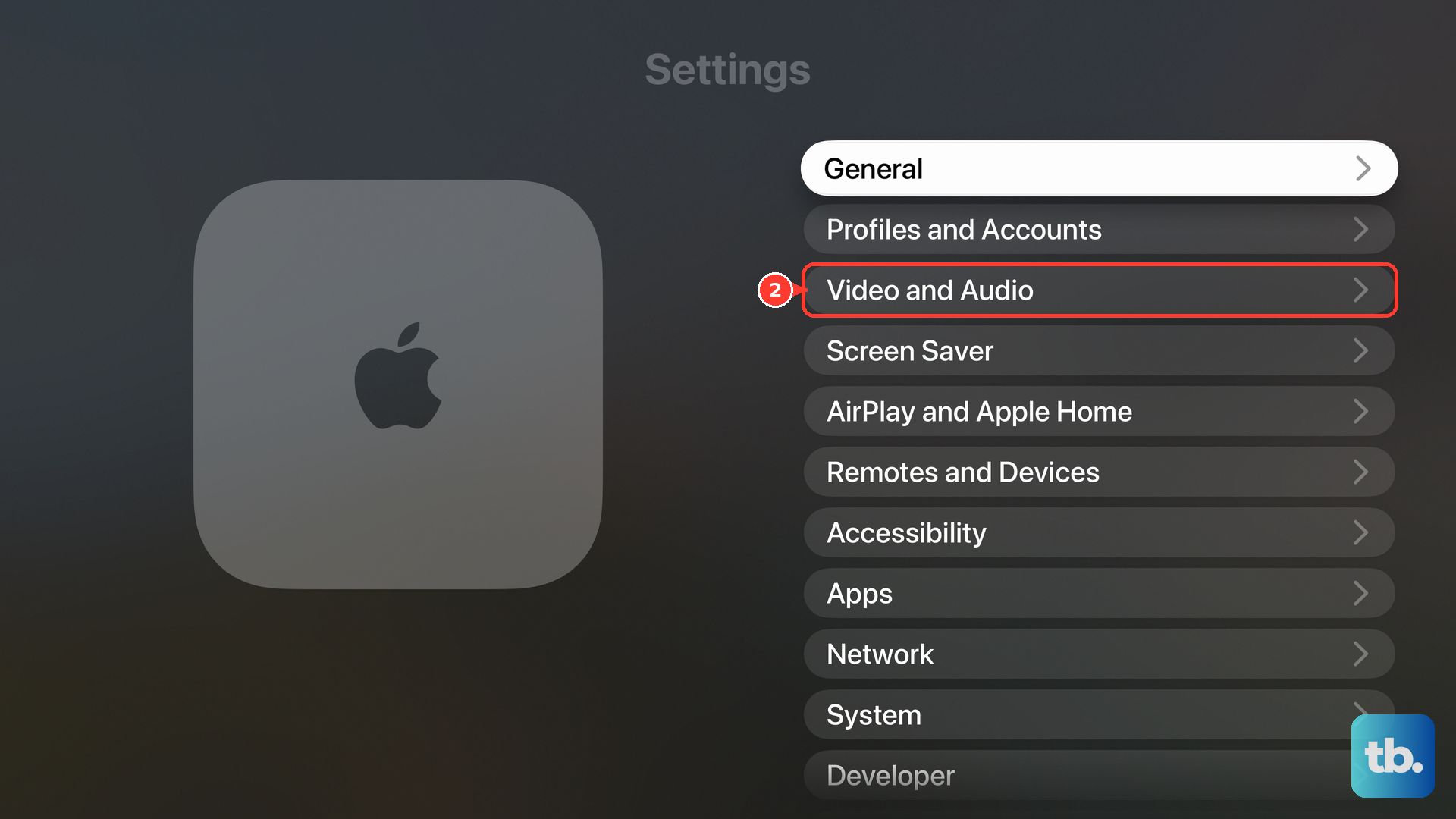
If HDR presentation remains too dark, open Settings > Video and Audio > Format and choose an available SDR format. Then open Match Content and turn off Match Dynamic Range to keep the comparison in SDR. Compare the same scene; this checks how the formats look on your display without guaranteeing a brighter SDR picture.
The formats you can select depend on your connected television. When Apple TV has not automatically determined supported formats, open Settings > Video and Audio > Match Content and select a format under Unverified Formats to check whether your TV displays it correctly. Reduce glare and room lighting when evaluating dark HDR scenes.
Increase your television’s picture brightness
Use your television’s remote for its picture adjustments. On Apple TV 4K connected to a TV with adjustable picture settings, open Settings > Video and Audio, then select Color Bars under Calibration. Use the displayed reference while adjusting your TV’s picture controls.
On Samsung TVs sold in Hong Kong with this menu layout, open Settings > All Settings > Picture > Expert Settings > Brightness. Press Left or Right on the Smart Remote to increase it.
On Samsung TVs offering these presets, open Settings > All Settings > Picture > Picture Mode and try Standard or Dynamic. Samsung describes Dynamic as brighter for bright rooms. Available presets depend on the signal and other modes.
On LG TVs from 2021 onward with webOS 6.0 or later and this menu layout, press Settings, then open All Settings > Picture > Select Mode. Choose Standard or Vivid. Menus vary by model.
On Sony TVs using the jgar3 menu layout, press Quick Settings, then open Picture settings > Advanced > Brightness. Adjust Brightness or Contrast. Other BRAVIA models use different paths, so follow your model’s menus rather than expecting this exact layout.
Stop automatic and energy saving dimming
On supported Samsung AI TVs, open Settings > All Settings > Advanced Features > AI Mode Settings. With AI Mode enabled, select Adaptive Picture, then select Off. Some power-saving controls are unavailable while Adaptive Picture is enabled.
On Samsung TVs with these options, open Settings > All Settings > General & Privacy > Power and Energy Saving. Turn off Brightness Optimization, Energy Saving Solution, and Motion Lighting, checking each separately. If brightness fluctuates and your TV offers Contrast Enhancer, open Settings > All Settings > Picture > Expert Settings > Contrast Enhancer and select Off.
On LG webOS 26, open Settings > All Settings > System > Energy Saving > Energy Saving Step and select Off. On webOS 22 through 25, open Settings > All Settings > General > Energy Saving > Energy Saving Step and select Off. On webOS 6.0, open Settings > Support > Energy Saving > Energy Saving Step and select Off.
On Roku TV, press Home on the TV remote and open Settings > TV picture settings > TV brightness. Choose a constant brightness level, then press OK. Only models with an ambient light sensor offer Auto; if yours has it, choose a fixed level instead. This adjustment applies to both Apple TV app playback and an HDMI-connected Apple TV.
On Sony TVs with the jgar3 menu layout, press Quick Settings and open Settings > System > Power and energy > Power saving. Select Off to disable power-saving dimming. If your Apple TV 4K picture still looks wrong, continue with the output and connection checks.
Check HDMI output and connected equipment
On Apple TV 4K, open Settings > Video and Audio > HDMI Output and try YCbCr, which Apple prefers for most TVs. If you use RGB High or RGB Low, match the television’s corresponding range setting. Available choices depend on the output format and display.
Check your Apple TV 4K HDMI connections and the cable’s supported formats. Consult your television’s manual for its HDR-capable HDMI port and enable that port’s HDR or enhanced-video setting. Apple says manufacturers may use labels such as Ultra, Deep, or Enhanced.
With Apple TV 4K connected to a 4K-compatible television, open Settings > Video and Audio > Check HDMI Connection. Allow approximately two minutes for the test. If Chroma appears under Video and Audio, select 4:2:0 as another compatibility check. This checks signal compatibility rather than adjusting brightness directly.
If your Apple TV 4K connection passes through a receiver, soundbar, HDMI switch, or splitter, connect Apple TV directly to the television. If the picture improves, check the intermediate equipment’s HDR compatibility, HDMI settings, cables, and available manufacturer firmware.
Restart and update Apple TV
For an Apple TV 4K that is malfunctioning, open Settings > System > Restart. If you cannot use the menus, disconnect Apple TV from power, wait five seconds, and reconnect it. Restarting addresses a malfunction rather than adjusting brightness.
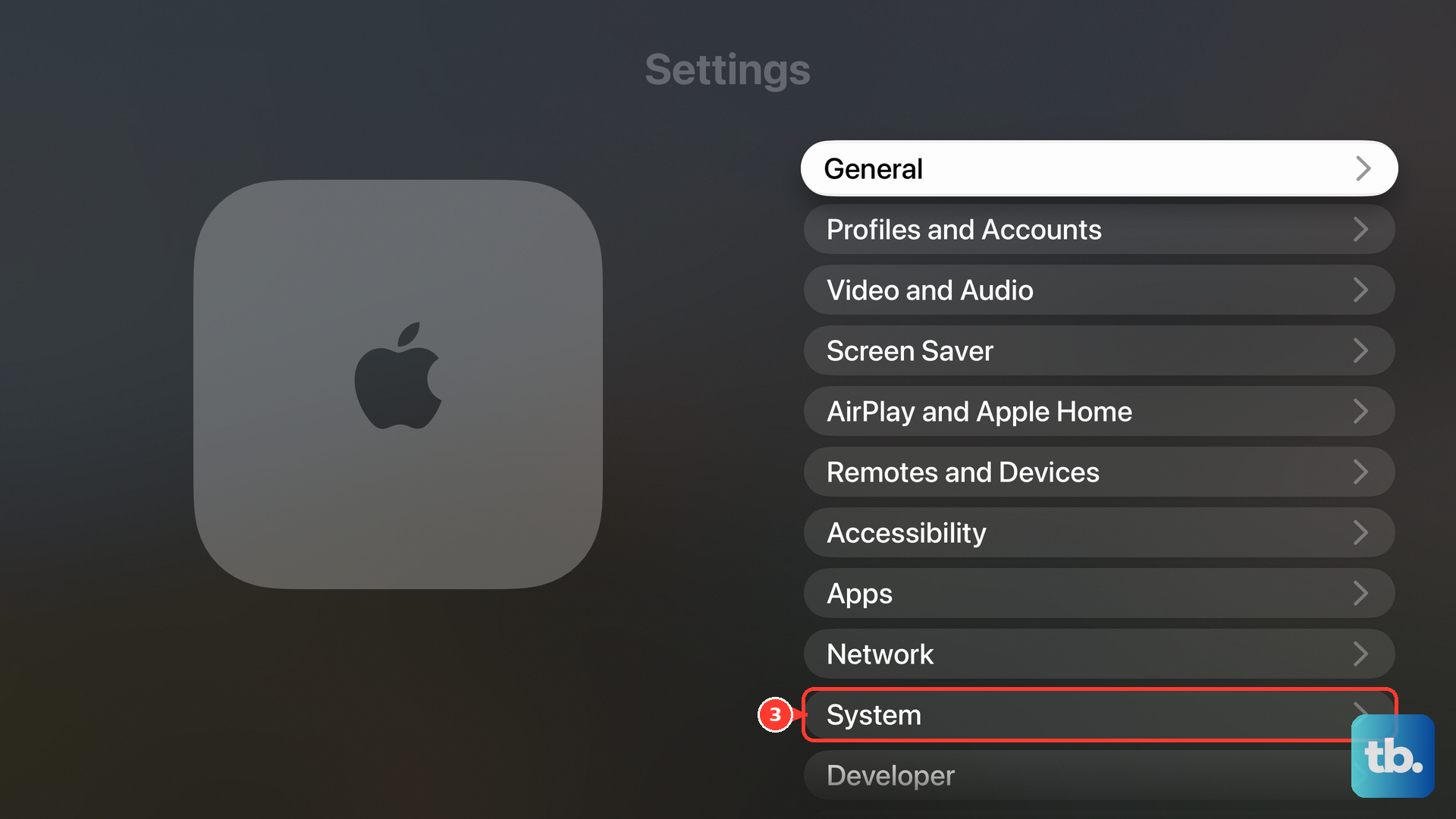
On Apple TV 4K or Apple TV HD, open Settings > System > Software Updates > Update Software. If an update is offered, select Download and Install and keep power connected until installation finishes. Each model receives compatible software. For future updates, turn on Automatically Update in Software Updates.
Troubleshoot an app that looks wrong
When one app malfunctions on Apple TV 4K while other apps look normal, press TV twice quickly. Highlight the affected app, swipe up on the clickpad or touch surface, then reopen the app from the Home Screen. If the app continues to malfunction, consider reinstalling it.
Deleting an app removes its app data. For a deletable, downloadable app on Apple TV 4K, highlight it on the Home Screen, hold the clickpad or touch surface, select Delete App, then select Delete. Open App Store, find the app, and select Install if offered.
If you use the Apple TV app on a supported smart TV, streaming device, gaming console, or cable or satellite service, open its sidebar and select Settings > Video Troubleshooting. Select Start and follow the displayed instructions. This checks playback connectivity rather than adjusting brightness, so use it when playback malfunctions.
Frequently Asked Questions
Why does the screen briefly go black when a video starts?
Apple says your screen can briefly blank or flicker when Match Dynamic Range or Match Frame Rate changes the television’s format. That differs from a picture that stays dark throughout playback. Match Frame Rate adjusts motion presentation rather than brightness.
Can an iPhone brighten Apple TV through the Remote controls?
Your iPhone’s brightness slider does not adjust the television. To reach Apple TV HD or Apple TV 4K settings with a compatible iPhone or iPad, connect both devices to the same Wi-Fi network, open Control Center, tap Apple TV Remote, and select your Apple TV. Enter the displayed four-digit code if requested, then navigate to the relevant setting.
Will Color Balance fix a dark Apple TV picture?
Color Balance adjusts color accuracy rather than the television’s backlight. On Apple TV 4K running tvOS 26, open Settings > Video and Audio, then select Color Balance under Calibration and follow the displayed measurement instructions. You need an iPhone with Face ID running iOS 14.5 or later. Apple’s tvOS 27 calibration guide lists Color Bars but not Color Balance.
What can you do if the Apple TV screen is too dark to read?
On Apple TV 4K or Apple TV HD with a remote that has a Menu button, hold Menu and Volume Down for five seconds to cycle through resolutions. Apple TV changes resolutions every 20 seconds. Select OK to accept one, or select Cancel.
How can you tell whether a Samsung TV itself has a picture problem?
On Samsung TVs with Device Care and this menu layout, open Settings > All Settings > Support > Device Care > Self Diagnosis > Picture Test. Follow the diagnostic instructions to help distinguish a television issue from an external-source issue.