

To fix an 8BitDo controller that will not connect to your PC, select its supported Windows mode, then reconnect through Bluetooth, its matching receiver, or a USB data cable. The connection you need depends on the exact model, and Bluetooth in the product name does not always mean it supports Windows Bluetooth.
The short version
- Match your model: Use the Windows connection supported by your exact controller.
- Select Windows mode: Startup combinations and mode switches differ between models.
- Pair again: Remove an old Bluetooth pairing or reconnect the controller to its matching receiver.
- Check USB and firmware: Try a direct USB data connection, then update the controller and receiver firmware where available.
| Controller | Windows connection | Mode or startup |
|---|---|---|
| Pro 2 Bluetooth | Bluetooth or USB | Rear switch at X |
| SN30 Pro Bluetooth | Bluetooth or USB | Hold X + START from off |
| M30 Bluetooth | Bluetooth or USB | Hold X + START from off |
| Zero 2 | Bluetooth only for gameplay | Press X + START from off |
| Pro 3 | Matching receiver or USB; separate Steam Bluetooth route | Switch at S/X for receiver or USB |
| Original Ultimate Bluetooth | Matching receiver or USB | Connection switch at 2.4G |
| Original Ultimate 2.4G | Matching receiver or USB | Rear switch at X |
| Ultimate 2 Wireless | Matching receiver or USB; separate Steam Bluetooth route | Connection switch at 2.4G for receiver |
| Ultimate 2C Wireless | Matching receiver or USB | Connection switch at 2.4G for receiver |
| Ultimate 2 Bluetooth | Matching receiver or USB | Switch at 2.4G for either route |
| Ultimate C Wireless | Matching receiver or USB | Hold X + Home from off |
| Ultimate C Wired and Ultimate 2C Wired | Direct USB | Hold X while plugging in |
| Ultimate 3-mode for Xbox | Matching receiver or USB | PC/2.4G for receiver; Xbox/USB for cable |
Select the correct Windows connection
Check your controller's full model name before choosing a connection or button combination. For the original Ultimate Bluetooth and Ultimate 2 Bluetooth, 8BitDo specifies receiver or USB connections for Windows. Their included receivers are different from the separate USB Wireless Adapter 2.
For the original Ultimate Bluetooth, set the connection switch to 2.4G, plug its receiver into the PC, and press Home. On the original Ultimate 2.4G, set the rear switch to X, connect its receiver, and turn on the controller. Both also support USB.
On Ultimate 2 Wireless or Ultimate 2C Wireless, set the switch to 2.4G, connect the included adapter, and press Home. On Ultimate 2 Bluetooth, select 2.4G, connect its adapter, and press Home; leave that switch position selected for USB too. For Pro 3, select S/X, press START, and connect its included receiver, or use USB with the same switch position.
On Ultimate 3-mode for Xbox, connect its receiver, select PC/2.4G, and press Xbox. For a wired connection, select Xbox/USB, connect the cable, and press Xbox. Wait for a solid status indicator before checking input.
Charge the controller and correct its startup mode
Charge your controller, or replace its batteries when the model supports that option. Turn it off, wait several seconds, and restart it in the correct mode near the PC. For Pro 2 Bluetooth, move the rear switch to X and press START.
On SN30 Pro Bluetooth and M30 Bluetooth, start with the controller off and hold X + START. On Zero 2, press X + START from powered off. Its pairing procedure differs from those other models.
For Ultimate C Wireless, hold X + Home from powered off to select X-input mode. For the non-Xbox Ultimate C Wired and Ultimate 2C Wired, hold X while plugging the controller into the PC. Wait for Windows recognition and a solid status indicator.
If your controller is frozen, hold START for eight seconds on Pro 3, SN30 Pro Bluetooth, Zero 2, or 64 Bluetooth Controller. On Ultimate 2 Wireless, Ultimate 2C Wireless, or Ultimate 2 Bluetooth, hold Home for eight seconds instead. Restart in the required mode afterward; these actions force a shutdown, not a factory reset.
Remove an old Bluetooth pairing and reconnect
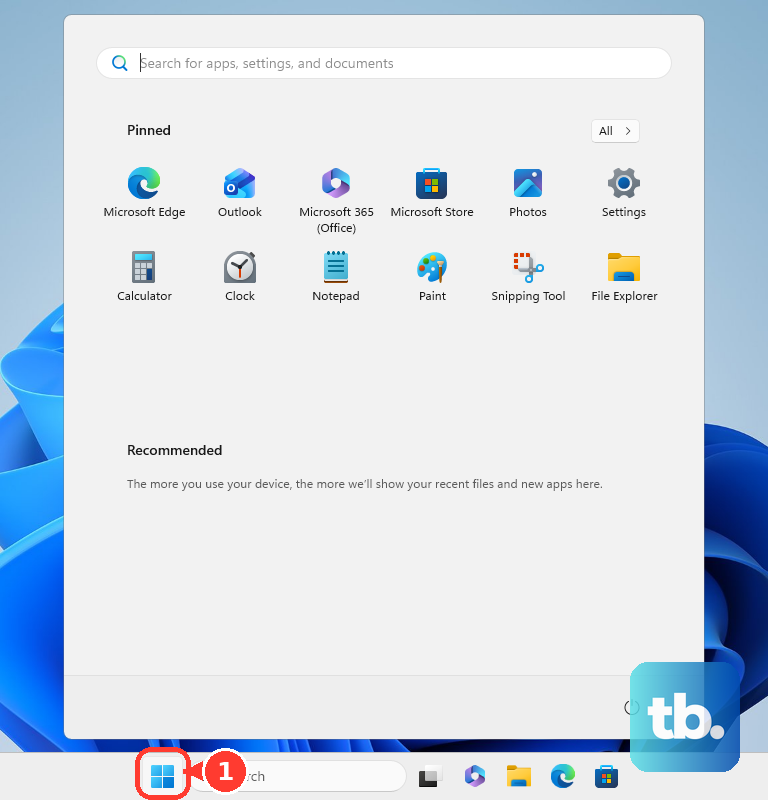
For a model that supports your chosen Windows Bluetooth connection, open Start > Settings > Bluetooth & devices in Windows 11 and turn Bluetooth on. Open the taskbar quick settings and turn Airplane mode off. Turn on your laptop's physical Bluetooth switch if it has one.
If your controller already appears in Windows, remove that entry before pairing again. Open Settings > Bluetooth & devices > Devices, select the controller's More options, choose Remove device, and select Yes. Then put the controller back into pairing mode.
On Pro 2 or SN30 Pro Bluetooth, hold Pair for three seconds after selecting Windows mode. On M30 Bluetooth, hold Pair for two seconds. On Zero 2, hold SELECT for three seconds.
Select the taskbar Network, Sound, or Battery icon, then the Manage Bluetooth devices chevron. Choose your controller under New devices and select Done. Look for 8BitDo Pro 2, 8BitDo SN30 Pro, 8BitDo M30 gamepad, or 8BitDo Zero 2 gamepad, depending on your model.
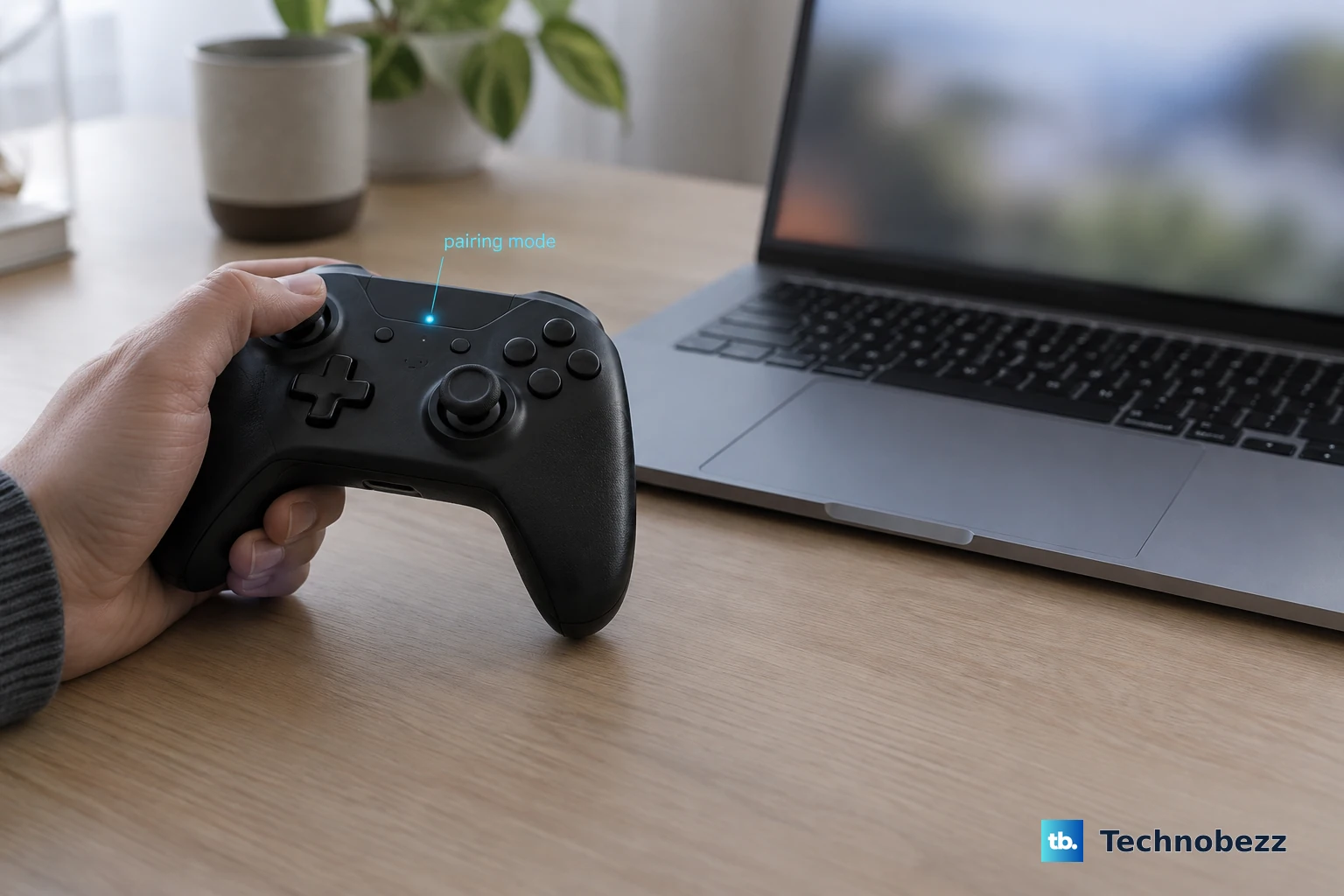
Make a missing Bluetooth controller discoverable
If your controller never appears in the discovery list, turn Bluetooth off in Settings > Bluetooth & devices. Wait approximately 10 seconds, turn it on, and retry with the controller in pairing mode. If it is still missing, check Windows discovery filtering next.
Open Settings > Bluetooth & devices > Devices. Under Device settings, set Bluetooth devices discovery to Advanced, then repeat discovery. Move your controller closer to the PC and away from unshielded USB devices connected to USB 3.0 ports, which Microsoft identifies as a possible interference source.
Check your PC specifications if Bluetooth is unavailable. If your PC lacks Bluetooth hardware, connect a compatible USB Bluetooth adapter and install its manufacturer's required software before pairing through Windows. Your controller's proprietary 2.4G receiver does not serve as a general Bluetooth adapter.
Reconnect the receiver or try a USB data cable
Plug your controller's matching receiver directly into the PC and try another USB port, bypassing an external hub or dock. For a wired connection, use a cable that supports USB data. A charging connection alone does not establish that the cable can carry controller input.
To re-pair Ultimate 2 Wireless or Ultimate 2C Wireless, select 2.4G, press Home, and hold Pair for three seconds. Connect its matching adapter to the PC and wait until both indicators are solid. On Ultimate C Wireless, plug in the receiver and hold Minus for five seconds until the Home indicator flashes rapidly, then wait for reconnection.
If your original Ultimate 2.4G has firmware 2.00 or later, check that it is using the receiver connection. Hold Profile for five seconds to change connection type; one vibration indicates Bluetooth and two indicate the 2.4G dongle. Select the dongle connection for its Windows receiver route.
If wireless pairing still fails, try USB on a model that supports wired gameplay. For Pro 2 Bluetooth, set the rear switch to X; for SN30 Pro Bluetooth, start in the same X-input mode used for Windows Bluetooth, then connect USB. Zero 2 supports USB charging and firmware updates only, so use Bluetooth for gameplay.
For USB power errors, connect your PC to external power and disconnect unused USB devices. To inspect a device error, open Device Manager, right-click the device marked with a yellow exclamation point, and choose Properties. Read Device status before moving on to software changes.
Update the controller and receiver firmware
Open the official 8BitDo support catalogue and find your exact model. Check both Controller firmware and Adapter firmware when separate updates are offered, and use the updater assigned to that model. 8BitDo lists firmware fixes for connection failures, Windows driver loading, and reconnection after a PC restart on affected models.
For a device supported by the standalone utility, download the 8BitDo Firmware Updater using Windows Download. Launch it, connect the supported device through USB, and let the tool identify it and retrieve firmware. Select the firmware and choose Update.
If your receiver still will not pair, check your model's catalogue entry for a Pairing tool download. 8BitDo offers these tools for selected controllers, including Pro 3, the original Ultimate Bluetooth, and the original Ultimate 2.4G. Match the tool to your exact controller and receiver.
Repair persistent Windows Bluetooth problems
Restart Windows through Start > Power > Restart, then retry pairing or reconnect the receiver. If the PC itself has stopped responding, follow the steps to restart a computer that freezes. Recheck the connection after Windows returns.
For continuing Bluetooth failures, open Start, search for Device Manager, and expand Bluetooth. Right-click the PC's Bluetooth adapter, select Update driver, then choose Search automatically for drivers. Complete the prompts and restart your PC.
If Bluetooth stopped working immediately after a driver update, open the adapter's Properties > Driver and select Roll Back Driver when available. Follow the prompts, then retry the connection. If that control is unavailable, obtain the matching Bluetooth driver from your PC manufacturer's support website, install it, and restart.
For a persistent driver problem, right-click the Bluetooth adapter in Device Manager, select Uninstall device, and restart so Windows can reinstall it. Also open Settings > Windows Update and select Check for updates. Recheck pairing after completing the applicable updates.
If your connection repeatedly drops, open the Bluetooth adapter's Properties > Power Management. Clear Allow the computer to turn off this device to save power, then reconnect. Skip this adjustment if your adapter has no Power Management tab.
Fix game input after the connection works
If your controller connects but does nothing in a game, check its configuration. On Pro 2 Bluetooth, press Profile until no profile LED is illuminated to return to the standard profile. On Arcade Controller Pro, press Ultimate to exit its built-in software, which disables game input while operating.
For a game that supports the Steam Input route, open the Steam overlay and select the gamepad icon for Controller Settings. Choose Enable Steam Input if disabled, open Current Button Layout, select Gamepad, and choose Apply Layout. This can address game input only after the controller connects, and compatibility depends on the game.
8BitDo also supports a separate native Steam Bluetooth route on selected models. For Pro 2, use firmware 3.06 or later and select D; for SN30 Pro, use firmware 2.06 or later and start with B + START. For Pro 3, use the latest firmware and select D; for Ultimate 2 Wireless, use controller firmware 1.05 and select Bluetooth. Enter your model's pairing mode, pair through Windows, then launch Steam.
Use those Steam modes separately from general Windows X-input setup.
If your supported connection still fails after checking the mode, USB connection, firmware, and Windows, open the 8BitDo contact form. Include your exact model, connection type, and symptoms when requesting model-specific support or service.
Frequently Asked Questions
Can one USB Wireless Adapter 2 connect multiple controllers?
You need one USB Wireless Adapter 2 per controller. Check compatibility before choosing it, because it supports selected Bluetooth controllers and cannot replace an arbitrary proprietary 2.4G receiver.
Can you use AA batteries to check a Pro 2 power problem?
Yes, you can remove the Pro 2 Bluetooth controller's rechargeable battery pack and install two AA batteries following the battery compartment markings. Then restart it in Windows mode and reconnect.
What can you do if an SN30 Pro will not power on?
Hold START for eight seconds, then hold L1 + R1 + START for three seconds until the red power LED illuminates. Use the official 8BitDo Upgrade Tools to update its firmware, then restart and reconnect using the SN30 Pro procedure.
Can a non-Steam game use the supported Steam Input route?
Yes, you can use this route for compatible games. In Steam, open Games, choose Add a Non-Steam Game to My Library, select or browse to the game, and choose Add Selected Programs. Launch the added game through Steam.
Does the 64 2.4G Wireless Controller use the same PC setup as the 64 Bluetooth Controller?
No, the 64 2.4G Wireless Controller's receiver route supports N64 and Analogue 3D, while 8BitDo lists only a wired connection for Windows 10 or later. For the separate 64 Bluetooth Controller, set the mode switch to D, press START, hold Pair for three seconds, and select 8BitDo 64 BT in Windows Bluetooth. For wired use of that Bluetooth model, select D and connect USB.