Apple TV isn't showing up in AirPlay, or you've selected it and nothing plays. Start with the connection and access settings, then tackle the symptom you're seeing. The fixes below cover missing devices, failed screen mirroring, app trouble, and playback without sound.
Get Apple TV ready to receive AirPlay
This fixes a sleeping receiver, disabled AirPlay, or a home-network mismatch.
Wake Apple TV by pressing TV, Back, or Menu on its remote, depending on which buttons it has.
Turn on your television.
Select the television's HDMI input connected to Apple TV.
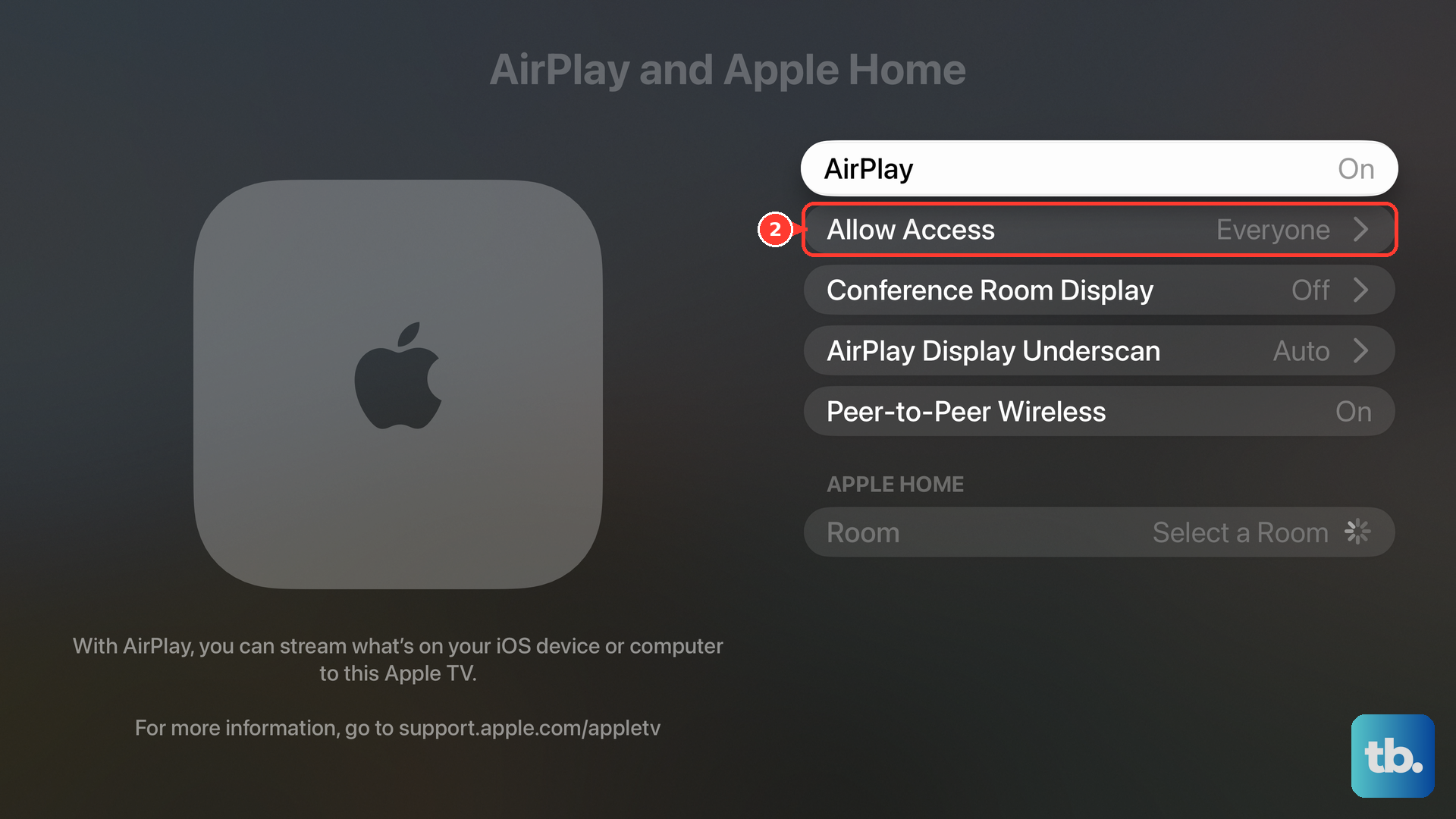
On Apple TV 4K, turn on AirPlay under Settings > AirPlay and Apple Home > AirPlay.
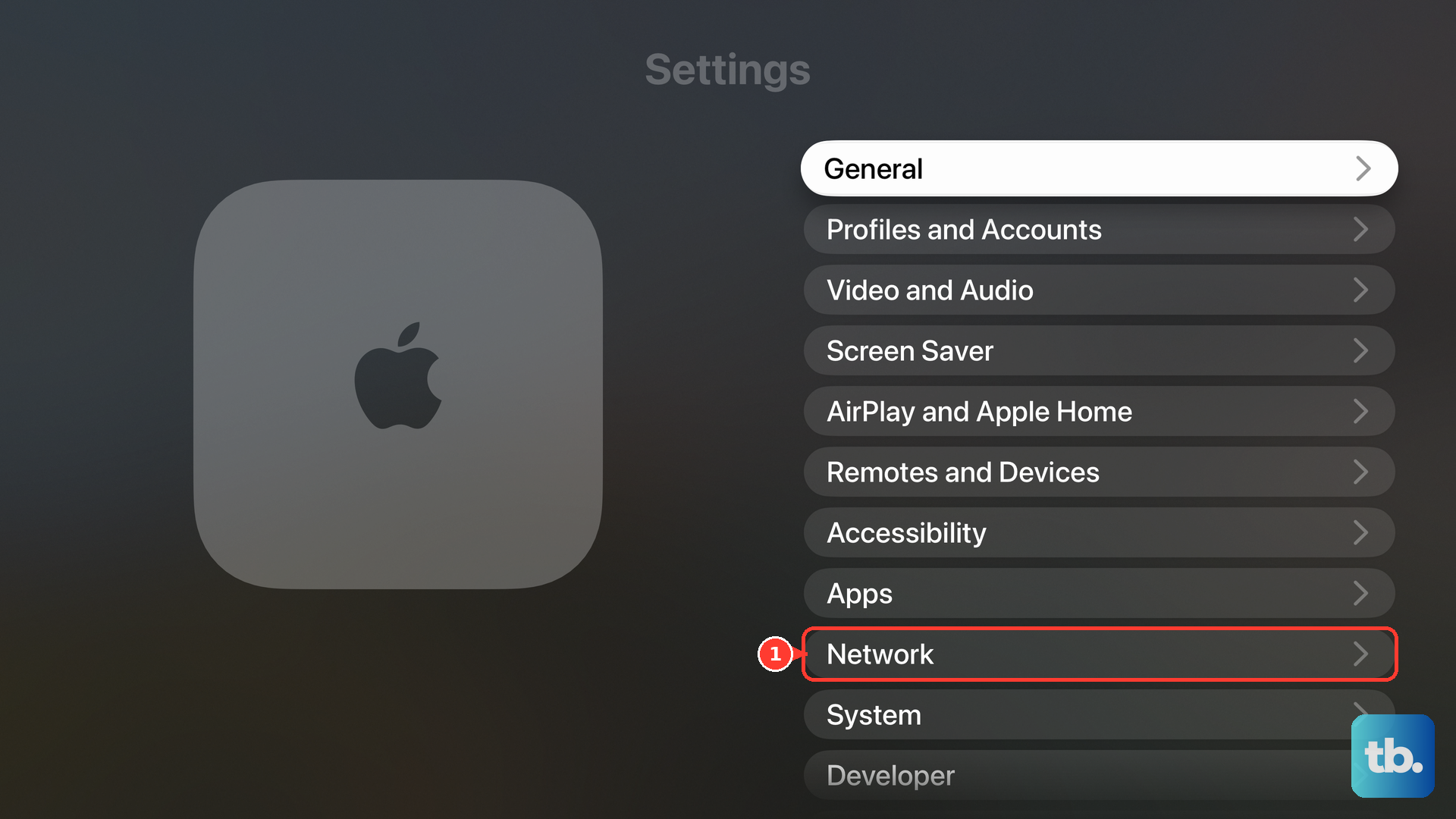
On Apple TV, select your home Wi-Fi network under Settings > Network.
On your iPhone or iPad, select that same network under Settings > Wi-Fi.
Compare the network names on both devices. For ordinary network-based AirPlay, both devices need the same local network; an Ethernet-connected Apple TV also works on that network.
If Apple TV appears, reconnect the session
If Apple TV appears in the picker but playback won't start, reconnect the session. Follow the paragraphs for the type of sharing you're using.
For video on iPhone or iPad, select your iPhone or iPad in the app's AirPlay picker to disconnect.
Play the video again.
Select your Apple TV through the video's AirPlay button. In Photos, use Share > AirPlay.
For an existing iPhone or iPad mirroring session, choose Stop Mirroring under Control Center > Screen Mirroring.
Select your Apple TV again under Control Center > Screen Mirroring.
Enter the AirPlay code shown on the television when requested.
On a Mac with an active mirroring session, select your Apple TV under Control Center > Screen Mirroring to end it.
Select your Apple TV in that same menu to reconnect.
Correct access settings and password prompts
Apple TV's access setting decides who gets to connect. On Apple TV 4K, open Settings > AirPlay and Apple Home > Allow Access and choose Anyone on the Same Network for household Wi-Fi access. Only People Sharing This Home limits access to invited household members.
For an Apple TV configured in Apple Home, open Home > More > Home Settings > Speakers & TV on the sending device. Adjust access to permit the person trying to stream.
If Apple TV requests an AirPlay password, check Settings > AirPlay and Apple Home > Allow Access > Require Password. With that option enabled, select Password to set the password senders must enter. This is separate from a device passcode or parental-control passcode.
If restrictions block AirPlay-setting changes or content, open Settings > General > Restrictions on Apple TV. Enter the restriction passcode, then adjust the relevant restriction.
Restart both ends of the connection
Restart Apple TV 4K through Settings > System > Restart.
If you can't use the onscreen controls, disconnect Apple TV from power instead.
Wait five seconds.
Reconnect Apple TV to power.
To restart a Face ID iPhone, hold either Volume button and the Side button until the power-off slider appears. On an iPhone SE second or third generation, hold the Side button alone.
Drag the power-off slider.
Wait 30 seconds.
Hold the Side button to turn your iPhone back on.
To restart an iPad without a Home button, hold either Volume button and the Top button until the slider appears. On an iPad with a Home button, hold the Top button alone.
Drag the iPad's power-off slider.
Wait 30 seconds.
Hold the Top button to restart the iPad.
If you're sending from a Mac, choose Apple menu > Restart.
Once both devices are back on, retry the same AirPlay connection to check the result.
Bring the software up to date
Install the latest compatible updates offered for Apple TV and your sending device.
- 1.On Apple TV HD or 4K, open Settings > System > Software Updates > Update Software.
- 2.Select Download and Install when an update is offered. Keep Apple TV powered and connected throughout the update.
- 3.For an iPhone or iPad, back up the device and connect it to power and Wi-Fi.
- 4.Open Settings > General > Software Update on that device and select Download and Install when offered.
- 5.If you're using a Mac instead, open Apple menu > System Settings > General > Software Update and install the offered update.
Repair a weak or blocked network connection
If Apple TV has Wi-Fi connection or password trouble, choose Forget Network under Settings > Network > Wi-Fi > current network.
Press Back or Menu.
Reconnect to the intended network under Settings > Network.
For failures linked to your home network, disconnect the router and modem from power.
Reconnect the router and modem.
Wait for connectivity to return.
Retry AirPlay.
For intermittent wireless playback, place Apple TV and the router in the same room, more than a foot apart.
Reduce obstacles between them, especially metal.
If your Apple TV has an Ethernet port, connect it to the router with an Ethernet cable. Apple TV uses Ethernet automatically.
Disconnect the Ethernet cable if you want to select Wi-Fi again.
If you use a VPN on your iPhone, permit local networking in its app or configuration. A VPN configuration that prevents local networking can interfere with AirPlay; the control's name depends on the VPN.
For a hotel network that requires sign-in, connect the updated Apple TV through Settings > Network.
Select Continue on iPhone or iPad when prompted.
Finish authentication on that device. Signing in doesn't remove network isolation that prevents devices from communicating.
For guest, school, or workplace networks, ask the network owner to allow communication between your device and Apple TV.
Check the app when only one service fails
If other AirPlay content works, focus on the affected app. Some video apps don't support AirPlay, and screen mirroring is also subject to content-provider restrictions.
Close the affected app.
Reopen it.
Check App Store > profile icon > App Updates on your iPhone or iPad for an available update.
For an app that needs its own local-device discovery, enable its access under Settings > Privacy & Security > Local Network. Apple's system AirPlay still works when this permission is denied, so it isn't a requirement for every app.
If a supported app keeps malfunctioning, touch and hold its icon.
Choose Remove App > Delete App > Delete. Deletion carries a risk of losing local app data.
Download the app again from the App Store.
Sign in again.
For a service that doesn't support AirPlay, check the App Store on Apple TV for its own app.
Play through that app instead. This provides another playback route; it doesn't restore unsupported AirPlay.
Netflix does not support AirPlay or screen mirroring, and no setting restores that support. Use its TV app or another supported playback connection.
Fix missing sound or a cropped picture
If AirPlay connects, choose the correction that matches the playback problem.
- 1.For video without sound, raise the volume on the sending device and television or receiver, and turn off Mute.
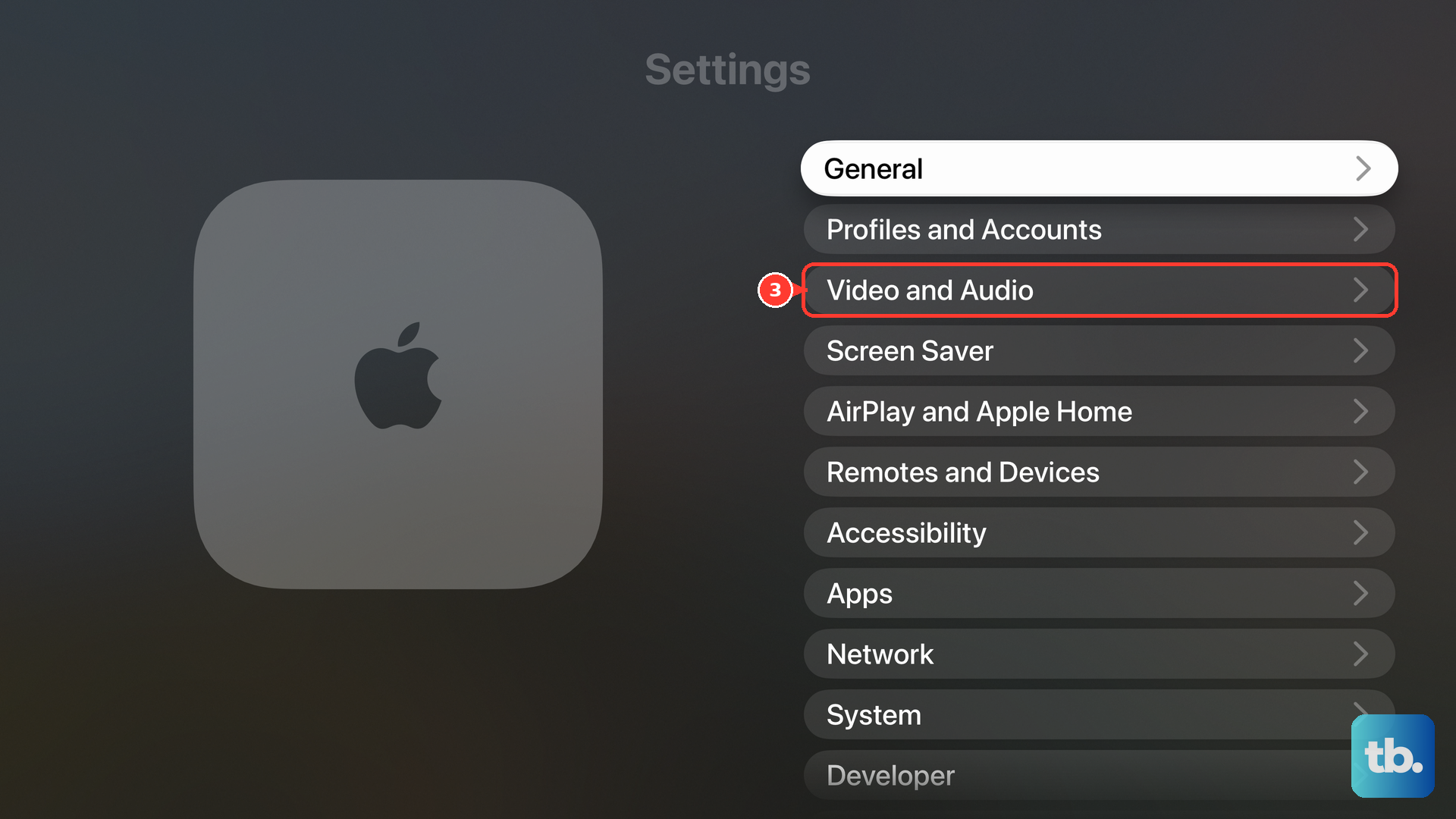
- 2.For a cropped picture on Apple TV 4K, enable Settings > AirPlay and Apple Home > AirPlay Display Underscan. Disable it if it introduces black borders.
- 3.For delayed audio when Apple TV 4K plays through both HDMI-connected equipment and wireless speakers, open Settings > Video and Audio > Calibration > Wireless Audio Sync. Follow the iPhone prompts while holding it near the television or receiver speakers.
Save resets for persistent failures
If your iPhone or iPad still has underlying network trouble, use Settings > General > Transfer or Reset iPhone > Reset > Reset Network Settings, choosing Transfer or Reset iPad on an iPad; consult IT first for managed network configurations. This removes saved Wi-Fi networks and passwords and resets cellular, VPN, and APN settings. Rejoin your Wi-Fi network afterward through Settings > Wi-Fi.
A factory reset of Apple TV HD or 4K removes its settings and information, so leave it until last. Open Settings > System > Reset and choose Reset, or Reset and Update to erase it and install updates using the internet. Keep power connected, then set up Apple TV again.
If AirPlay still fails, contact Apple Support with your sending device, Apple TV model, software versions, and a description of the failure. Specify whether Apple TV is missing from the picker, the connection fails, or playback starts without the expected picture or sound.
Frequently Asked Questions
Does AirPlay always need both devices on the same Wi-Fi network?
No. Compatible devices support peer-to-peer AirPlay without an existing Wi-Fi network. On Apple TV 4K with the Peer-to-Peer Wireless control, enable it under Settings > AirPlay and Apple Home and set Allow Access to Everyone for connections outside the local network. Keep the sender nearby with Wi-Fi and Bluetooth available. Internet-hosted content still needs internet access.
Do I need the same iCloud account to use AirPlay?
Apple requires the same Wi-Fi network and iCloud account for automatic or suggested Apple TV connections. For manual connections, access is controlled through Apple TV's Allow Access settings. Selecting Never under Settings > General > AirPlay & Continuity > Automatically AirPlay still permits manual selection.
Can I change Apple TV settings without its physical remote?
Yes. On an iPhone or iPad connected to the same network, open Control Center > Apple TV Remote, select Apple TV, and enter the requested code. If the control is missing, add it through Control Center > Add Controls > Add a Control > Remote.
Why does the television briefly go black when playback starts?
With content matching enabled, the television's switch between video formats can cause a brief blank screen or flicker. Check Settings > Video and Audio > Match Content, including Match Dynamic Range and Match Frame Rate. This brief transition is separate from an AirPlay discovery or connection failure.