
A yellowish computer screen points to a warm-color feature, an accessibility tint, a color profile, a graphics setting, a browser add-on, or the monitor's own menu. Start with the built-in display settings, then move outward to apps, drivers, and hardware color controls. The fixes below move from common software switches to settings that take longer to inspect.
Turn off Windows Night light first
Use this when a Windows screen looks warmer than normal, especially after the display changes color on a schedule. Night light has both a taskbar toggle and a Settings switch.
Select the Network or Speakers icon on the right side of the taskbar. Use the down arrow on the right to find Night light. Select Night light to turn it off. For the full setting, open Start > Settings > System > Display, then turn Night light off.
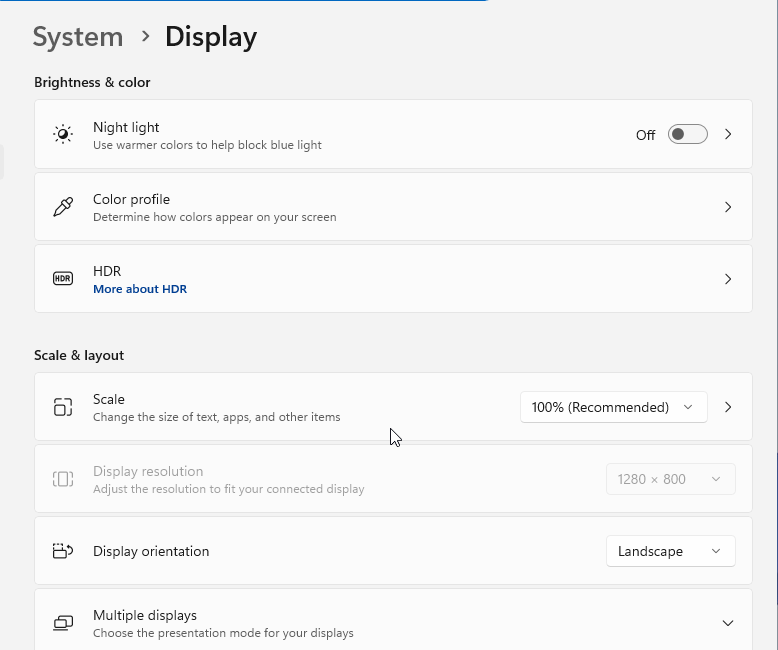
To keep the feature but reduce the tint, open Start > Settings > System > Display > Night light and move the Strength slider left. To stop Windows from turning it back on automatically, turn off Schedule night light.
Check Night Shift and True Tone on Mac
Apple keeps the warm-color controls in display settings. Open Apple menu > System Settings (or System Preferences on macOS versions before Ventura 13) > Displays > Night Shift, then turn Night Shift off.
To reduce the effect instead, make the color temperature less warm or change the Schedule. Night Shift applies to macOS Sierra 10.12.4 or later on Mac computers introduced in 2012 or later, plus Mac Pro introduced in 2013 or later.
True Tone also shifts color on supported Macs and Apple displays. On macOS Ventura 13 or later, open Apple menu > System Settings > Displays, select your display at the top of the window, then turn off True Tone. On earlier versions of macOS, open Apple menu > System Preferences > Displays, click Display Settings if you have multiple displays connected, select your display, then turn off True Tone.
Cool down Chromebook Night Light
On a Chromebook, the most common built-in cause of a yellow screen is Night Light. Select the time at the bottom right, then select Settings. In the Device section, select Displays. Under Night Light, turn Night Light off.
To reduce the effect instead, adjust Color temperature until the display looks normal. To stop automatic changes, set Schedule to Never. For the quick toggle, select the time at the bottom right and choose Night Light.
Switch off accessibility tints
Accessibility color features change the whole display and make normal colors look yellow, inverted, or tinted. On Windows, press Windows logo key+U, or open Start > Settings > Accessibility.
Select Color filters, then turn the Color filters switch off. If the shortcut is enabled, press Windows key+Ctrl+C to turn color filters on or off.
Windows also has Screen Tint in Settings > Accessibility. Under Vision, select Screen Tint, then turn Screen tint off or adjust its tint settings.
On a Mac, open Apple menu > System Settings > Accessibility > Display. Go to Color Filters, then turn off Color filters; if Color Tint is selected, change Filter type or adjust the Intensity slider and color well. If the yellow tint remains after accessibility tints are off, repair the display color profile next.
Remove tinting apps and browser extensions
Open Start > Settings > Apps > Installed apps on Windows. Find the third-party blue-light or color-tint app. Select More, then choose Uninstall.
On a Mac, open the app's folder. Double-click Uninstall [App] or [App] Uninstaller when one is included. Without an uninstaller, drag the app to the Trash. Another Mac option is to select the app and choose File > Move to Trash.
Choose Finder > Empty Trash. On a Chromebook, open the Launcher. Right-click the app, then choose Uninstall or Remove from Chrome. Confirm Uninstall.
In Chrome, select More at the top right. Select Extensions > Manage extensions, then turn the extension off. To remove it instead, select Remove. Confirm Remove.
To remove a Chrome theme, select More > Settings. Under Appearance, click Reset to default. Keep browser fixes focused on Chrome when the desktop and other apps already look normal.
Repair the display color profile
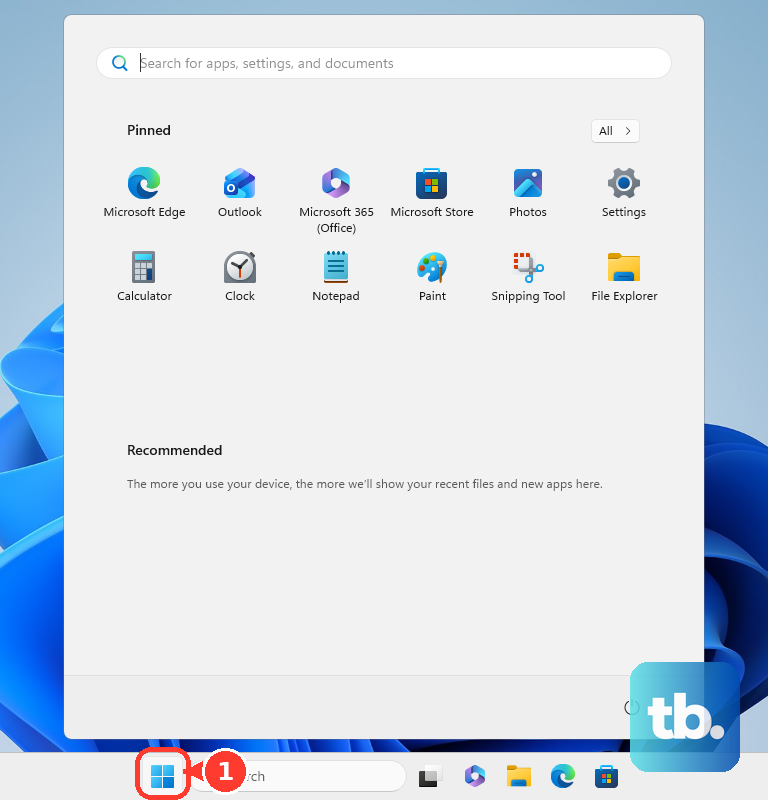
A bad color profile leaves one display warmer than the others. On Windows 11, open Settings > System > Display > Color profile.
In Color management settings, select the affected display. Expand the color profile that looks wrong and select Remove, or select a known-good profile and choose Set profile. For calibration on Windows 11, select Calibrate display and follow the display calibration steps.
For HDR color on a Windows 11 PC with HDR turned on, install Windows HDR Calibration from the Microsoft Store. Open Start > All apps > Windows HDR Calibration, move the app window to the HDR-capable display, drag the sliders through the test patterns until the patterns are no longer visible, and save the profile.
On a Mac, open Apple menu > System Settings > Displays. Click the pop-up menu next to Color profile, then choose the profile you want to use. If calibration still leaves the screen yellow, check graphics vendor color controls and the monitor menu next.
Undo graphics card color changes
When a graphics utility is involved, the most common cause is a custom color or desktop color setting.
On 12th Gen Intel Core and Intel Arc systems, Intel Graphics Software is the current app; it installs with the Intel graphics driver and carries the display color options. Intel Graphics Command Center still works but now receives only critical legacy fixes.
On systems that still use it, open Intel Graphics Command Center from the Windows Start Menu. Click Display in the left navigational menu, then select the Color tab. Use Restore to Original Colors to revert changes, or adjust Brightness, Color, Hue, and Saturation in a custom profile.
On AMD Radeon systems, click Start, type AMD Software, and open the app. Enter Display in the search box and click Display Settings. Select the affected display, then toggle Custom Color off, or adjust color temperature, brightness, hue, contrast, and saturation. For a game-only tint in AMD Software, open Game Color and choose the application profile.
On NVIDIA PCs, open NVIDIA Control Panel. Go to Display > Adjust desktop color settings. Select the affected display, then adjust Color Channel, Brightness, Gamma, Contrast, Digital Vibrance, and Hue. To update through Windows, right-click Start and select Device Manager.
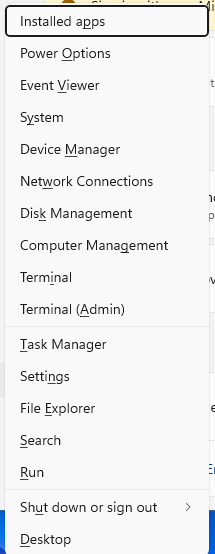
Expand Display adapters. Right-click the graphics device, select Update driver, and follow the prompts. Also check Start > Settings > Windows Update. For vendor tools, use Intel Driver & Support Assistant, AMD Drivers and Support, Auto-Detect and Install Driver Updates, the NVIDIA App, or the official NVIDIA driver page for your hardware.
Reset the monitor menu
Use the monitor's own controls when an external display stays yellow after the computer's color settings look correct.
- 1.On a Dell or Alienware monitor, use the monitor's On-Screen Display to perform a factory reset.
- 2.If Dell or Alienware colors still do not match, open Custom Color in the On-Screen Display, go to the individual RGB option, and adjust the colors.
- 3.On a Samsung monitor, press the monitor menu button to display the Function Key Guide, then select Menu > On-Screen Display and turn off Eye Saver Mode.
- 4.For Samsung color adjustment, use Red, Green, Blue, ColorTone, and Gamma; ColorTone includes cool, normal, warm, and custom.
- 5.On an ASUS Low Blue Light or Eye Care monitor, open the On-Screen Display menu, go to Blue Light Filter, and choose a lower level; Level 0 is standard mode.
Handle managed work or school browsers
On a managed work or school browser, admin policy decides which color-changing extensions run. Managed Chrome and Microsoft Edge environments control extension allow, block, and install behavior.
If the tint only appears inside the managed browser, ask the administrator to remove or block the tinting extension. In managed Chrome, a blocked extension that is already installed is disabled and the user cannot enable it.
For a whole-screen yellow tint, use the device settings above first. Browser extension controls matter when the browser is the only place that looks yellow.
Frequently Asked Questions
Why is my computer screen yellowish all of a sudden?
A sudden yellow tint comes from Night light, Night Shift, Chromebook Night Light, accessibility color filters, Screen Tint, a display color profile, a GPU color setting, a browser extension, or the monitor's color controls.
Why is only Chrome yellow but everything else looks normal?
Chrome page color changes come from an extension or a theme. Open More > Extensions > Manage extensions to turn off or remove extensions, then use More > Settings > Appearance > Reset to default for the theme.
Does HDR calibration help with a yellow Windows screen?
Use Windows HDR Calibration only on Windows 11 with HDR turned on, an HDR-capable display, WDDM 2.7 or later, and supported newer AMD, Intel, or NVIDIA graphics.
What should I try if Night light or Night Shift keeps coming back?
Turn off the schedule. On Windows, disable Schedule night light. On Mac, change the Night Shift schedule. On Chromebook, set Night Light Schedule to Never.