


To fix a Wi-Fi driver that isn’t working, enable wireless, run Windows network diagnostics, then update, roll back, or reinstall the wireless adapter driver. If the failure began immediately after a driver update, try rolling back before installing another version. The Windows steps use Windows 11 menus.
The short version
- Start simple: Enable wireless and run network diagnostics.
- Recent update: Roll back the wireless driver when a previous version is available.
- Correct download: Match the driver to your hardware, Windows version, and architecture.
- Reinstallation caution: Do not uninstall the Wi-Fi driver on Surface Pro X.
- Last resort: Save network reset for after the driver and connection repairs.
| Fix or diagnostic | When to use it | Main catch |
|---|---|---|
| Wireless settings | Before changing drivers | Check the physical switch if fitted |
| Network diagnostics | First checks for connection trouble | Follow the diagnostic prompts |
| Driver rollback | Failure followed a driver update | Requires administrator access and a previous driver |
| Windows Update | A wireless driver update is offered | Optional drivers need manual selection |
| Surface app update check | You use a Surface | Driver availability depends on the servicing lifecycle |
| Dell driver download | You need a Dell or Alienware driver | Identify the exact computer |
| SupportAssist updates | You use a supported Dell PC | Use Ethernet if Wi-Fi is unavailable |
| Surface driver download | You need a replacement Surface package | Requires a package for your exact model |
| Intel driver installer | Your adapter appears in the supported products | Prefer a customized manufacturer package when required |
| Manual driver installation | You have a matching extracted driver | Select the extracted folder |
| Device reinstallation | Updating or rollback did not help | Exclude Surface Pro X |
| Surface driver package removal | You need to reinstall a supported Surface driver | Save the replacement first and exclude Surface Pro X |
| Wireless service restart | Wi-Fi still fails after driver checks | Restart WLAN AutoConfig |
| Saved network repair | You still cannot connect to your network | Reconnecting requires its password |
| Connection stack repair | Connection trouble persists | Requires an administrator Command Prompt |
| Network reset | Earlier repairs failed | VPN software may need reinstallation |
| Wireless report | You need details about a persistent failure | Collects diagnostic information without repairing it |
Check wireless settings and run diagnostics
Open Settings > Network & internet and turn on Wi-Fi. Open Airplane mode and turn it off. If your laptop has a physical wireless switch, make sure that switch is on too.
Next, open Start > Settings > System > Troubleshoot > Other Troubleshooters. Select Run next to the network troubleshooter and follow the diagnostic prompts. You can also right-click the taskbar Wi-Fi icon and select Diagnose network problems.
Microsoft directs current Windows 11 network troubleshooting through Get Help, replacing older MSDT troubleshooting instructions. Follow the repair prompts, then check your connection again. If Wi-Fi still fails, continue with the wireless adapter’s driver.
Roll back a driver that just stopped working
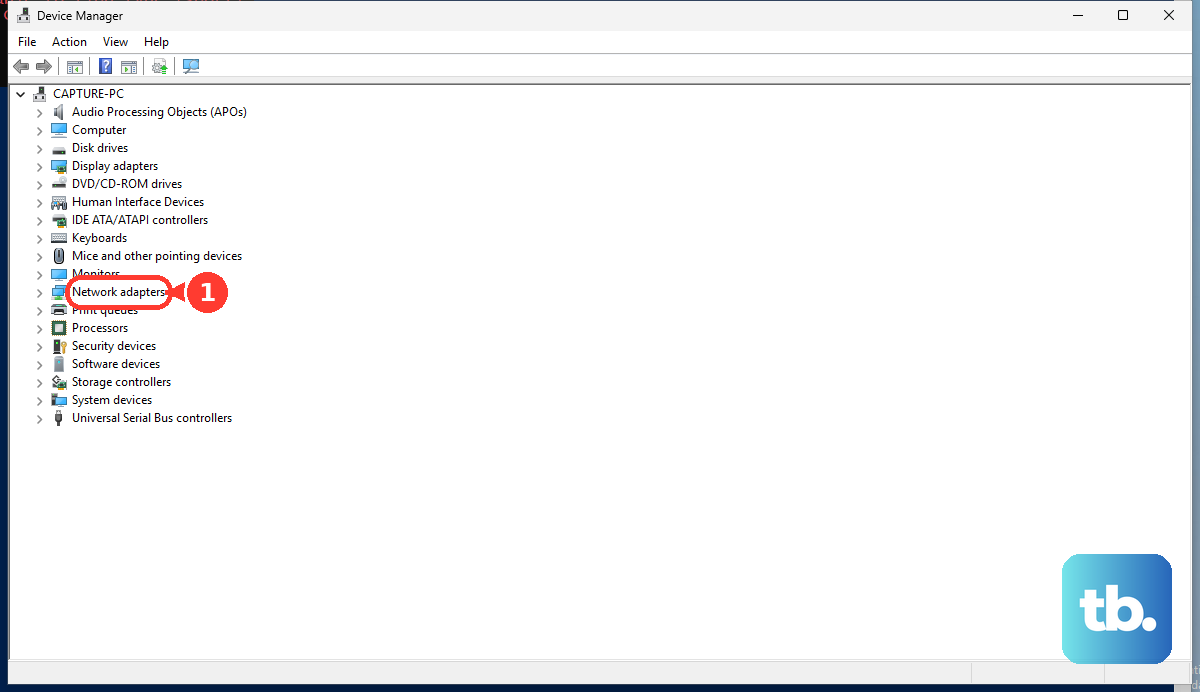
If your connection failed immediately after a driver update, try restoring the previous driver first. Right-click Start, select Device Manager, and expand Network adapters. Right-click your wireless adapter and select Properties.
Open the Driver tab and select Roll Back Driver. Choose the reason that describes the problem, select Yes, and restart if requested. You need administrator access and an available previous driver to complete this step. If you cannot roll back, or doing so does not restore Wi-Fi, continue to the update options.
Look for a wireless driver in Windows Update
Open Start > Settings > Windows Update > Advanced options. Turn on Receive updates for other Microsoft products. Under Additional options, open Optional updates.
Select the offered Wi-Fi driver, then choose Download and install. Restart after installation and check whether you can connect. Optional drivers require manual selection, so check this menu even if you have already installed regular Windows updates.
On a Surface, you can also open the Surface app, select Help & support, and choose Check for updates. Install the updates offered through Windows Update. New Surface driver availability depends on your model’s servicing lifecycle.
Install the correct manufacturer driver
If Windows Update does not resolve the problem, download a wireless driver that matches your hardware, Windows version, and architecture. Check the package requirements before downloading, then use the installation route for your computer or adapter.
For a Dell or Alienware computer, open Dell Drivers & Downloads and identify the PC by its Service Tag or product model. Download the matching wireless driver for that computer. On supported Dell PCs with SupportAssist, you can instead open SupportAssist, select Home > Update software > Start, and install the applicable offered updates. Use Ethernet if Wi-Fi is unavailable.
For a Surface with a downloadable package, open the Surface driver download page. Under Manually update Surface drivers and firmware, choose the Surface family and exact model, then follow its package download link. If that Surface cannot get online, connect through Ethernet or download the package on another PC and transfer it with a USB drive. Install the package on the affected Surface.
For an Intel wireless adapter, check the supported products and operating system requirements on the Intel wireless driver download page before downloading and running its installer. The package applies only to the adapters listed there. Prefer your computer manufacturer’s customized package when your computer requires it.
To install a downloaded and extracted driver through Device Manager, expand Network adapters, right-click the wireless adapter, and select Update driver. Select Browse my computer for drivers, then select Browse... and choose the extracted driver folder. Select OK, Next, and Close to finish.
Reinstall the wireless adapter
If updating or rolling back has not helped, try reinstalling the device. Do not use this procedure on Surface Pro X: Microsoft warns that uninstalling its Wi-Fi driver requires a full system reset to restore the drivers. On other Windows 11 PCs, Windows attempts to reinstall the device after a restart.
Right-click Start, select Device Manager, and expand Network adapters. Right-click the wireless adapter, choose Uninstall device, and select Uninstall without selecting a driver package removal option. Restart the PC so Windows can attempt reinstallation, then check your Wi-Fi connection.
On supported Surface models other than Surface Pro X, Microsoft also provides a driver package removal procedure. Save the replacement Surface driver package first, then double-click the adapter in Device Manager > Network adapters and open Driver > Uninstall Device. Select Attempt to remove the driver for this device, select Uninstall, and restart. Install the saved package if needed.
Restart the wireless service and reconnect
If Wi-Fi still fails after the driver repairs, restart the wireless service. Press Windows + R, enter the following command, and press Enter.
services.mscFind WLAN AutoConfig, right-click it, and select Restart. Check your connection again after restarting the service. If you still cannot connect to your network, try replacing its saved connection profile, with the network password ready.
Select the taskbar Wi-Fi icon, open Manage Wi-Fi connections, select your network, and choose Forget. Select the network again, enter its password, and choose Connect. This repairs the saved connection profile rather than the driver files.
Repair the Windows connection stack
If driver repairs and reconnecting have not solved the problem, try resetting Winsock and TCP/IP, renewing the IP address, and flushing DNS. These commands address the Windows connection stack. Open Command Prompt using Run as administrator, then select Yes.
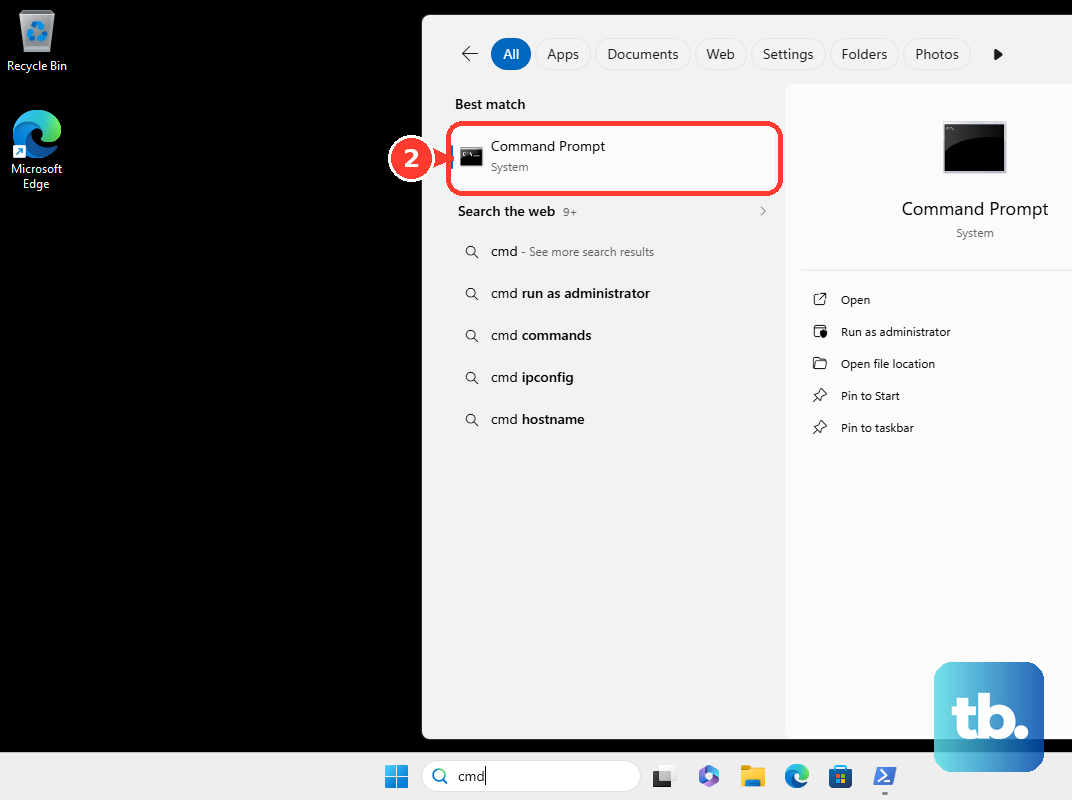
Run the following commands in the order shown. Enter one command at a time and press Enter after each one.
netsh winsock resetnetsh int ip resetipconfig /releaseipconfig /renewipconfig /flushdnsCheck whether your wireless connection works after completing the commands. If the problem continues, try network reset as the last network repair.
Reset networking if the earlier fixes fail
Open Settings > Network & internet > Advanced network settings > Network reset. Select Reset now, then select Yes and restart. Microsoft says you may need to reinstall VPN software afterward.
If Wi-Fi still fails, generate a wireless report to examine the remaining problem. Open Command Prompt as administrator and run this command.
netsh wlan show wlanreportOpen the generated HTML report in a browser and examine the adapter details, problem numbers, and failed connection sessions. Use those details to narrow down the failure; the report collects diagnostic information rather than performing an automatic repair.
Frequently Asked Questions
What can you try when Wi-Fi keeps disconnecting on a Dell PC?
On a Dell Windows 11 PC with a Power Management tab for the adapter, open Device Manager, expand Network adapters, and open the wireless adapter’s Properties. Select Power Management, uncheck Allow the computer to turn off this device to save power, and select OK. Use this procedure only when your Dell exposes that tab.
How can you check whether Dell wireless hardware is disabled in BIOS?
On Dell models with this BIOS interface, press F2 at the Dell logo and open Connection. Check WLAN, then save and exit. These menu names apply to that Dell interface, so follow your model’s instructions if its menus differ.
Can System Restore undo a driver problem?
Yes, on Windows 11 with an existing restore point, you can reverse a driver-related system change while preserving personal files. Press Windows + R, enter rstrui.exe, select Next, and choose a restore point from before the failure. If needed, select Show more restore points, then review Scan for affected programs. Select Next and Finish; system changes made after the restore point are reversed.
What should you do for a suspected Wi-Fi driver problem on a Mac?
Hold Option while clicking Wi-Fi in Control Center or the menu bar, then select Open Wireless Diagnostics and follow the analysis prompts. For system updates, open the Apple menu > System Settings > General > Software Update and install the compatible update offered. Wireless Diagnostics analyzes your wireless environment rather than reinstalling a separate driver.
How do you diagnose a similar problem on a Chromebook?
On ChromeOS 90 or later, select the time, then open Settings > About ChromeOS > Diagnostics and inspect Connectivity. Tests run automatically for the default connection; select Save test details to retain results for the manufacturer. On a Chromebook still eligible for updates, select the time, open Settings > About ChromeOS > Check for updates, let the update download, and select Restart when offered. Use Ethernet if Wi-Fi prevents downloading, and ask your administrator for assistance if the Chromebook is managed.