

Your VIZIO sound bar remote stops responding, and suddenly even a simple volume change becomes a problem. The fix usually comes down to the remote batteries, a stuck button, app control, HDMI ARC/eARC control, or the sound bar itself needing a documented reset. Start with the fastest checks below, then move through the official alternate controls and replacement options.
1. Refresh the original remote first
Start here when the VIZIO sound bar remote is dead, delayed, or only responds to some button presses.
Remove the batteries from the remote. Press every button on the remote once so no button stays stuck. Reinstall the batteries with the positive and negative ends facing the correct direction. Test Power, Volume Up, Volume Down, and Mute.
If the remote still does not respond, install fresh batteries and test the same buttons again. If the battery cover will not slide open, flip the remote upside down with the top facing you. Place one thumb on the small round impression on the back, place the other thumb near the bottom edge, then push the cover open.
2. Keep control with the sound bar buttons
Power turns the sound bar on or off. Input changes the audio source. Volume Up and Volume Down adjust loudness. Bluetooth Input starts Bluetooth pairing on models with that button.
The remote is not the only control surface. Use the physical buttons on the sound bar while you sort out the remote. Button placement and labels vary by model, so use the labels printed on your sound bar’s button panel.
3. Pair VIZIO Mobile as the remote
VIZIO Mobile is the official phone remote for current app-controlled VIZIO sound bars, including advanced settings and system updates.
- 1.Go to VIZIO’s official VIZIO Mobile page and use the App Store or Google Play link.
- 2.Install VIZIO Mobile.
- 3.Create or sign in with a VIZIO Account.
- 4.Turn on Bluetooth on your phone or tablet.
- 5.Stand next to the sound bar, open VIZIO Mobile, and select the sound bar when it appears.
The discovery window and pairing button gesture depend on your model, so check your model’s manual. On some current models such as the SV210D, the app automatically recognizes the sound bar for the first hour after installation; after that hour, press and hold the sound bar’s Bluetooth button and release after 5 seconds to start pairing.
On other current models such as the SV210Y All-in-One SE, the app recognizes the sound bar for the first 72 hours; after that, quickly press the Bluetooth button to start pairing. Either way, then select the sound bar in VIZIO Mobile.
Once paired, use the app for supported controls such as bass, treble, height, dialogue or ClearDialog, EQ, and other sound bar settings.
4. Re-pair the app when commands fail
If VIZIO Mobile sees the sound bar but does not control it, removing the pairing and connecting again is the next step. On some current sound bars, only one paired device can control the bar at a time.
Open VIZIO Mobile. Press the sound bar name at the top of the screen. Under Paired Devices, press the Information button. Press Unpair Device.
Press Yes. On iPhone or iPad, open the device’s Bluetooth settings, press the Information button for the VIZIO Mobile app pairing, and unpair it there too. Finally, put the sound bar back in pairing mode using your model’s gesture.
Press and hold the sound bar’s Bluetooth button and release after 5 seconds on hold-to-pair models such as the SV210D, or quickly press Bluetooth on quick-press models such as the SV210Y. Then select the sound bar again in VIZIO Mobile.
5. Switch to the TV remote through HDMI ARC or eARC
Many current VIZIO sound bars are built to work from the TV remote instead of a dedicated sound bar remote.
Connect the sound bar to the TV’s HDMI ARC or HDMI eARC port with an HDMI cable. Turn on the TV with the TV remote. Use the TV remote’s Volume Up, Volume Down, and Mute buttons to control sound bar volume. On compatible VIZIO TVs paired with compatible current VIZIO sound bars, press Settings, then go to ALL SETTINGS and AUDIO for the TV audio control menu.
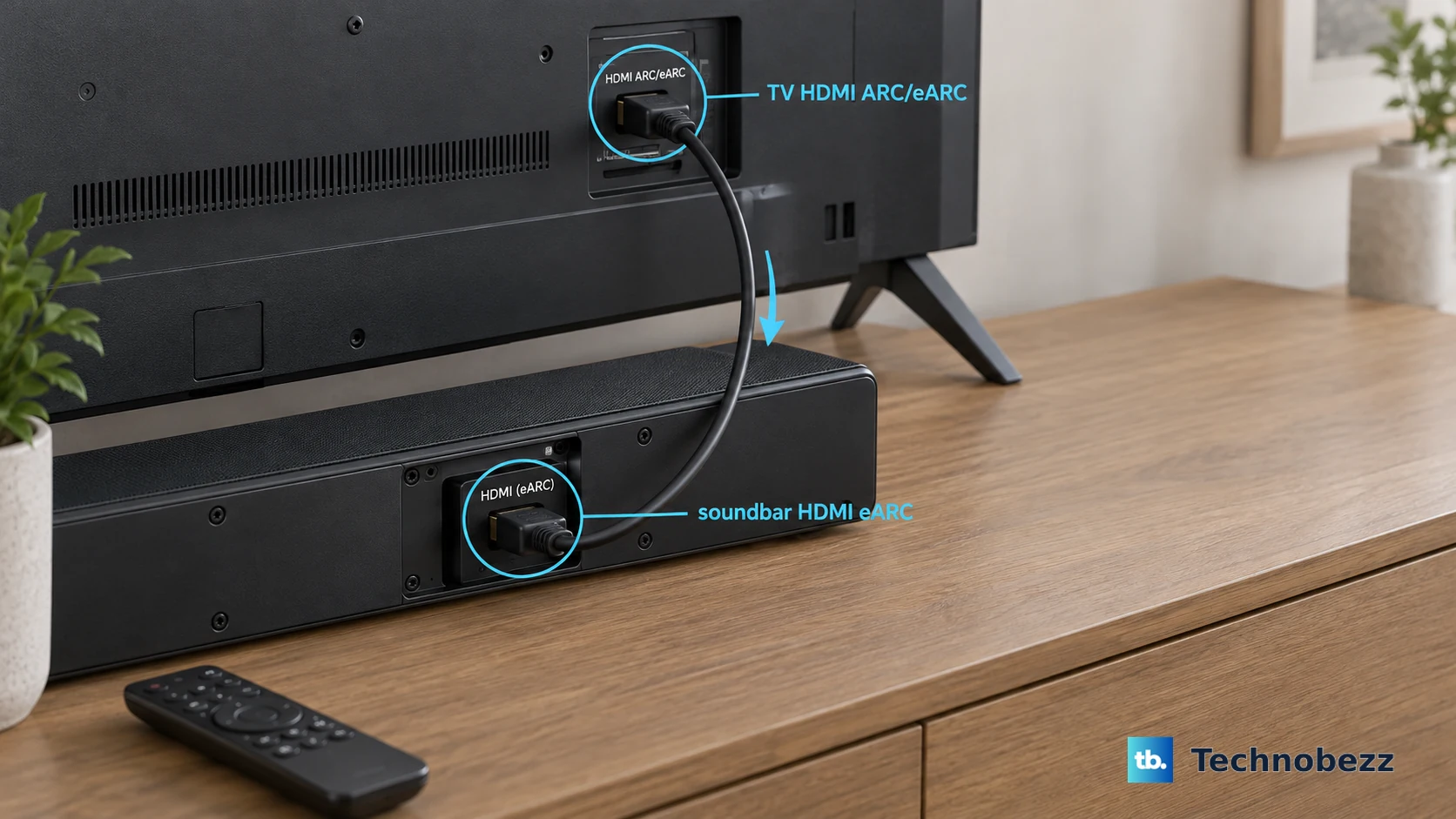
6. Turn on CEC when the TV remote does nothing
HDMI ARC/eARC volume control depends on HDMI CEC or System Audio Control being enabled.
On a VIZIO TV, open Menu, then select All Settings and System. Open CEC and turn CEC on.
Some VIZIO TV manuals also direct you to enable CEC and ARC/eARC (SAC), then choose Device Discovery from the CEC menu so the TV registers the sound bar. On non-VIZIO TVs, the same feature may appear as Anynet+, Bravia Sync, Simplink, VIERA Link, or System Audio Control.
7. Teach a supported model another remote
Use this only on VIZIO sound bars that support VIZIO TV Remote Control or IR learning. Current app-first models use VIZIO Mobile and HDMI ARC/eARC, so match the method to your model manual.
For supported V-Series and M-Series sound bars, press and hold Power and Volume Up on the sound bar for 5 seconds. This toggles VIZIO TV Remote Control so a VIZIO TV remote can power on the sound bar and adjust volume.
For IR learning on supported V-Series models, point both remotes toward the front of the sound bar, then program the commands.
Press OK and Volume Down together on the VIZIO sound bar remote, then press Volume Down on the TV remote. Next, press OK and Volume Up together on the VIZIO sound bar remote, then press Volume Up on the TV remote. After that, press OK and Mute together on the VIZIO sound bar remote, then press Mute on the TV remote. Turn off the TV speakers after programming.
Older remote-with-LCD models use Menu, Prg Remote, and the listed learn options instead.
8. Reset the sound bar and update from VIZIO
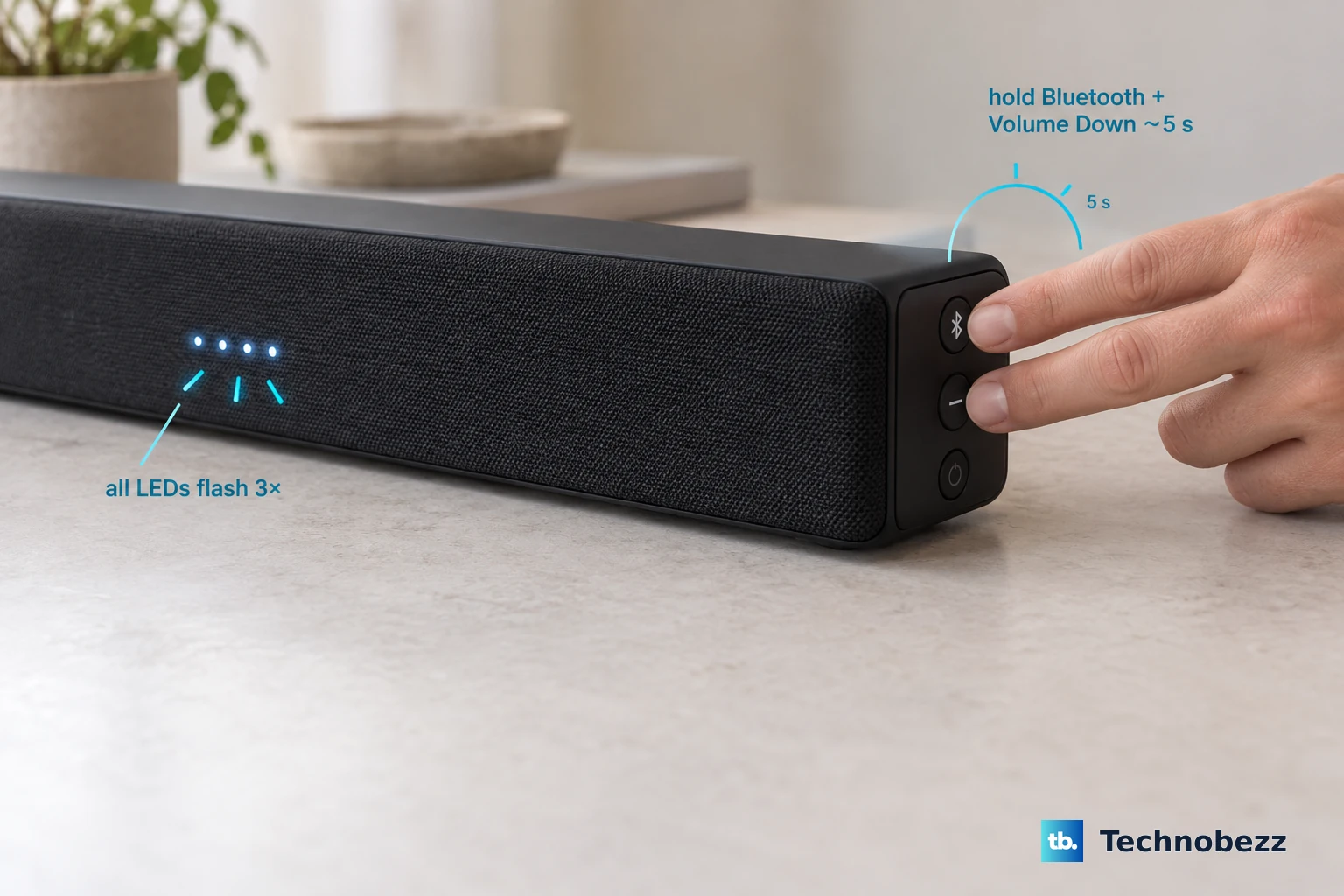
Use the factory reset when the sound bar itself is not responding correctly, after the battery check, app control, and HDMI control checks have ruled out the remote path.
Press and hold Bluetooth and Volume Down on the sound bar for 5 seconds. Release the buttons when all LEDs flash 3 times. Set up the sound bar again. On current app-first models, pair VIZIO Mobile again.
For firmware, pair VIZIO Mobile on current app-first sound bars because VIZIO states that the app and account are required for system updates. For model-specific firmware pages, use VIZIO’s Firmware Search page, enter the sound bar serial number, and follow the instructions for that exact model. For older USB-updated sound bars, use only firmware files from VIZIO support.
9. Replace the remote only after the control paths fail
Use VIZIO’s replacement remote support page only after fresh batteries, the button refresh, VIZIO Mobile, HDMI ARC/eARC control, CEC, and the documented reset do not restore remote control.
Match the replacement by sound bar model number. Some current VIZIO sound bars ship without a dedicated sound bar remote and are controlled through VIZIO Mobile or a TV remote, so confirm that your model supports a physical replacement remote before buying one.
Frequently Asked Questions
Why does my VIZIO sound bar work from the buttons but not the remote?
That points to the handheld remote path. Refresh the remote by removing the batteries, pressing every button, reinstalling the batteries correctly, and then testing Power, Volume, and Mute with fresh batteries.
Do I need a VIZIO Account to control my sound bar from my phone?
Yes. Current VIZIO Mobile sound bar setup uses the VIZIO Mobile app with a VIZIO Account for advanced control, settings, and system updates.
What should I do if VIZIO Mobile paired once but stopped working?
Unpair the sound bar in VIZIO Mobile under Paired Devices, confirm with Yes, remove the Bluetooth pairing in iOS settings if you use an iPhone or iPad, then put the sound bar back in pairing mode with your model’s gesture (hold Bluetooth for 5 seconds on models like the SV210D, or a quick press on quick-press models like the SV210Y) and pair again.
Should I use third-party firmware or remote apps for a VIZIO sound bar?
No. Use VIZIO Mobile, VIZIO Firmware Search, VIZIO support firmware files, or VIZIO’s replacement remote page so the update or control method matches your sound bar model.