Your Samsung tablet looks dead when power cannot reach the battery or the software is frozen before startup. A blocked port, damaged cable, drained battery, moisture warning, or failed charger can stop charging cold, and a battery setting can cap charging at 80% or 85% on a tablet that is otherwise working. Start with the fastest checks, then move into restart, settings, and repair steps.
Start with the charging path
The most common cause is a blocked, loose, wet, or damaged charging path.
Remove any case or accessory that covers the charging port or presses against the buttons.
Check the tablet, charger, and USB cable for physical damage, liquid damage, dust, or foreign material.
Look inside the USB connections for corrosion or bent pins. The cable should sit firmly with very little movement.
Clean only the outside surfaces with a dry, soft cloth. Stop charging attempts when the port, cable, charger, or tablet shows damage.
Give a drained battery a full hour
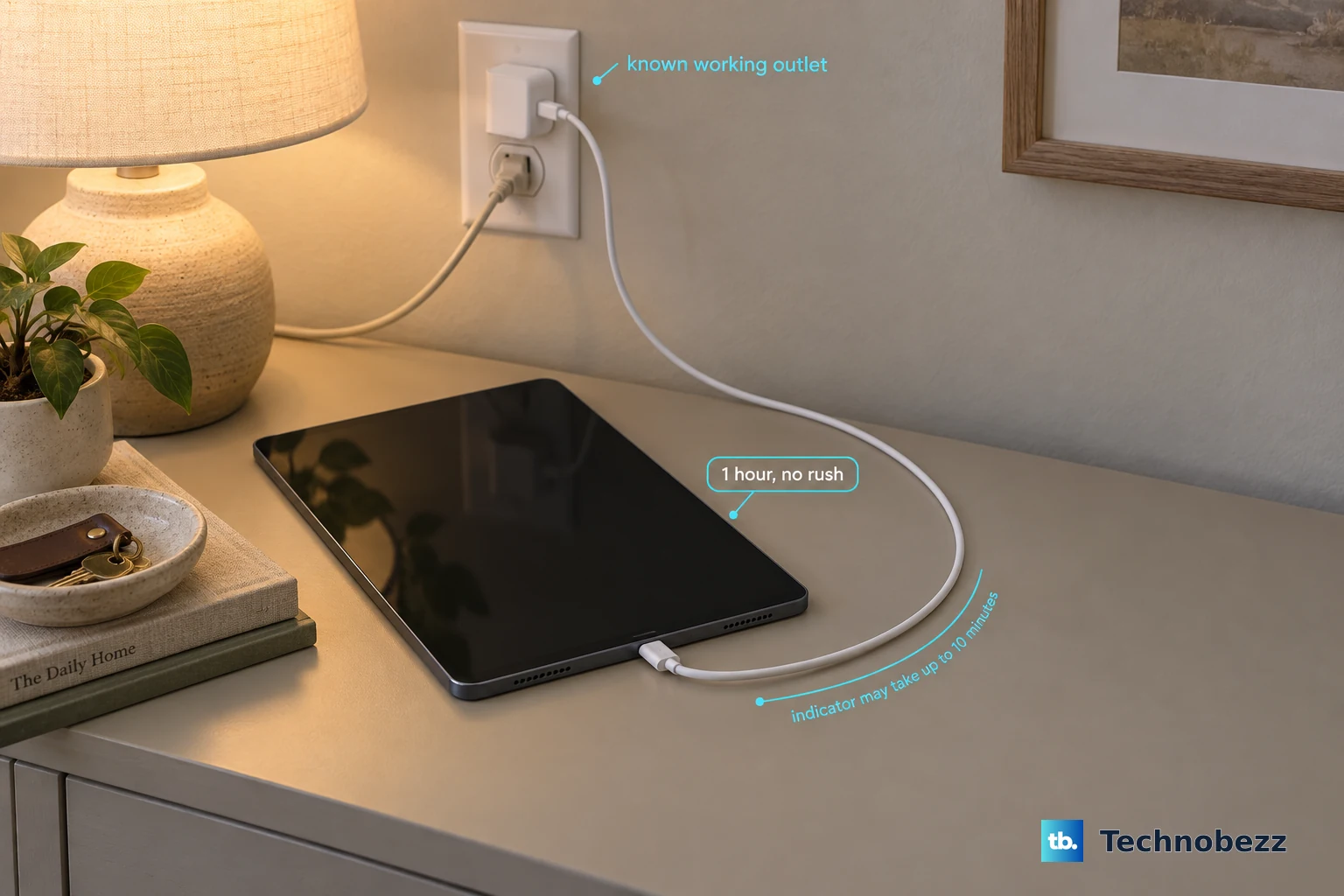
Use the charging cable that came with the tablet and a compatible Samsung wall charger. Plug the adapter into a known working wall outlet, connect the tablet, and leave it charging for at least 1 hour.
A completely depleted battery does not always show the charging indicator right away. Samsung says the battery charging indicator can take up to 10 minutes to appear.
After the hour, disconnect the charger and press and hold Power for 15 to 20 seconds. When the tablet turns on, power it off again and reconnect it to the factory travel charger until it is fully charged.
Force restart the tablet
This fixes a tablet that has power but will not respond to normal startup.
Press and hold Power or Side and Volume down at the same time.
Keep holding both buttons until the tablet restarts. Samsung says this can take up to 60 seconds.
Release the buttons when the Samsung logo appears.
When Maintenance Boot Mode opens, use Volume Up or Volume Down to highlight Normal Boot.
Press Side or Bixby to select it.
Check moisture and liquid damage
Handle moisture before you connect power again.
- 1.After recent water exposure or a moisture warning, leave the tablet unplugged for 1 to 2 hours so the charging port can dry.
- 2.When liquid other than water entered the port, rinse the port with fresh water, then dry it thoroughly with a dry, soft cloth before charging.
- 3.Insert the ejector tool into the small hole next to the SIM or MicroSD tray, then remove the tray.
- 4.Shine a flashlight into the SIM or MicroSD slot and check the Liquid Damage Indicator.
- 5.Continue only when the indicator is solid white or white with pink or purple Xs. Arrange service when it is solid pink, purple, or red.
Try another Samsung charger
Use Samsung chargers and avoid uncertified or counterfeit third-party chargers.
Plug the USB cable into the charging adapter.
Insert the other end into the tablet's USB port.
Connect the adapter to a known working power source.
Test another compatible Samsung charger when the tablet still shows no charging sign.
Replace the charger or request service for it when the charger itself does not work.
Power off the tablet before using a PC USB port as a fallback charger.
Use a USB 3.0 port, often marked in blue, or the computer's designated charging port.
Galaxy Tab models do not support wireless charging, so a bad USB port needs wired troubleshooting or service.
Turn off the battery limit
The most common cause of a Samsung tablet stopping at 80% or 85% is Protect Battery or Battery Protection.
Open Settings, then tap Battery.
Turn off the switch next to Protect Battery or Battery Protection. The switch appears gray when it is disabled.
Connect the tablet to a Samsung charger and let it charge to 100%. This fixes limited charging after startup, not a tablet that stays completely dead.
For slow charging on a supported tablet, open Settings, tap Battery, tap Charging settings, and turn on Fast charging. Galaxy Tablets do not support Fast wireless charging.
To confirm charging while the screen is off, open Settings, tap Display, and turn on Show charging information.
Remove an app that breaks startup
This fixes power or charging trouble that began after a third-party app was installed or updated.
Open the Power menu by pressing and holding Side and Volume down at the same time.
Touch and hold Power off until the Safe mode icon appears.
Tap Safe mode.
When the tablet works normally in Safe mode, swipe up from the Home screen to open the App drawer.
Touch and hold the app installed or updated when the problem started.
Tap Uninstall.
Tap OK to confirm.
Clean up software after startup
Once the tablet turns on, use Samsung Members to check for hardware or system clues. Open Samsung Members, tap Diagnostics on the Discover tab, tap Phone diagnostics, then run an individual test or tap Test all.
For intermittent power or charging behavior, open Samsung Members, tap the Support tab, and tap Error reports under Send feedback. Choose a category, fill out the required fields, tap Attach to add an image or voice recording, select Send system log data, and tap Send.
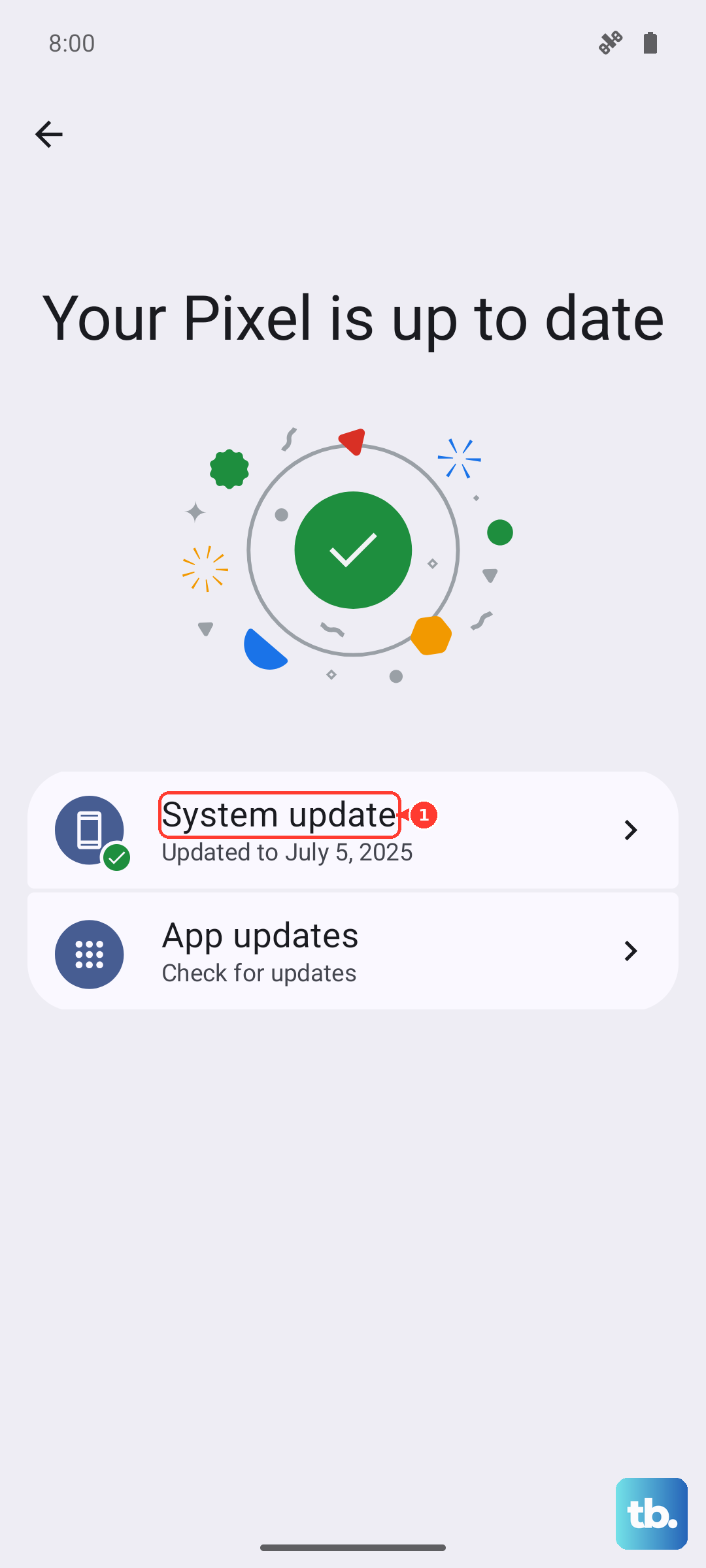
Install system updates after the tablet is stable enough to use. Swipe down from the top right with two fingers, tap the Settings icon, tap Software update, then tap Download and install. On some models, use System updates and tap Check for system updates or Check for software updates.
If these checks fail, open Settings, tap General management, tap Reset, then choose Reset all settings before considering Factory data reset. Reset all settings does not erase apps or data, while Factory data reset erases personal information and data and belongs after a backup.
Arrange repair when nothing responds
Use Samsung service when hardware damage, liquid damage, a faulty charging port, or failed troubleshooting still leaves the tablet dead.
- 1.Open Samsung Repair Services and select Request a repair to manage a repair with your Samsung Account.
- 2.Select Find a Service Center to search for a local Samsung support center, or select Check Repair Status for an existing repair.
- 3.Back up data when the tablet still allows it; for a mail-in power issue, include your wall charger and USB cable.
- 4.Remove SD cards, cases, screen protectors, and SIM cards. Decrypt and remove the SD card first when the tablet uses one.
- 5.Use Samsung Self-Repair only for supported models, and call Samsung at 1-800-726-7864 when you identify a safety issue or are unsure.
Frequently Asked Questions
How long should I charge a completely dead Samsung tablet?
Charge it from a known working wall outlet with a known good Samsung travel charger for at least 1 hour. The charging indicator can take up to 10 minutes to appear.
Can I charge a Galaxy Tab wirelessly if the USB port is bad?
No. Galaxy Tab series devices are not compatible with wireless charging. Use wired charging or arrange service.
Will Reset all settings erase my Samsung tablet?
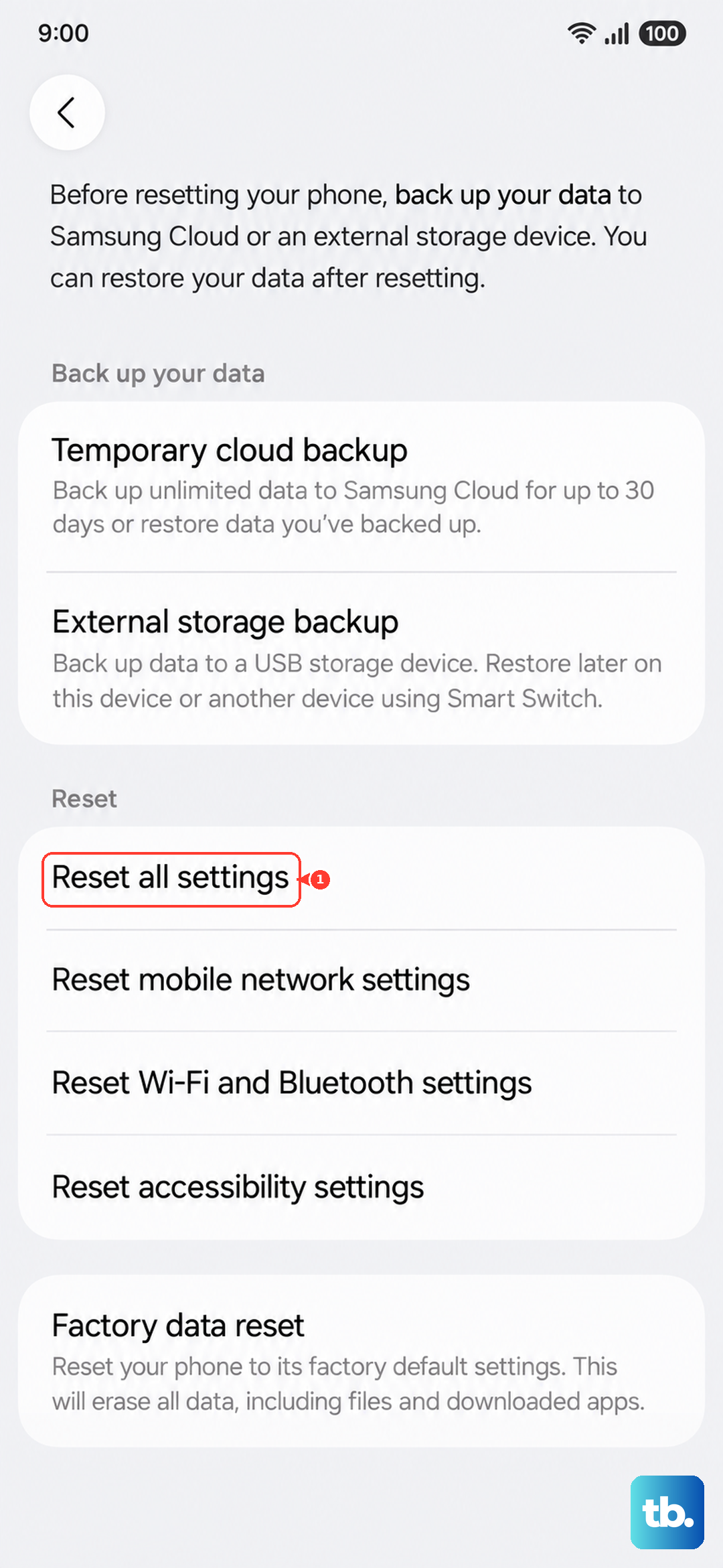
No. Reset all settings does not erase apps or data. Factory data reset erases personal information and data, so back up first.
What should I send with a Samsung tablet mail-in repair?
For power-related issues, include the wall charger and USB cable. Do not include SD cards, phone cases, screen protectors, or SIM cards.