

A printer showing as offline points to a connection, queue, printer-selection, or driver problem. Start with power and Wi-Fi, then use the exact Windows, Mac, phone, Chromebook, and brand-app steps that match your setup.
Start with power and Wi-Fi
Use this first when the printer worked recently, disappeared after a Wi-Fi change, or stopped after a router restart or power outage. These checks reset the printer connection and confirm your device is looking on the right network.
Turn the printer off and unplug it. Wait 30 seconds, plug it back in, then turn it on.
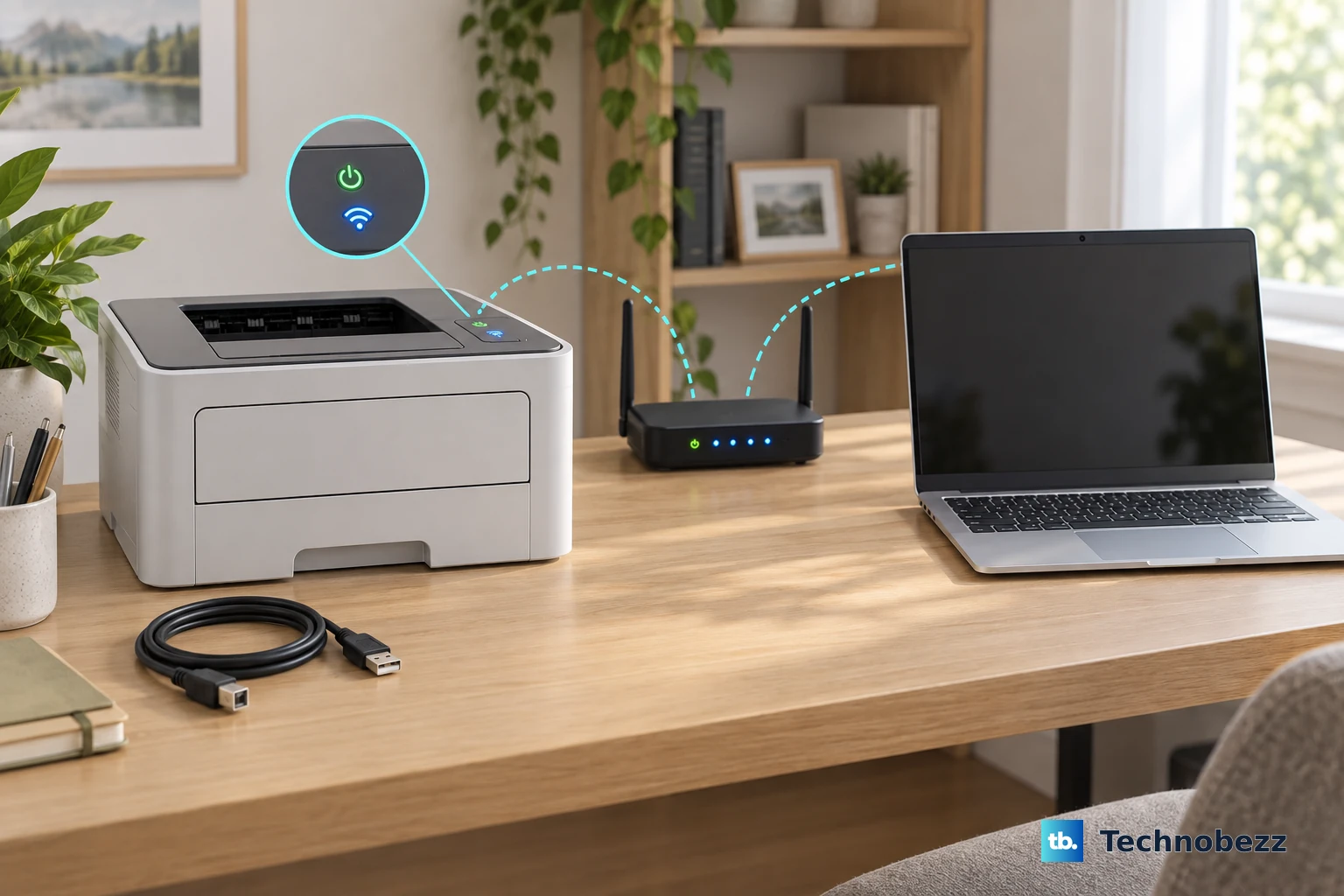
On a wireless printer, open the printer's built-in menu or control panel and confirm Wi-Fi is on. If your model has a blue wireless-icon button, use it to confirm wireless is enabled.
Run the printer's Wireless Connectivity Test from the printer menu when that option appears.
Connect your computer, phone, or tablet to the same Wi-Fi network name as the printer. This matters in homes with extenders or more than one network name.
Run the Windows printer fixes
On Windows 11, use Microsoft's built-in repair path before reinstalling anything.
- 1.Open Get Help or Microsoft's Run the troubleshooter in Get Help link, then let the printer troubleshooter run diagnostics and apply fixes.
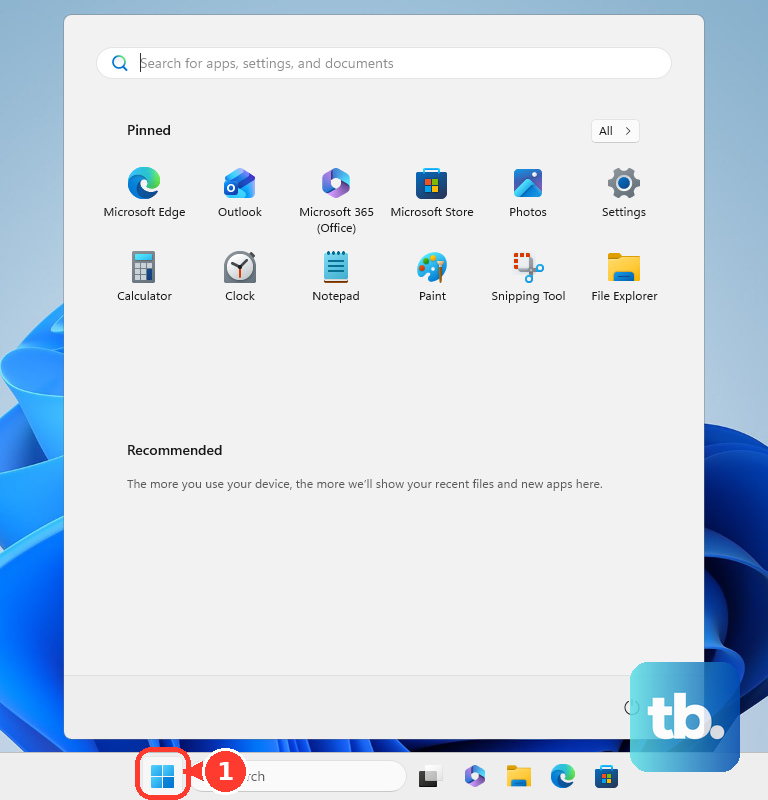
- 2.Go to Start > Settings > Bluetooth & devices > Printers & scanners.
- 3.Under Printer preferences, turn Let Windows manage my default printer off, select your printer, then choose Set as default.
- 4.Select the printer, open Open print queue, choose ..., then select Cancel all.
- 5.Search the taskbar for Services, open Services, right-click Print Spooler, and choose Restart.
Clear the Windows offline switch
Some printer brands still document the classic Windows queue because it exposes Use Printer Offline directly. On Windows 11, open Start > All apps > Windows Tools > Control Panel > Hardware and Sound > View devices and printers.
Right-click your printer, choose See what's printing, open the Printer menu, and make sure Use Printer Offline is not selected. When that setting is checked, Windows keeps sending jobs to an offline queue.
For current Windows PCs, use the Windows 11 settings flow and Get Help printer troubleshooter first. Do not use old Windows 10-only offline and pause-printing instructions as the main fix path, because Windows 10 support ended on October 14, 2025.
Remove and add the printer again
Use this when the printer is powered on, on the same network, and still shows offline after the queue and default-printer checks. Re-adding it creates a fresh Windows printer entry.
Open Start > Settings > Bluetooth & devices > Printers & scanners, select the printer, choose Remove, then confirm with Yes.
Return to Printers & scanners, choose Add a printer or scanner, then select Add device.
For a wired printer, plug it into the Windows device with USB and turn it on before adding it.
For a network or Wi-Fi printer, keep the printer turned on and on the same wireless network as the Windows device. If Windows does not find it, select Add a new device manually.
A Bluetooth printer does not join your Wi-Fi network, so Microsoft covers it separately: pair it with the Windows device using Microsoft’s Pair a Bluetooth printer or scanner steps instead.
Update the printer software and driver
A damaged driver or stale printer software keeps a valid printer from working correctly in Windows. Microsoft recommends Windows Update as the first way to get printer drivers, so run it before you download anything. On an ARM PC such as a Copilot+ PC, skip the manufacturer's installer: Microsoft says some ARM PCs cannot add or install a printer that way. Use Settings > Bluetooth & devices > Printers & scanners > Add device instead, unless your printer maker publishes ARM-specific guidance.
- 1.Go to your printer manufacturer's Support or Drivers section.
- 2.Enter the printer model, then select your Windows version when prompted.
- 3.Download the latest printer software and drivers for that model.
- 4.Right-click the downloaded installer, choose Open, and follow the prompts.
- 5.When Device Manager shows a printer or USB driver problem, open the device's Properties, use the Driver tab to uninstall the driver, restart, then use Action > Scan for hardware changes.
Fix Mac and AirPrint printing
Use these steps when the printer shows offline from a Mac, iPhone, or iPad. Apple's current fixes focus on the queue, the selected printer, same-network printing, and a fresh printer queue.
On a Mac, click the Print Center icon in the Dock. Click Resume when it appears, select a stuck job and click Delete Job, or select a paused job and click Resume Job.
Confirm the printer is plugged in, turned on, and connected. For Wi-Fi printing, put the Mac and printer on the same network.
For USB, hold Option, open the Apple menu, choose System Information, and confirm the printer appears in the hardware list.
If the Mac still cannot print, open Apple menu > System Settings > Printers & Scanners > Add Printer, Scanner, or Fax, select the printer from the local network list, and use the new queue. When the new queue works, delete the old one.
For AirPrint, connect the printer to Wi-Fi and keep the iPhone, iPad, or Mac on the same Wi-Fi network. On iPhone, open the app's print flow, tap Print, choose No Printer Selected, and pick the correct AirPrint printer.
Set up Chromebook and Android printing
Chromebooks and Android devices rely on saved printers, print services, and same-network discovery. A saved printer or inactive print service is the right place to start.
On Chromebook, select the time at the bottom right, open Settings, go to Device > Printers and scanners > Print, then choose Save next to the printer under Other available printers.
If the printer is already saved, use More > Edit to check the printer information for typos, or use More > Remove and set it up again.
When Chromebook discovery fails, use Other available printers > + Add printer manually. Enter the printer name and IP address, use Internet Printing Protocol (IPP) as the usual protocol, and use ipp/print as the usual queue.
On Android 9 and up, open Settings > Connected devices > Connection preferences > Printing. Google notes that some of these steps work only on Android 9 and later. Turn the print service on, add a service when needed, then choose the printer from the app's Menu or More > Print screen.
If this method fails, keep only one Android print service active, then use Mopria's manual add option with the printer name and IP address. Use Wi-Fi Direct in Mopria Print Service when the phone and printer are not on the same Wi-Fi network. Mopria says you may need to enable Wi-Fi Direct mode on the printer first, and to allow Mopria Print Service to access your device’s location so it can find the printer. If your phone cannot hold a Wi-Fi network and a Wi-Fi Direct connection at the same time, switch it temporarily from your Wi-Fi network to the printer’s Wi-Fi Direct connection.
Use your printer brand app
HP, Canon, Epson, and Brother provide supported tools for offline printer problems. Use them after the basic power, network, and queue checks, especially when the printer depends on brand software for Wi-Fi setup or status reporting.
For HP printers on Windows or macOS, open the HP app, select the printer, and run Diagnose & Fix. HP documents this tool for the HP app on Windows 10 version 1809 or later, Windows 11, and macOS 12 or later. HP says the tool checks whether the printer is offline and reconnects it to the network when it can; if the printer stays unavailable, remove it from the app and add it again on the same Wi-Fi network.
For Canon printers, check the printer LCD for the Wi-Fi ON icon, then turn the printer off and on again. Run Canon Wi-Fi Connection Assistant to diagnose and repair supported printer network connections.
On Canon inkjet models that use Canon MP Drivers and the Canon IJ Status Monitor, Canon's own Windows 11 queue path also clears Use Printer Offline: open Printers & scanners, choose the Canon printer, open Print settings or Print preferences, go to Maintenance, choose View Printer Status, then open Display Print Queue in the Canon IJ Status Monitor window. If your Canon model uses a different driver, use the Windows print queue steps above or that model’s Canon manual.
For Epson inkjet models whose support page calls for it, such as the EcoTank ET-3830, print a nozzle check pattern from the printer first. If it prints, clear pending jobs in the Epson print queue and deselect Use Printer Offline; if it does not print, fix printer-side errors such as jams, ink, or paper before troubleshooting the computer.
For Brother printers, check for duplicate printer copies in Start > Settings > Bluetooth & devices > Printers & scanners and choose the copy whose status is idle when printing. On Brother models with the option, use the printer LCD path Wireless Status > Recover WLAN > OK.
Handle work and managed printers
A work, school, or managed printer can show as offline because of driver rules, protected print settings, or shared-printer access controls. Canon's Windows 11 notes specifically call out protected print mode in environments where Canon MP Drivers are unavailable.
Use the standard add-printer path in Windows 11 Settings > Printers & scanners > Add Device when your organization uses the operating system's standard driver. Contact your IT admin when driver installation, protected print settings, or shared-printer access is controlled by policy.
If this method fails, go back to the basics you control: power-cycle the printer, put your device and printer on the same Wi-Fi network, clear the queue, then reinstall or re-add the printer only when you have permission.
Frequently Asked Questions
Why is my printer showing as offline when it is on?
The printer can be powered on and still unreachable from your device. The supported causes covered here are a different Wi-Fi network, a stuck print queue, the wrong printer copy, Use Printer Offline being enabled, or a driver/software problem.
Should I restart the printer or the router first?
Restart the printer first: turn it off, unplug it, wait 30 seconds, plug it back in, and turn it on. For Epson Wi-Fi offline cases where the wireless indicator shows a connection but printing still fails, restarting the router is the next supported step.
Do I need to reinstall the printer driver?
Use driver reinstall only after the simpler fixes fail. Run the Windows troubleshooter, power-cycle the printer, check same-network Wi-Fi, set the default printer, clear the queue, and restart Print Spooler first.
Can Google Cloud Print fix an offline printer?
No. Google Cloud Print is deprecated and is not a current fix path. Use Windows printer settings, macOS Printers & Scanners, Chromebook printer setup, Android print services, AirPrint, or your printer brand's app.