

A printer jam can stop everything with one half-fed page, a blinking error, or a queue that refuses to move. Most printer jam errors clear when you remove the paper slowly, check for torn scraps, and restart the stuck print job only after the paper path is clean.
Start with the controls on the printer, then move through the trays, access doors, rear path, and print queue. The aim is simple: clear the whole path without tearing paper or damaging rollers.
Use the printer controls first
This applies when the printer is still powered on and showing a paper-jam message. Start here before opening trays or covers.
On supported HP consumer printers, press Cancel on the printer control panel to try automatic jam clearing.
If the error clears, remove loose paper from the input tray, reload the stack neatly, and print again.
If the message returns, stop sending the same job and clear the paper path.
On Canon PIXMA printers, press Stop to cancel print jobs before turning off the machine during a jam.
On Epson and Brother models that prompt for it, cancel the print job before removing paper from inside the printer.
Clear the paper you can reach
The most common cause is a sheet that fed crookedly and stopped between the input tray and output slot.
Remove loose sheets from the input tray so they do not feed while you work.
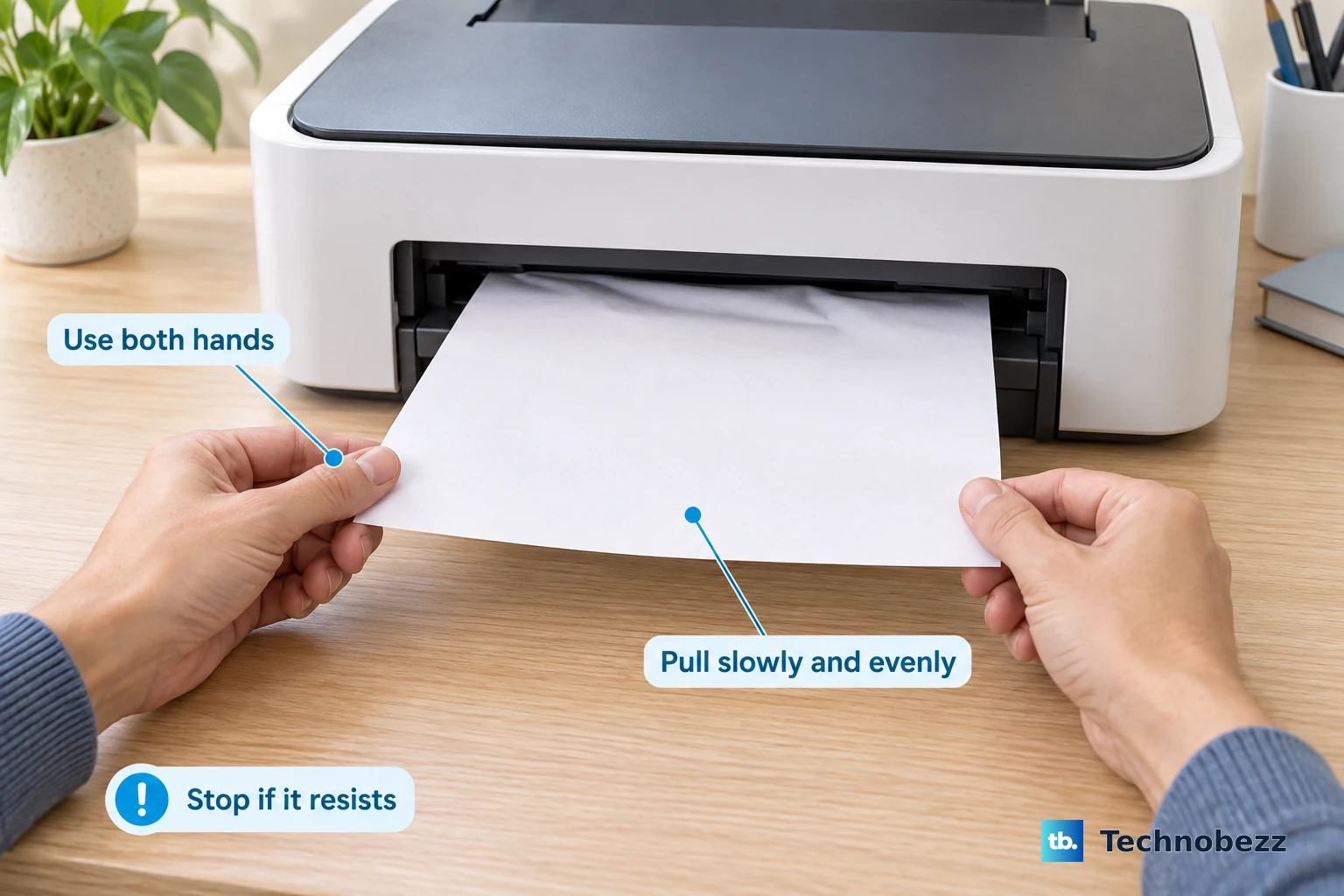
Hold the jammed page firmly with both hands.
Pull it out slowly, keeping the sheet as flat as possible.
For Canon PIXMA output-slot jams, pull slowly with both hands so the paper does not tear.
Reload the paper after the path is clear.
Move the paper guides snugly against the edges of the stack so the next page feeds straight.
Open the access area and remove scraps
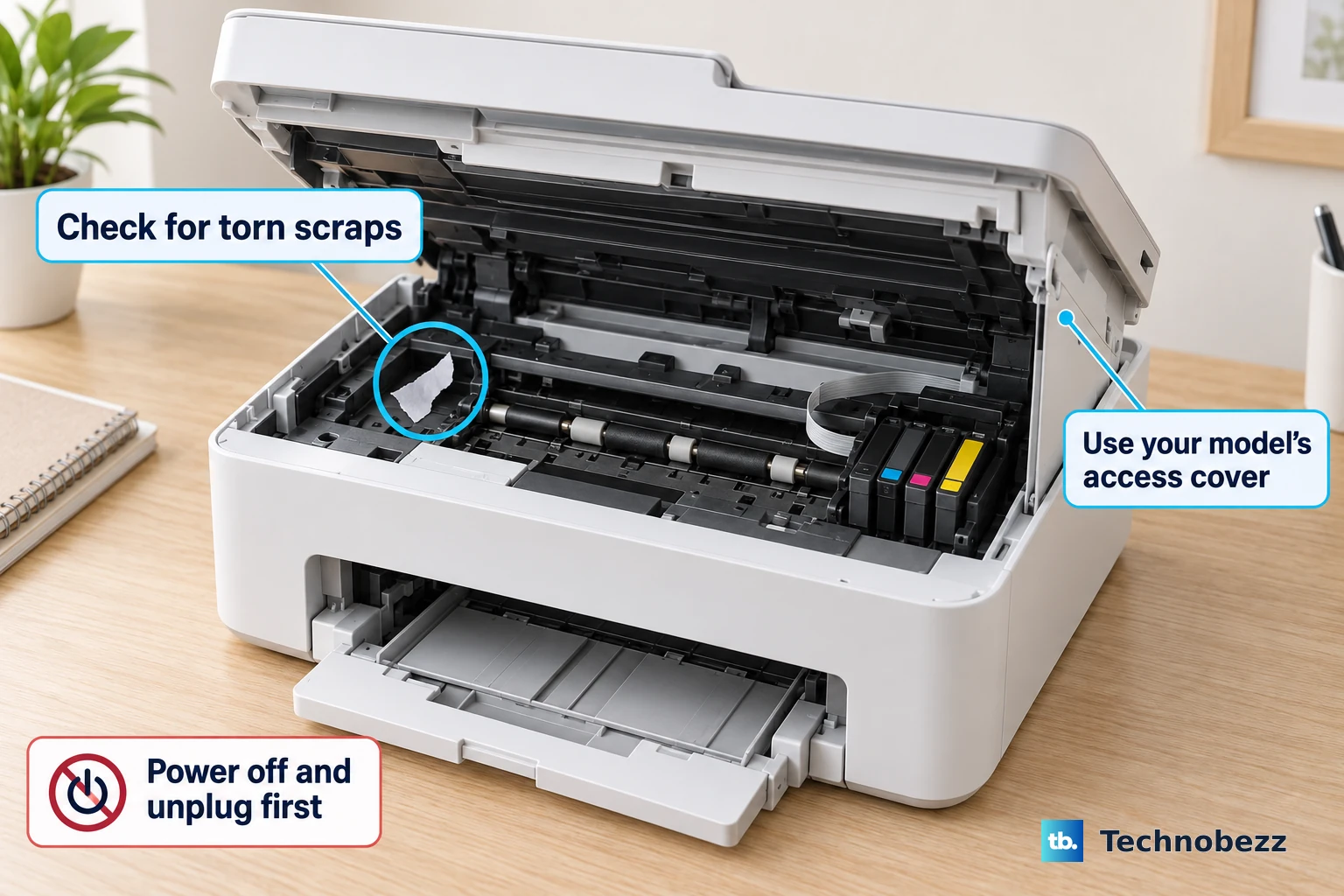
Turn the printer off before opening internal access areas on models that require power-off clearing.
Open the front door, cartridge access door, printhead access door, top cover, scanner unit, inner cover, rear cover, or Jam Clear Cover your printer provides for paper jams.
Wait for moving parts to stop before reaching inside.
Pull out visible jammed paper slowly with both hands.
Check the roller path, access area, and rear path for torn pieces.
Close every cover fully before reconnecting power or printing again.
A small scrap can keep the same paper-jam error on screen after the main sheet is gone.
Check the rear path and rollers
This applies when the paper disappeared into the printer, the front path looks clear, or the jam message returns. Rear-feed and rear-cover printers need that path cleared separately.
Open the rear panel, rear cover, roller module, or rear paper feed path your model provides.
Release the latches that hold the rear access point in place.
Remove jammed paper from inside the product and from the rear cover itself.
Reattach the rear cover securely.
Rotate the rollers gently and wipe them with a lint-free cloth slightly dampened with water.
Use alcohol on rollers only when your printer manufacturer recommends it for that exact model.
Match the jam path to your brand
The most common cause is opening the wrong access door for the printer’s paper path.
For HP inkjet and tank printers, clear the input tray, output tray, front door, cartridge access door, or printhead access area named for your model. For HP LaserJet models, open the toner cartridge access door, remove the toner cartridge when instructed, clear the paper path with both hands, reinstall the toner cartridge, and close the access door.
For Canon PIXMA printers, start at the paper output slot. If the paper will not pull out or tears, open the top cover, scanning unit, or printer cover, remove paper and scraps from inside, close the cover, and reload paper.
For Epson EcoTank and inkjet printers, use the rear paper feed slot, front cover, scanner unit, inner cover, raised control panel, or removable rear cover shown by your model. Do not tilt the printer, stand it vertically, or turn it upside down because ink can leak.
For Brother inkjet printers, use Tray #1, the green levers, the maintenance unit, the Jam Clear Cover, and the manual-feed thick-paper pass-through when your model includes them. On Brother touchscreen models with repeated jams, open Settings > Maintenance > Remove Paper Scraps and follow the LCD instructions.
Stop repeat jams from scraps
Repeated jams point to a torn piece still inside the printer or paper that is feeding badly. On Brother models with Remove Paper Scraps, use the LCD prompts to locate scraps; on supported models, feed one sheet of Letter or A4 thicker paper through the manual feed slot to push scraps out.
Check that the paper support is fully inserted on Brother models that use one. On manual feed slot models, load one sheet at a time and wait for the touchscreen prompt before loading the next sheet.
Clean the paper pick-up rollers when your printer’s instructions call for it.
If the jam returns after scraps, guides, supports, and rollers are handled, clear the print queue before sending another page.
Clear the stuck print job
On Windows 11, open Start > Settings > Bluetooth & devices > Printers & scanners, select your printer, choose Open print queue, right-click each job, and choose Cancel. On Windows 10, the route is Start > Settings > Devices > Printers & scanners, select your printer, choose Open queue, right-click each job, and choose Cancel. If the queue does not respond, press Windows key + R, type services.msc, open Print Spooler, and choose Restart.
On a Mac, open Print Center, select the stuck print job, and click Delete Job. If the bad queue keeps coming back, open Apple menu > System Settings > Printers & Scanners, control-click the printer, choose Remove printer, then confirm with Remove Printer.
On iPhone or iPad with AirPrint, open the App Switcher, tap Print Center, select the job, and tap Cancel Printing. For a school or work printer, ask the administrator to open the managed printer queue, select the active job, and click Cancel.
Reset printing after simpler fixes
Use a printing reset when the paper is fully cleared but the computer still treats the printer as jammed.
On a Mac, open Apple menu > System Settings > Printers & Scanners.
Control-click the printer list on the right.
Choose Reset Printing System.
Add your printers again after the reset finishes.
Apple says to try other troubleshooting first, because resetting the printing system deletes all printers, completed-print-job information, and printer presets.
Fix a jam message that will not clear
Use these last steps only after the paper path is clean and the queue has been canceled.
- 1.Turn the printer off, disconnect power and any USB or network cables, then check the input tray, output slot, internal path, rear path, and rollers again for torn paper.
- 2.Reconnect power, turn the printer on, and let the printer finish its startup sequence before sending a new job.
- 3.For HP printers, use HP’s web-based Virtual Assistant or the self-guided printer-type resources on HP’s paper-jam support page.
- 4.On Windows, use Windows Update for printer software first; if that does not find the driver, download current software from HP, Canon, Epson, or Brother’s official support page for your exact model.
- 5.Skip old shortcuts such as yanking paper hard, turning an inkjet upside down, or using alcohol on rollers as a blanket fix; current printer guidance uses documented access paths, gentle removal, and water-dampened lint-free cloths when roller cleaning is needed.
Frequently Asked Questions
Why does my printer still say paper jam after I removed the page?
A torn scrap is still inside the paper path, rear cover, roller area, cartridge access area, or scanner-unit access area. Clear those areas slowly, close every cover fully, then cancel the stuck print job before printing again.
Can I pull jammed paper out from the front?
Yes, when the paper is reachable. Hold it with both hands and pull slowly. If it tears or will not move, open the access cover your printer provides instead of forcing it.
Should I turn my printer upside down to remove stuck paper?
No. Epson cautions against tilting, standing, or turning inkjet printers upside down because ink can leak. Use the printer’s normal trays, covers, and paper path.
What should I do if the computer keeps sending the same stuck job?
Cancel the job from the print queue. On Windows, use Printers & scanners, then Open print queue on Windows 11 or Open queue on Windows 10; on Mac, use Print Center; on iPhone or iPad, use Print Center from the App Switcher.