A pixelated computer screen usually means the display is using the wrong resolution, bad scaling, a problem graphics driver, or a weak external-monitor signal. Start with the fixes that affect the whole screen, then narrow it down to browsers, videos, apps, and monitor hardware.
If text, icons, apps, and videos all look blocky, resolution and scale come first. Driver fixes, cable checks, and app cleanup handle the stubborn cases.
Set the screen to its sharpest resolution
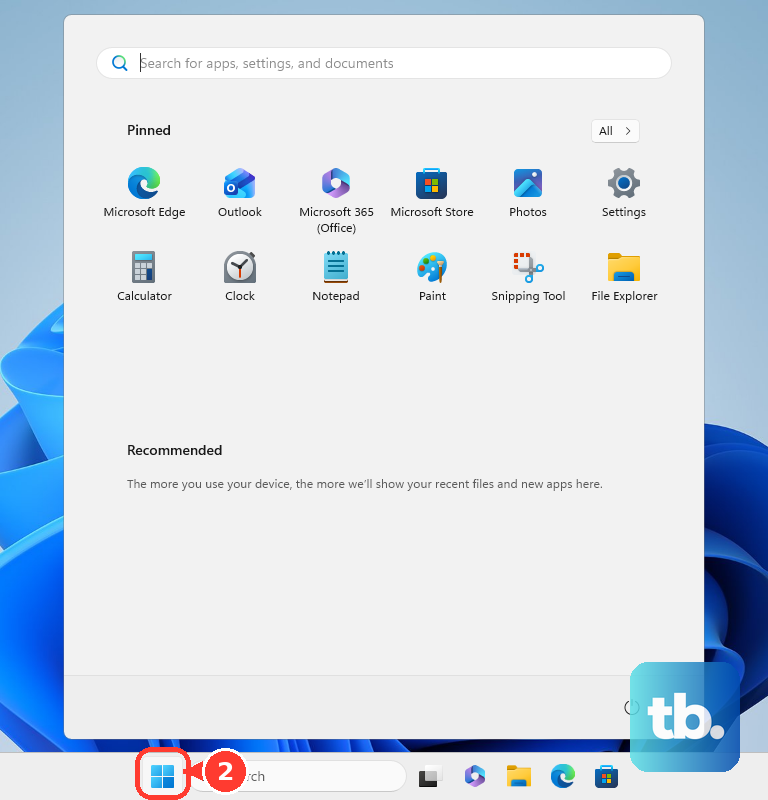
On Windows 11, open Start > Settings > System > Display, select the affected display, then go to Scale & layout. Open Display resolution and choose the option marked Recommended.
Stay in Scale & layout, open Scale, and choose the value marked Recommended. A wrong scale value can make text and apps look soft even when the resolution is correct.
On a Mac, open Apple menu > System Settings > Displays, select the built-in display or connected monitor, then choose the default or sharper resolution. To see exact values, control-click the thumbnail view and choose Show List, or open Advanced and turn on Show resolutions as list.
Reseat cables and restart the display signal
If you use an external monitor, rule out the connection before changing deeper settings.
- 1.Unplug the VGA, DVI, HDMI, DisplayPort, or USB display cable from both ends, then plug it back in firmly.
- 2.Check the connector pins and ports for visible damage, especially on older VGA and DVI connections.
- 3.Try another identical signal cable that matches the monitor port and required cable version.
- 4.On Windows, press and hold Windows key + Ctrl + Shift + B to restart the graphics driver; the screen may flash and you may hear a beep.
- 5.Restart the PC from Start > Power > Restart if the picture still looks corrupted.
Update or roll back your graphics driver
This fixes display corruption, sudden pixelation after an update, and graphics-driver problems.
Open Start > Settings > Windows Update > Advanced options > Optional updates, select any listed driver updates, then choose Download and install.
Restart from Start > Power > Restart after the update finishes.
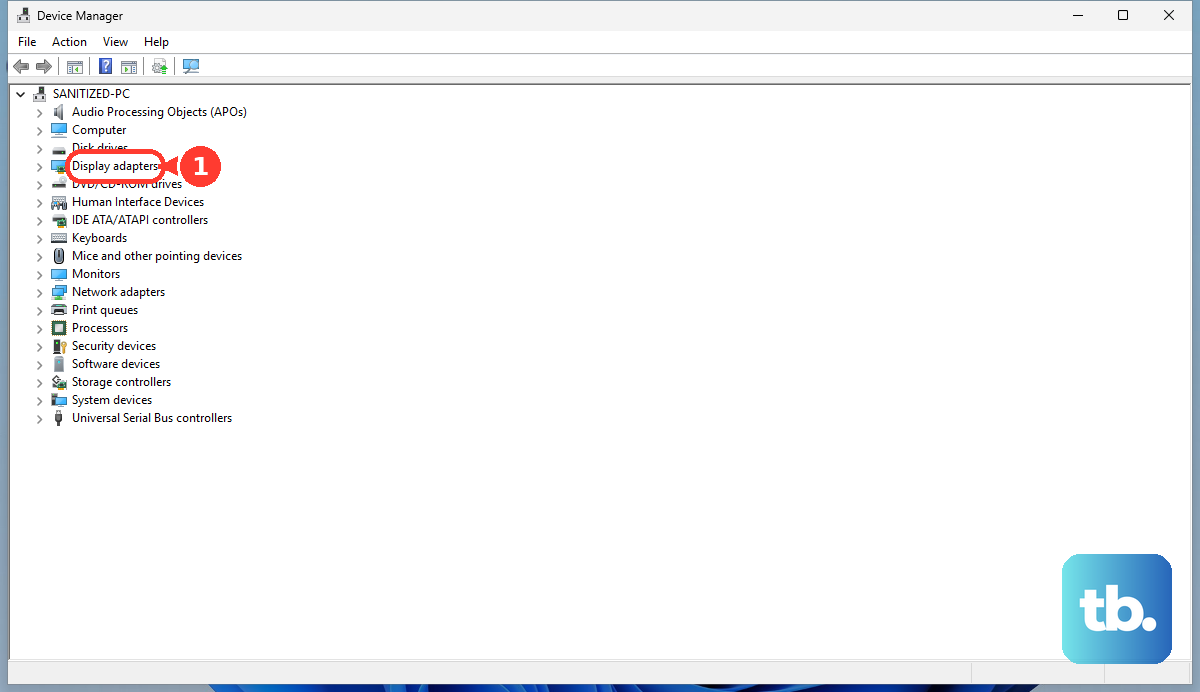
To update through Device Manager, right-click Start, open Device Manager, expand Display adapters, right-click the graphics device, choose Update driver, then select Search automatically for updated driver software.
If the pixelation started right after a driver update, press Windows key + Q, type device manager, open Device Manager, expand Display adapters, right-click the video adapter, then open Properties > Driver > Roll Back Driver and follow the prompts.
Reset browser zoom and video quality
If the desktop is sharp but websites look oversized, fuzzy, or blocky, reset browser zoom first. In Chrome, open More and use the Zoom controls, or press Ctrl + 0 on Windows and ChromeOS or Command + 0 on Mac to reset the current page.
For all Chrome sites, open More > Settings > Appearance > Page zoom and choose 100%. You can also adjust Font size or open Customize fonts from the same area.
That sets the default only. Sites you already zoomed keep their own saved level, so clear those too: open More > Settings > Privacy and security > Site Settings > Additional content settings > Zoom levels and remove each saved site.
In Microsoft Edge, open Settings and more > Settings > Accessibility, then change Page zoom under Visibility. For one page, use Ctrl+Plus, Ctrl+Minus, or Ctrl+0.
In Firefox, open the menu button, use the Zoom controls, then click the percentage number to reset it. If only YouTube looks pixelated, open the player’s Settings > Quality menu and choose the video quality you want.
Correct GPU scaling in NVIDIA, AMD, or Intel tools
Open NVIDIA Control Panel > Display > Adjust Desktop Size and Position.
Use the Scaling tab to choose a scaling mode.
Under Perform Scaling on, choose GPU or Automatic (Display), then confirm the resolution and refresh rate in the preview.
For AMD Radeon graphics, open Start, type AMD Software, select AMD Software, search for Display, then open Display Settings.
Turn GPU Scaling to Enabled and choose the scaling mode that fits your display. AMD supports GPU scaling on DVI, HDMI, or DisplayPort connections with the display set to its native resolution and refresh rate, so the control may not appear on other setups.
If AMD content looks intentionally blocky, search Integer in AMD Software, open Integer Scaling - Display Settings, and set Integer Scaling to Disabled globally or for the affected game profile under Gaming > Games.
For Intel graphics, open Intel Graphics Command Center > Display and set the scaling mode. Which modes appear depends on the resolution: at the recommended resolution Intel shows Maintain Display Scaling, plus Custom for correcting overscan, and Custom is not offered on a laptop's built-in screen. Pick a resolution other than the recommended one and Maintain Aspect Ratio, Centered, and Stretched appear as well.
Stick with the monitor’s native resolution whenever sharpness is the goal.
Tune external monitor picture controls
Some monitors keep sharpness, picture size, and positioning controls inside the monitor’s own menu instead of Windows or macOS. Use the monitor buttons or on-screen display to adjust picture sharpness when the computer resolution is already correct.
On supported ASUS LCD monitors, hold down MENU, press MENU, then open System Setup > Reset > Yes to reset monitor-side settings. ASUS also documents Auto Adjust for analog VGA blur and position problems by holding the SPLENDID key for about 4 seconds.
If this method fails, confirm the recommended or native resolution in the computer’s display settings, then try another suitable signal cable.
Fix Mac displays and TVs
The most common Mac cause is a connected display or TV using the wrong resolution, scaling, or detection state.
Open Apple menu > System Settings > Displays, select the external display, and choose a sharper resolution.
If the screen becomes unusable after a resolution change, wait 15 seconds for macOS to reset automatically, or press Esc.
To detect the external display again, open Apple menu > System Settings > Displays, press and hold Option to show Detect Displays, then choose Detect Displays.
When a Mac is connected to a TV or projector and the image is cropped, stretched, or scaled poorly, open Apple menu > System Settings > Displays, select the TV, and adjust Underscan.
If Underscan is not available, change the TV’s picture-size setting or change the Mac display resolution.
Clean up Chromebook display output
Connect the external display, open display settings, select the monitor tab, then choose a sharper option under Resolution.
For motion or flicker problems, choose a higher refresh rate when the option is available.
If the display output is still corrupted, and only after the steps above have failed, do a hard reset. It restarts the Chromebook hardware and might delete some files in your Downloads folder, so back those up first.
Turn off the Chromebook. Press and hold Refresh, tap Power, then release Refresh when the Chromebook starts.
On models that use the alternate shortcut, press and hold Back + Refresh + Power for at least 10 seconds.
On Chromebook tablets, press Volume Up + Power for at least 10 seconds.
Use Powerwash only as a last resort because it removes local device data.
Remove the app that changed the picture
This applies when the screen became pixelated after you installed a display utility, overlay, remote-display tool, theme app, or graphics enhancer. Removing that app is faster than rebuilding every display setting by hand.
Open Start > Settings > Apps > Installed apps, find the app, choose More, then select Uninstall.
You can also open Start > All apps, right-click the app, and choose Uninstall.
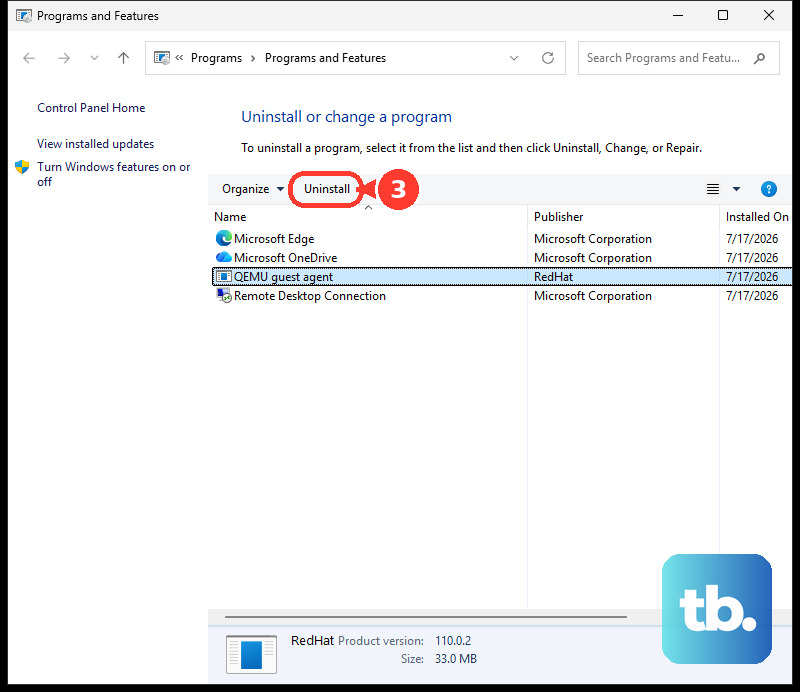
For older desktop programs, search for Control Panel, open Programs > Programs and Features, right-click the program, then choose Uninstall or Uninstall/Change.
Work and school devices can block display settings through management policies. If resolution or display controls are unavailable on a managed Windows PC or Chromebook, contact the device administrator.
Frequently Asked Questions
Why is my computer screen pixelated after changing resolution?
The screen is running below its recommended or native resolution, or the scale value no longer matches the display. Set resolution and scale back to the options marked Recommended.
Why are only videos pixelated while the rest of the screen looks fine?
That points to video playback or streaming quality, not the whole monitor. Use the Windows Video Playback troubleshooter for playback issues, or choose a higher quality in the YouTube player.
Can a bad HDMI or DisplayPort cable make a screen look pixelated?
Yes. Reseat the cable at both ends, check for bent pins or damaged connectors, and try another suitable cable for the same port type.
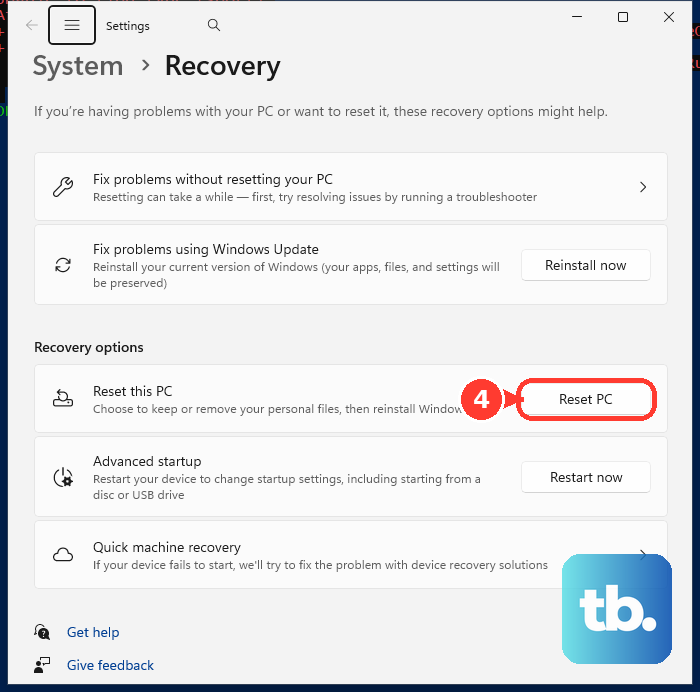
Should I reset my PC to fix a pixelated screen?
Use Reset PC only as a last resort after checking resolution, scale, cables, drivers, browser zoom, apps, and monitor settings. Windows can reset while keeping files, but it is still a recovery step.