

A blue-looking monitor usually means the screen color shifted too cool, a filter is active, HDR changed the picture, or an external display is getting a bad signal. Start with the quick software checks, then move to cables, color profiles, drivers, and the monitor's own controls.
These fixes are for a blue or cyan tint across the display, not a Windows blue-screen crash.
Start with Night light on Windows
Use this when your Windows screen looks too cold, especially after a display setting changed. Night light adds warmth, so turning it on or increasing the warmth can cancel out a blue cast.
Select the Network or Speakers icon on the right side of the taskbar.
Use the down arrow to find Night light.
Select Night light to turn it on.
For finer control, select Start, open Settings, then choose System and Display.
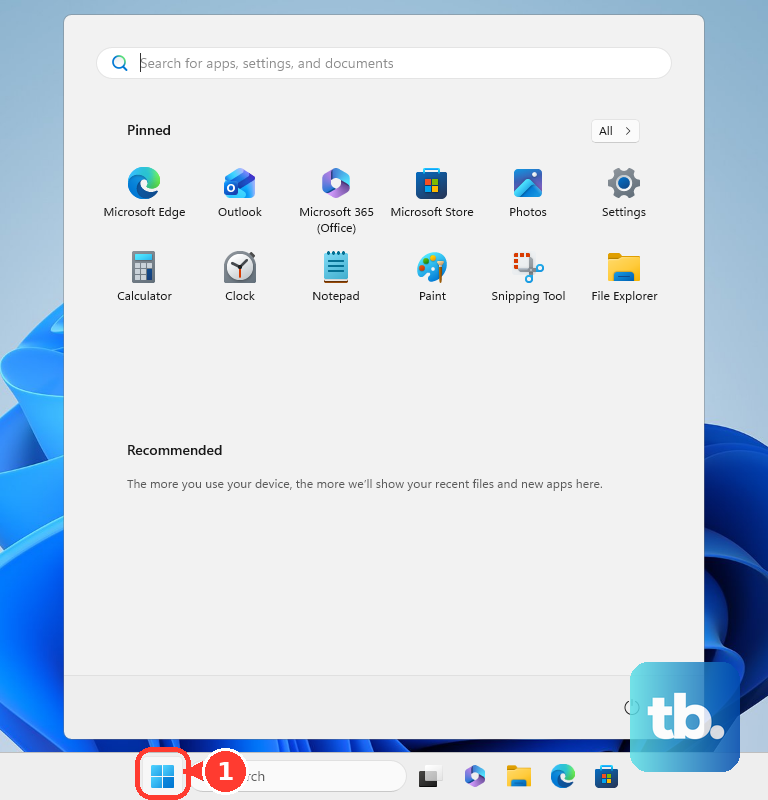
Turn on Night light, open Night light, and move the Strength slider warmer until whites look normal.
Night light is not available if your device uses certain drivers, such as DisplayLink or Basic Display. If the Night light toggle is grayed out, update your display driver.
If the screen started looking wrong after Night light was enabled, return to the same page and select Turn off now or lower Strength.
Check Windows color filters
A Windows accessibility color filter can make the whole screen look blue, cyan, gray, inverted, or just wrong.
Press Windows logo key plus U, then open Color filters. Turn the Color filters switch off, or choose a different filter from the list if you use one on purpose.
If the color changed suddenly, open Start, Settings, Accessibility, and Color filters. Turn Keyboard shortcut for color filters on, then press Windows logo key plus Ctrl plus C to switch color filters on or off.
Wrong color profiles after a monitor change
The most common cause here is an ICC or ICM profile installed for the wrong display, or one left behind after changing monitors.
On Windows 11, open Start, then choose Settings, System, Display, and Color profile.
In the color management page, select the affected display.
Expand the profile that looks wrong and select Remove.
To use the correct profile, select Add profile, choose the monitor maker's ICC or ICM profile, then select Set profile.
If colors still look off, return to Color profile and select Calibrate display.
Follow the display calibration steps. On an HDR-enabled external display, Windows may prompt for the Windows HDR Calibration app.
Rule out a cable or input problem
Use this when the blue tint appears only on an external monitor, especially through HDMI, DisplayPort, USB-C, DVI, VGA, a dock, a KVM, or an adapter. A bad connection can make the monitor look wrong even when the computer settings are fine.
Turn the monitor and computer off.
Unplug and reseat both ends of the video cable.
Use the monitor's on-screen display to select the correct input.
Inspect the connector for bent pins, especially with VGA or DVI.
Try another cable of the same type, then test another port.
Connect the computer to a different monitor, or connect another source device to the affected monitor.
If the blue tint follows the monitor, focus on the monitor settings or hardware. If it follows the computer, continue with system settings and drivers.
Reset the monitor color settings
Your monitor can create a blue cast on its own, even when Windows, macOS, or ChromeOS is set correctly. Open the monitor's on-screen display with the physical buttons or joystick and look for the factory reset option.
On ASUS LCD monitors, hold the MENU key, then choose MENU, System Setup, Reset, and Yes. Some ASUS models combine this into one menu item: choose MENU, System Setup, Restore factory mode (Reset), and Yes.
On Dell and Alienware monitors, perform a factory reset first. If the blue tint remains, open Custom Color, go to the individual RGB controls, lower Blue, and make small adjustments to Red and Green until the screens match; Dell gives 95 as a general minimum guideline for each channel.
If this method fails, disconnect every video cable from the monitor except power and run the monitor's built-in self-test or diagnostics from its buttons. A tint that appears with video cables unplugged points to a monitor hardware issue.
Fix blue tint on a Mac or Chromebook
Use this when the blue screen tint is on macOS or ChromeOS instead of Windows. Both systems have night color and accessibility settings that can change the whole display.
On a Mac, choose the Apple menu, open System Settings, select Displays, and open Night Shift. On earlier supported macOS versions, the menu is named System Preferences instead. Night Shift needs macOS Sierra 10.12.4 or later on a compatible Mac, generally models introduced in 2012 or later and Mac Pro models introduced in 2013 or later.
Turn Night Shift on to warm a blue-looking display, turn it off if it caused the wrong color, or adjust the color temperature.
Still on Mac, open Apple menu, System Settings, and Displays, then use the pop-up menu next to Color profile to choose a different profile.
For unexpected filters or inversion on Mac, go to System Settings, Accessibility, and Display, then turn off color-related filters or inversion.
On a Chromebook, select the time at the bottom right, open Settings, then go to Device and Displays.
Under Night Light, turn Night Light on and move Color temperature warmer, or turn it off and change Schedule if Night Light caused the color problem.
For ChromeOS accessibility color changes, open Settings, select Accessibility, then open Display and magnification.
Adjust or turn off Color correction, Filter, Intensity, and Color inversion.
Test HDR and video color settings
This fixes blue, oversaturated, or unnatural color that appears after HDR is enabled or only inside video playback.
On Windows 11, select Start, then open Settings, System, and Display.
Select the affected display near the top when you use more than one monitor.
Open HDR.
Adjust SDR content brightness or HDR content brightness.
Turn Use HDR off as a test to see whether HDR is causing the color shift.
For an HDR-capable Windows 11 display, install Windows HDR Calibration from the Microsoft Store. The app also needs Use HDR turned on and a WDDM 2.7 or later display driver, and it must run full screen. Adjusting color saturation additionally needs a newer GPU: AMD RX 400 Series or later or a Ryzen processor with Radeon Graphics, Intel 11th Gen (Ice Lake) or later integrated or Intel DG1 or later discrete, or NVIDIA GTX 10xx (Pascal) or later. If your display supports HDR video streaming but not HDR games and apps, use Display calibration for HDR video under Settings, System, Display, HDR instead.
Turn HDR on, then open Start, All apps, and Windows HDR Calibration.
Put the app on the HDR display and drag each test-pattern slider until the pattern is no longer visible.
Adjust color saturation carefully.
If the blue tint happens only in Microsoft Edge video, open edge://settings/system, check Use graphics acceleration when available, restart Edge, and test the setting both ways. Edge also lets you verify video decode status at edge://gpu.
Graphics app settings changed the color
The most common cause here is a GPU control panel color adjustment that was set globally or for one game.
On an NVIDIA PC, open NVIDIA Control Panel, then under Display, click Adjust Desktop Color Settings.
Select the affected display and use All channels or the Blue channel to move brightness, contrast, gamma, digital vibrance, or hue back toward default.
Use Override to reference mode when that option is available.
On an Intel graphics system with Intel Graphics Command Center installed, open it from the Start Menu, click Display, then select Color.
Adjust brightness, color, hue, or saturation, or click Restore to Original Colors.
On AMD Software Adrenalin Edition, open Start, type AMD Software, and open the app.
Search for Display, select Display Settings, choose the affected display, and disable Custom Color or return color temperature, brightness, hue, contrast, and saturation to neutral values.
For AMD color enhancements, open Display Settings in AMD Software and set Display Color Enhancement to Disabled. AMD supports Display Color Enhancement and Color Deficiency Correction on systems with Radeon RX Series graphics or Ryzen desktop processors with Radeon Graphics running Windows 10 or later, so these controls may not appear on other AMD configurations.
Turn Color Deficiency Correction off on the affected display.
For game-only changes to Display Color Enhancement or Color Deficiency Correction, open Gaming, Games, select the game profile, and set those options to Disabled or Use Global Settings. To change Custom Color for a single game, click Game Color instead, then select that game's application profile.
Update or roll back the display driver
Open Device Manager from the taskbar search box.
Expand Display adapters.
Right-click the display adapter and select Update driver.
Choose Search automatically for updated driver software.
If Windows does not find a driver, select Search for updated drivers on Windows update.
If the blue tint started right after a driver update, right-click the adapter, select Properties, open the Driver tab, choose Roll Back Driver, pick a reason, select Yes, and restart if prompted.
When updating and rolling back do not help, right-click Start, open Device Manager, expand Display adapters, right-click the adapter, choose Uninstall device, and confirm with Uninstall.
Restart from Start, Shut down or sign out, and Restart. Windows attempts to reinstall the driver after restart.
Download GPU drivers only from the official NVIDIA, Intel, or AMD driver pages for your graphics hardware.
Skip Chrome color-profile flags and old Windows 10 color-filter paths as everyday fixes. Use current Windows 11, macOS, ChromeOS, monitor, and official GPU settings first.
When work or school controls are blocking fixes
Managed Windows PCs, Macs, and Chromebooks can lock display, accessibility, driver, update, or calibration settings.
Open the same display or accessibility page you were trying to change and check whether the control is unavailable or reverts after you change it.
On a managed Windows PC, administrator policy can block display, accessibility, driver, or update changes.
On a managed Chromebook, display and accessibility behavior can be managed through school or work settings.
On a managed Mac, configuration profiles can control device behavior and restrict settings.
Contact the work or school administrator when the setting is locked, keeps reverting, or requires administrator permission.
For a personal device, go back to the earlier fixes and test the monitor, cable, color profile, HDR setting, GPU app, and driver in that order.
Frequently Asked Questions
Is a blue monitor screen the same as a blue-screen crash?
No. A blue or cyan tint means the picture color is wrong. A Windows blue-screen crash is a separate system failure screen, so the display color fixes above are for tint problems only.
Can a keyboard shortcut make the screen color change suddenly?
Yes. On Windows, the color-filter shortcut can switch filters with Windows logo key + Ctrl + C when that shortcut is enabled in Color filters settings.
How do I test a Dell laptop screen for a hardware color problem?
Shut down the laptop, hold D, press the Power button, keep holding D until solid colors appear, then check the black, white, red, green, and blue screens for tint or washed-out color.
What should I do if only Edge video looks blue?
Open edge://settings/system, test Use graphics acceleration when available both on and off, restart Edge after changing it, and check video decode status at edge://gpu.