A monitor blue color problem can make whites look icy, photos look washed out, or the whole screen look cooler than it should. Start with the physical connection, then work through the monitor menu, system color settings, color profiles, and graphics controls until the picture returns to normal.
The fixes below start with the fastest checks for home users, then move into Windows, Mac, Chromebook, Chrome, and GPU-specific settings.
Check the display cable and connection first
This method applies when the blue tint is on an external monitor connected by HDMI, DisplayPort, USB-C, Thunderbolt, a dock, a hub, or an adapter. A loose cable or weak adapter can shift the picture before any color setting is involved.
Power off the computer or put it to sleep.
Unplug the monitor power cable and video cable.
Firmly reconnect the display power cable, then reconnect the video cable at both ends.
Bypass docks, hubs, and adapters. Connect the monitor directly to the computer and test the screen again.
If the blue color remains, try a different video cable.
Test a different port on the computer or monitor. That swap tells you whether the cable path is causing the color shift.
Reset the monitor from its own menu
The most common monitor-side cause is a display menu setting that was changed by accident or carried over from an older setup.
Use the monitor's physical buttons or joystick to open its on-screen display menu.
On Dell monitors, press the monitor Menu button, go to Menu, open Other Settings, then choose Factory Reset.
For Dell and Alienware monitors, disconnect every cable except power, confirm that the on-screen menu appears, reset the monitor to factory defaults from that menu, then reconnect the video cable and test again.
Menu names vary by brand and model. Look for the monitor's own Reset or Factory Defaults option before changing Windows or macOS settings.
Adjust Windows color features that shift the whole screen
On Windows 11, open Start, then Settings, then System, then Display, then Night light. Move the Strength slider or turn Night light off.
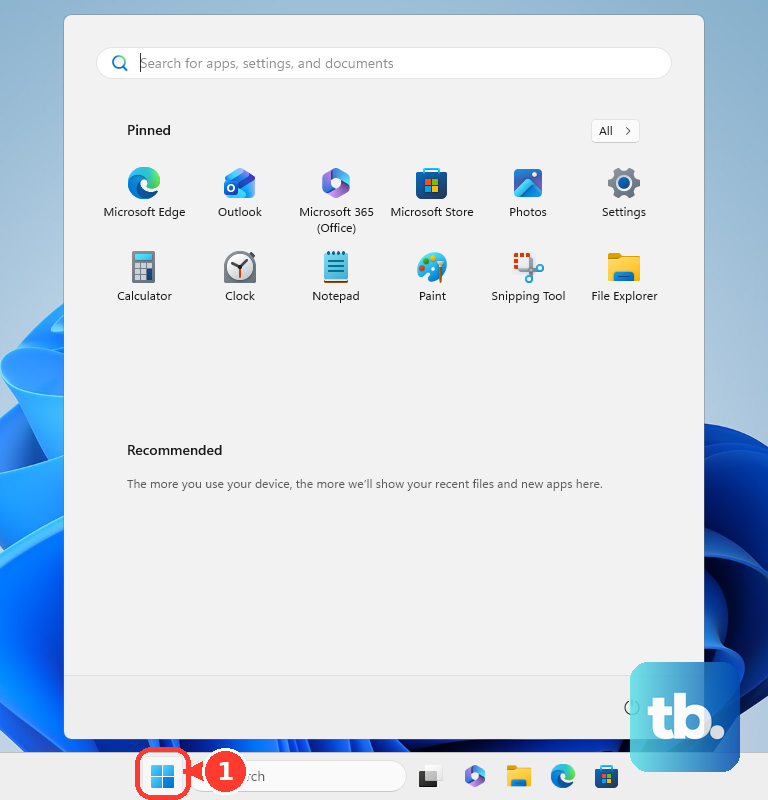
Next, open Start, then Settings, then Accessibility, then Color filters. Turn Color filters off, or choose a different filter when you use that accessibility feature intentionally.
If colors look extreme across the Windows interface, open Start, then Settings, then Accessibility, then Contrast themes. Choose None from the Contrast themes menu and select Apply.
Press Windows logo key + Ctrl + C to toggle Color filters off when that shortcut is enabled in settings.
Fix a bad Windows color profile
Use this method when the monitor connection is solid but the display still has a blue cast after Windows color features are off. A wrong display profile or bad calibration can make whites, grays, and photos look too cool.
Open Start, then Settings, then System, then Display, then Color profile.
Select the affected display.
To remove a bad profile, expand the current profile and select Remove.
To use another profile, select Set profile.
For a full reset of the display's color behavior, select Calibrate display and follow the calibration steps.
On Windows 11 systems that show the option, turn on Automatically manage color for apps for the selected display.
Use the monitor RGB controls for a blue tint
The most common color-menu cause is an excessive blue channel in the monitor's own custom color settings.
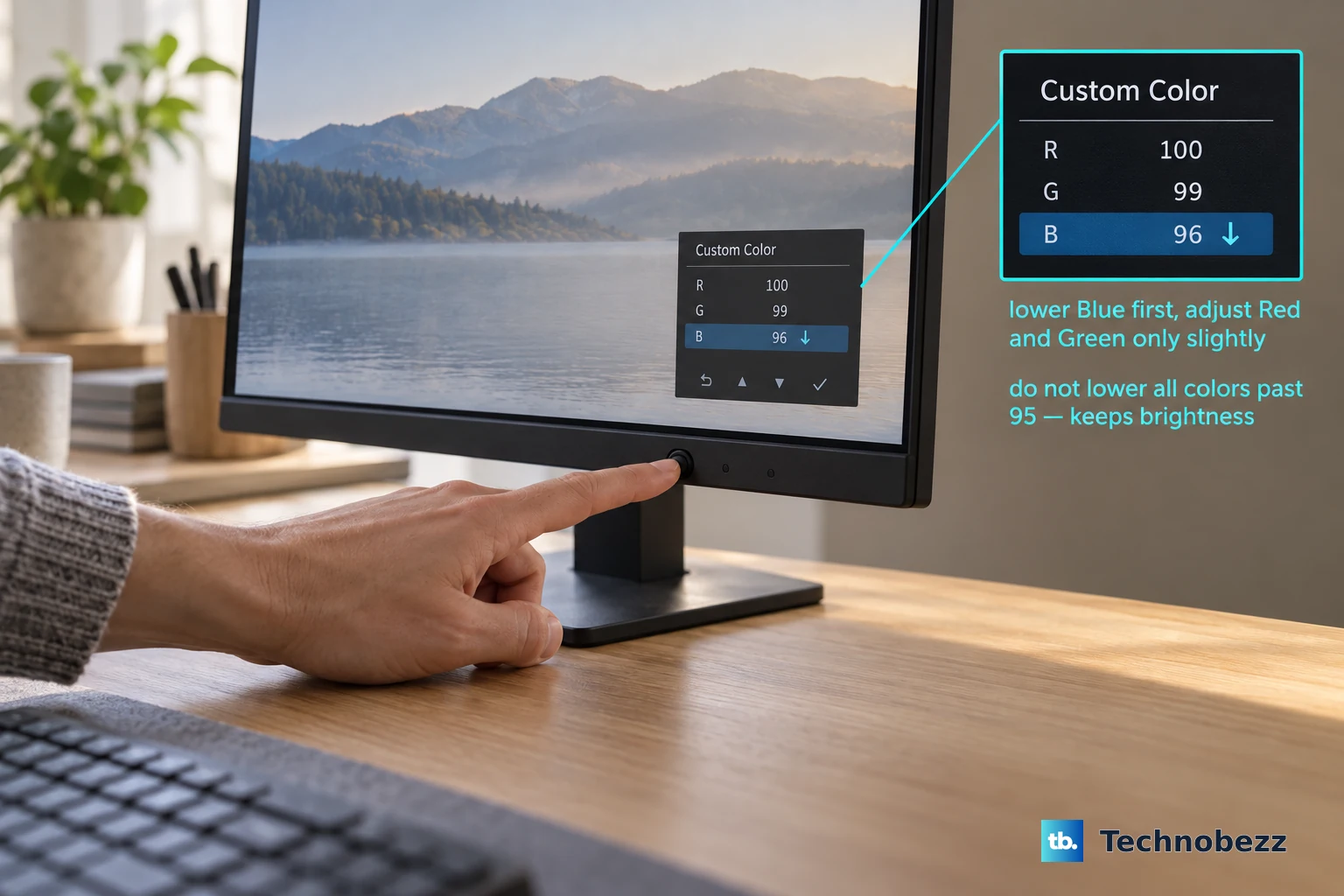
Open the monitor's on-screen display and look for Custom Color or an individual RGB control.
On Dell and Alienware monitors, lower Blue, then adjust Red and Green only slightly until the screen looks balanced.
Do not lower all colors past 95 on Dell and Alienware monitors because that reduces brightness.
If the picture looks dim or washed out after color changes, use the monitor's Brightness and Contrast controls to bring the image back into a normal range.
Correct Mac and Chromebook display color settings
This method applies when the blue color problem is on a Mac or Chromebook rather than a Windows PC. Built-in comfort and accessibility features can change the whole display's color temperature or tint.
On Mac, open the Apple menu, then System Settings, then Displays, then Night Shift. Adjust the schedule and color temperature, or turn Night Shift off.
For supported Mac displays, open Apple menu, then System Settings, then Displays, select the display, and turn True Tone on or off.
To change a Mac display profile, use the Color profile pop-up menu, choose another profile, or choose Customize and the Add button to open Display Calibrator Assistant.
On a Chromebook, select the bottom-right time, open Settings, then Device, then Displays, then Night Light. Turn Night Light off, adjust Color temperature, or set Schedule to Never to stop automatic changes.
Update or roll back the graphics driver
A display driver can cause color or scrambled-screen problems after an update, especially when the monitor started looking blue right after Windows changed something.
Open Start, then Settings, then Windows Update, then Advanced options, then Optional updates, then Driver updates.
Select available display or graphics drivers, choose Download and install, then restart.
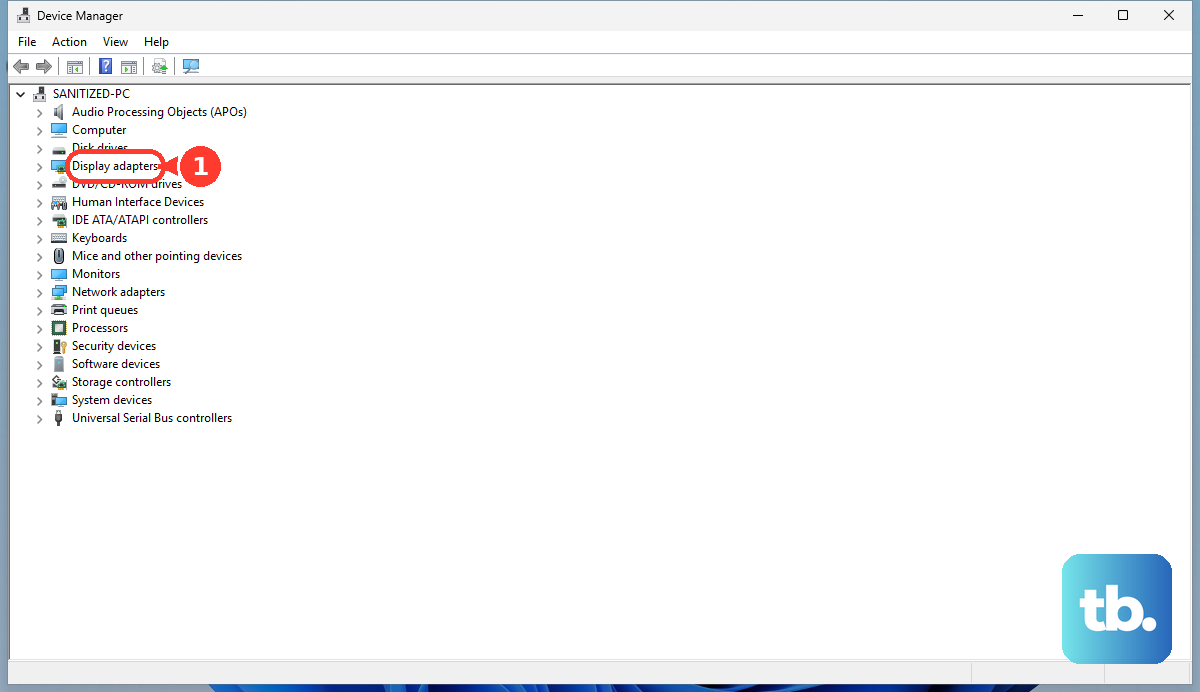
If the problem began after a driver update, search for Device Manager, open Display adapters, right-click the adapter, then open Properties, then Driver, then Roll Back Driver, then Yes.
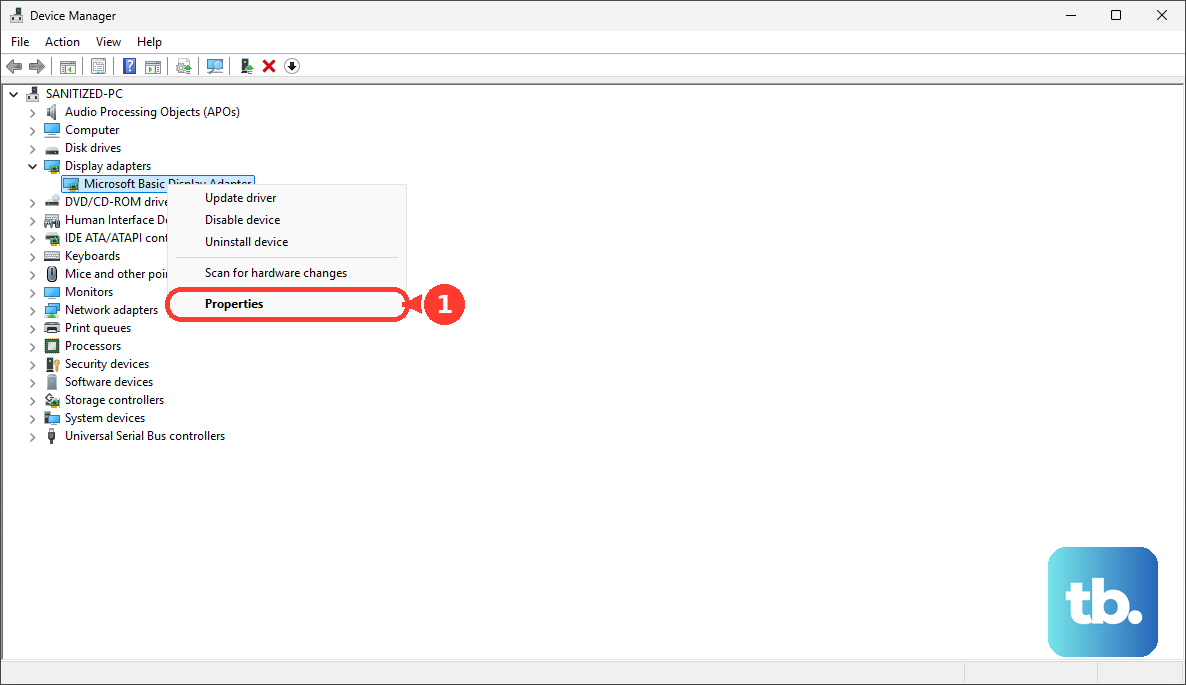
If rollback is not available, use Update driver from the adapter menu.
To reinstall the driver, open Properties, then Driver, then Uninstall Device, select Attempt to remove the driver for this device, choose OK, and restart.
If this method fails, return to the monitor's own Factory Reset and RGB controls, then test another cable or port again.
Adjust GPU color controls when the desktop still looks blue
Open Intel Graphics Command Center from the Start menu on supported Intel graphics systems.
Go to Display, then Color, then Custom, and adjust Brightness, Color, Hue, or Saturation.
Select Restore to Original Colors when you need to undo those changes.
On NVIDIA systems, open NVIDIA Control Panel, then Display, then Adjust Desktop Color Settings. Select the display, choose Use NVIDIA Settings, then adjust Brightness, Contrast, Gamma, Digital Vibrance, and the Red, Green, or Blue channels.
On AMD systems with AMD Software Adrenalin Edition, open AMD Software, search for Display, open Display Settings, select the display, enable Custom Color, then adjust Color Temperature, Brightness, Hue, Contrast, and Saturation.
Use GPU color tools after the basic display and operating system settings are clean, because they can override how the monitor looks across the desktop.
Check app-only color problems in Chrome or video playback
The most common app-only cause is a browser extension, Chrome appearance setting, or video color setting that affects one app instead of the whole monitor.
In Chrome, open More, then Extensions, then Manage extensions.
Turn extensions off to test, or select Remove, then Remove to delete one.
When Chrome itself is the only thing that looks wrong, open More, then Settings, then Reset settings, then Restore settings to their original defaults, then Reset settings.
You can also open a Chrome new tab, select Customize Chrome, then Appearance, and choose Light, Dark, or Device.
On NVIDIA PCs where only video playback looks blue, open NVIDIA Control Panel, then Video, then Adjust video color settings. Select the display, choose With the NVIDIA settings, use the Color tab for Brightness, Contrast, Hue, and Saturation, then select Apply.
Do not use old NVIDIA Control Panel profile-menu fixes or Chrome force color profile flags as current fixes.
Frequently Asked Questions
Why does my monitor suddenly look blue?
Check the cable path first. A loose video cable, dock, hub, adapter, or port can create a blue tint before Windows, macOS, or ChromeOS settings are involved.
Can Night light cause a blue color problem?
Night light changes color temperature. Turn it off or adjust its strength in Windows, macOS, or ChromeOS if the display color changes on a schedule.
Should I change the monitor or Windows color profile first?
Check the cable and reset the monitor first. If the tint remains, remove or change the Windows color profile and run display calibration.
What if only Chrome or videos look blue?
Treat it as an app-specific issue. Disable Chrome extensions, reset Chrome settings, check Chrome appearance, or adjust NVIDIA video color settings for video-only color problems.