Your Android weather widget can disappear after a Home screen change, an app update, a permission reset, or a phone-specific setting getting switched off. Start with the widget picker, then check Google At a Glance, Pixel or Samsung settings, location access, and the app itself.
A missing weather widget comes back once you turn the right surface on again. Here are the current fixes, from the fastest Home screen check to the deeper app and work-phone cases.
Put the Weather Widget Back on Your Home Screen
The quickest fix is to add the widget again from Android's widget picker. On a Home screen, touch and hold an empty space, tap Widgets, then find the app that provides your weather widget.
Tap that app to see its available widgets. Touch and hold the weather widget, slide it where you want it, and lift your finger to place it.
If the widget you want is not listed, move to the app, update, and hidden-widget fixes below.
Restore Google At a Glance Weather
Use this when Google's At a Glance weather disappeared from your Home screen.
- 1.Touch and hold an empty space on the Home screen, then tap Widgets.
- 2.Scroll to Google, then touch and hold At a Glance.
- 3.Drag At a Glance where you want it on the Home screen.
- 4.Touch and hold At a Glance, tap Customize, then open At a Glance Settings.
- 5.Under Features, turn on the weather topic, using See more features when needed.
Turn Pixel At a Glance Back On
Use this on Pixel phones when the date still sits at the top of the Home screen, but the weather is gone. Pixel At a Glance is on by default, and the date can remain visible even when At a Glance is off.
Touch and hold the displayed date at the top of the Home screen. Tap Settings, open At a Glance settings, and turn Use At a Glance on.
If At a Glance is enabled but missing from the Home screen, touch and hold the At a Glance area. Tap Settings, then choose Show on home screen.
If the space is there but weather is not, return to At a Glance settings. Under Customize, turn on the weather topic.
Allow Location for Local Weather
A weather widget needs location access to follow your current position automatically, and Pixel Weather and Samsung Weather also let you save a location by hand instead. Open Settings, go to Apps, choose the app that powers the widget, then tap Permissions and Location.
For Google weather or At a Glance, check the Google app. For Pixel Weather, check Pixel Weather. On Galaxy phones, check Weather.
Choose Allow only while using the app, Ask every time, or Allow all the time. Turn on Use precise location when that switch appears and you want local results.
Also open Settings, tap Location, and turn Use location on. For better indoor results, go to Settings, Location, Location Services, then keep location accuracy on and enable Wi-Fi scanning or Bluetooth scanning as needed.
Fix Samsung Weather on Galaxy Phones
Samsung has you check first whether the Weather widget moved to another Home screen or was removed, then whether it is tucked inside a widget stack. It can also be missing from the picker because the Weather app itself is hidden.
Long-press an empty area of the Home screen. Tap Widgets, find and tap Weather, then choose the widget size you want. Samsung documents two finishes here, so use whichever your phone shows: its Weather guide places the widget as soon as you pick a size, while its widget troubleshooting guide has you tap Add after selecting the widget option. If you see an Add button, tap it; if you do not, the widget is already on the Home screen.
Swipe left or right through your Home screens to check whether the widget is already somewhere else. When you find it, touch and hold the Weather widget and drag it where you want it.
If widgets are stacked, swipe left or right on the stack to bring Weather into view. To pull it out of the stack, tap the red minus icon on the widget.
If Weather does not appear in the widget picker, open Settings, tap Home screen, then tap Hide apps on Home and Apps screens. If Weather is selected, tap the red minus icon next to it and choose Done.
Update Apps and Restart Android
Use updates and a restart when the widget is present but blank, stale, or missing after a recent app or system change.
- 1.Open Google Play Store, tap the profile icon, then tap Manage apps & devices.
- 2.Under Updates available, update the Google app, Pixel Weather, Samsung Weather, or the weather-widget app you use.
- 3.On Galaxy devices, open Galaxy Store, tap Menu, then Updates, and update Samsung Weather when it appears there.
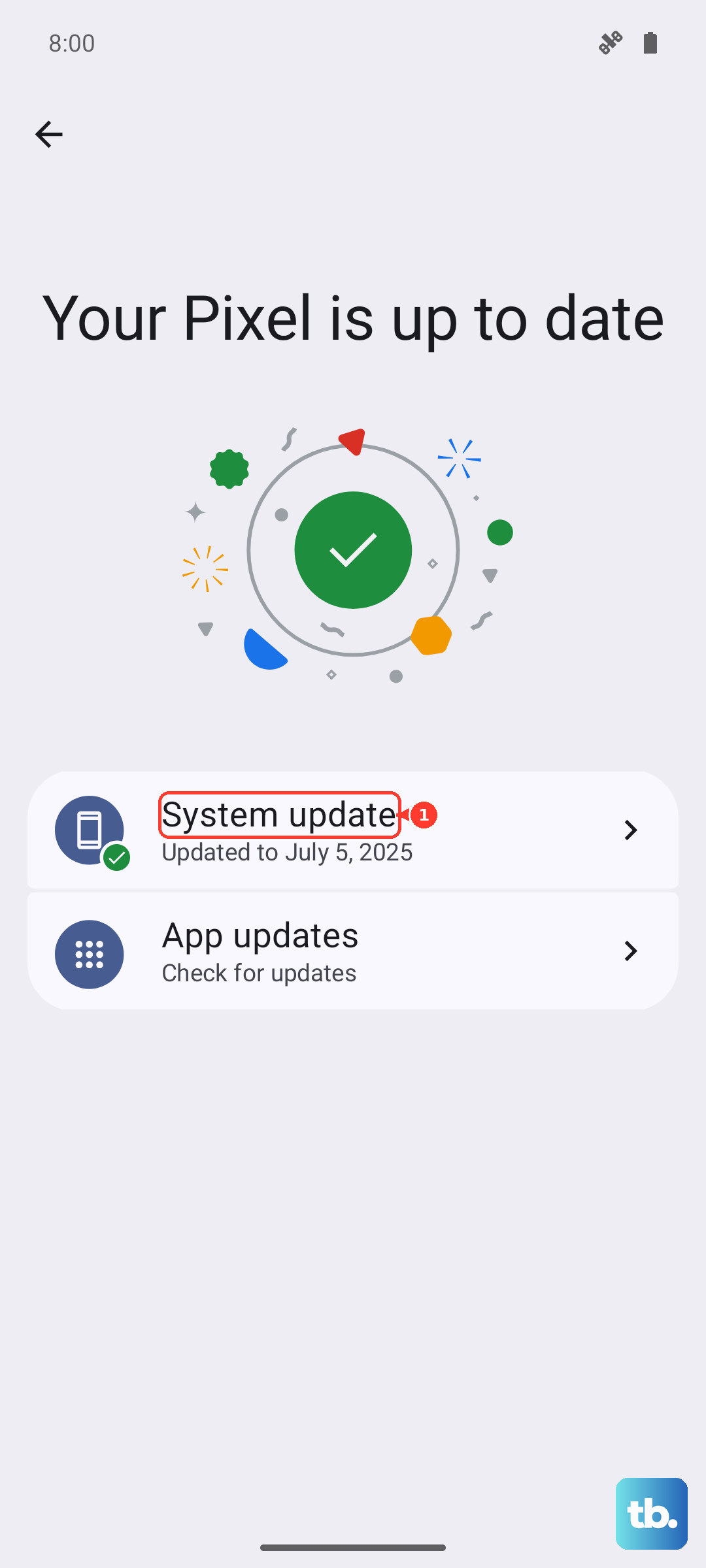
- 4.Check Android updates in Settings, System, Advanced, System update. On some phones, use About phone or About tablet, then Software update.
- 5.Restart most Android phones by pressing the Power button for about 30 seconds, or tap Restart and Restart again when prompted.
Clear the Stuck Weather App
When a widget refuses to load after being re-added, force stop the affected app and reopen it. Use Settings, Apps, select the weather app, Google app, or launcher, then tap Force stop when that option is available.
Return to the Home screen and add the widget again from Widgets.
If the problem continues, open Settings, Apps, select the affected app, then open Storage or Storage & cache and tap Clear cache. Use Clear data only when needed because it resets app settings and saved data.
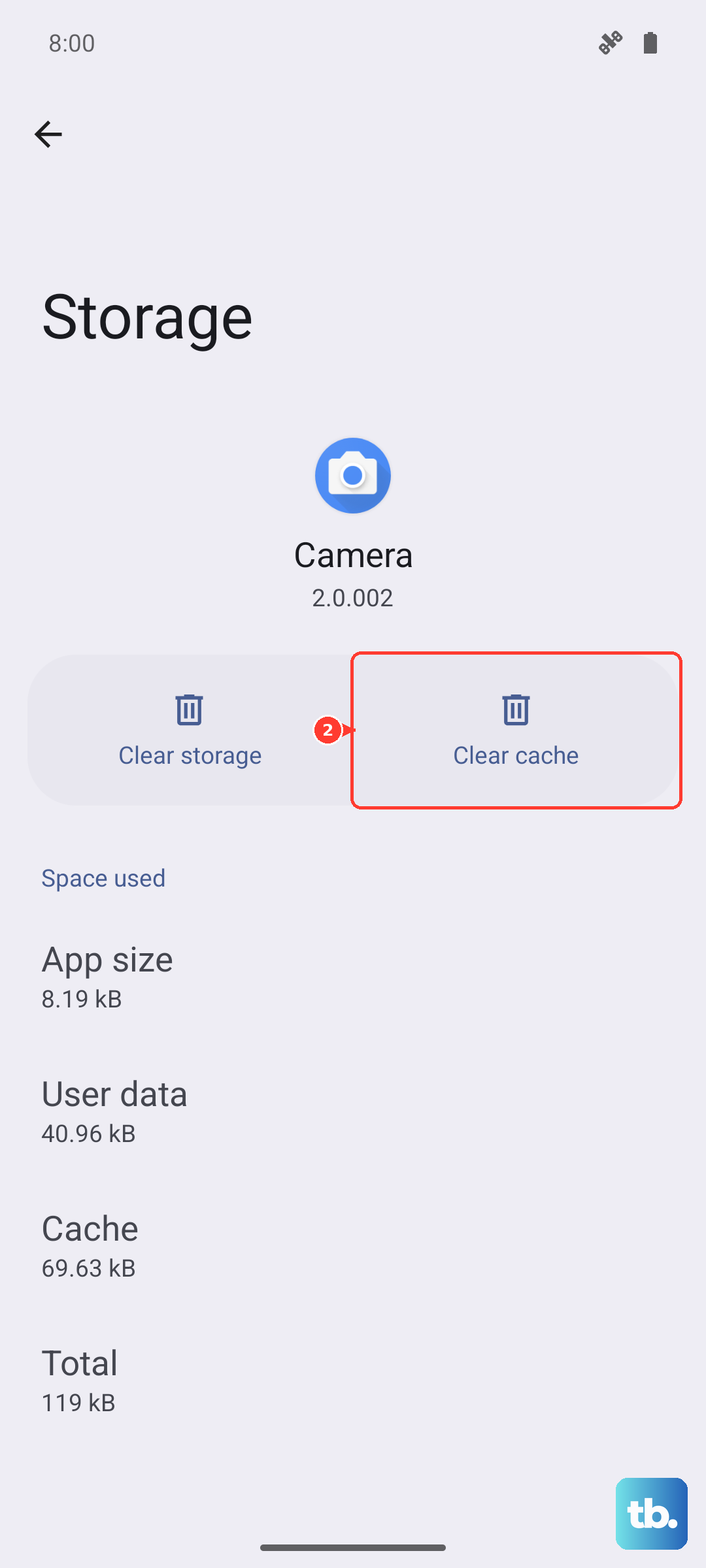
On Samsung phones, use Settings, Apps, Weather, Storage, then Clear cache. If you tap Clear data and then Delete, the Weather app returns to default settings.
Wake a Paused or Archived Weather App
Use this when the app has not been opened in a while, permissions were removed automatically, or the app icon looks faded. Android can pause unused apps, and Android 15 and later can archive supported apps on devices and app stores that allow it.
Open Settings, tap Apps, select the weather app, and look under Unused app settings. Turn off Pause app activity if unused, then check Location permission again.
If the app icon is faded, tap the faded icon on the Home screen to reinstall it. You can also open Settings, then Apps, and use the app details page to unarchive it when that option is available.
For a weather app you installed yourself, uninstall and reinstall it from Google Play. Open Google Play Store, tap the profile icon, choose Manage apps & devices, open Manage, select the app, tap Uninstall, reinstall it from its official Play Store page, and add its widget again from Widgets.
Handle Work Phones and Old Google Weather Shortcuts
This fixes missing widgets caused by workplace controls or outdated Google Weather shortcut steps.
On a work or school-managed Android phone, weather widgets from a work profile can be blocked by the organization.
Contact your IT administrator. You usually cannot override those widget rules yourself.
On Samsung Knox-managed devices running Android 14 or later, work profile widgets may not appear in the personal launcher even when mobile device management allows them.
Your IT team needs to handle that limitation.
Older instructions often recommend opening Google Search weather and using an overflow menu option such as Add to home screen.
Use current Google options instead: At a Glance, Google app Discover weather widgets, Search widget shortcuts, Pixel Weather, or Chrome web shortcuts.
For a quick fallback that is not a widget, open the Google app, tap the microphone, and ask for the weather.
You can also use Chrome to put a weather site on the Home screen as a web app. Open the site, tap More to the right of the address bar, tap Install and create shortcut, then tap Install and follow the on-screen steps.
Frequently Asked Questions
Why did my Android weather widget disappear?
It was usually removed from the Home screen, turned off inside At a Glance, hidden on a Samsung phone, paused as an unused app, archived, or blocked by missing location permission.
Why is the weather widget showing the wrong city?
Turn on device location, allow location for the weather app, and enable precise location when offered. Pixel Weather and Samsung Weather also let you add or change the saved location manually.
Does reinstalling the weather app delete my widget?
Plan on replacing it. Google's Play Store steps cover removing and reinstalling the app but not restoring a widget you had placed, so after you reinstall a weather app, add its widget again from the Home screen widget picker.
Can I get a weather widget from my work profile?
Only when your organization allows work-profile widgets. On managed devices, contact your workplace or school IT admin.