


To fix a Microsoft Surface touchscreen that is not working, restart your Surface, install Windows and Surface updates, and enable any disabled touchscreen entries in Device Manager. Use a connected mouse, touchpad, or keyboard to operate the controls while touch is unavailable. The Settings steps below use Windows 11 menus.
Start with the simple checks, then test touch outside Windows before considering a reset. If you have a Surface Pro X, skip touchscreen-driver uninstallation because Microsoft warns that restoring the removed drivers requires a full reset.
The short version
- Start simply: Restart your Surface and gently clean its unplugged screen.
- Update and enable: Install Windows and Surface updates, then enable any disabled touchscreen entries in Device Manager.
- Separate software from hardware: Run Surface diagnostics and test touch in UEFI before resetting Windows.
- Protect Surface Pro X: Use Windows Update rather than uninstalling its touchscreen drivers.
| Fix or check | When to use it |
|---|---|
| Restart or fully shut down | First check for unresponsive touch |
| Force a restart | The whole device is frozen and its model supports the procedure |
| Clean the screen | The touchscreen needs cleaning |
| Recover the display | The screen is blank or Surface will not start |
| Install Windows and Surface updates | Touch remains faulty after restarting |
| Check the Surface app | You want to check update health |
| Enable the touchscreen | A touchscreen entry is disabled |
| Disable and re-enable touch | You are troubleshooting Surface Studio 1 or 2 |
| Check electronic interference | The screen registers ghost touches |
| Run Surface Repair Tool | Your newer Surface passes its compatibility check |
| Run Surface Diagnostic Toolkit | Your compatible Surface cannot use Surface Repair Tool |
| Test touch in UEFI | You need to distinguish Windows trouble from likely hardware failure |
| Reinstall touchscreen devices | Touch works in UEFI but fails in Windows, except on Pro X |
| Roll back a driver | Touch failed after a driver change and rollback is available |
| Repair Windows | Earlier software fixes failed and repair reinstall is available |
| Reset while keeping files | Software troubleshooting failed and your files are backed up |
| Reset and remove everything | You choose full recovery after backing up required files |
| Arrange service | Touch fails in UEFI or remains faulty after recovery |
Restart your Surface and clean the screen
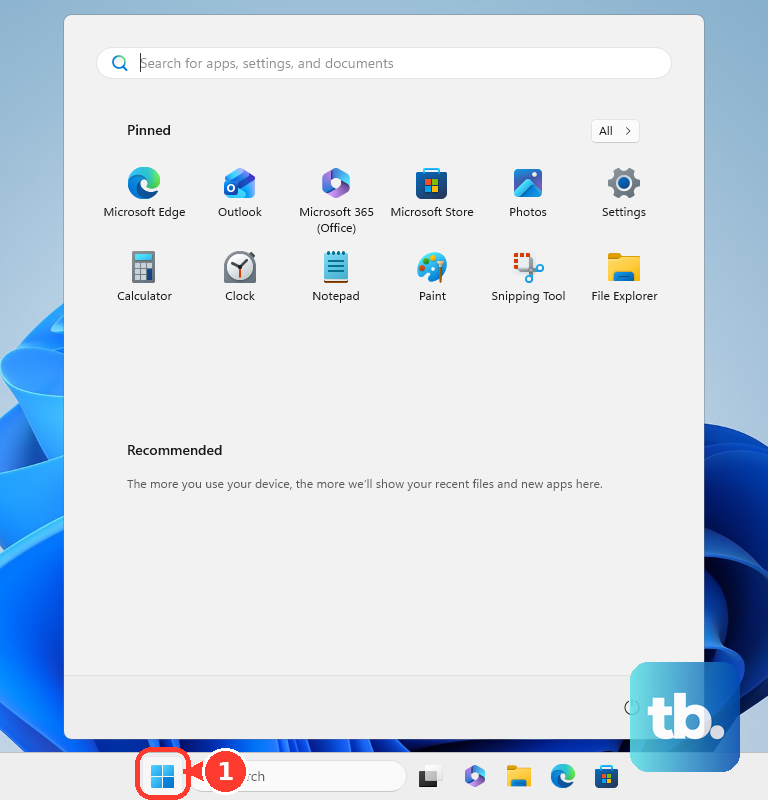
Select Start > Power > Restart, then check touch after Windows loads. With a keyboard, you can press Ctrl + Alt + Delete, select Power, then choose Restart. For a complete shutdown instead, select Start > Power > Shut down, then press the physical Power button to start again.
If the whole device is frozen, hold Power until it shuts down, restarts, and displays the Windows logo, approximately 20 seconds, then release it. This procedure applies to Surface Pro 5th Gen and later, all Pro X, Laptop, Laptop Studio, Laptop Go, Go, and Studio models, and Surface Book 2 and later.
Unplug your Surface before cleaning its screen with a soft, dry, lint-free cloth or a screen-cleaning wipe. If necessary, lightly dampen the cloth with water or an isopropyl alcohol solution of 70% or less. Never spray liquid directly onto the screen or use glass cleaner or disinfectant wipes.
If the display is blank, connect a keyboard or use the integrated keyboard and press Windows + Ctrl + Shift + B. This addresses a display or wake problem. If Surface will not start, disconnect USB accessories, external displays, and Surface Dock, connect its intended power supply, and charge for at least 15 minutes. For further startup troubleshooting, follow the steps to fix a Surface that will not turn on.
Install Windows and Surface updates
Connect your Surface to power and the internet; Microsoft recommends at least 40% battery before updating. On Windows 11, open Settings > Windows Update > Advanced options, then turn on Receive updates for other Microsoft products. Under Additional options, open Optional updates, select the available updates, and choose Download and install.
Return to Windows Update and select Check for updates. Install the offered updates and restart your Surface, even if Windows does not request a restart. New Surface firmware availability depends on your model's servicing lifecycle.
If you have the Surface app, open Start, search for Surface, and open it. Expand Help & support and select Check for updates when updates are available, then install them through Windows Update. If you have a Surface Pro X, use Windows Update for driver updates and skip the driver-uninstallation procedure below.
Check that the touchscreen is enabled
Right-click Start, open Device Manager, and expand Human Interface Devices. If HID-compliant touch screen is disabled, right-click it and select Enable device. Repeat for every disabled touchscreen entry, then check touch again.
For Surface Studio 1 and 2, Microsoft also recommends disabling and re-enabling the touchscreen as a troubleshooting step. Right-click HID-compliant touch screen, select Disable device, wait a few seconds, then right-click it again and select Enable device. Repeat for additional touchscreen entries.
If your screen registers ghost touches, move your Surface away from nearby electronic equipment and check it again. With Surface Studio 1 or 2, test it in another room. If touch works there, return it to its original location and switch nearby equipment off, then on individually, to identify the interference.
Run the Surface diagnostic tools
Open Start, search for Surface Repair Tool, and launch it. If you need to install it, get Surface Repair Tool from Microsoft Store. The tool checks compatibility automatically and supports newer Surface Pro and Surface Laptop models.
Select Test and run the Touch and Driver health tests offered for your hardware. For the touch test, trace the requested spiral and lines with a finger, then select Yes only if tracing succeeded; otherwise, select No. Review Test Results and follow any offered Fix options.
If Surface Repair Tool does not support your device, use Surface Diagnostic Toolkit from Microsoft Store if it is compatible with your Surface. Open Start, search for Surface Diagnostic Toolkit, and launch it. Follow its touchscreen tests and suggested repairs, and skip unrelated tests. For an organization-managed Surface, consult your IT team and use the business toolkit when directed.
Microsoft lists the older Hardware and Devices troubleshooter among the troubleshooters being removed from Windows. Use the applicable Surface diagnostic tool and continue to the UEFI check if touch still fails.
Test touch outside Windows
Testing in UEFI helps you separate a Windows or driver problem from likely hardware failure. Select Start > Power > Shut down and wait about 10 seconds. On Surface models with the physical button arrangement for UEFI entry, hold Volume Up while pressing and releasing Power, then keep holding Volume Up until UEFI opens.
For a model without a convenient physical volume button, use the Windows recovery route. On Windows 11, open Settings > System > Recovery, then select Restart Now next to Advanced startup. Choose Troubleshoot > Advanced Options > UEFI Firmware Settings > Restart.
Tap several menu items in UEFI to check whether the screen responds. Working touch points toward Windows or its drivers, so continue with software troubleshooting. If touch also fails in UEFI, Microsoft says hardware failure is likely; proceed to service before attempting a Windows reset. To leave UEFI, select Exit > Restart now.
Repair the touchscreen drivers
If touch works in UEFI but remains broken in Windows, Microsoft's Surface touchscreen troubleshooting recommends reinstalling the touchscreen devices, except on Surface Pro X. Do not perform this procedure on Pro X because restoring its removed touch drivers requires a full reset. Keep your internet connection active for driver installation.
Open Device Manager and expand Human Interface Devices. If your hardware has Intel(R) Precise Touch Device, right-click it, select Uninstall device, and select Uninstall. Repeat the uninstallation for each HID-compliant touch screen entry.
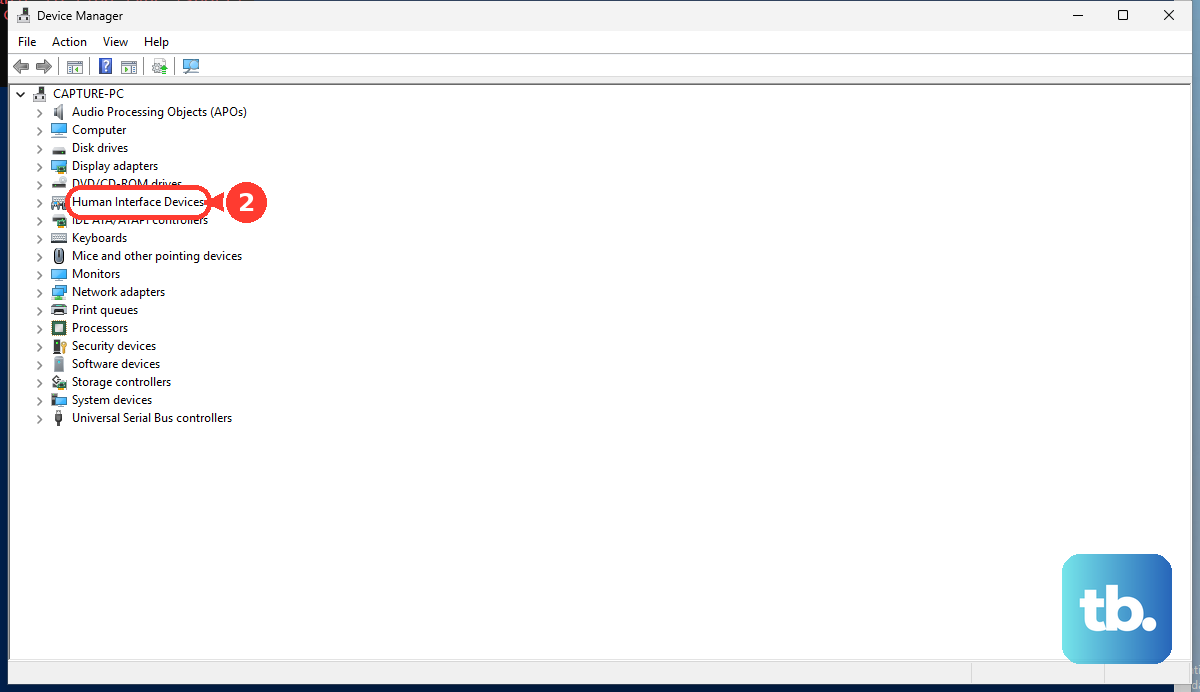
Select Action > Scan for hardware changes to rediscover the devices. Restart if necessary, then check the touchscreen again. If touch still fails, consider the conditional rollback option below or continue to Windows repair.
If touch stopped working after a driver change, you can try a driver rollback when a previous driver is retained. As an administrator, right-click the affected device in Device Manager, select Properties > Driver, and choose Roll Back Driver if available. Choose the applicable reason, select Yes, and restart if prompted. This is a general Windows troubleshooting option and does not roll back Surface firmware.
Repair Windows before considering a reset
When touch works in UEFI and the earlier fixes have failed, an eligible Windows 11 installation can reinstall its current Windows version while preserving apps, files, and settings. Connect power and internet, then open Settings > System > Recovery. Under Fix problems using Windows Update, select Reinstall now, then select OK.
Let the repair download and install, then restart manually if you did not select automatic restart. This is a general Windows repair, and it may not resolve a touchscreen fault. The option depends on your Windows servicing updates and can be unavailable on work or school devices with managed updates. If touch remains broken, consider a reset only after backing up your files and having your BitLocker recovery key available.
To reset on Windows 11, open Settings > System > Recovery and select Reset PC next to Reset this PC. Choose Keep my files, then select Cloud download, which Microsoft recommends, or choose Local reinstall. Complete the reset prompts, remembering that keeping personal files still removes installed apps, drivers, and changed settings.
For the full recovery workflow, follow the steps to restore a Surface to factory settings. If you choose Remove everything, the reset also erases personal files, so back up anything you need first. Choose Cloud download or Local reinstall and complete the reset prompts. If resetting does not restore touch, proceed to service.
Arrange touchscreen service
If touch fails in UEFI, arrange an inspection for a likely hardware problem. Open your Microsoft account device list, sign in, and select your Surface to check its coverage. If it is missing, select Register device.
Choose the Surface needing service, select Next, and complete the service request. Repair or replacement options depend on the model, coverage, and region. Back up accessible files before sending the device because servicing can erase it.
Frequently Asked Questions
Why does touch fail in only one app?
If touch works elsewhere, close the affected app using Close (X) and reopen it, then check Microsoft Store for app updates. On Windows 11, open Settings > Apps > Installed apps, select the app's More icon, open Advanced options, and choose Repair if offered. If repair fails or is unavailable, select Reset, but be aware that this can remove the app's local data and settings.
Why does finger touch stop working while using a Surface Pen?
Your pen settings can suppress finger touch during pen use. On Windows 11 pen-capable Surface devices exposing the option, open Settings > Bluetooth & devices > Pen & Windows Ink > Additional pen settings. Uncheck Ignore touch input when I’m using my pen to allow finger touch during pen use.
Why can touch select an item but not open it?
If Narrator is active, drag one finger to explore, then double-tap with one finger to activate the selected item. If you enabled Narrator unintentionally, press Windows + Ctrl + Enter to stop it, provided its keyboard shortcut is enabled.
Why can you scroll in OneNote but not draw with a finger?
In desktop OneNote for Microsoft 365, OneNote 2024, or OneNote 2021, select Draw > Draw with Touch to enable finger drawing. Choose a pen or highlighter and draw with your finger, then select Draw with Touch again to leave drawing mode.
Does touch failing in Safe Mode prove the screen is broken?
No, missing touch in Safe Mode alone does not establish hardware failure because Safe Mode uses limited drivers. Restart normally after testing, and use the UEFI touch check to distinguish Windows trouble from likely hardware failure.