A computer screen shadow problem makes text look doubled, edges look ghosted, colors look tinted, or old images linger faintly on the display. Start with the quickest physical and display-setting checks, then move into drivers, apps, monitor tests, and image retention fixes.
Check the cable and connection first
Start here when the shadow appears on an external monitor or TV.
- 1.Turn off the monitor or TV, then unplug the video cable at both ends.
- 2.Inspect both connectors and the full cable for bent pins, crushed sections, pinching, or visible damage.
- 3.Plug the cable back in firmly at the computer and at the display.
- 4.On a Mac, remove hubs, docks, and adapters by connecting the display directly to the Mac.
- 5.Replace the cable or adapter with one that supports the display's resolution and refresh rate.
Set Windows resolution and scale correctly
Windows looks soft, doubled, or shadowed when the display runs below its native resolution. Open Start, then Settings, then System, then Display. Select the affected display, open Display resolution, and choose the option marked Recommended.
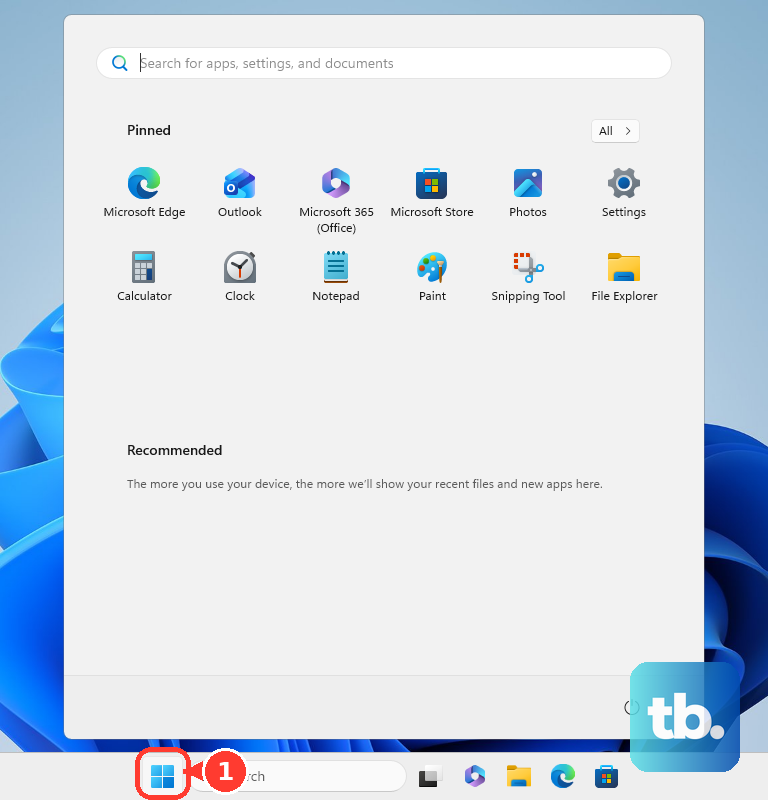
Keep the resolution at the recommended setting when icons or text look too small. Open Scale on the same display page and choose the Recommended percentage. For text only, open Settings, then Accessibility, then Text size.
If the shadow remains after the recommended resolution and scale are active, change the refresh rate next.
Fix ghosted motion with refresh rate
The most common cause here is a refresh rate that the monitor, cable, adapter, or computer does not support cleanly.
On Windows 11, open Settings, then System, then Display, then Advanced display.
Open Refresh rate and select a rate supported by both the monitor and the connected device.
For HDR over HDMI display problems, set Refresh rate to 30 Hz. When that removes the shadow, the display mode, cable, adapter, or HDR connection path is the cause.
Reset and update the Windows graphics driver
Use these Windows 11 driver fixes when the cable and display mode are already correct.
- 1.Press Windows logo key + Ctrl + Shift + B to reset the graphics driver; the screen flickers or beeps during the reset.
- 2.Open Start, then Settings, then Windows Update, and select Check for updates.
- 3.Search for device manager, open Device Manager, expand Display adapters, right-click the adapter, and select Update driver.
- 4.If the shadow started after a driver update, open the adapter's Properties, select Driver, choose Roll Back Driver, select Yes, and restart.
- 5.If update and rollback fail, right-click the adapter, select Uninstall device, then restart or install the current driver from the manufacturer.
Install the official GPU driver
For NVIDIA graphics, use NVIDIA's official driver page and install the current Game Ready or Studio driver for your GPU. The NVIDIA App is also an official driver route for supported GeForce systems.
For AMD graphics, open AMD Drivers and Support, then Windows 10/11 Drivers, then Download Windows Drivers, or search by product. On supported Radeon and Ryzen hardware, download the Auto-Detect and Install Tool, open the saved folder, double-click the file, select Install, choose Recommended or Optional, select Accept & Install, then select Close.
For Intel graphics, open Intel's Download Drivers & Software page. Select Automatically update your drivers and software, then Get started, or select Graphics and choose the matching driver.
Fix shadows inside one app or browser
The most common cause is graphics acceleration or an incompatible app renderer when the rest of the desktop looks normal.
In Microsoft Edge, open edge://settings/system, switch Use graphics acceleration when available off or on, then restart Edge.
Open edge://gpu and check Graphics Feature Status when video or canvas content still shows a shadow in Edge.
In Chrome, open chrome://settings/system, switch Use graphics acceleration when available off or on, then relaunch Chrome.
In Photoshop on Windows, open Edit, then Preferences, then Performance. On macOS, open Photoshop, then Settings, then Performance.
Keep Use Graphics Processor checked, open Advanced Settings, turn off Use OpenCL and GPU Compositing, select OK, select OK again, then restart Photoshop.
If the shadow is attached to a Microsoft Office picture, shape, text box, WordArt, or slide object, remove the object effect. Select the object, open Picture Format or Shape Format, then Picture Effects, Shape Effects, or Text Effects, then Shadow, then No Shadow.
Check Mac display settings
This fixes Mac shadows caused by brightness, display detection, resolution, color profile, cables, or display firmware.
When the keyboard and the external display are both made by Apple, raise brightness with the keyboard brightness key, or open Apple menu, then System Settings, then Displays, and adjust the brightness control. On a display that is not made by Apple, raise brightness with that display’s own buttons and built-in menu.
Select the affected display in Displays.
Set resolution to the native or default option.
Adjust the color profile in Displays when the shadow looks like a color or tint problem.
Connect the display directly to the Mac and remove hubs, docks, or adapters from the path.
Use a USB-C adapter that supports DisplayPort Alt Mode, Thunderbolt 3, or Thunderbolt 4 when that adapter type applies.
Open Apple menu, then System Settings, then Displays, hold Option to show Detect Displays, and select Detect Displays.
Install the latest macOS updates. Apple display firmware arrives through macOS updates, while non-Apple display firmware comes from the display manufacturer.
Use monitor and TV tests
Use the monitor's own menu to separate a computer problem from a display problem. On a Samsung monitor with Picture Test, open the on-screen menu, then Settings or All Settings, then Support, then Self Diagnosis, then Picture Test; models with Device Care place Self Diagnosis under Device Care.
If the monitor's own menu, test image, no-signal message, or error message also shows the shadow, the display hardware is the problem. Request service through the manufacturer; for Dell, inspect for physical damage first.
For a Dell or Alienware monitor, use the physical buttons or joystick to open the on-screen display. Find the reset option, select it, and confirm; Dell uses model-specific labels for this menu.
For Samsung Smart TVs used as computer monitors, update the TV firmware from Home, then press left on the remote, then open Settings, All Settings, Support, Software Update, and Update Now. Enable Auto Update to keep future TV firmware updates automatic.
Clear image retention safely
The most common cause of a faint leftover image is static content staying on the screen for too long, especially on OLED displays.
On an LG OLED TV from 2022 or newer, press the remote Settings button, open All Settings, then General, then OLED Care, then OLED Panel Care, then Pixel Cleaning, then Start Now, then Yes.
Keep the TV powered off but plugged in while Pixel Cleaning runs.
On 2021 LG OLED models, open Settings, then All Settings, then Support, then OLED Care, then OLED Panel Care, then Pixel Cleaning.
On 2020 LG OLED models, open Settings, then All Settings, then Picture, then OLED Care, then OLED Screen Saver, then Pixel Refresher.
Prevent repeat image retention by shortening display sleep time. On Windows, open Settings, then System, then Power & battery, then Screen and sleep. On macOS, open Apple menu, then System Settings, then Lock Screen, and set the display sleep timing.
Degaussing belongs only to CRT monitors with a built-in Degauss option. Do not use magnets on LCD, LED, OLED, mini-LED, laptop, or modern flat-panel screens.
Frequently Asked Questions
Why does my computer screen shadow disappear when I change cables?
The old cable or adapter was not carrying the display mode cleanly. Use a known-good cable or adapter that supports the monitor's resolution and refresh rate.
What should I do when only web videos have shadows?
Toggle graphics acceleration in the affected browser. In Edge, use edge://settings/system; in Chrome, use chrome://settings/system, then restart the browser.
When should I contact monitor support?
Contact support when the shadow appears in the monitor's own menu, picture test, no-signal message, or error message. That points to the display hardware, not the computer.
Is lowering screen resolution a good fix for shadowed text?
No. Keep Display resolution on the Recommended setting and use Scale or Text size to make items easier to read.