You slide your finger across the laptop touchpad and the pointer does nothing, jumps around, or refuses to click. The usual causes are simple: the touchpad was switched off, a mouse setting changed, the driver needs repair, or the hardware is failing. Start with the fastest toggles, then move through settings, updates, and diagnostics in the order that solves the most common cases first.
1. Wake the touchpad with the laptop shortcut
Use the physical toggle before changing software settings. Look for a key with a touchpad icon, press it once, then test the pointer. If nothing changes, hold Fn and press the same touchpad-icon key again.
Dell verified example: Fn + F7. Lenovo verified examples: F6, F8, Fn + F6, Fn + F8, or Delete. ASUS verified examples: F6 or F9. Acer verified examples: F10 or Fn + F10.
HP notebooks with an upper-left touchpad LED or zone: double-tap that zone. Samsung Galaxy Book: press and hold Fn + F5 to lock or unlock the touchpad. After the shortcut, move the pointer with one finger and click once. That quick test separates a disabled pad from a deeper settings or driver problem.
2. Turn the Windows 11 touchpad back on
Open Start, select Settings, go to Bluetooth & devices, and select Touchpad. Turn Touchpad on, expand Touchpad, then turn on Leave touchpad on when a mouse is connected.
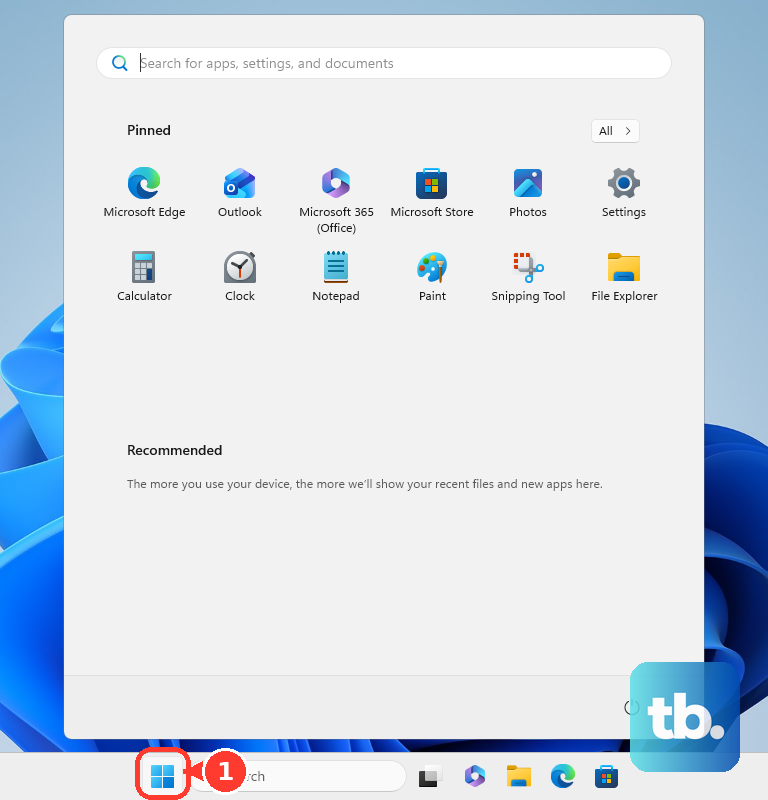
Use these Windows 11 settings when the touchpad was disabled in Settings or turned off after an external mouse was connected. For a touchscreen Windows laptop, turn on the temporary on-screen control while you troubleshoot: right-click the taskbar, open Taskbar settings, go to Personalization > Taskbar > System tray icons, turn Virtual Touchpad on, then select the virtual touchpad icon in the system tray.
3. Restore taps, clicks, speed, and pointer visibility
A touchpad that moves but will not tap, right-click, or track cleanly is enabled but misconfigured. Open Start > Settings > Bluetooth & devices > Touchpad, expand Taps, then enable the tap options you use, including the two-finger tap or right-click option displayed on your laptop.
For slow, jumpy, or overly sensitive movement, stay on the Touchpad page. Adjust Cursor speed, expand Taps, then change Touchpad sensitivity. If the touchpad works but the pointer disappears on screen, open Start > Settings > Bluetooth & devices > Mouse > Additional mouse settings > Pointer Options. Select Show location of pointer when I press the CTRL key, choose OK, then press Ctrl to locate the pointer.
4. Reset Windows gestures and repair the driver
Reset touchpad gestures first because it keeps the device installed and simply returns the touchpad settings to defaults.
- 1.Open Start > Settings > Bluetooth & devices > Touchpad.
- 2.Expand Touchpad.
- 3.Next to Reset touchpad settings and gestures to defaults, select Reset.
Then install driver updates through Windows Update, Microsoft’s recommended driver path. Open Start > Settings > Windows Update. Select Check for updates.
For optional drivers, open Advanced options > Optional updates > Driver updates. Select the available driver updates, then choose Download & install.
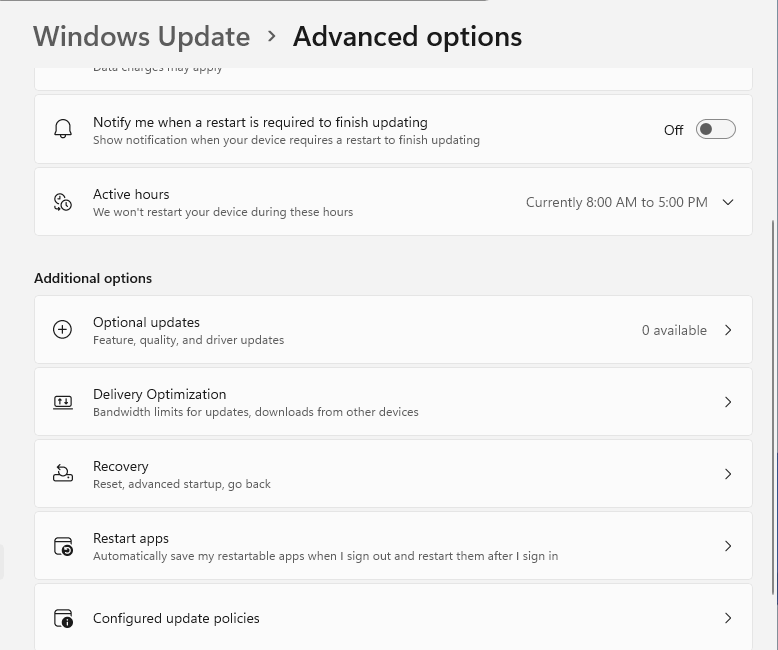
If the touchpad still fails, reinstall the touchpad driver from Device Manager. Right-click Start, open Device Manager, then expand Human Interface Devices or Mice and other pointing devices.
Right-click the touchpad device. Select Uninstall device, choose Uninstall, then restart from right-click Start > Shut down or sign out > Restart, or Start > Power > Restart.
The device name is model-specific. Look for HID-compliant touch pad, Precision Touchpad, Synaptics, ELAN, or another pointing-device name. If the issue began immediately after a driver update, right-click the touchpad device, open Properties > Driver, select Roll Back Driver, choose a reason, select Yes, then restart when prompted.
5. Install model-specific laptop updates
Dell: for driver and BIOS updates, open SupportAssist > Home > Update Software > Start, or use Dell Drivers & Downloads with the Service Tag or model.
HP: open HP Support Assistant > My Dashboard > your computer > Updates, select available updates, then choose Download and install. HP also provides Software and Drivers downloads by model.
Lenovo: open Lenovo Vantage > System Update > Check for Updates, or use Lenovo Support > Drivers & Software for manual downloads.
ASUS: open MyASUS > System Update, or use ASUS Download Center > Driver & Utility > Pointing Device. ASUS lists the ASUS Precision TouchPad driver and touchpad firmware by supported model.
Acer: open Acer Drivers and Manuals, enter the Serial Number, SNID, or model, select the operating system, open Drivers, then install the relevant touchpad, fingerprint/touchpad, chipset, BIOS, or firmware updates.
Samsung: open Samsung Update and install recommended apps and drivers, or use the Galaxy Books Download Center for drivers, firmware, and manuals by model.
Use your laptop maker’s update tool when Windows settings and Windows Update do not fix the built-in mouse. These tools match the driver, firmware, BIOS, chipset, and pointing-device packages to the exact model. For ASUS laptops, keep the ASUS System Control Interface and touchpad driver installed together when the touchpad hotkey does not work. ASUS identifies both as part of touchpad hotkey support on supported notebooks.
6. Test for Windows hardware failure
After settings, drivers, and maker updates, run a quick in-browser pointer test, then confirm the result outside Windows with the vendor diagnostics below. A failure in diagnostics or BIOS points away from Windows settings and toward hardware service.
On a Dell laptop, restart and press F12 repeatedly at the Dell logo. In the One Time Boot Menu, choose Diagnostics. For advanced touchpad testing, stop the default tests with Esc, choose the advanced test, then test Mouse or the touchpad option displayed by SupportAssist diagnostics.
Dell also supports a BIOS-level touchpad check. Restart, tap F2 repeatedly at the Dell logo, then test whether the touchpad pointer and buttons respond in BIOS. If they fail there, use hardware service instead of repeating Windows driver steps.
On ASUS laptops, open MyASUS > System Diagnosis, choose the relevant hardware or checkup scenario, then follow the provided solution steps.
7. Fix a MacBook trackpad from macOS settings
Open Apple menu > System Settings > Trackpad > Point & Click. Adjust Tracking speed, confirm the click and gesture settings you use are enabled, then test pointer movement with one finger on the built-in trackpad.
Open Apple menu > System Settings > Accessibility > Pointer Control > Mouse & Trackpad. Turn off Ignore built-in trackpad when mouse or wireless trackpad is present. Check Ignore built-in trackpad when Mouse Keys is on, then turn off Mouse Keys when that setting is blocking the trackpad.
Update macOS from Apple menu > System Settings > General > Software Update. On a MacBook, start with Trackpad and Accessibility settings before you move to startup checks. Restart an Apple silicon Mac after those changes. On an Intel-based Mac, use Apple’s SMC reset steps.
To isolate software conflicts, start in safe mode: on Apple silicon, choose Apple menu > Shut Down, press and hold the power button until Loading startup options appears, select the volume, hold Shift, then choose Continue in Safe Mode. On Intel, turn on or restart the Mac and immediately hold Shift until the login window appears.
For suspected hardware failure, shut down the Mac, disconnect external devices except required power, display, keyboard, mouse, and Ethernet, then start Apple Diagnostics using Apple’s model-specific startup steps and follow the reference-code guidance.
8. Recover a Chromebook touchpad
ChromeOS has a short official touchpad recovery sequence. Clean dust or dirt from the touchpad, press Esc several times, drumroll your fingers on the touchpad for ten seconds, then turn the Chromebook off and back on.
Select the time at the bottom right, then open Settings > Device > Touchpad or Touchpad and mouse. Adjust Tap to click, Tap and drag, Touchpad acceleration, Touchpad speed, and Reverse scrolling.
Select the time again, then open Settings > Accessibility > Cursor & touchpad. Set Disable built-in touchpad to Never. Update ChromeOS from Settings > About ChromeOS > Check for updates. After an update downloads, select Restart to update.
If only one local account has the touchpad problem, delete that account and add it again. Use a Chromebook hardware reset after the setting and update checks. Turn the Chromebook off, hold Refresh, tap Power, and release Refresh when the Chromebook starts. Google says this restarts hardware such as the keyboard and touchpad and can delete files in Downloads.
9. Check managed work or school controls
A work or school laptop can enforce pointing-device settings through management controls. On a Mac, view installed profiles at Apple menu > System Settings > General > Device Management. Remove only profiles you own or are allowed to remove.
For a managed Windows device, the organization can set Precision Touchpad defaults through administrative tooling. Use the device owner’s support channel when touchpad settings return after you change them.
Frequently Asked Questions
Why did my built-in laptop mouse stop working after I connected a wireless mouse?
On Windows 11, open Start > Settings > Bluetooth & devices > Touchpad, expand Touchpad, and turn on Leave touchpad on when a mouse is connected. On Mac, open System Settings > Accessibility > Pointer Control > Mouse & Trackpad and turn off Ignore built-in trackpad when mouse or wireless trackpad is present.
What can I use while the physical touchpad is not working?
On a Windows touchscreen laptop, right-click the taskbar, open Taskbar settings, go to Personalization > Taskbar > System tray icons, turn Virtual Touchpad on, then select the virtual touchpad icon in the system tray.
Should I update the touchpad driver from Device Manager or Windows Update?
Use Windows Update first because Microsoft recommends it for touchpad driver updates. Use Device Manager to update, roll back, or reinstall the touchpad device driver when Windows Update does not fix it.
Should I use Acer Chromebook Search + Shift + P to enable the touchpad?
Use the current ChromeOS setting instead: Settings > Accessibility > Cursor & touchpad > Disable built-in touchpad > Never. The Search + Shift + P method depends on debug shortcuts and is legacy Acer Chromebook advice.
When is it probably a hardware problem?
Treat it as hardware when the touchpad fails in Dell diagnostics, Dell BIOS testing, MyASUS System Diagnosis, Apple Diagnostics, or after a Chromebook hardware reset and ChromeOS update.