


To find your IP address in Windows 11, open Settings > Network & internet, select Properties beside your connected network, and read IPv4 address. These steps use Windows 11 menus. You can also run ipconfig in Command Prompt to see addresses grouped by network adapter.
The address shown in Windows belongs to a network adapter on your PC. If you need the public address an internet service sees, use a public IP lookup in your browser.
The short version
- Settings: Open Settings > Network & internet, select your connected network’s Properties, and read IPv4 address.
- Command option: Run
ipconfigand read the address under your active Wi-Fi or Ethernet adapter. - Public address: A browser IP lookup shows the address visible to that website.
- Several results: Multiple adapters, a VPN, and IPv6 can give your PC several valid addresses.
| Method | What it shows | When to use it |
|---|---|---|
| Connected-network Properties | Connected adapter’s IPv4 address | Start here for a graphical readout |
| Wi-Fi settings | Selected wireless connection’s IPv4 address | Check your connected Wi-Fi network |
| Ethernet settings | Connected wired adapter’s IPv4 address | Check your wired connection |
| Taskbar network shortcut | The same address through Settings | Open network settings from the taskbar |
ipconfig | IPv4 and IPv6 addresses grouped by adapter | Compare your network adapters |
| Control Panel connection details | IPv4 and any displayed IPv6 address | Use another graphical readout |
Get-NetIPConfiguration | Addresses with interface names | Check connected, nonvirtual interfaces |
Get-NetIPAddress | Addresses filtered by protocol | Show IPv4 results in PowerShell |
| Browser public IP lookup | Public address visible to the website | Check your internet-facing address |
| Plain-text browser endpoint | Public IPv4 address | Get a plain-text result |
curl.exe public IP request | Public IPv4 address returned to the shell | Check your public address from a command line |
Find-NetRoute | Local source address for a destination | Choose between Wi-Fi, Ethernet, or VPN routes |
Find your address in Settings
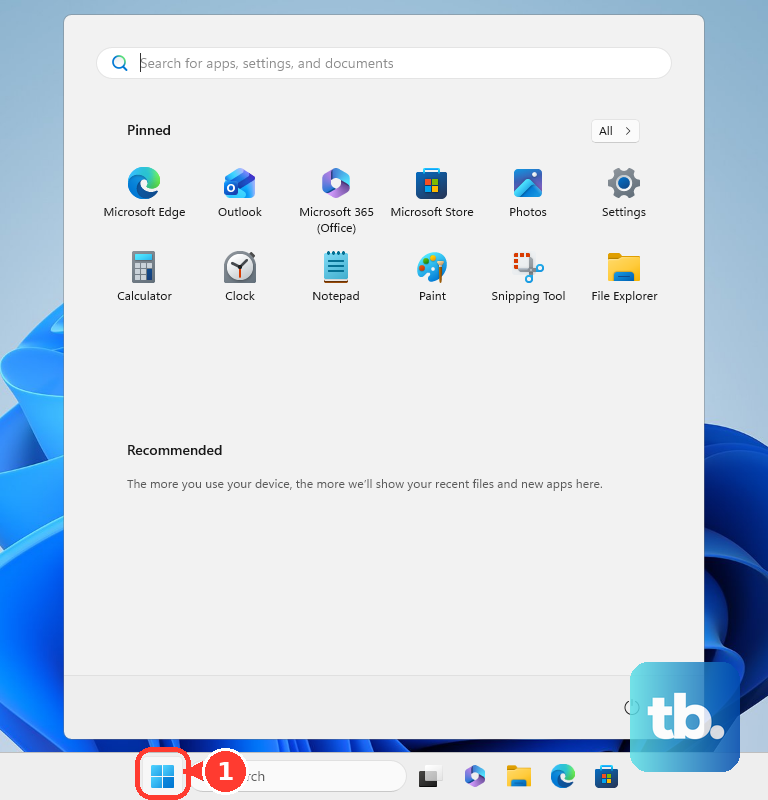
Select Start, open Settings, then choose Network & internet. Select Properties beside the connected network and read IPv4 address. Keep the address matched to that connection, especially when your PC has more than one network adapter.
For Wi-Fi, open Settings > Network & internet > Wi-Fi, select the connected network, and read IPv4 address. For a wired connection, open Settings > Network & internet > Ethernet and read IPv4 address for the connected adapter.
You can reach the same settings from the taskbar. Right-click the Network or Wi-Fi icon and select Network and internet settings. Open the connected network’s Properties and read IPv4 address.
Use Command Prompt to see adapter addresses
Open Command Prompt to display addresses for your network adapters. Enter the following command and press Enter.
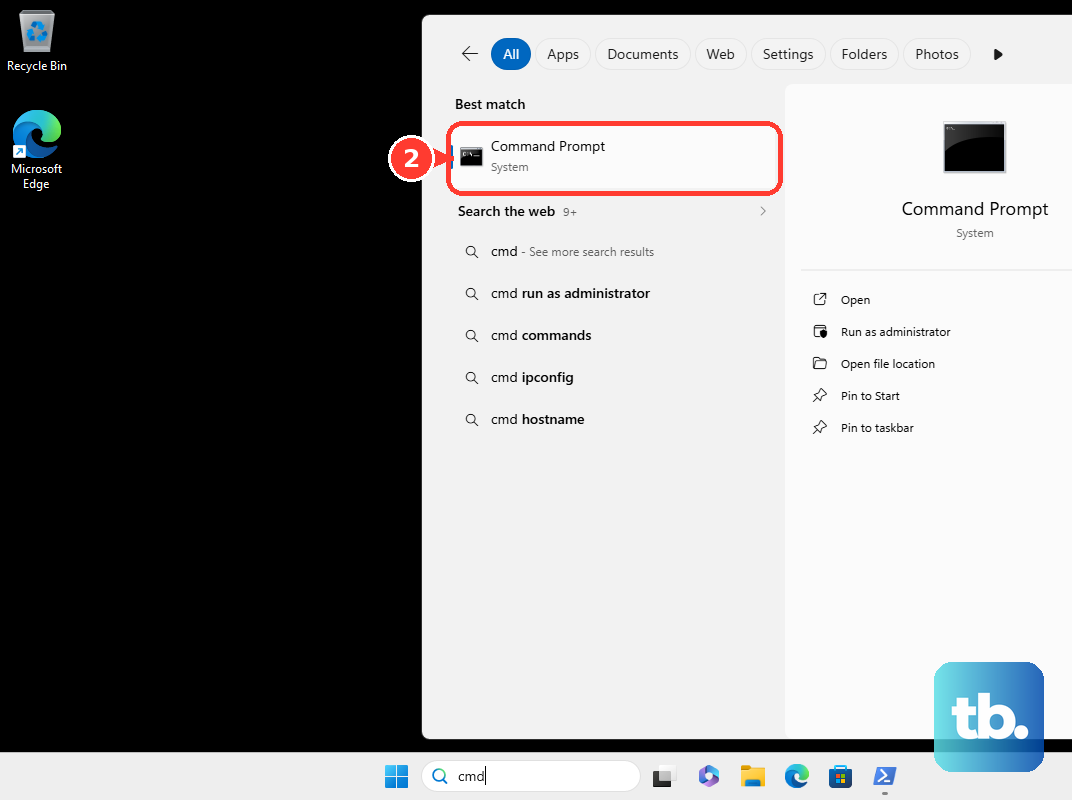
ipconfigFind your active Wi-Fi or Ethernet adapter, then read IPv4 Address. IPv6 entries can appear in the same results. Match the address to the connection you are using instead of taking the first address on the screen.
For additional adapter, DHCP, gateway, and DNS details, use the expanded output. Enter the following command and press Enter, then find the relevant adapter again.
ipconfig /allBoth commands also work in PowerShell or a Windows shell in Terminal. A gateway or DNS server address is not your PC’s address, so read the IPv4 or IPv6 entry for the adapter itself.
Find your public IP address
On your Windows PC, open the public IP lookup in a browser and read the public IP displayed at the top. You do not need to install a VPN. The result is the address visible to that website, which can be a VPN or proxy exit address.
For a plain-text public IPv4 result, open ipify’s IPv4 endpoint at https://api.ipify.org in your browser. You do not need an account or an installation. Both browser options require internet access.
You can also request your public IPv4 address from Command Prompt or Windows PowerShell. Open either application, enter the command below, and press Enter; it requires internet access and returns the address as text.
curl.exe https://api.ipify.orgThe explicit curl.exe name avoids Windows PowerShell’s curl alias. Browser and command-line lookups can return different public addresses when their traffic follows different VPN or proxy paths. Use the result from the connection you need to identify.
Open connection details in Control Panel
Search Windows for Control Panel and open it. Select Network and Internet > Network and Sharing Center > Change adapter settings. Open your active wired or wireless connection, then select Details....
Read IPv4 Address and any IPv6 address displayed in the connection details. If you cannot find the address through Settings, this gives you another graphical route. Check that you opened the active connection before copying its address.
Read your address in PowerShell
Open Windows PowerShell to show the configuration for connected, nonvirtual interfaces. Enter the following command and press Enter.
Get-NetIPConfigurationMatch InterfaceAlias to your connection and read IPv4Address or IPv6Address. The default results leave out virtual, loopback, and disconnected interfaces. If the interface you need is missing, include those interfaces by entering the following command and pressing Enter.
Get-NetIPConfiguration -AllTo narrow the output to IPv4 addresses, use the command below and press Enter. Match InterfaceAlias or InterfaceIndex to your connection before reading IPAddress.
Get-NetIPAddress -AddressFamily IPv4Choose the right address from several results
Multiple addresses do not automatically indicate a problem. You can see addresses for separate Wi-Fi, Ethernet, and VPN interfaces, plus IPv4 and IPv6 entries. Start with the adapter carrying the connection you need, then choose its IPv4 or IPv6 address as required.
When several connections coexist, you can check which local address Windows selects to reach a particular destination. Open Windows PowerShell, enter the command below, and press Enter. Replace 1.1.1.1 with another destination when investigating that connection.
Find-NetRoute -RemoteIPAddress 1.1.1.1Read IPAddress and InterfaceAlias in the first returned object. This identifies the local source address selected for that route. If you need the public address visible to an internet service, use a public IP lookup instead.
Frequently Asked Questions
Can you open network settings directly from the Run box?
Press Windows + R, enter ms-settings:network-status, and press Enter. Then select Properties beside your connected network and read IPv4 address.
Can you find your PC’s address through your router?
Compatible routers can show connected-device addresses. In the ASUS browser interface, sign in with your router credentials, select Network Map, then select the Clients icon. Identify your Windows PC in Client status and read its assigned address. Other router models have different menus.
Is the WAN IP shown by your router always your public IP?
No, your router’s upstream WAN address can be private under double NAT or carrier-grade NAT. Compare it with an external public IP lookup before treating it as your public address.
Does Microsoft account activity show your current IP address?
Microsoft account activity shows the historical internet-facing address associated with an activity entry. Expand the relevant entry and match its timestamp, device, and browser to your session before reading its IP address. Microsoft does not record every repeated activity, so the page is not a live Windows adapter readout.
Can BgInfo keep your IP address on the desktop?
If BgInfo is already configured to show networking information, you can read its per-adapter IP entries on your desktop. Its display is a snapshot, so rerun it after network changes. You can also use its /popup option to display the configured information without updating your wallpaper.