


To find the largest files on Windows 11, open File Explorer, search the folder or drive with System.Size:>1073741824, then sort the results by Size to put the largest first. This finds accessible files larger than 1 GiB within the selected location and its subfolders. The steps below use Windows 11 menus.
The short version
- Quick folder check: Open File Explorer with Windows + E, switch to Details, and sort by Size.
- Include subfolders: Search the selected drive or folder with
System.Size:>1073741824, then sort the results by Size. - See the bigger picture: Open Settings > System > Storage to identify the categories consuming space.
- Check actual disk use: A file’s logical size, allocated disk space, and OneDrive cloud storage usage measure different things.
| Method | Best use | Main limitation |
|---|---|---|
| File Explorer folder sort | Check a familiar folder quickly | Does not rank files inside subfolders |
| File Explorer size search | Find large files throughout a selected location | Scope, indexing, and access affect results |
| Storage settings | Identify large categories and cleanup candidates | Not a complete individual file ranking |
| WizTree | Scan a drive and filter large files | Check the displayed result limit |
| WinDirStat | Compare a largest files list with a visual map | Requires a completed scan |
| PowerShell | Generate a recursive top 50 list | Permission errors mean incomplete coverage |
| OneDrive largest files view | Find large files in personal cloud storage | Cloud size does not establish local disk usage |
Sort a familiar folder by size
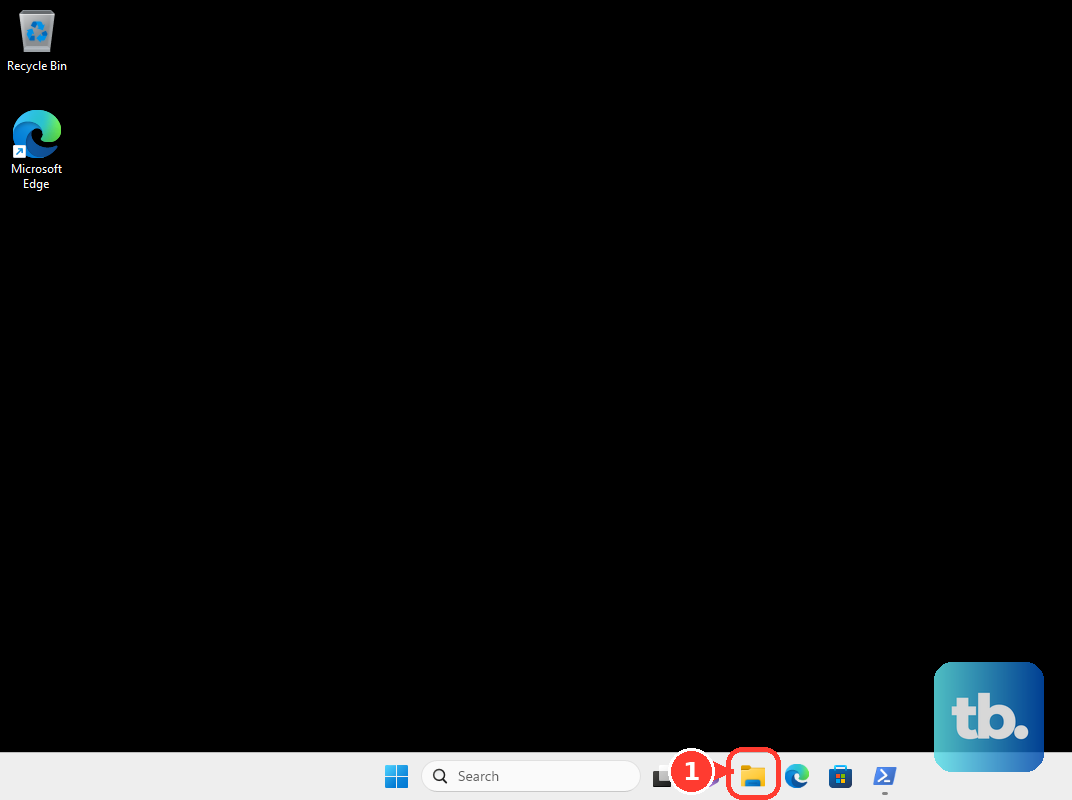
Press Windows + E to open File Explorer, then open the folder you want to inspect, such as Downloads, Videos, or Documents. Select View > Details so you can compare filenames and sizes in a list.
Right-click an empty area and select Sort by > Size. Put the largest files first, then review the top entries. This gives you a quick check when you already know where your downloads or videos are stored.
This sorts files in the current folder only. It does not collect and rank files inside its subfolders, so use a size search when you need to include those files.
Search a drive and its subfolders
Open the folder or drive you want to search before entering a size filter. Press Ctrl + E to select its search box, then enter the following expression:
System.Size:>1073741824Press Enter and wait for the results. Select View > Details, then sort by Size with the largest files first. The expression finds files larger than 1 GiB, and you can change the number to use a different threshold.
On English-language Windows, the shorter equivalent is size:>1GB. The System.Size property name avoids differences in localized property names. If you get no matches, lower the threshold or search a broader location.
For a graphical alternative, start a search, then select Search options > Size and choose a category. Select All subfolders to include descendants or Current folder to limit the search. Sort the resulting files by Size afterward.
The current Gigantic (>4 GB) category finds files exceeding 4 GB, while Huge (1 - 4 GB) covers a bounded range. A category filters which files appear; it does not automatically rank every file in the location. Use an explicit numeric threshold when you want control over the cutoff.
Use Storage to choose where to look
Open Settings > System > Storage to see which categories consume space. Review Installed apps, Temporary files, and System & reserved, then select Show more categories for additional categories. Investigate the largest relevant category first.
For suggested file candidates, open Settings > System > Storage > Cleanup recommendations and expand Large or unused files. You can review the suggestions without selecting files or choosing Clean up. These recommendations do not provide a complete ranking of everything on the drive.
To inspect another connected drive, open Settings > System > Storage > Advanced storage settings > Storage used on other drives. Select the drive to view its breakdown. Return to File Explorer or use a disk analyzer to identify the individual files behind those totals.
Scan the drive with a disk analyzer
A disk analyzer helps you find individual large files and the folders consuming space. Download WizTree from its official page, choosing the installer or portable package. WizTree is free for personal use.
Open WizTree, select the drive or folder, and select Scan. After scanning, select File View and sort by Size with the largest first. To restrict the results to files larger than 1 GB, enter this in File Search Filter:
>1gCheck Max files to display when you need more results, because the default limit is 1,000. The treemap gives you a visual alternative to the list. For files allocating more than 1 GB of actual disk space, use this filter instead:
a>1gWinDirStat offers another approach with a dedicated largest files view. Get WinDirStat from its official download page, then open it and choose All Local Drives, Individual Drives, or Individual Folders in Select Drives. Select OK and wait for the scan to finish.
Select Largest Files to inspect individual files, or expand folders in All Files. Select a column header to sort the list. Selecting a large rectangle in the treemap selects its file.
Use View > Use Physical Size for allocated disk space or View > Use Logical Size for file content length. The Physical Size and Logical Size columns let you compare both measurements, which can differ for compressed, sparse, or cloud-placeholder files.
Generate a ranked list with PowerShell
PowerShell gives you a built-in option for producing one recursive list across a selected location. Open Windows PowerShell and run the following command to list the 50 largest accessible files on the C drive:
Get-ChildItem -LiteralPath 'C:\' -File -Recurse -Force | Sort-Object -Property Length -Descending | Select-Object -First 50 -Property Length,FullNameReplace C:\ with the drive or folder you want to inspect. The Length column reports bytes, and FullName identifies each file’s location. The command gathers files recursively before ranking them together.
The -Force option includes hidden and system files, while -File excludes directories. It does not override permissions, so access errors mean the list does not cover every file in the selected location. Treat the output as a ranking of accessible files.
Expand the search when files seem missing
First, confirm that you searched the intended drive or folder and included its subfolders. In File Explorer, select View > Show > Hidden items, then repeat the sort or search. Showing hidden items does not grant access to protected folders.
Indexing coverage can also affect searches. Open Settings > Privacy & security and choose the Windows search page, which Microsoft’s documentation labels Search or Searching Windows. Under Find my files, select Enhanced. To add specific locations instead, select Classic > Customize search locations > Modify.
Allow indexing to finish before repeating the search. Changing indexing coverage does not itself produce a file size report. If a utility still seems to omit matches, check its selected scan location and result limit.
Separate OneDrive size from local disk use
A large OneDrive file does not necessarily occupy the same amount of space on your PC. In File Explorer, a blue cloud means the file is online-only, a green check means it is locally available, and a green circle with a white check means it is always available. Check these icons before treating a cloud file’s listed size as local storage you can reclaim.
For your personal account’s cloud storage, open the OneDrive largest files view and sign in with the relevant Microsoft account. You can review large cloud files there, but their cloud sizes do not establish how much disk space they occupy on Windows.
After identifying a local copy you no longer need on the PC, right-click it and select Free up space to retain the cloud file. This removes the local copy rather than deleting the file from your cloud storage.
Review each file before removing it
Select a candidate in File Explorer and press Alt + Enter to open Properties. Review its location alongside its size before deciding what to do. File length, allocated disk space, folder totals, and application storage usage are different measurements, so their figures are not interchangeable.
If the large space consumer is an application you want to remove, open Settings > Apps > Installed apps. Find the application and select More > Uninstall, then follow any application-specific uninstall steps. Finding a large protected or system file does not make it a deletion candidate.
Frequently Asked Questions
Can Everything rank files without a minimum size?
Yes, enter file: in Everything and select the Size column header to put the largest files first. The results cover indexed locations rather than automatically including every storage location.
Does TreeSize Free include the Top Files view?
No, Top Files belongs to TreeSize Personal and Professional. In TreeSize Free, scan a location, expand the largest folder branches in the directory tree, and turn on View > Show Details to list the scanned files. Use View > Sort to sort that details view.
Can Command Prompt create one largest files ranking across subfolders?
The dir command can visit subdirectories and sort files by size, but it sorts each directory separately. The forfiles command can filter files by a size threshold, but it does not sort the matches.
Will Storage Sense find the largest files for me?
No, Storage Sense automates cleanup rather than finding the largest files. Disk Cleanup also handles cleanup categories rather than providing a general largest files search.