


To find the AppData folder in Windows 11, press Windows + R, enter %USERPROFILE%\AppData, and select OK. This opens your current profile’s AppData folder without changing hidden-file settings. These steps use Windows 11 menus.
The short version
- Open AppData directly: Press Windows + R, enter
%USERPROFILE%\AppData, and select OK. - Choose the right subfolder:
%APPDATA%opens Roaming, while%LOCALAPPDATA%opens Local. - Browse manually: In File Explorer, select View > Show > Hidden items to reveal AppData in your profile folder.
- Save a shortcut: Right-click the revealed AppData folder and select Pin to Quick access for future visits.
| Method | When to use it | What to enter or select |
|---|---|---|
| Run directly to AppData | Open the parent folder without revealing hidden items | %USERPROFILE%\AppData |
| Run directly to a subfolder | Reach Roaming, Local, or LocalLow | %APPDATA%, %LOCALAPPDATA%, or %USERPROFILE%\AppData\LocalLow |
| File Explorer address bar | Open AppData from an Explorer window | %USERPROFILE%\AppData |
| Reveal hidden items | Browse to AppData manually | View > Show > Hidden items |
| File Explorer Options | Change visibility through the folder settings | Show hidden files, folders, and drives |
| Quick access pin | Keep AppData in File Explorer’s navigation pane | Pin to Quick access |
| Desktop shortcut | Open AppData from your desktop | Send to > Desktop (create shortcut) |
Open AppData with Run
Press Windows + R to open Run, or right-click Start and select Run. In the Open field, enter the following path, then select OK.
%USERPROFILE%\AppDataFile Explorer opens your AppData parent folder, which normally contains Local, LocalLow, and Roaming. You can open this path while hidden folders remain hidden, so you do not need to change a visibility setting first.
Open Roaming Local or LocalLow directly
When instructions for an app name a particular AppData subfolder, you can open that location directly. Press Windows + R, enter the following path for Roaming, then select OK.
%APPDATA%Despite its name, %APPDATA% takes you to Roaming inside AppData. To open Local instead, enter the following path in Run and select OK.
%LOCALAPPDATA%You can also reach LocalLow directly beneath your profile’s AppData folder. Enter the following path in Run, then select OK.
%USERPROFILE%\AppData\LocalLowOn a standard local profile, select AppData in File Explorer’s breadcrumb to reach the parent folder. From Roaming or Local, you can also press Alt + Up arrow or select the Up arrow beside the address bar. If your Roaming folder has been redirected elsewhere, use %USERPROFILE%\AppData to reach your local AppData folder.
Use the File Explorer address bar
Press Windows + E to open File Explorer, then click its address bar. You can also open File Explorer from the taskbar or Start and select the address bar with Alt + D or Ctrl + L. Enter the following path and press Enter.
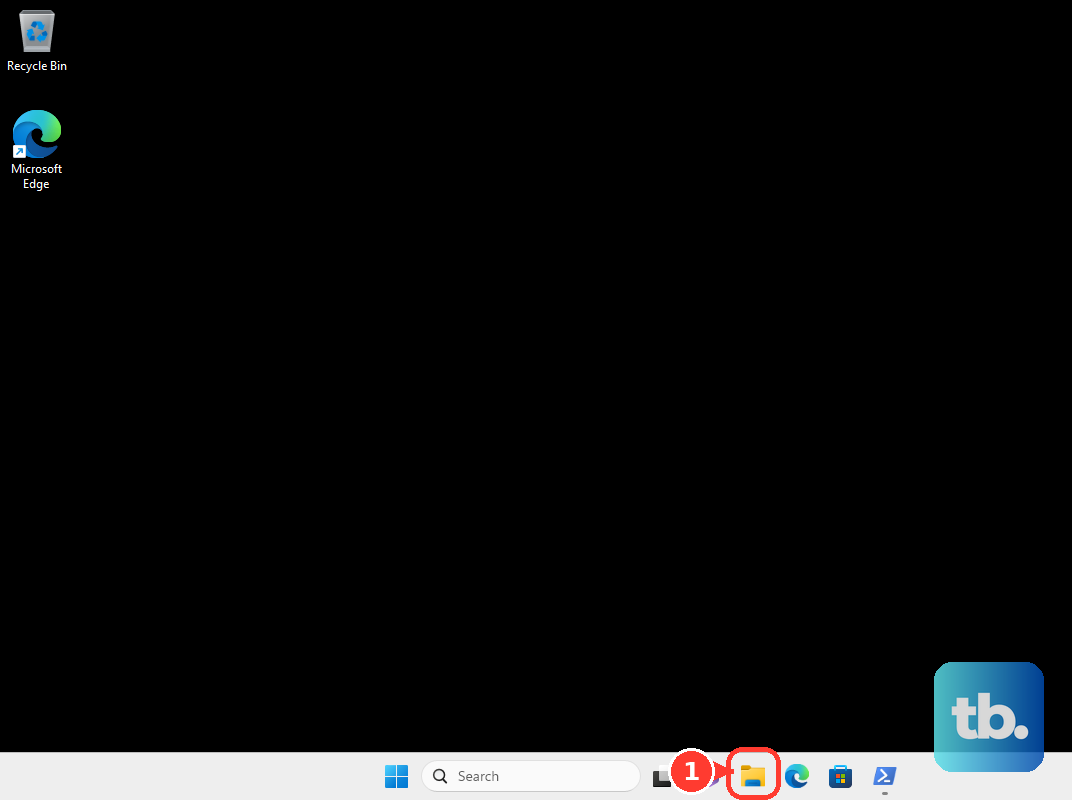
%USERPROFILE%\AppDataThe address bar also accepts %APPDATA% and %LOCALAPPDATA% for their corresponding subfolders. Enter these paths in the address bar.
You can enter a complete folder path when you know your profile’s location. For the usual layout shown below, replace your-profile-folder with your actual profile folder name, then press Enter. If your profile is stored somewhere other than C:\Users, use that location instead.
C:\Users\your-profile-folder\AppDataReveal AppData while browsing your folders
AppData is normally hidden, so you may not see it when browsing your user folder. Press Windows + E, then select View > Show > Hidden items.
Open This PC, open your Windows drive, then open Users and your profile folder. Open AppData from there. Drive names and profile locations can vary, so use %USERPROFILE%\AppData in Run if your folders follow a different layout.
Show hidden folders through File Explorer Options
For another way to reveal AppData, select See more (...) > Options in File Explorer, then open the View tab. Under Advanced settings > Hidden files and folders, select Show hidden files, folders, and drives and select OK. Return to your profile folder and open AppData.
If your organization blocks Folder Options, you can use the direct path without changing hidden-file visibility. Press Windows + R, enter %USERPROFILE%\AppData, and select OK.
Save AppData for your next visit
Once hidden items are visible, enter %USERPROFILE% in File Explorer’s address bar and press Enter. Right-click AppData and select Pin to Quick access. On later visits, select AppData in the navigation pane or under Home, the landing-page name used from Windows 11 version 22H2 onward.
For a desktop shortcut, right-click the revealed AppData folder and select Show more options if it appears, then select Send to > Desktop (create shortcut). Double-click the resulting shortcut whenever you need to open the folder.
Frequently Asked Questions
Can you find AppData through Windows Search?
Microsoft’s own Outlook instructions enter paths that start with %APPDATA% in the Windows Search box, but Run is the more direct route to the folder itself. Press Windows + R, enter %APPDATA%, and select OK to reach Roaming. On a standard local profile, select AppData in File Explorer’s breadcrumb to reach the parent folder.
Is ProgramData the same folder as AppData?
No, ProgramData is a separate location shared across users. Your AppData folder belongs to your user profile, so opening ProgramData takes you somewhere different.
Do you need to install a tool to open AppData?
You do not need a download or installation for the built-in methods. You can open the folder with Run or File Explorer, both included in Windows 11.
Can you open AppData with Voice access?
Yes, on Windows 11 version 22H2 and later, you can use Voice access when it is configured and listening in English. First pin AppData to Quick access and make sure it is visible in File Explorer’s navigation pane. Say Open File Explorer, then say Click AppData.