

To find an installed Steam game's files, open Steam's Library, right-click the game, and select Properties > Installed Files > Browse. Steam opens that game's installation folder in your computer's file manager, including when you use a custom library or another drive. Save files and configuration files can live elsewhere, so their locations are covered separately below.
The short version
- Open one game: In Steam's Library, right-click the installed game and choose Properties > Installed Files > Browse.
- Check other drives: Open Steam > Settings > Storage to see games in each library.
- Browse Windows folders: The default game directory is
C:\Program Files (x86)\Steam\steamapps\common. - Find saves separately: Steam Cloud user data and Proton save files can occupy different folders from the game's installation.
| Method or location | When to use it | Route or destination |
|---|---|---|
| Game properties | Open an installed game's folder | Properties > Installed Files > Browse |
| Manage menu | Open files from the Library menu | Manage > Browse local files |
| Steam Storage | Identify the game's library drive | Steam > Settings > Storage |
| Windows default folder | Browse a default installation | C:\Program Files (x86)\Steam\steamapps\common |
| Windows shortcuts | Reach a known folder quickly | Windows + E or Windows + R |
| Windows search | Find an unknown library location | Search This PC for steamapps |
| Task Manager | Locate a running game's executable | Processes > Open file location |
| macOS default folder | Browse the default Mac library | ~/Library/Application Support/Steam/steamapps/common |
| Native Linux folder | Browse a native Steam library | ~/.local/share/Steam/steamapps/common |
| Steam Deck Desktop Mode | Access internal or microSD game files | Power > Switch to Desktop |
| Steam Machine Desktop Mode | Access files on a current SteamOS Steam Machine | Steam Menu > Power > Switch to Desktop |
| Flatpak Steam folder | Find Flathub Steam game files | ~/.var/app/com.valvesoftware.Steam/.local/share/Steam/steamapps/common |
| Steam Cloud user data | Find relevant locally stored Cloud data | userdata, account folder, then game appID folder |
| Proton prefix | Find Windows-style saves or settings | steamapps/compatdata/<appid>/pfx |
| Windows file visibility | Reveal hidden files or extensions | On Windows 11, View > Show |
Open the game folder from Steam
In the desktop Steam client's Library, right-click your installed game and select Properties. Choose Installed Files, then click Browse to open its installation folder. This route works on Windows, macOS and Linux and takes you to the game's actual location without needing its library path.
You can also right-click the installed game in your Library and choose Manage > Browse local files. If you already have the game's Library page open, select its gear icon, then choose Manage > Browse local files.
Check which drive contains your games
To locate games across multiple drives, open Steam > Settings > Storage. Select each library drive to see the games installed there. This is useful when you use custom library folders or external storage.
Once you identify the game, open its Properties > Installed Files and click Browse to reach its precise folder. A game installed in another library will use that library's location rather than the default directory on your main drive.
Browse Steam game files on Windows
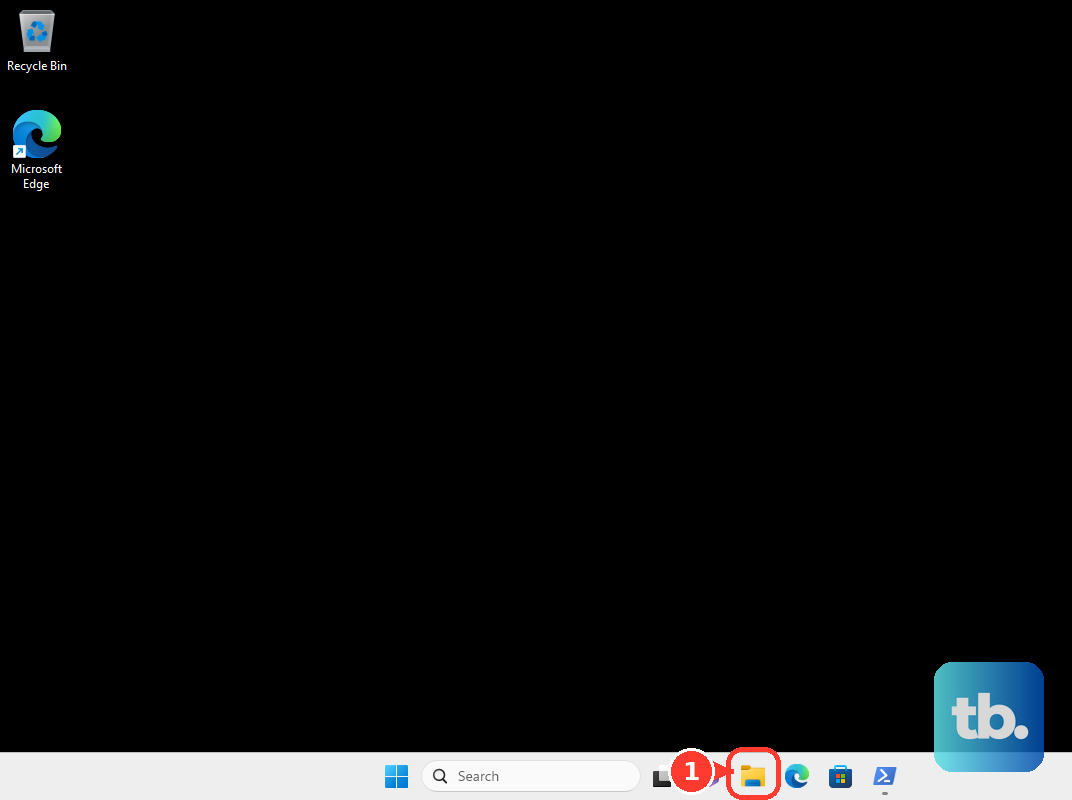
On Windows 11 or Windows 10, press Windows + E to open File Explorer. Enter the following default Steam game directory in the address bar, then press Enter.
C:\Program Files (x86)\Steam\steamapps\commonOpen the game's folder inside common. This path applies when Steam uses the default installation directory. For a custom library, open its actual folder, then open steamapps followed by common.
You can also press Windows + R, enter the same path and press Enter. Substitute your actual library path for a nondefault installation. If the default directory does not contain your game, check Steam's Settings > Storage to identify its library drive.
Ordinary steamapps folders do not require hidden-file visibility. When following a game's save or configuration instructions on Windows 11, open File Explorer's View > Show and select Hidden items to reveal hidden files. To identify executable and configuration extensions on Windows 11, open View > Show and select File name extensions.
Search Windows or locate a running game
If you do not know the library location, open File Explorer on Windows 11 or Windows 10 and select This PC. Search for steamapps or the game's folder name. Open a matching steamapps folder, then open common and the game's folder.
You can search connected, accessible drives this way. Searching This PC covers more locations but is slower than searching Home. If you already know which drive contains the game, search that drive instead.
To find a Windows game's executable, launch the game and press Ctrl + Shift + Esc to open Task Manager. Select Processes, right-click the actual game process and select Open file location. Choose the game itself rather than Steam, a separate launcher or an anti-cheat process.
For an accessible game process, Task Manager opens the executable's folder, which can be a subfolder of the main installation. If you need the main directory or cannot access the process's location, use the game's Properties > Installed Files > Browse route in Steam.
Find the Steam library on a Mac
In Finder, choose Go > Go to Folder. Enter the following path and press Return to open the default Mac game directory.
~/Library/Application Support/Steam/steamapps/commonOpen the game's folder inside common. This location applies to Steam's default user-library installation on macOS. If you use a custom library elsewhere, open the installed game's folder through Steam's Browse command.
To move through the folders manually, open Finder's Go menu, hold Option and select Library. Open Application Support, then Steam, steamapps and common. From there, open the game's folder.
Find native Linux and Flatpak game folders
For a native Linux Steam installation using the location below, open your file manager and navigate to it. In KDE's Dolphin file manager, press Ctrl + L to enter the path.
~/.local/share/Steam/steamapps/commonWhen moving through hidden directories manually in Dolphin, press Ctrl + H to show hidden files. Dolphin hides its menu bar by default, so to use the View menu instead, first press Ctrl + M to show the menu bar, then select View > Show Hidden Files. These Dolphin controls also apply in SteamOS Desktop Mode.
Flathub's community-maintained Steam Flatpak package uses a different location from a native installation. In your host file manager, open the following directory, then open steamapps and common.
~/.var/app/com.valvesoftware.Steam/.local/share/SteamChoose the path that matches your Steam package. If the game is installed in another library, use its Browse command in Steam to open the folder directly.
Access game files on Steam Deck or Steam Machine
On a Steam Deck LCD or OLED running SteamOS, press the STEAM button and select Power > Switch to Desktop. Open desktop Steam and go to your Library. Right-click the installed game, select Properties > Installed Files, then click Browse. This works for games on internal storage or an accessible microSD library without needing its mount path.
On a current Steam Machine running SteamOS, open Steam Menu > Power > Switch to Desktop. In desktop Steam, right-click the installed game in your Library and select Properties > Installed Files > Browse. You can navigate with a keyboard and mouse or a Steam Controller.
Look separately for saves and configuration files
The installation folder is not always where you will find saved progress or configuration files. For games that store relevant Steam Cloud data in Steam's userdata structure, open that directory, then your account's numbered folder and the game's appID folder. These are user-data locations rather than the main installed-game directory.
The Windows location is C:\Program Files (x86)\Steam\userdata, while the macOS location is ~/Library/Application Support/Steam/userdata. For native Linux Steam installations, use ~/.local/share/Steam/userdata.
For a Windows game running through Proton on Linux or SteamOS, open the game's Steam library directory and navigate to steamapps/compatdata/<appid>/pfx. Replace <appid> with the game's Steam application ID. Inside drive_c, look for the Windows-style save or configuration directory specified by the game's developer. Native Linux games can use other save locations, so follow the developer's location instructions for those files.
Frequently Asked Questions
Why does an older tutorial say to select Local Files?
Older Steam interfaces called the tab Local Files and the button Browse Local Files. In the current desktop interface, select Properties > Installed Files > Browse.
Where did the Steam Library Folders setting go?
Older Steam settings placed Steam Library Folders under Downloads. In the current interface, open Steam > Settings > Storage to view your library drives and installed games.
Does every game put its saves in Steam Cloud user data?
Developers control which files use Steam Cloud, so you should not treat userdata as a universal save folder. That location applies to games storing the relevant data in Steam's user-data structure.
How do you click through Steam Deck Desktop Mode without a mouse?
Move the pointer with the right trackpad. Press R2 for a left-click or L2 for a right-click, which lets you open the game's context menu in desktop Steam.