


To find missing Windows Memory Diagnostic results, open Event Viewer and search Windows Logs > System for MemoryDiagnostics-Results. You can also check the dedicated diagnostic log or query the System log with PowerShell. Match the result’s timestamp to the test you want to read.
After the test finishes and Windows restarts, sign in and wait several minutes for the notification near the taskbar clock. If it does not appear, check the notifications and logs below. The Event Viewer and command methods apply to Windows 11 and Windows 10; the notification controls below use Windows 11.
The short version
- Start with the logs: Search the System log for
MemoryDiagnostics-Resultsand match the event time to your test. - Check another location: Look for your result under MemoryDiagnostics-Results > Debug in Event Viewer.
- Try a command: PowerShell and Command Prompt can retrieve retained System log results.
- Rerun when needed: A new diagnostic run creates a new result rather than recovering an old one.
| Method or place | When to use it | What to expect |
|---|---|---|
| Results notification | Just after signing in | May take several minutes |
| Notification Center | You missed the Windows 11 notification | Shows retained notifications |
| System log search | You want to find a recorded result | Finds matching events individually |
| System log filter | You want results grouped together | Shows events from the diagnostic provider |
| Dedicated diagnostic log | The System search did not help | Another location for diagnostic results |
| Show debug logs | The dedicated channel is hidden | Changes visibility only |
| PowerShell | You prefer a direct query | Reads retained System results |
| Command Prompt | You want another command option | Reads retained System results |
| Saved event log | You already have an export or backup | Searches the saved copy |
| Notification settings | You want future alerts visible | Does not restore log records |
| Diagnostic rerun | You cannot find a completed result | Creates a new test result |
| Extended test | You want more thorough testing | Does not recover historical results |
| Event log export | You found System results worth keeping | Preserves an existing log copy |
| Administrator inspection | Access or retention needs review | Checks log configuration and status |
| Feedback Hub | Results stay missing with a recovery prompt | Reports the problem on Windows 11 |
Check for a missed notification
On Windows 11, press Windows + N, or select the taskbar clock or notification bell to open Notification Center. Look for a retained Windows Memory Diagnostic notification. If it has an expansion arrow, select it to read more. If you cannot find the notification, continue to Event Viewer.
Find the result in the System log
On Windows 11 or Windows 10, press Windows + R to open Run. Enter this command:
eventvwr.mscSelect OK to open Event Viewer, then expand Windows Logs. Right-click System and select Find.... Enter MemoryDiagnostics-Results and select Find Next.
Read the matching event and compare its timestamp with the time you ran the diagnostic. Repeat Find Next to move through other matching events until you find the run you want.
To group the results together, select Windows Logs > System, then choose Filter Current Log.... Under Event sources, select MemoryDiagnostics-Results and select OK. Read the matching events and their timestamps.
Avoid limiting the filter to errors because a successful test can produce an informational result. These methods find results recorded in the System log. If neither finds your test, check the dedicated diagnostic log next.
Look in the dedicated diagnostic log
On Windows 11 or Windows 10, right-click Start and select Event Viewer. Expand Applications and Services Logs > Microsoft > Windows > MemoryDiagnostics-Results > Debug. Select an event matching your test time and read its details.
If the Debug channel is hidden, open View and select Show Analytic and Debug Logs. Recheck Applications and Services Logs > Microsoft > Windows > MemoryDiagnostics-Results > Debug. Showing hidden logs changes their visibility; it does not recreate missing events. If your result still does not appear, try querying the System log directly.
Read the results with a command
On Windows 11 or Windows 10, you can use PowerShell to read the latest matching System log event. Open Start, search for PowerShell, and select Run as administrator. Run this command:
Get-WinEvent -FilterHashtable @{LogName='System'; ProviderName='Microsoft-Windows-MemoryDiagnostics-Results'} -MaxEvents 1 | Format-List TimeCreated, Id, MessageCompare TimeCreated with the time of your diagnostic run, then read Message. The command retrieves the latest matching retained event, which may belong to an earlier test. Remove -MaxEvents 1 to retrieve all matching retained events.
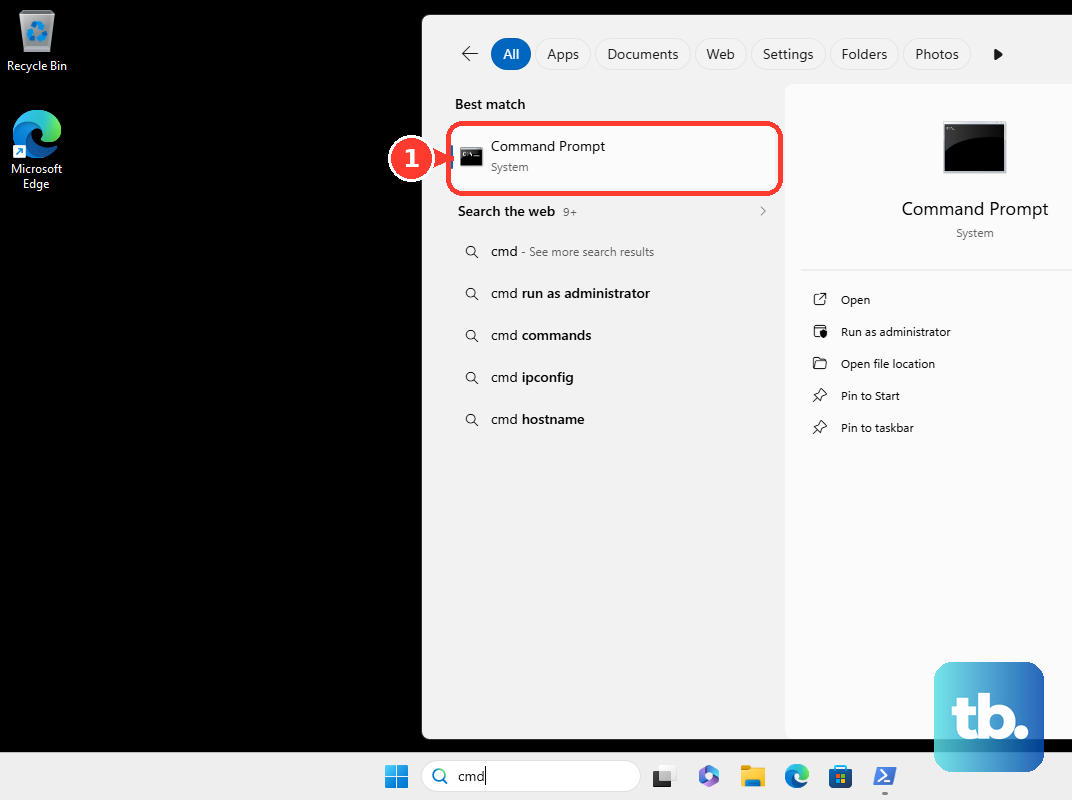
For another command option on Windows 11 or Windows 10, open Command Prompt. Run this query to retrieve the latest matching retained System event:
wevtutil qe System "/q:*[System[(Provider/@Name='Microsoft-Windows-MemoryDiagnostics-Results')]]" /f:text /c:1 /rd:trueRemove /c:1 to retrieve all matching retained events. If access is denied, reopen Command Prompt using Run as administrator and run the query again. If you still cannot find the result and have a saved System log, search that copy next.
Search a saved event log
If you already have an exported or backed-up System event log on Windows 11 or Windows 10, you can search that copy for the diagnostic result. Open PowerShell and run the command below, replacing C:\Logs\System.evtx with your saved file’s actual path:
Get-WinEvent -FilterHashtable @{Path='C:\Logs\System.evtx'; ProviderName='Microsoft-Windows-MemoryDiagnostics-Results'} | Format-List TimeCreated, Id, MessageRead the returned messages and compare their timestamps with your test. This method cannot recover overwritten events without a saved copy. If you cannot find a completed result, run a new diagnostic after checking notification visibility.
Make future notifications visible
On Windows 11, open Start > Settings > System > Notifications and turn on Notifications. If Windows Memory Diagnostic appears under Notifications from apps and other senders, open its entry. Select Show notification banners and Show notifications in notification center.
If the diagnostic sender is missing, skip its individual controls and check whether Do not disturb is active. To turn it off, press Windows + N and select the bell button marked zZ. These controls affect future notification visibility and do not restore missing event log records.
Run a new memory test
When you cannot find a completed result on Windows 11 or Windows 10, run the diagnostic again to create a new one. Save your work before restarting. Press Windows + R and enter this command:
mdschedSelect OK, then select Restart now and check for problems (recommended). Allow the test and automatic restart to finish, then sign in. Wait several minutes for the notification and check the logs again.
For an optional, more thorough rerun, press F1 during the diagnostic. Under Test Mix:, use the Arrow keys to choose Extended, then press F10 to apply the selection and continue. Allow the test to complete before checking its new result. Extended testing does not recover historical results.
Save results and address persistent problems
Once you find a result in the System log, preserve it before older events are automatically overwritten. In Event Viewer, select Windows Logs > System. Under Actions, select Save All Events As... and save an .evtx file for later searching or support.
If access or retention needs review on Windows 11 or Windows 10, including a managed PC, have an administrator inspect the System log. Open Command Prompt using Run as administrator. Run the first command to inspect configuration and the second to inspect log status:
wevtutil gl System
wevtutil gli System
These checks let an administrator review log access and retention configuration. Changes to those controls affect access or future retention; they do not reconstruct missing results.
For persistent missing results accompanied by a BitLocker recovery prompt on Windows 11, open Start, search for Feedback Hub, and select Report a problem. Describe the missing results, your Windows version, your PC model, and any recovery prompt. Do not include a BitLocker recovery key. Reporting the problem does not retrieve the missing report.
Frequently Asked Questions
What does event 2001 mean in the dedicated diagnostic log?
Microsoft identifies event 2001 in the MemoryDiagnostics-Results Debug log as a result with no detected memory errors. That meaning applies to the dedicated diagnostic channel.
Can Windows Memory Diagnostic ask for administrator credentials?
Yes, you may need administrator credentials when launching Windows Memory Diagnostic. This applies to the diagnostic launch method on Windows 11 and Windows 10.
Which System log settings can an administrator review?
An administrator can review access permissions, maximum size, retention, and automatic backup settings. These settings concern access to the log and how future events are retained.
Can Notification Center recover a notification you cleared?
No, Windows 11 Notification Center cannot recover a notification you already cleared. You can check Event Viewer for a recorded result even if the notification is gone.