You open Device Manager to check Bluetooth, but the Bluetooth category is missing, buried, or showing the wrong adapter state. Start with the fastest Windows 11 paths, then check the places Microsoft and PC makers use when the adapter needs a driver, is disabled, or is restricted on a managed computer.
1. Start with Windows search
The direct path works best when you only need to see the Bluetooth adapter or confirm Windows detects it. Select Start, type Device Manager, then select Device Manager from the results.
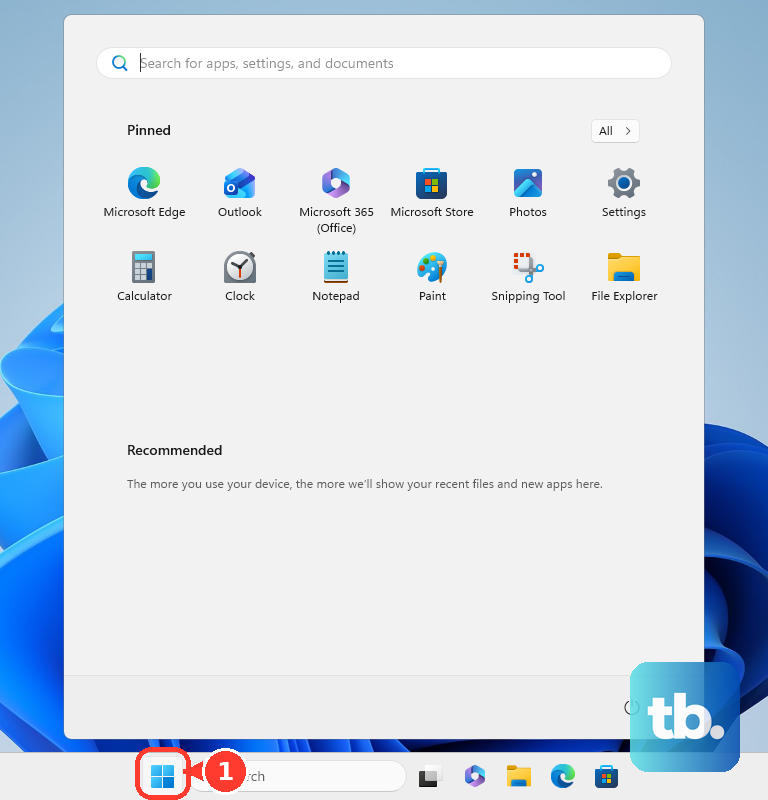
In Device Manager, select the arrow next to Bluetooth and review the listed Bluetooth devices and adapters. The adapter entry is the one you use for driver updates, uninstalling and reinstalling, rollback, and hardware checks.
2. Open it from the Start shortcut
When you prefer the system shortcut, use the Power User menu instead of search. Right-click Start, select Device Manager, then select the arrow next to Bluetooth.
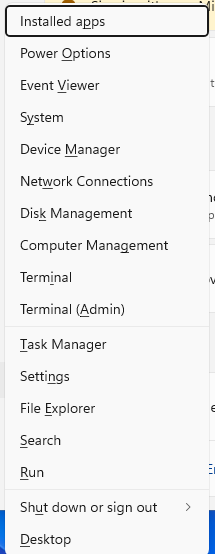
The keyboard version reaches the same place: press Windows key + X, select Device Manager, then expand Bluetooth.
3. Launch Device Manager with Run
Press Windows key + R, enter devmgmt.msc, then select OK or press Enter. In Device Manager, expand Bluetooth. Use this route when the Start menu search surface is slow or unavailable.
4. Navigate to Bluetooth without a mouse
Windows includes a keyboard-first Device Manager path for screen reader and accessibility workflows. Press the Windows logo key, type Device manager, select Device manager, control panel, then press Enter.
After that, press Tab once, then press the Down arrow until Bluetooth is selected. Press the Right arrow once to expand it.
For voice control on Windows 11 (version 22H2 or later, in a supported language), turn on voice access, say Open Device Manager, then use voice access number overlays, click commands, or the keyboard steps above to expand Bluetooth.
5. Check Other devices when Bluetooth is gone
If Bluetooth is not listed, the adapter can appear under Other devices when the driver is not installed correctly. Open Device Manager, look for Bluetooth, and if Bluetooth is missing, expand Other devices. Look for the Bluetooth adapter name or an unknown device tied to the wireless adapter.
Windows Settings gives you another signal. Select Start > Settings > Bluetooth & devices > Devices > More Bluetooth settings. When More Bluetooth settings is absent, check for missing Bluetooth hardware detection or missing Bluetooth adapter drivers.
6. Reveal hidden Bluetooth entries
Use hidden devices when you are looking for grayed-out or non-present Bluetooth entries. Open Device Manager, select View, select Show hidden devices, then expand Bluetooth. Look for the Bluetooth adapter, including grayed-out entries.
On Windows 11, View > Show hidden devices already lists non-present (disconnected) Bluetooth entries, so you usually need nothing more. The set devmgr_show_nonpresent_devices=1 command is a legacy step from before Windows 8: if you use it, run it in Command Prompt, then launch Device Manager from that same window, select View > Show hidden devices, and expand Bluetooth. It only reveals disconnected or non-present entries; it does not replace Bluetooth hardware or install a missing driver.
7. Restore the adapter from Device Manager
Once the Bluetooth adapter appears under Bluetooth or Other devices, use the matching Device Manager action. To enable a disabled adapter, expand Bluetooth, find the device with a down arrow icon, right-click it, and select Enable device.
To update the driver automatically, right-click the Bluetooth adapter, select Update driver > Search automatically for drivers, follow the on-screen instructions, then restart after the update completes.
To install a downloaded driver, right-click the adapter under Bluetooth or Other devices, select Update driver > Browse my computer for drivers, select Browse, choose the driver-file location, select OK, select Next, then follow the prompts.
To reinstall the adapter, right-click the Bluetooth adapter, select Uninstall device, confirm Uninstall, then restart or shut down and turn the PC back on. If Windows does not reinstall the adapter automatically, open Device Manager, select Action > Scan for hardware changes, then check Bluetooth.
To roll back a recent driver change, right-click the Bluetooth adapter, select Properties, open the Driver tab, select Roll Back Driver if it is available, then follow the prompts. You must be signed in with administrator permissions to roll back a driver.
8. Get the correct driver outside Device Manager
Use Windows Update or the PC maker's driver page when Device Manager does not find the right Bluetooth driver.
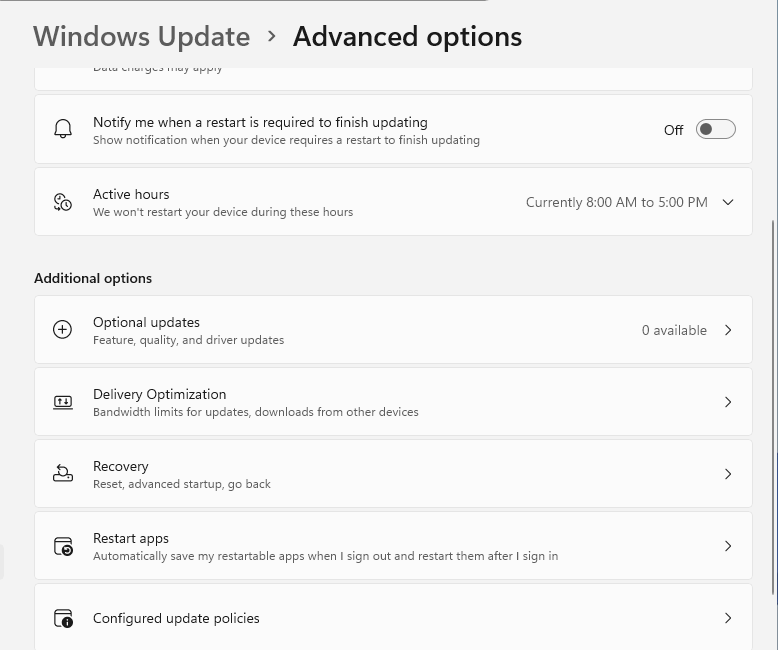
- 1.Select Start > Settings > Windows Update > Advanced options.
- 2.Under Additional options, select Optional updates.
- 3.If driver updates are listed, select the drivers you want to install.
- 4.Select Download and install.
- 5.Restart the PC, then open Device Manager and expand Bluetooth.
For manufacturer drivers, use the official Intel Wireless Bluetooth page for supported Intel wireless adapters, Dell Support > Drivers & Downloads for Dell PCs, HP Software and Driver Downloads for HP PCs, or Lenovo Support > Drivers & Software for Lenovo PCs. Match the driver to the exact PC model, adapter, and Windows version, install it, restart, then check Device Manager > Bluetooth.
9. Rule out radio controls and device policies
Bluetooth also disappears from normal surfaces when wireless controls or management settings block it. Press Windows + A, turn Airplane mode off, turn the Bluetooth tile on, then check Device Manager > Bluetooth.
On a laptop with a wireless or airplane-mode key or physical switch, use the model's documented control, then check Device Manager > Bluetooth. On a work or school PC, ask the administrator to check device installation restrictions, Intune Bluetooth restrictions, or the AllowBluetooth policy.
Skip Action > Add legacy hardware for normal Bluetooth recovery. Current consumer troubleshooting uses Windows Update, Device Manager driver actions, and the official PC or adapter maker's driver page.
Frequently Asked Questions
Why is Bluetooth not showing in Device Manager?
The Bluetooth adapter may be under Other devices because the driver is missing, Windows may not detect Bluetooth hardware, or the device may be restricted by a work or school policy.
What is the quickest way to find Bluetooth in Device Manager?
Select Start, type Device Manager, open Device Manager, then expand Bluetooth. The Start shortcut also works: right-click Start, select Device Manager, then expand Bluetooth.
How do I find Bluetooth in Device Manager without a mouse?
Press the Windows logo key, type Device manager, open Device manager, control panel, press Tab once, use the Down arrow to select Bluetooth, then press the Right arrow to expand it.
Can Device Manager update my Bluetooth driver?
Yes. Expand Bluetooth, right-click the Bluetooth adapter, select Update driver, then choose Search automatically for drivers or Browse my computer for drivers when you already downloaded the driver.
Should I use Add legacy hardware for missing Bluetooth?
No. For normal Bluetooth recovery, use Windows Update, Device Manager driver actions, or the official driver page from the PC or Bluetooth adapter maker.