


On Android phones that offer Active apps, open it from Quick Settings and tap Stop beside an app to stop its current activity. This panel shows apps running foreground services; you can also investigate battery usage and use Force stop from an app’s settings. For ongoing limits, adjust the app’s background battery controls.
The menus depend on your phone and Android version, so use the steps for your device. Android normally manages cached apps automatically, and Google says routinely closing apps is unnecessary. Focus on an app causing unwanted playback, excessive battery use, or other activity you want to stop.
The short version
- Find current activity: Android 13 and later can show foreground-service apps through the background-app count in Quick Settings on phones exposing that panel.
- Check battery use: Battery history helps identify high-consumption apps, but it is not a live list of running processes.
- Stop one app: Use its Force stop control to stop a specific problem app.
- Reduce repeat activity: Use Pixel background battery controls, Samsung sleeping apps, or the controls for your model below.
- Keep essential alerts: Restrict apps selectively because stronger limits can affect notifications and updates.
| Control | When to use it | Main limitation |
|---|---|---|
| Active apps | Find and stop foreground-service apps | Requires a phone exposing the panel on Android 13 or later |
| Pixel Battery usage | Find high-consumption apps | Shows history, not live processes |
| Pixel Battery diagnostics | Investigate excessive battery drain | Requires Pixel 6 or later |
| Force stop | Stop one problem app | Some essential services cannot be stopped |
| Pixel Allow background usage | Restrict an app’s background activity | The switch varies by app |
| Pixel Optimized | Apply battery optimization | Does not permanently stop the app |
| Pixel Use Adaptive Battery | Reduce activity from infrequently used apps | Learning takes time and alerts may be delayed |
| Samsung Put unused apps to sleep | Automatically limit unused apps | Menu availability varies |
| Samsung Sleeping apps | Limit selected apps | Apps can become active when used |
| Samsung Deep sleeping apps | Apply stronger background restrictions | Background notifications and updates are affected |
| Samsung Never sleeping apps | Remove a sleep exception | Removing an exception does not immediately stop the app |
| Samsung Clean now | Temporarily clear background apps | Apps can restart |
| Motorola Manage background apps | Block selected background execution | Steps apply to Motorola signature with Android 16 |
| Motorola Smart use | Automatically restrict excessive background battery use | Steps apply to Motorola signature with Android 16 |
| Xiaomi Background autostart | Prevent unwanted automatic starts | Steps apply to Xiaomi 14T |
| HONOR App launch | Control launches and background execution | Requires a phone exposing these controls |
| Pixel Battery Saver | Limit background activity broadly | Exempt apps can retain background activity |
| Pixel Extreme Battery Saver | Pause most apps | Most paused apps cannot send notifications |
| Data Saver | Limit background cellular transfers | Wi-Fi activity and local processing can continue |
| Google Play Uninstall | Remove an unwanted app | Applies to removable apps |
| Samsung Disable | Prevent a preloaded app from running | Only eligible preloaded apps offer it |
Find active apps in Quick Settings
On Android 13 and later phones whose manufacturer exposes Android’s Task Manager, expand the notification shade to open Quick Settings. Tap the background-app count to open Active apps, then tap Stop beside the unwanted app. This stops the entire app, including playback.
The panel lists apps running foreground services, rather than every background process. Scheduled jobs and alarms can still run later, so stopping an app here does not create a lasting background restriction. If your phone uses a different interface, check its battery and app settings.
Check which apps are using battery
On current Pixel software, open Settings > Battery > Battery usage, then tap View by apps. Select an app to inspect its consumption and its Allow background usage controls. Google marks some of these instructions as requiring Android 14 or later.
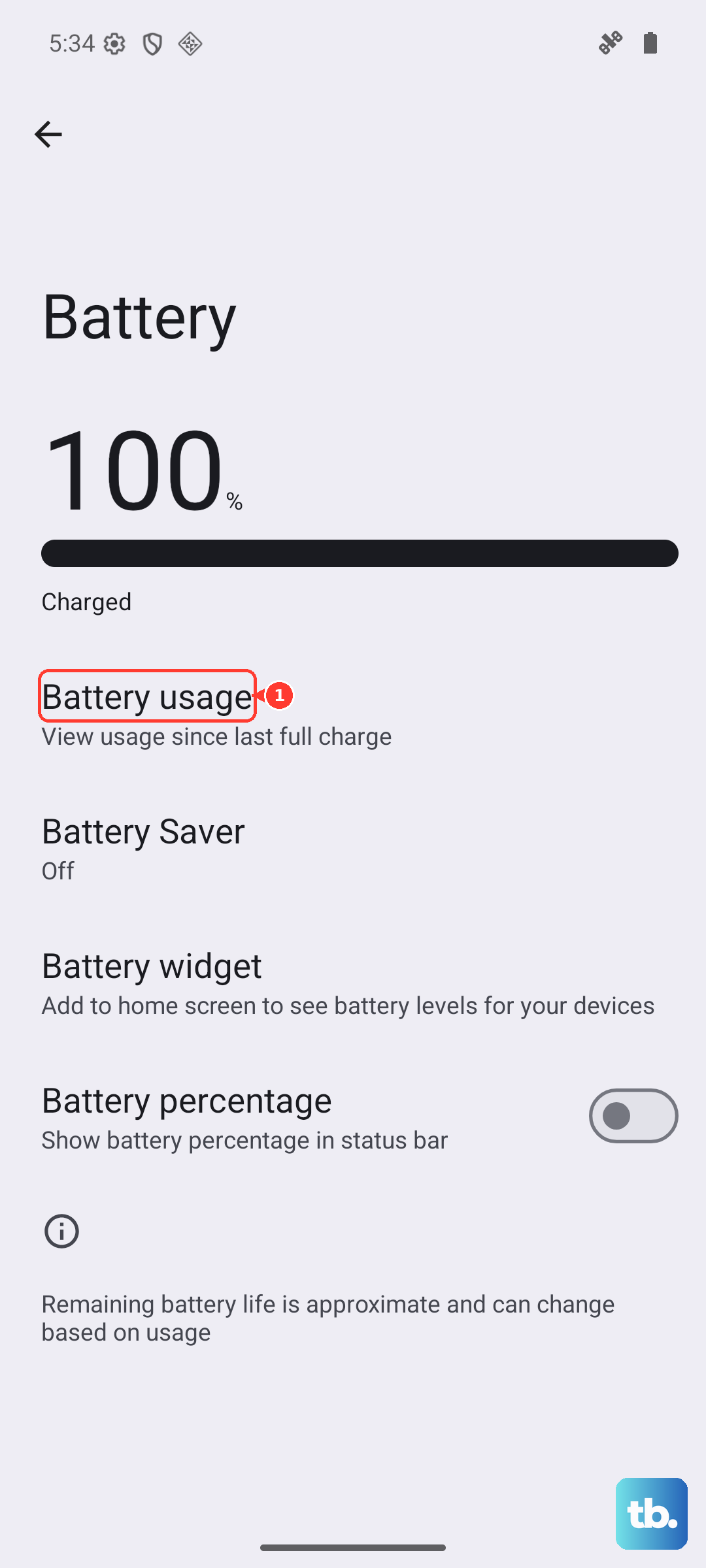
Treat this screen as battery history, not proof that an app is running right now. Use it to identify an app worth investigating, then stop or restrict that app with the appropriate control below. You can also reach the per-app battery controls through Settings > Apps > App battery usage.
On Pixel 6 and later, you can also investigate excessive battery drain with Battery diagnostics. Open Settings > Battery > Battery diagnostics > Battery draining too quickly.
Force stop an individual app
On current Pixel software, open Settings > Apps > See all apps, then select the app. Tap Force stop, followed by OK. Other Android devices with equivalent app information controls offer the same individual-app action.
Some essential services, including Google Play services, cannot be force stopped through this control. If an app needs ongoing limits, adjust its background battery settings after stopping it. If you no longer need the app, uninstalling it is the more direct choice.
Limit background activity on Pixel
On current Pixel software, open Settings > Apps > App battery usage and select the app. Where the switch is available, turn off Allow background usage. You can also touch and hold the app icon, then tap App info > App battery usage to reach its controls.
For a less restrictive approach, open Settings > Apps > See all apps and select the app. Open App battery usage > Allow background usage and select Optimized. Optimization limits activity rather than permanently stopping the app. Essential services can have restricted or unavailable controls, so these choices do not apply to every app.
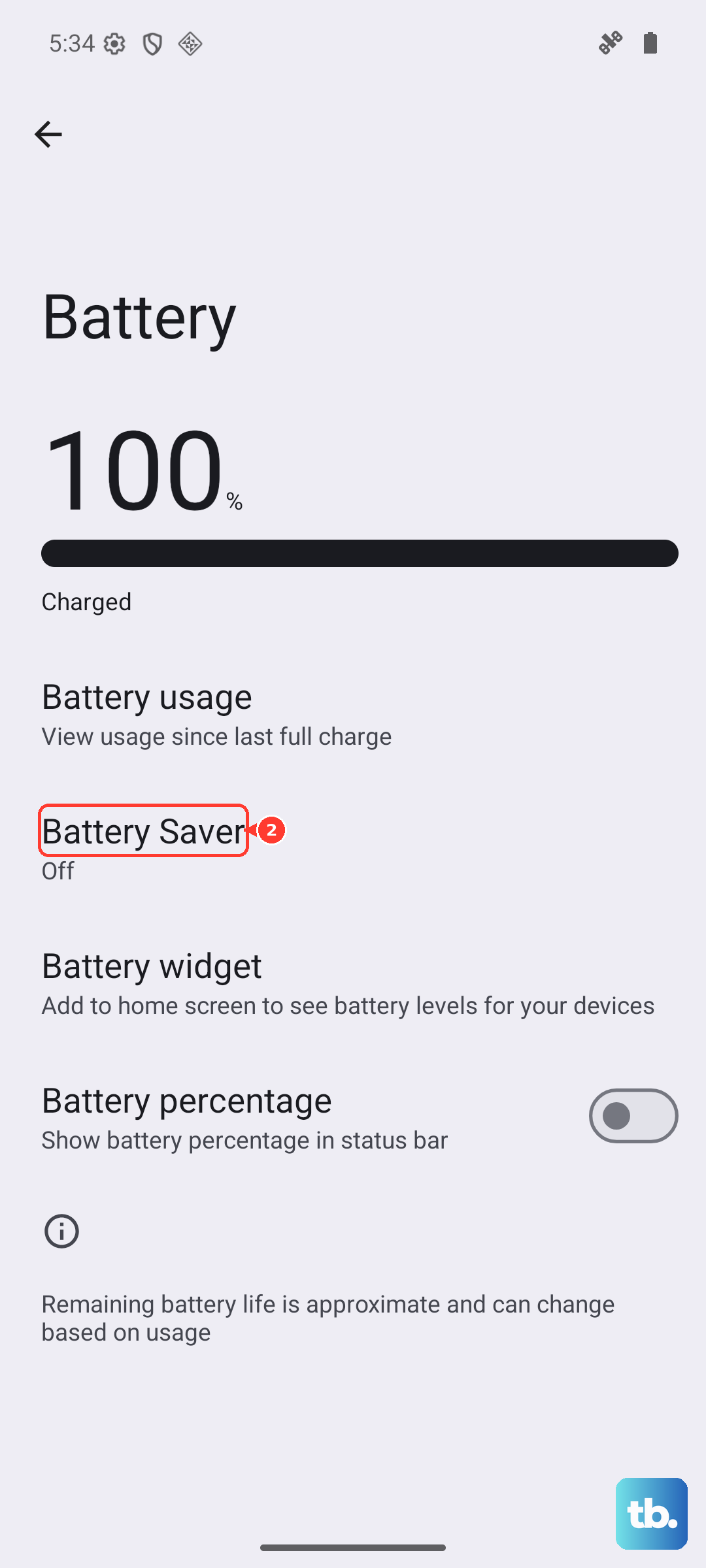
To automatically reduce activity from infrequently used apps, open Settings > Battery > Battery Saver > Adaptive Battery. Expand the section and turn on Use Adaptive Battery. Learning takes time, and notifications may be delayed.
Put Samsung apps to sleep
On Galaxy devices with this menu, open Settings > Battery and device care > Battery > Background usage limits. Turn on Put unused apps to sleep for automatic handling. On Galaxy software with the direct battery entry, open Settings > Battery > Background Usage Limits to reach Sleeping apps or Deep sleeping apps.
For selected apps, open Sleeping apps, tap +, choose the apps, then tap Add. Sleeping apps can become active again when you use them. For stronger restrictions, open Deep sleeping apps, tap +, choose the apps, then tap Add. Those apps work when opened, but background notifications and updates are affected.
If an app appears under Never sleeping apps, remove its exception before applying sleep restrictions. Open that list, select More options > Remove apps, choose the app, and tap Remove. Removing the exception alone does not immediately stop it, so apply sleep or deep sleep afterward.
For temporary cleanup on Galaxy devices offering these controls, open Settings > Device care > Memory. Review the background apps and tap Clean now; check Excluded apps when a particular app is exempted. Cleanup does not prevent every app from restarting.
Use your phone maker’s background controls
On Motorola signature with Android 16, open Settings > Battery > Manage background apps and ensure the feature is on. Tap Apps, select the unwanted app, then choose Don't allow. These steps are documented for Motorola signature.
For automatic handling on that Motorola model, open Settings > Battery > Battery usage. Review Last 24 hours or Last 14 days, select a high-usage app, and choose Smart use to automatically restrict excessive background battery use. Choose Don't allow for the stronger restriction.
On Xiaomi 14T, open Settings > Apps > Permissions > Background autostart. Turn off Background autostart for the unwanted app. These steps apply specifically to Xiaomi 14T.
On HONOR phones exposing App launch, open Settings and search for App launch. Select the app and disable Manage automatically, then adjust Auto-launch, Secondary launch, and Run in background to prevent the unwanted behavior. These controls address launches and background execution separately.
Reduce battery use or background data
On Pixel, swipe down to open Quick Settings and tap Battery Saver to limit background activity more broadly. For automatic activation, open Settings > Battery > Battery Saver > Schedule and reminders. Turn on Turn on based on battery level and choose the percentage. Apps exempted from battery optimization can retain background activity.
On Pixel 3 and later, including Fold models, open Settings > Battery > Battery Saver > Extreme Battery Saver to pause most apps. Configure its activation, then open Essential apps and retain the apps that must remain active. Most paused apps cannot send notifications, while essential system apps remain available.
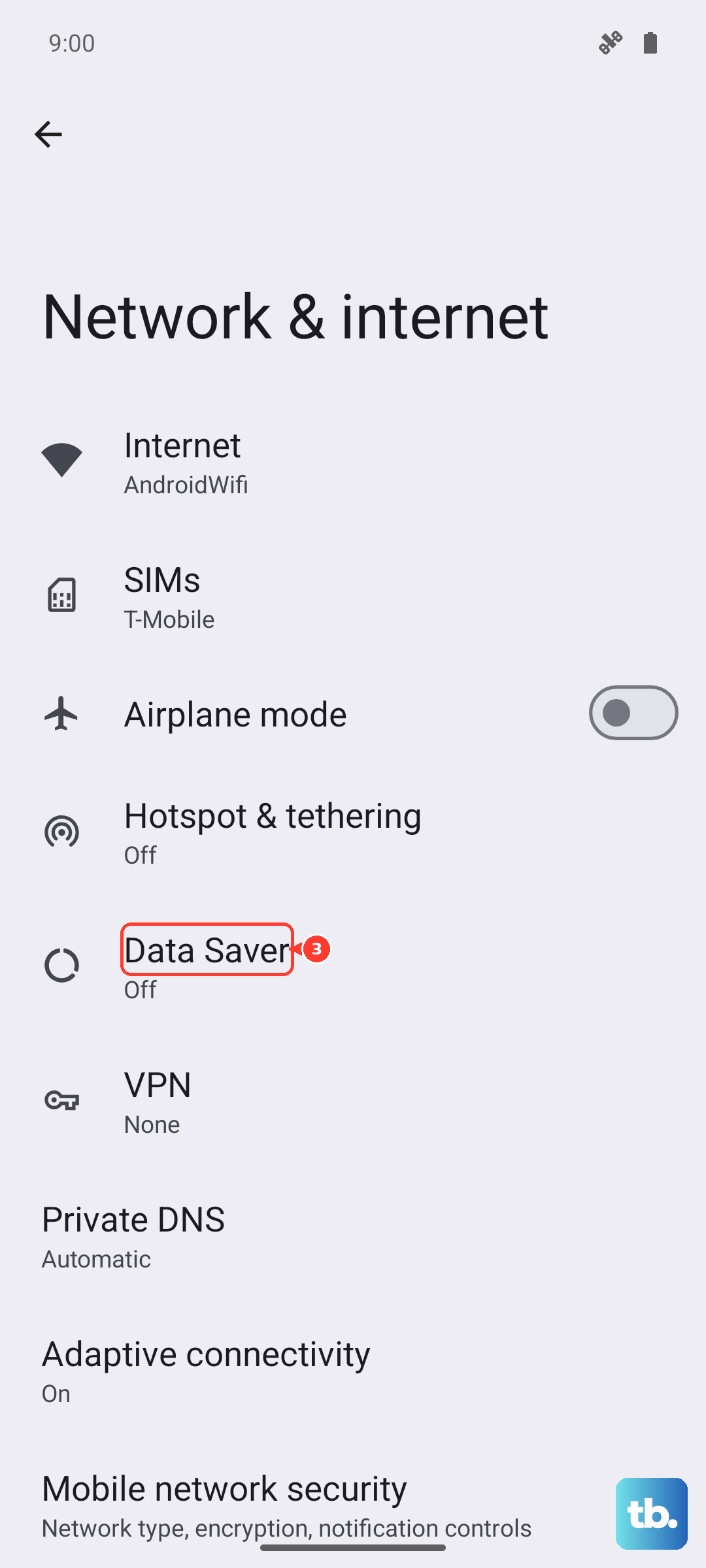
For unwanted cellular transfers on Pixel and Android implementations using this interface, open Settings > Network & internet > Data Saver and turn on Data Saver. Open Unrestricted data and turn off exceptions for apps that should not bypass it. Wi-Fi activity and local processing can continue because this limits background cellular transfers rather than stopping the app.
Remove apps you no longer need
To uninstall a removable app through Google Play on Android, open Google Play Store and tap your profile icon. Choose Manage apps & devices > Manage, select the app, then tap Uninstall. Removing an unwanted app avoids repeatedly stopping it.
For eligible preloaded apps on Samsung Galaxy devices, open the apps screen and touch and hold the app shortcut. Tap Disable, then tap Disable again to confirm. Disabling prevents execution while retaining the installed files, but only eligible preloaded apps offer this action.
Frequently Asked Questions
Does swiping an app away stop it running in the background?
Swiping away a recent task does not guarantee that its services or scheduled background work stop. With Android gesture navigation, swipe up from the bottom, hold, and release, then swipe the app card upward to close the task. On Samsung Galaxy devices using button navigation, tap the Recent button with three vertical lines, then tap Close all to dismiss recent tasks.
Should you install a task killer to stop other apps?
Use Android’s built-in stopping and background restriction controls. On Android 14 and later, ordinary third-party task killers using killBackgroundProcesses can kill only their own background processes; targeting another app has no effect.
Can you see which apps accessed permissions in the background?
On Android 12 and later, open Settings > Security and Privacy or Privacy, then open Privacy dashboard; some devices require opening Privacy again first. Select a permission to inspect accessing apps and times. This is permission-access history, with 24 hours on Android 12 and seven days from Android 13, rather than a complete running-app list.
Can you stop an unused app while keeping its data?
On supported Android 15 and later devices, open Settings > Apps, select an eligible app, and tap Archive. Archiving removes executable software and permissions while retaining personal data and the app icon.
Does locking private space stop its apps?
Yes, locking private space completely stops the apps inside it on supported Android 15 and later devices. Open the Home screen or All Apps, scroll to Private space, and tap Lock. Copies of those apps installed outside private space are unaffected.