
Opened a ZIP but still need to unpack the files? Windows handles ordinary ZIP files directly in File Explorer, with no extra app needed. Start with the right-click method, then use the alternatives below for selected files, password-protected archives, or keyboard controls.
Extract everything into a regular folder
Opening a ZIP lets you browse its contents, but the files are still inside the archive.
Locate the ZIP in File Explorer.
Right-click it and select Extract All.... On a touchscreen, press and hold the ZIP to open that menu.
Choose the destination folder in the extraction dialog. This is where your unpacked files will go.
Select Extract to unpack the archive. This method works for ordinary, unencrypted ZIP files on Windows 11 and Windows 10.
Already opened the ZIP on Windows 11?
You can extract everything from inside the ZIP's File Explorer window. There's no need to return to the folder containing the archive.
If Extract all is hidden on the command bar, select ... to reveal it.
Select Extract all.
Choose your destination folder in the extraction dialog.
Enable Show extracted files when complete if you want the destination to open afterward.
Click Extract to finish.
Take out just the files you need
You don't need to unpack the whole archive for one document or folder.
Open the ZIP in File Explorer.
Select the files or folders you want.
Drag those items into an ordinary folder outside the ZIP.
This drag-out method works with unencrypted ZIP files on both Windows 11 and Windows 10. You can use it for selected folders as well as individual files.
For a copy-and-paste alternative, copy the selected items inside the ZIP with Ctrl+C.
Navigate to your destination folder outside the ZIP.
Press Ctrl+V to paste the files there.
To use this copying method for everything, press Ctrl+A while viewing the items inside the archive. That selects all the contents for the same copy-and-paste steps.
If dragging fails, try the copy-and-paste method above.
When ZIP files open in the wrong app
Changing the default ZIP app controls what opens the archive. You'll still need to extract its contents afterward.
Open Settings > Apps > Default apps.
Search for .zip.
Select the matching file type to choose the available ZIP app you want. For extraction with 7-Zip, follow the steps below.
Use 7-Zip for a password-protected archive
Windows' built-in extraction doesn't handle encrypted archives; 7-Zip handles supported ZIP encryption types.
- 1.If 7-Zip isn't installed, download and install the Windows EXE package matching your architecture from the official 7-Zip download page.
- 2.Open 7-Zip File Manager and navigate to your ZIP.
- 3.Select the ZIP and choose Extract.
- 4.Set the destination in Extract to: and enter the archive's password when prompted.
- 5.Select OK to extract the files.
For selected contents, open the ZIP in 7-Zip File Manager before choosing what to extract. Selecting particular items inside the archive lets you use the extraction dialog for just those contents.
Keyboard-only extraction
Open File Explorer with Windows+E.
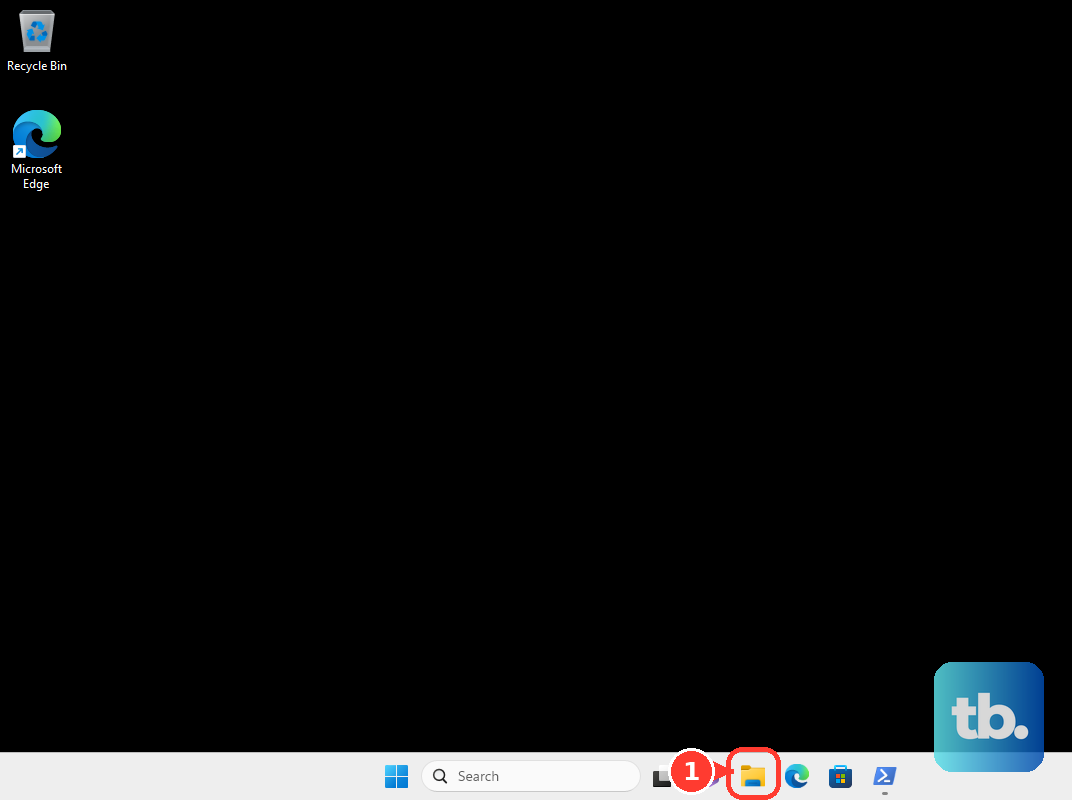
Navigate to your ZIP using the arrow keys and Enter to open folders, leaving the ZIP selected.
Open the selected ZIP's context menu with Shift+F10.
Choose Extract All... using the arrow keys and Enter. Complete the destination dialog using Tab and the arrow keys, finishing on Extract with Enter. These keyboard controls work on Windows 11 and Windows 10.
Frequently Asked Questions
Can I extract several ZIP files at once?
Yes. In PeaZip, select multiple ZIPs. Choose Extract. Set the output destination and options, then confirm.
How do I extract a split ZIP with .z01 and .z02 files?
Keep every volume together with matching base names. For the .z01/.z02/.zip arrangement, open the .zip file in Bandizip. Choose Extract. Choose the destination and select OK. Bandizip reads the companion volumes automatically.
Can I extract a ZIP with PowerShell?
Yes. Open Windows PowerShell 5.1. Run Expand-Archive -LiteralPath 'C:\Downloads\Example.zip' -DestinationPath 'C:\Downloads\Example', substituting your paths. Add -Force only when you intend to overwrite existing destination files. The underlying ZIP API has a 2 GB file-size limit.