

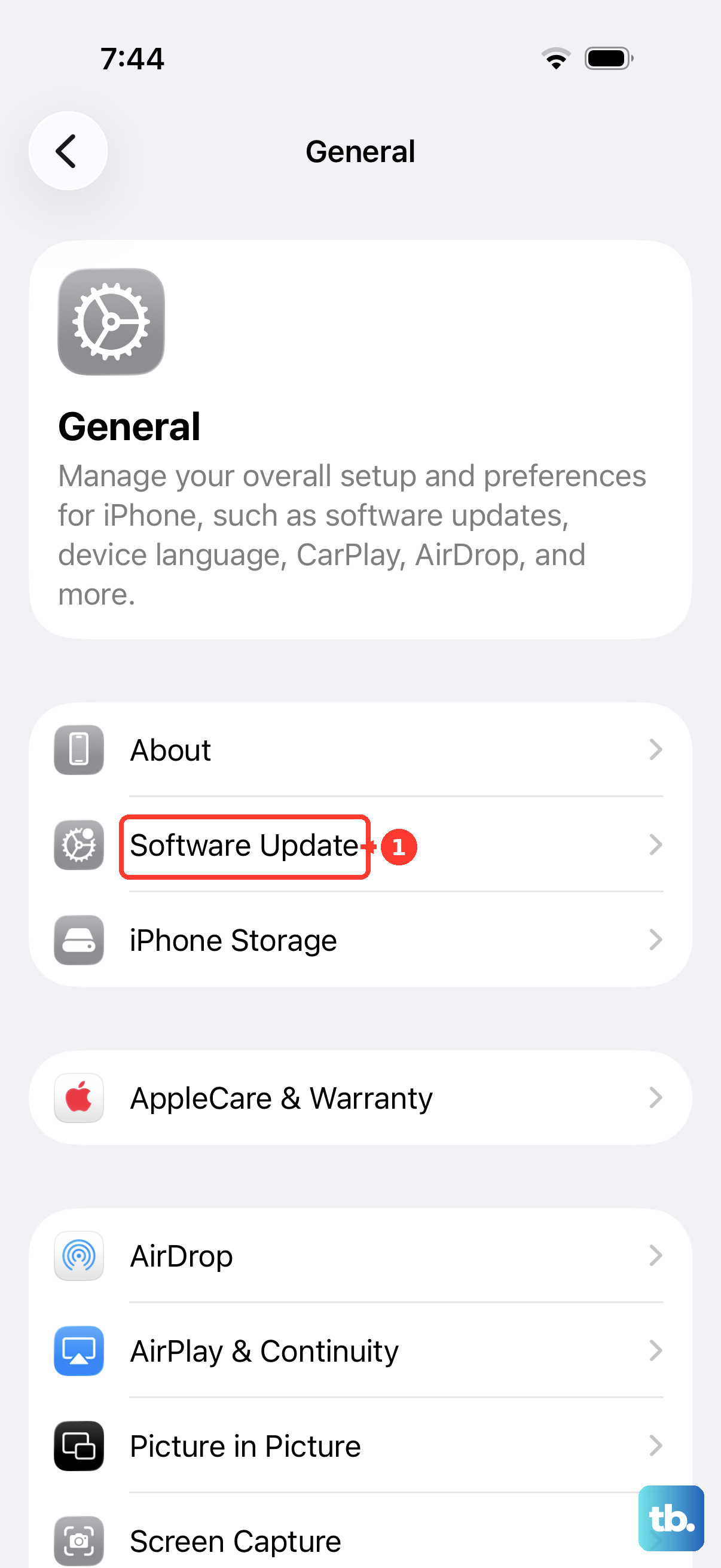
To get an iOS 26 beta, enroll with Apple, open Settings > General > Software Update > Beta Updates, and select an iOS 26 beta channel if Apple offers it to your account and iPhone. Check the version offered before installing, since enrollment gives you access to eligible beta channels. If you simply want iOS 26, you can install an offered public release without joining a beta program.
The short version
- Public beta: Register with the Apple Beta Software Program, then choose an offered public beta in Beta Updates.
- Developer beta: Free Apple Developer registration also provides access to beta software.
- Release availability: Your account, compatible hardware, and offered channels determine which beta you can install.
- Stopping updates: Choose Off in Beta Updates to stop future betas without uninstalling the installed version.
| Option | Where to start | Purpose or requirement |
|---|---|---|
| Public beta enrollment | Apple Beta Software Program website | Join and select an offered public beta |
| Developer registration online | Apple Developer website | Register for free beta access |
| Developer registration in the app | Apple Developer app, Account | Complete the developer agreement |
| Developer beta selection | Software Update > Beta Updates | Choose an offered developer beta |
| Public iOS installation | Software Update | Install an offered public release |
| Official beta downloads | Apple Developer download page | View available operating system downloads |
| Finder installation | Finder on a Mac | Erase and restore an eligible development device |
| Apple Configurator installation | Apple Configurator for Mac | Install a compatible Apple beta image |
| AppleSeed for IT enrollment | AppleSeed for IT website | Join with an eligible Managed Apple Account |
| Administrative enrollment | Device management service | Control enrollment and offered programs |
| Automatic update delivery | Software Update > Automatic Updates | Control downloads or installation |
| Stop future betas | Beta Updates > Off | Keep the installed version and stop future betas |
| Leave the public beta program | Apple Beta Software Program website | End account participation |
| Remove an installed beta | Recovery mode and a computer | Erase the iPhone and install the current public release |
Check compatibility and choose your release
Your iPhone must support the release you want to install. Apple lists the iPhone 11 through iPhone 17 families, iPhone Air, iPhone 16e, iPhone 17e, and iPhone SE second and third generations for iOS 26. The account-based Beta Updates enrollment method requires iOS 16.4 or later.
If you simply want iOS 26, open Settings > General > Software Update. When an eligible update appears, tap Download and Install. For an already downloaded iOS 26 update, you can also open Settings > Update to iOS 26, then choose Update Now or Update Tonight.
Enroll for public beta updates
Open the Apple Beta Software Program website and select Sign up, or select Sign in if you are already registered. Participation requires membership and acceptance of the Apple Beta Software Program Agreement. Complete enrollment before choosing a public beta on your iPhone.
Sign in only through Apple’s own app or website, and never share a code, password, or remote access with someone who contacts you. Once enrolled, open Settings > General > Software Update > Beta Updates and select an offered public beta channel. Check that it names iOS 26 if that is the version you want.
Register for developer betas instead
For developer beta access, sign in with your Apple Account on the Apple Developer website and complete the Apple Developer Agreement. This registers you for free and provides access to beta software. Paid Apple Developer Program membership is not required for that access.
You can also register through the Apple Developer app. Open the app, select Account, and sign in with your Apple Account. If prompted, review the Apple Developer Agreement and tap Agree.
Use the Apple Account associated with your developer access on the iPhone. Open Settings > General > Software Update > Beta Updates, then select the offered developer beta. Your account eligibility, hardware compatibility, and available channels determine your choices.
Select the version and install the update
Read the beta channel name before selecting it, especially when you want iOS 26 specifically. Apple’s beta program website and developer download page currently list iOS 27 betas, so the channel you see may name iOS 27 rather than iOS 26. Proceed with an iOS 26 beta only when that version is offered to your account and device. If another version appears, check Software Update for an eligible public iOS 26 release instead.
Restoring to an earlier public version can erase your iPhone, and a backup made on a newer beta may be incompatible. Before installing the beta, back up your iPhone using iCloud or your computer. After selecting your beta channel, return to Software Update to install an available release. Registration and channel selection are separate from installing the software itself.
Enroll a work or school iPhone
If you are an eligible organizational participant, open the AppleSeed for IT website and select Sign in. Use the Managed Apple Account supplied through Apple Business Manager or Apple School Manager. Apple then directs you to turn on beta updates on your test devices.
On managed iPhones running iOS 18 or later, your administrator can control beta enrollment and the programs you see. These enrollment controls generally require supervision, although organization-selected programs can also be offered on unsupervised managed devices. If enrollment is restricted, your administrator controls that restriction through the device management service.
If you administer these devices, configure the Software Update settings declaration through your management service. Set ProgramEnrollment to Allowed to permit account-based enrollment and any programs in OfferPrograms. Use AlwaysOn with RequireProgram for automatic enrollment, or with OfferPrograms to present organization-selected choices.
Choosing AlwaysOff removes existing beta enrollment and prevents enrollment. Set ProgramEnrollment to AlwaysOff when that is the intended policy. Management-console menu labels vary by provider.
Install a beta image with a Mac
To find available images, open the Apple Developer download page and select iOS beta or Operating Systems. Sign in when requested to view available operating system downloads. Individual releases and restore images depend on availability to your authenticated account, so use an image only when it is compatible with your device.
Apple documents Finder installation for development devices registered with Apple Developer Program membership. Obtain a compatible beta restore image from Apple Developer Downloads that is the same version as, or newer than, the installed version. Connect your iPhone to the Mac, select it under Locations in Finder, and click Trust if shown.
This installation erases your iPhone before restoring its contents. Before installing the beta, back up your iPhone using iCloud or your computer. Hold Option and click Restore, select the .ipsw image, then click Open. After installation, activate the iPhone and restore its contents.
You can also install an appropriate Apple beta .ipsw file with Apple Configurator for Mac. Connect your iPhone, open Apple Configurator, and select the iPhone in the device window. Drag the compatible beta image onto the selected device.
Choosing a restore operation erases the iPhone. Before installing the beta, back up your iPhone using iCloud or your computer. After dragging the image onto the device, choose the update or restore operation you intend to perform. Apple Configurator installs the software; personal beta-program registration remains a separate task.
Choose how future updates arrive
On iOS 26, open Settings > General > Software Update > Automatic Updates. Choose Automatically Install for automatic installation. Updates install overnight while the iPhone is charging and connected to Wi-Fi.
To control downloads separately, first turn off Automatically Install to expose Automatically Download. You can then choose that download setting. These controls manage delivery of available updates; your beta channel remains a separate choice under Beta Updates.
Stop receiving future beta updates
Open Settings > General > Software Update > Beta Updates and tap Off. This stops future beta updates without erasing your iPhone or uninstalling the beta already installed. You can install a subsequent public release through Software Update when one becomes available.
Leaving the Apple Beta Software Program ends program emails and your access to submitting feedback through Feedback Assistant. To leave, sign in to the Apple Beta Software Program website, then click Leave Program. Use the iPhone’s Beta Updates setting separately to stop future beta updates.
Remove an installed beta with a computer
To remove the installed beta, update macOS on your Mac or Apple Devices on your Windows computer, then connect your iPhone. The recovery process installs the current public iOS release, so it does not guarantee a return specifically to iOS 26. You can restore your iPhone using a computer and afterward use a compatible archived backup if available.
Quickly press and release Volume Up, quickly press and release Volume Down, then hold the Side button until the recovery-mode screen appears. Restoring erases your iPhone; a compatible archived backup can restore its contents afterward. On the computer, click Restore, then use that compatible backup after installation if you have one.
Frequently Asked Questions
What does the developer app’s paid enrollment option do?
In the Apple Developer app, Enroll Now starts the separate paid Apple Developer Program membership process. Completing the Apple Developer Agreement provides free beta-software access, so you do not need that paid enrollment for account-based beta access.
Can you use an old downloadable beta profile for iOS 26?
Apple states that its older downloadable configuration profile only offers iOS 16 beta updates. Those instructions apply to iOS 16.3 or earlier, so they are not an iOS 26 enrollment method.
How can you repeat an Apple Configurator deployment?
For repeat deployment, drag the appropriate beta image onto a Blueprint in Apple Configurator for Mac. Apply that Blueprint to deploy the image, which must be compatible with the target devices.
Which fields do managed beta program dictionaries require?
Apple requires Description and Token in program dictionaries used by the software update settings declaration. These fields apply to device management configuration for managed iPhones running iOS 18 or later.