

Windows updates usually install on their own, but a PC can sit behind, wait on a feature release, or need one specific package. Use Microsoft’s built-in Settings paths first, then move to the official download pages or Update Catalog when the update is not showing there. Here are the current Microsoft-supported ways to download Windows updates manually.
1. Download regular Windows 11 updates from Settings
Open Start.
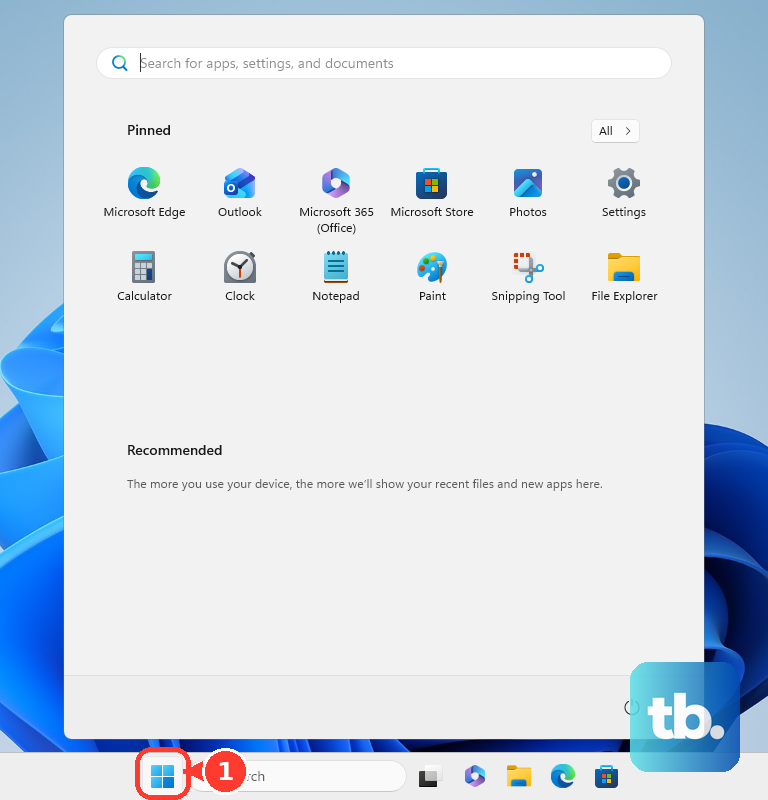
Go to Settings > Windows Update. Select Check for updates. When updates are offered, select Download & install. Restart your PC when Windows asks you to.
2. Use the Windows 10 update path when your PC is still supported
On Windows 10, use Start > Settings > Update & Security > Windows Update > Check for updates, then choose Download & install when updates appear.
General free support for Windows 10 Home and Pro ended on October 14, 2025, so this path applies to Windows 10 version 22H2 devices covered by Consumer ESU or commercial ESU, and to devices still running a supported LTSC or IoT LTSC release; Windows 10 Enterprise LTSC 2016, for example, is serviced through October 13, 2026. Restart when prompted so the installation can finish.
3. Get eligible feature updates earlier on Windows 11
Open Start, then go to Settings > Windows Update. Turn on Get the latest updates as soon as they're available, then select Check for updates.
4. Add optional driver updates through Windows Update
This fixes hardware problems when Windows has an optional driver waiting. Open Start, then go to Settings > Windows Update > Advanced options. Make sure Receive updates for other Microsoft products is turned On.
Under Additional options, select Optional updates. Select the driver updates you want to install. Next, select Download and install. Restart from Start > Shut down or sign out > Restart.
5. Upgrade an eligible Windows 10 PC to Windows 11
Open Start, then go to Settings > Update & Security > Windows Update. Select Check for updates.
When Windows 11 is ready for your PC, select Download and install. Select Accept and install. Restart when prompted.
If Windows Update does not offer Windows 11, use Microsoft’s official Windows 11 download page instead of a third-party download site.
6. Use Microsoft’s Windows 11 download page for a manual install
This gives you the official Installation Assistant, installation media, or ISO. Open https://www.microsoft.com/en-us/software-download/windows11. For an in-place upgrade, first check that you have a Windows 10/11 license, that the PC is running Windows 10 version 2004 or higher, and that it has 9 GB of free disk space.
Installation Assistant only works on x64 processors, so it will not run on an Arm-based PC. Then go to Download Windows 11 > Windows 11 Installation Assistant > Download Now, run the file, then select Accept and Install.
For a bootable USB or DVD, go to Download Windows 11 > Create Windows 11 Installation Media > Download Now, run the tool, select Accept, choose Create installation media for another PC, then pick your language, edition, and architecture (64-bit), and choose USB flash drive or ISO file.
The media creation tool builds media for x64 processors only; it cannot create installation media for Arm-based PCs, so grab the separate Arm64 ISO linked in the disk image section of the same page instead.
For an ISO, go to Download Windows 11 Disk Image (ISO) for x64 devices, select an edition, select Confirm, choose a product language, select Confirm, then download the file. To install from the ISO, right-click the ISO, select Mount, then double-click setup.exe.
7. Download a specific KB from Microsoft Update Catalog
When you already know the KB number, use https://www.catalog.update.microsoft.com/Home.aspx > Search to find the exact update package. Choose the entry that matches your Windows version and device architecture, such as x64 or arm64, then select Download.
After downloading an .msu file, double-click the latest .msu package to install it with Windows Update Standalone Installer.
Starting with Windows 11 version 24H2, a monthly update can be preceded by one or more checkpoint cumulative updates, and the Catalog Download pop-up lists every preceding checkpoint package. Download those too, copy them and the target .msu into one local folder with no other .msu files present, then double-click the latest .msu so the packages install in the right order.
8. Repair Windows by reinstalling the current update
This fixes stubborn Windows Update problems by downloading a repair version of the last successfully installed OS update. It is a Windows 11 option and needs the Windows 11 2022 annual update plus the February 2024 optional update or later, and it may not appear on a work or school PC your organization manages.
Open Start, then go to Settings > System > Recovery. Under Fix problems using Windows Update, select Reinstall now. Choose whether to allow automatic restart. Select OK.
9. Know when older Windows Update advice no longer applies
Skip older tutorials that send you to Control Panel > System and Security > Windows Update for current Windows 11 or Windows 10 update downloads. Use the current Settings paths instead: Start > Settings > Windows Update on Windows 11, or Start > Settings > Update & Security > Windows Update on supported Windows 10 devices.
On a work or school PC, your organization may control where updates come from and which Windows Update options appear. On a managed device, ask your IT team before forcing a manual update from another Microsoft source.
Frequently Asked Questions
Where is the safest place to download Windows updates manually?
Use Windows Update in Settings first. For full Windows 11 downloads, use Microsoft’s official Windows 11 download page. For a specific KB package, use Microsoft Update Catalog.
Can I still manually download Windows 10 updates?
Yes, but regular free support for Windows 10 Home and Pro ended on October 14, 2025. Windows 10 version 22H2 devices need Consumer ESU, commercial ESU, or supported LTSC or IoT LTSC coverage to keep receiving updates.
What should I use if I only need one specific update?
Use Microsoft Update Catalog when you know the KB number. Search for the KB, choose the package that matches your Windows version and architecture, download it, then install the .msu file. On Windows 11 version 24H2 and later, also download any preceding checkpoint cumulative updates shown in the Download pop-up and install the packages in order.
Should I use third-party Windows update download sites?
No. Microsoft’s documented paths are Settings, the official Windows download pages, Microsoft Update Catalog, Windows Update Standalone Installer, DISM, and Windows Update repair options.