Windows 11 25H2 is available through Microsoft’s normal Windows 11 download channels, not random download mirrors. For most PCs, the cleanest path is Windows Update; if that does not offer it yet, Microsoft also provides the Installation Assistant, installation media, and an x64 ISO. Start with the lowest-risk option, then move to the manual route that matches your device.
Start with Windows Update
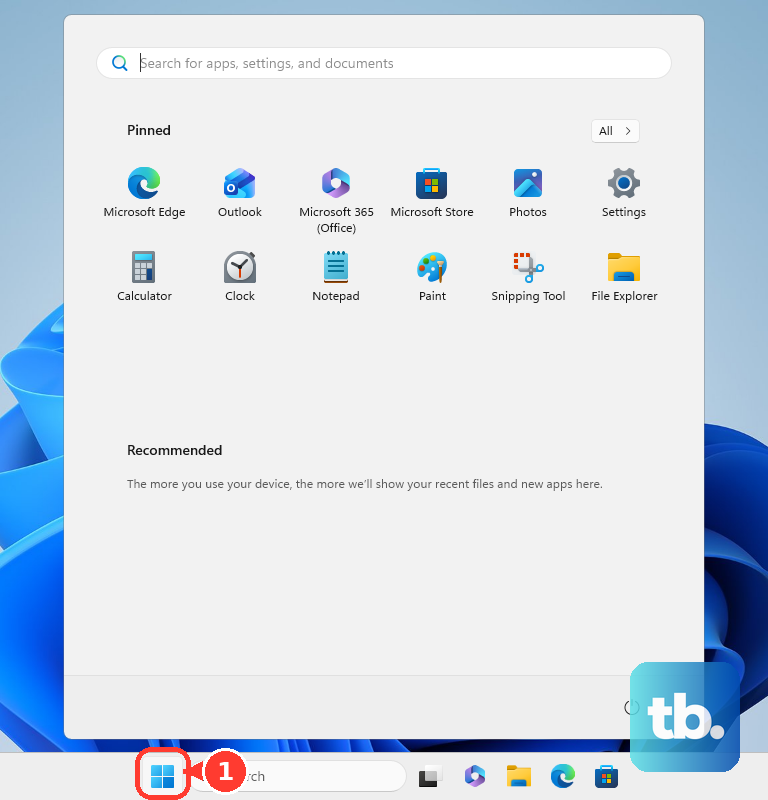
Open Start, then Settings, then Windows Update. Eligible unmanaged Home and Pro PCs receive Windows 11, version 25H2 through Microsoft’s rollout when the device is ready.
Select Check for updates. When Windows offers Download and install Windows 11, version 25H2 or Download & install, choose it and let the update finish.
Select Restart now when Windows asks, and keep the PC plugged in until it returns to the sign-in screen.
If Windows Update does not offer 25H2, turn on the latest-updates toggle next, then use the Installation Assistant if your PC is licensed, supported, and x64-based.
Get the update sooner
This helps an eligible PC that is still waiting on Microsoft’s gradual rollout get Windows 11, version 25H2 sooner. It does not override a safeguard hold or Microsoft’s device readiness checks.
Open Start, then Settings, then Windows Update.
Turn on Get the latest updates as soon as they're available.
Select Check for updates.
When Windows 11, version 25H2 appears, select Download and install Windows 11, version 25H2 or Download & install.
Select Restart now when prompted.
Use the official Windows 11 download page
Microsoft’s Windows 11 download page lists the current release as Windows 11 2025 Update, version 25H2, and gives you these consumer download choices.
- 1.Open Microsoft’s Windows 11 download page.
- 2.Use Windows 11 Installation Assistant for a guided upgrade on a supported x64 PC.
- 3.Use Create Windows 11 Installation Media to make a USB drive or ISO for another PC.
- 4.Use Download Windows 11 Disk Image (ISO) for x64 devices when you want the ISO file directly.
- 5.Use Microsoft’s separate Arm64 ISO page for Arm-based PCs, because the Installation Assistant and Media Creation Tool are not for Arm-based PCs.
Install with Installation Assistant
The Installation Assistant is the simplest manual route when Windows Update is slow to offer the update. Microsoft says it works on licensed Windows 10 and Windows 11 PCs that meet Windows 11 requirements, have 9 GB of free disk space, and use an x64 processor. On Windows 10, the PC must be running version 2004 or higher to run the Installation Assistant.
Open Microsoft’s Windows 11 download page and go to Windows 11 Installation Assistant. Select Download Now.
Run the downloaded tool as administrator. In the assistant, select Accept and Install.
When the assistant is ready, select Restart Now. Your PC finishes the Windows 11 25H2 installation during restart.
If the assistant will not run, use Windows Update or the official ISO instead; Microsoft says the Installation Assistant does not run on Arm-based PCs.
Upgrade from the 25H2 ISO
This fixes cases where you want a direct Windows 11 25H2 download file and still want to upgrade from inside Windows.
Open Microsoft’s Windows 11 download page and find Download Windows 11 Disk Image (ISO) for x64 devices.
Select an edition and choose Confirm. Select the product language, choose Confirm, then select the 64-bit Download link that appears.
After the ISO downloads, right-click it and select Properties.
On General, select Change... next to Opens with:, choose Windows Explorer, then select Apply.
Right-click the ISO and select Mount.
Open the virtual drive and double-click setup.exe to start Windows 11 Setup.
When Setup asks what to keep, choose Keep personal files and apps, Keep personal files only, or Keep nothing, then select Next and continue to Install.
Create USB installation media
Use this when you need to install Windows 11 25H2 on another supported x64 PC, repair an installation, or boot into Windows Setup. Microsoft says the Media Creation Tool creates x64 installation media only and cannot create installation media for Arm-based PCs.
Open Microsoft’s Windows 11 download page and choose Download Now under Create Windows 11 Installation Media.
Run the media creation tool as administrator and select Accept.
On What do you want to do?, select Create installation media for another PC, then select Next.
Choose the language, edition, and architecture.
Choose USB flash drive or ISO file.
To install from the USB or DVD, connect the media and restart the PC.
On the Install Windows page, choose your language, time, and keyboard preferences, then select Next and Install Windows.
Boot from USB or DVD
Attach the USB flash drive or insert the DVD.
Restart the PC.
If the PC does not boot from the media automatically, open the boot menu or change the boot order in BIOS or UEFI.
Press F2, F12, Delete, or Esc immediately after power-on; Microsoft lists these as common startup keys.
In Windows Setup, choose the language, time, and keyboard preferences.
Select Next, then Install Windows.
Use your PC maker’s documentation when those startup keys do not open the boot menu.
Clean install only when you mean to erase the PC
A clean install removes personal files, apps, OEM customizations, and settings, so use it only when you are intentionally starting over.
- 1.Create Windows installation media on a working PC.
- 2.Connect it to the target PC and start that PC using the installation media.
- 3.In Windows 11 Setup, choose language and localization, then select Next.
- 4.In Select setup option, choose Install Windows 11, select I agree everything will be deleted including files, apps, and settings, then select Next.
- 5.When asked for a product key, choose I don't have a product key if the device already has a digital license, then select the matching edition.
- 6.In Select location to install Windows 11, delete only the intended Disk 0 partitions until Disk 0 Unallocated Space remains, select it, then choose Next and Install.
When 25H2 is not offered
The most common cause is that Microsoft has not determined your device is ready yet, or the PC is under a safeguard hold.
For a personal PC, open Windows Update again later or use the official Installation Assistant, ISO, or installation media options from Microsoft’s Windows 11 download page.
For Windows 11 version 24H2 PCs, install Windows 11, version 25H2 through Windows Update when the prerequisite cumulative update is installed.
Ignore direct Update Catalog downloads for the 25H2 enablement package; Microsoft’s current KB says that source is not available for the package.
Skip Windows Insider Preview ISO downloads for a normal consumer install, because 25H2 is already available through the standard Windows 11 download page and Windows Update.
For work or school devices, use the approved path from your IT team. Organizations can control 25H2 through Intune, Windows Autopatch, WSUS, or volume-licensing downloads.
If you installed 25H2 and need to roll back, go to Settings, then System, then Recovery, and use Go back when it is available. Microsoft says this option is available only for a limited time, in most cases 10 days, and it needs the previous Windows installation files to remain intact.
Frequently Asked Questions
Is Windows 25H2 the same as Windows 11 25H2?
Yes. Microsoft lists the current consumer release as Windows 11 2025 Update, version 25H2.
Can I download Windows 11 25H2 as an ISO?
Yes. Use Microsoft’s Windows 11 download page and choose Download Windows 11 Disk Image (ISO) for x64 devices. Arm-based PCs need Microsoft’s separate Arm64 ISO page.
Can I use the Installation Assistant on an Arm PC?
No. Microsoft says the Windows 11 Installation Assistant does not run on Arm-based PCs.
Will a clean install keep my files?
No. A clean install removes personal files, apps, OEM customizations, and settings. Use an in-place upgrade if you want to keep files and apps.