
A missing Brother printer driver can leave the printer hidden from your computer, stuck offline, or limited to basic printing. The clean fix is to use Brother's official downloads page first, then let your operating system add the printer with the right setup path. Start with the exact model number and avoid third-party driver sites.
1. Start on Brother's official download page
Open Brother's support downloads page and use Search by Model Name > model name > Search. If you do not have the model name in front of you, use Search by Product Category > product category instead. On the model Downloads page, choose Select Your Operating System (OS) > STEP 1: Select OS Family > STEP 2: Select OS Version > OK. Download the driver or software package listed for that exact Brother model and operating system.
2. Choose the Full Driver and Software Package
This fixes missing Brother utilities, scan tools, and installs that only added basic printing.
- 1.Open the Brother model Downloads page.
- 2.Choose Select Your Operating System (OS).
- 3.Select your OS family and OS version, then choose OK.
- 4.Open Full Software Package.
- 5.Select Full Driver & Software Package when the page provides it for your model and OS. Newer models also list EasySetup (for installing Full Software Package) above it, which walks you through first-time setup instead.
- 6.Choose Downloads and follow the instructions on the Brother download page.
3. Add the printer in Windows 11
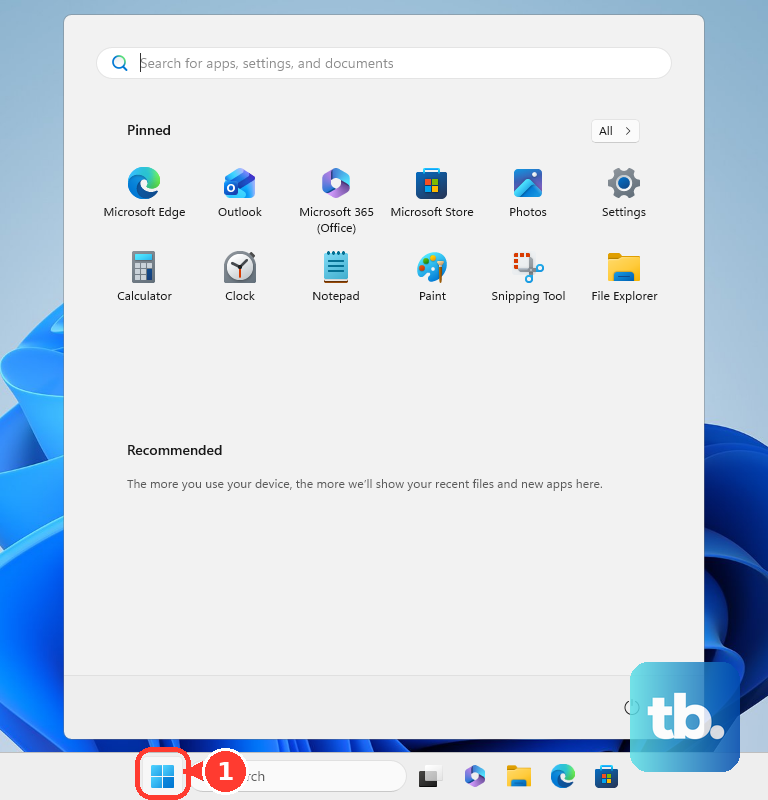
Windows 11 can install a Brother printer when it discovers the printer through Settings. Open Start > Settings > Bluetooth & devices > Printers & scanners > Add a printer & scanner > Add device, then choose Add device next to the Brother printer.
For a USB printer, connect the USB cable to the Windows PC and turn the printer on before adding it. If Windows does not list the printer, use The printer that I want isn't listed > Add a new device manually.
4. Update Windows driver entries
Open Start, select Settings, and go to Windows Update. Then open Advanced options, select Optional updates, and install available Driver updates.
If you already downloaded a Brother driver package, open Device Manager and expand the relevant device category. Right-click the Brother printer, choose Update driver, and select Browse my computer for drivers.
Choose the folder that contains the extracted Brother driver files, and finish the prompts. Run the Brother download first so the driver files are unpacked. Note where the extracted folder lands, because pointing Device Manager at the compressed download will not work.
5. Install the Brother printer on a Mac
This fixes Mac setup when AirPrint already supports the printer or Brother software is needed for extra features. Open Apple menu, select System Settings, and go to Printers & Scanners.
Next, choose Add Printer, Scanner, or Fax, select the Brother machine, and open Use. Choose the model name or AirPrint option shown, then select Add.
If the printer is not AirPrint-compatible or you need special Brother features, install current Brother software from Brother's website.
6. Set up phones, ChromeOS, and Linux
On iPhone or iPad, open the app you want to print from. Tap the Share button or Actions button, choose Print, and tap No Printer Selected. Choose the AirPrint-enabled Brother printer, set options, and tap Print.
On Android, install Brother Mobile Connect from Google Play for supported models. For Android plugin printing, install Brother Print Service Plugin and enable it from Settings > Printing > Brother Print Service Plugin. To print from Android, open a supported app and choose Print.
On ChromeOS, turn on the Brother machine, then open the page or document. Open the Chrome menu, select Print, choose the Brother machine, adjust options, and select Print.
On Linux, download the Brother Linux driver install tool for your model. Open Terminal, go to the Downloads folder, and run the documented gunzip command. Get superuser authorization with su or sudo su, then run the documented bash installer command with the Brother machine name.
For manual Linux packages, install the downloaded CUPS wrapper and LPR driver packages. Open http://localhost:631/printers, choose Modify Printer, select Brother as the manufacturer, and choose the model under driver selection.
7. Connect the printer to Wi-Fi first
This fixes installer and add-printer screens that cannot find the Brother printer on the network. On touchscreen or menu models, open Settings or Menu, go to All Settings, and open Network.
Select WLAN or WLAN(Wi-Fi), then choose Setup Wizard or Find Wi-Fi Network. Enable wireless when prompted. Choose your SSID, and enter the network key.
For WPS setup, press the router's WPS button. Press and hold the Brother printer's Wi-Fi button for about five seconds on supported models. On supported touchscreen models, use Settings > Network > WLAN(Wi-Fi) > WPS/Push Button. Press OK when prompted.
8. Reinstall after a failed driver setup
On Windows 11, open Start, select All apps, and open Brother. Choose Brother Utilities, select your model name from the pull-down list, and select Tools in the left navigation bar.
Choose Uninstall and follow the prompts. Disconnect USB when asked, restart the PC, and download and install the latest Full Driver & Software Package from the Brother model Downloads page.
If Brother Utilities cannot remove the driver, download the Uninstall Tool or Printer Driver Uninstall Tool from the model Downloads page. Run it.
To remove only the Windows printer entry, open Start > Settings > Bluetooth & devices > Printers & scanners. Select the Brother printer, then choose Remove.
9. Handle newer Windows print changes
This fixes blocked installs on Windows 11 version 24H2 or later, Windows protected print mode, and managed work or school PCs. On Windows 11 version 24H2 or later, add supported Brother models through Start > Settings > Bluetooth & devices > Printers & scanners > Add device.
With the PC connected to the Internet, Brother says the Brother Print Support App installs automatically from the Microsoft Store for supported models, which can take several minutes. For USB setup on supported Windows 11 version 24H2 or later devices, connect the Brother machine by USB. With the PC connected to the Internet, Brother says the Brother Print Support App installs automatically from the Microsoft Store.
If Windows protected print mode blocks Brother printer or fax drivers, open Start > Settings > Bluetooth & devices > Printers & scanners. Scroll to printer preferences, choose Turn off under Windows protected print mode, and select Yes. Close Settings, then try the Brother driver install again.
To keep Windows protected print mode enabled, add the printer through Printers & scanners > Add device so Windows uses the standard Microsoft IPP Class Driver where supported. Brother states this provides basic printing functions only. On work or school devices, ask the administrator about Microsoft Universal Print or Windows protected print policy when the Windows protected print setting cannot be changed.
Skip older paths that mention the Driver Deployment Wizard, the Network Printer Driver Wizard that Brother replaced with it, or a printer CD-ROM, which Microsoft warns is usually outdated. The Add Printer Driver Wizard is the exception worth keeping: Microsoft still documents it for Windows 11 as a last resort that can work better for older printers, and Brother still publishes an Add Printer Wizard Driver download you point at with Have Disk > Browse after extracting it.
Current consumer setup starts with Brother Downloads, Windows Settings, the Brother Print Support App, AirPrint, ChromeOS printing, Linux drivers, or Brother's current mobile apps.
Frequently Asked Questions
Where should I download Brother printer drivers safely?
Use Brother's official support downloads page or Brother USA's driver search page. Enter the exact model name or product name, choose your operating system, and download the driver or software listed for that model.
Do I need a Brother printer driver on a Mac?
Not always. AirPrint-compatible Brother printers can be added from macOS Printers & Scanners without downloading a separate driver. Install Brother software from Brother's website when the printer is not AirPrint-compatible or you need special features.
Why does my computer not find my Brother printer during setup?
The printer is often not connected to the network yet. Use the Brother printer's WLAN setup wizard, Find Wi-Fi Network option, or WPS setup on supported models, then run the installer or OS add-printer flow again.
Should I use third-party driver download websites?
No. Use Brother's official download pages, operating system printer setup tools, official app stores, and Microsoft or Apple printer paths.