Want to install an app on your Windows laptop but aren't sure where to get it? Start with Microsoft Store or the publisher's official website. Here's how to use both, recover apps you already own, and deal with blocked installers or stalled downloads on Windows 11.
Start with Microsoft Store
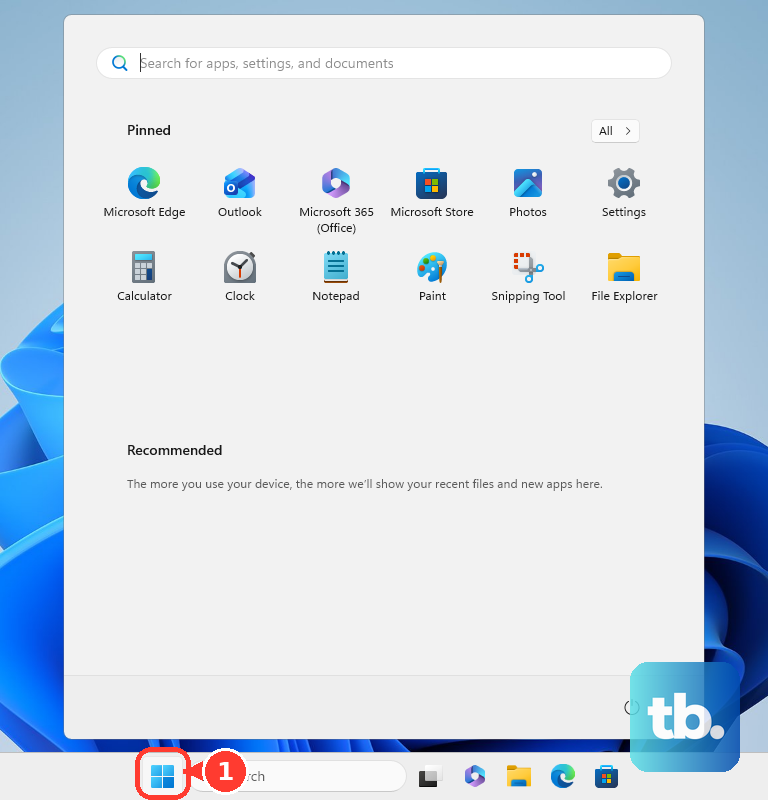
Open Start > Microsoft Store. The Store lets you find apps and install them directly from their product pages.
Search for the app you want. To browse instead, select Apps or Gaming, then Show all.
Open the app's product listing. Check its compatibility with your laptop before downloading.
Select Get, Install, or the displayed price, depending on the listing. Complete any account or purchase prompts. Availability depends on your device, region, and account.
Download an app from its official website
Visit the app publisher's official download page. Installing desktop apps this way requires Windows to be outside S mode.
Choose the Windows version that matches your laptop. Publishers such as Visual Studio Code offer separate x64 and Arm64 downloads.
Download the installer for that version.
Open the downloaded installer.
If Windows requests permission, approve it only for the installer you intended to run. Enter administrator credentials if the installer requires them.
Complete the setup wizard. Its buttons and installation options depend on the publisher.
Tip: Where offered, User Installer installs for your account and System Installer installs for all users; Visual Studio Code's user setup needs no administrator rights, while its system setup requires them.
If Windows only allows Store apps
A Store-only app setting blocks installers downloaded from websites.
On Windows 11 outside S mode, open Start > Settings > Apps > Advanced app settings.
Under Choose where to get apps, select Anywhere to permit non-Store installers.
Open your intended installer again.
Windows 11 Home in S mode has a separate restriction. Switching out of S mode is free and permanent. You cannot switch back afterward.
To make that change, select Switch out of S Mode on Microsoft's S-mode support page.
Select Get on the Microsoft Store page that opens.
Wait for confirmation before running your installer again.
If Windows reports a security block, open Windows Security > App & browser control.
Inspect Smart App Control settings or Reputation-based protection to identify the restriction. Changing the app-source setting does not override these controls, and not every blocked installer supports an individual exception.
Recover apps you already own
Already acquired the app? Open Microsoft Store using the Microsoft account that acquired it. You can reinstall compatible apps that remain available to that account and device.
Open Library. Microsoft's support instructions call it My Library.
Select the Download icon beside an available app that is not installed.
If the app isn't available through the library, open your purchasing Microsoft account's Order history.
Find the eligible software purchase.
Select Product key/Install or Install.
Follow the product's installation instructions.
If that route doesn't retrieve your qualifying Microsoft 365 subscription apps, try Services & subscriptions. Locate the subscription and select Install.
Website apps are another option
A website can also become a web app through your browser. Its features and offline access depend on the website, and it remains a web app rather than a native Windows program.
In Microsoft Edge, open the website. Select Settings and more > More tools > Apps > Install this site as an app.
In Google Chrome, open the website. Select More > Cast, save, and share > Install page as app.... Complete the installation prompt.
When a Microsoft Store download fails
Download stuck? Reset Microsoft Store's cache. This is a troubleshooting step for downloads that won't complete.
Press Windows+R to open Run.
Enter wsreset.exe.
Select OK.
Wait for the command window to close and Microsoft Store to reopen.
Retry the app download.
If it still fails, check the listing's device requirements and availability for your account and region. Try the publisher's official Windows installer if one is available and your laptop permits non-Store apps.
Frequently Asked Questions
How do I install apps on a work or school laptop?
Use your organization's approved app portal. In Company Portal, sign in with your work or school account, open Apps, select the app, and choose Install. If your organization uses Software Center, open Applications, select the app, and choose Install or Request when approval is required. Contact IT when organizational policy blocks installation.
Can I install an app when my laptop is offline?
Yes, if the publisher offers an offline installer. Download it on another computer, transfer it to your laptop, and run it. Apps that require online activation or additional component downloads still need internet access for those tasks.
Can I download Android apps onto a Windows laptop?
Compatible Android apps run inside emulators such as BlueStacks. In BlueStacks 5, open System apps > Play Store, sign in, search for the app, and select Install. Google Play Games on PC offers supported games, not the entire Android app store. Windows Subsystem for Android and Amazon Appstore are retired; Microsoft ended their Store availability on March 5, 2025.
How do I uninstall an app I downloaded?
Open Settings > Apps > Installed apps, open the app's More menu, and select Uninstall. Some built-in apps cannot be removed. For desktop programs that require Control Panel, open Control Panel > Programs > Programs and Features, select the program, and choose Uninstall or Uninstall/Change.