
Razer Synapse 4 is the control app for supported Razer gear, and it gets frustrating fast when the installer stalls, your mouse or keyboard disappears, or the app crashes at launch.
Start with the official download, then use the exact repair path for the problem in front of you: install, detection, startup, migration, reinstall, or support logs.
1. Get Synapse 4 From Razer
Download Razer Synapse 4 only from Razer's official Synapse 4 page. Third-party download portals are the wrong place for this app.
For Windows, open the Razer Synapse 4 page and click Download for Windows. Razer lists support for Windows 11 x86-64 and Windows 10 64-bit.
For Mac, click Download for Mac. Razer's product page lists Razer Synapse for Mac Preview for Apple silicon Macs running macOS 15 Sequoia and above.
For the Windows beta, scroll to BECOME A BETA TESTER and click DOWNLOAD BETA FOR WINDOWS. Synapse updates install automatically in the background, and when an update prompt appears on the dashboard, follow that prompt.
2. Install Synapse 4 On Windows
Open the Razer Synapse 4 download page. Click Download for Windows, run the installer file, and click Yes at User Account Control.
Then click CONTINUE, click INSTALL, and accept or skip the extra app suggestions. Log in with your Razer ID and wait for Synapse 4 to launch automatically.
Razer notes that Include RAZER CHROMA APP is checked by default. Installing Synapse 4 uninstalls Synapse 3, so migrate your profiles first, and do not uninstall Synapse 3 manually.
3. Set Up Synapse For Mac
On an Apple silicon Mac, download Razer Synapse for Mac Preview from Razer, run the installer, and follow the onscreen instructions. Then open Launchpad, click the Razer Synapse icon, and choose Continue as guest or log in with your Razer ID.
Mac permissions matter here. Launch Synapse, click the SYSTEM PERMISSION NEEDED icon, and follow the prompts until the app shows a green checkmark.
Razer lists these required permissions: Driver Extensions, Input Monitoring, Bluetooth, Accessibility, Screen & System Audio Recording, Full Disk Access, and Notifications. When a Mac device is not detected, connect the Razer device through a USB-C hub, allow the required permissions, force quit Razer Synapse for Mac, and relaunch it.
4. Fix Missing Devices On Windows
Before repairing the app, confirm the device belongs in Synapse 4. Open Razer's supported devices page and use Find or browse Device Categories to check your exact model.
Connect the Razer device directly to the computer instead of through a USB hub. Restart the PC after a first install or after an update.
After that, right-click Start, click Run, type appwiz.cpl, and click OK. In Program and Features, select Razer Synapse and click Change.
In the Razer installed apps window, select Repair and wait for completion. Synapse 4 should launch after the repair completes.
If the device still does not show up, turn off compatibility mode: right-click the Razer Synapse 4 program icon, open Properties, choose Compatibility, uncheck Run this program in compatibility mode, click Apply, click OK, and restart Razer Synapse 4.
5. Stop Crashes And Startup Failures
A broken login state can make Synapse fail at launch. On Windows, right-click the Razer Synapse icon in the system tray, choose Log In, click LOG IN, enter your email and password, and click LOG IN again.
Next, run Synapse as administrator. Check your antivirus settings and make sure RazerAppEngine is not blocked and is excluded. Open Task Manager, go to Processes, and check RazerAppEngine CPU usage.
On Mac, open Launchpad, type Razer, click the app, click LOG IN, enter your email and password, and click LOG IN. To check RazerAppEngine on Mac, press command + space, type Activity Monitor, press Enter, and check its CPU consumption.
When crashes continue after those checks, do a clean reinstall.
6. Reinstall Synapse 4 Cleanly
Use a clean reinstall for recurring software issues, device detection problems, or performance errors. Export or migrate profiles first when you want to keep them.
Right-click the Razer Synapse 4 icon in the system tray and select Exit All Apps. Open Windows Settings, go to Apps, then Installed apps, and search for Razer.
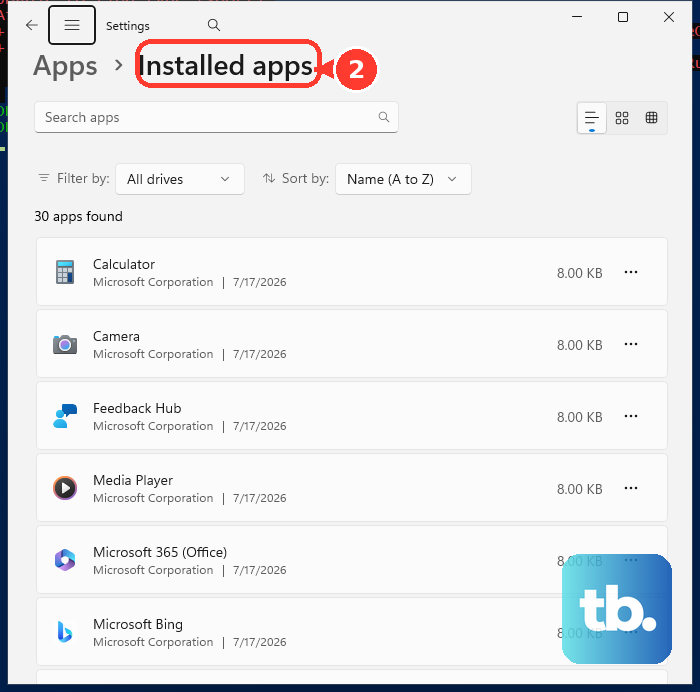
Click the ellipsis icon and choose Uninstall. Click Yes at User Account Control.
In RAZER GAMING SOFTWARE, open the ellipsis in the upper-right of INSTALLED APPS. Choose Uninstall All, click UNINSTALL, and disconnect any non-essential Razer devices.
Run the Windows System File Checker to repair missing or corrupted system files. Update Windows, install and run Intel Driver & Support Assistant, and restart the PC.
Download and install the latest Synapse 4 from Razer. On Mac, open Finder, click Applications, look for Razer, open the folder, double-click Razer Uninstaller.app, click uninstall, and follow the dialog.
7. Move Profiles And Restore Modules
Use Razer's profile migration tool when upgrading from Synapse 3. Do not uninstall Synapse 3 manually before migration.
- 1.Upgrade to Synapse 4 from the banner or installer.
- 2.Launch Synapse 4 and log in with your Razer ID.
- 3.On the DASHBOARD, click PROFILE MIGRATION under MODULES.
- 4.Expand each section and choose the profiles you want.
- 5.Click MIGRATE PROFILES.
If you skipped migration during setup, open PROFILE MIGRATION later from MODULES on the DASHBOARD, choose the profiles, and click MIGRATE PROFILES.
For a missing module, scroll down on the DASHBOARD to MODULES. If the section is not shown, click DEVICES & MODULES at the top of Synapse 4, hover over the module, and click INSTALL.
Do not use old Synapse 3-era fixes as current Synapse 4 repair steps. Razer says Synapse 3 cloud services ended February 3, 2026, manual Synapse 3 profile import into Synapse 4 should be replaced by PROFILE MIGRATION, current Synapse 4 detection guidance does not list Device Manager driver removal, and current update guidance does not provide a supported auto-update disable toggle.
8. Use Synapse Web Or Send Logs
Razer Synapse Web gives you quick browser-based device configuration when you need a fallback. It is not full Synapse 4.
Open https://synapse.razer.com/ in an up-to-date, WebHID-capable Google Chrome, Microsoft Edge, or Opera browser. Razer lists Windows 11 and macOS 26 as supported operating systems; other desktop systems may work with Chromium-based browsers.
Refresh the browser, then click ADD DEVICE to let the browser connect to the Razer device.
Razer says current device firmware is required for Synapse Web compatibility. Use the relevant Razer device support or downloads page, download the latest firmware updater, run it, click Yes at User Account Control, follow prompts such as NEXT and UPDATE, and do not interrupt the update.
For Razer Support, collect logs. Download Razer Log Collector, run the installer with administrator rights, click Close, open the unique Razer Support email link, click LAUNCH, choose Open Razer Log Collector, reproduce the issue, note the date and time, agree to the terms, optionally check Include THX Logs, click START, wait, and click CLOSE.
You can also report a bug from Synapse 4. Click FEEDBACK from the DASHBOARD or open the FEEDBACK tab, describe the concern, check Send log file for bug reports, and click SUBMIT.
Frequently Asked Questions
Is Razer Synapse 4 available for Mac?
Yes. Razer offers Synapse for Mac Preview for Apple silicon Macs, and the Razer product page lists macOS 15 Sequoia and above.
Does installing Razer Synapse 4 remove Synapse 3?
Yes. Razer says installing Synapse 4 uninstalls Synapse 3, so run Profile Migration before removing Synapse 3 manually.
Can I manually import Synapse 3 profiles into Synapse 4?
No. Razer says not to manually import Synapse 3 device profiles into Synapse 4. Use the Profile Migration module instead.
What should I do when Synapse for Mac says Software not ready?
Open Apple menu, go to System Settings, open Users & Groups, select your user, hold Control and click the account name, open Advanced Options, and make sure Username and Home directory use the same name.