OMEN Gaming Hub problems usually start in one of three places: the app is missing, the Microsoft Store install breaks, or HP gaming features stop working after launch. Use the official HP and Microsoft Store paths first, then repair, reset, update, or reinstall the app in the order below.
1. Get OMEN Gaming Hub from HP
Open HP's official OMEN Gaming Hub page and select DOWNLOAD NOW. When HP opens the Microsoft Store listing, select Get or Install.
If Windows asks to open the Store app, choose Open Microsoft Store. Let Microsoft Store finish installing OMEN Gaming Hub, and use the direct Microsoft Store listing when HP's download button does not open the Store cleanly.
2. Install it inside Microsoft Store
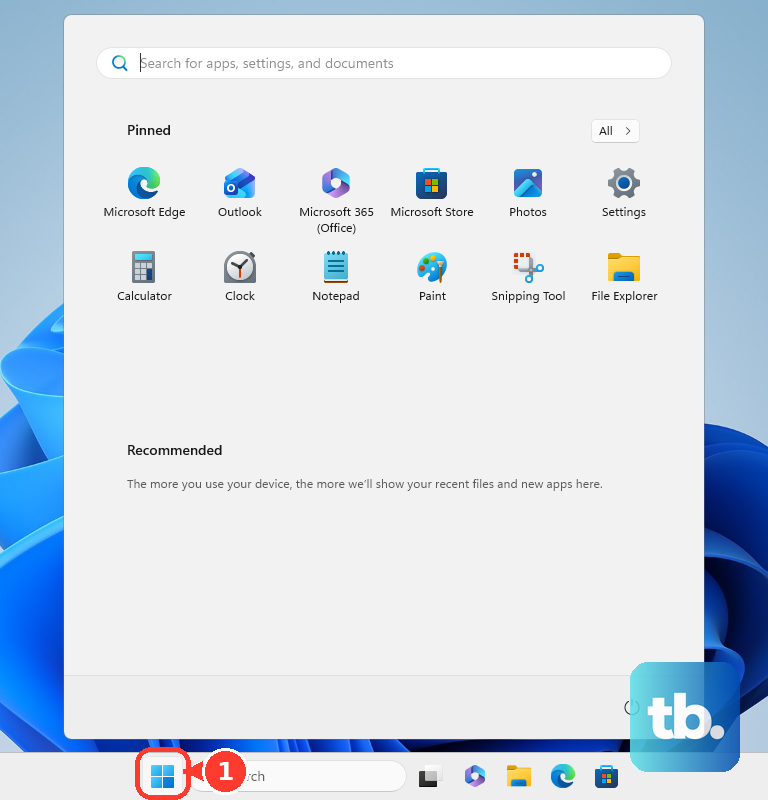
Select Start, search for Microsoft Store, then open Microsoft Store. Search for OMEN Gaming Hub, open the OMEN Gaming Hub result, and select Get, then Install.
3. Repair or reset a broken install
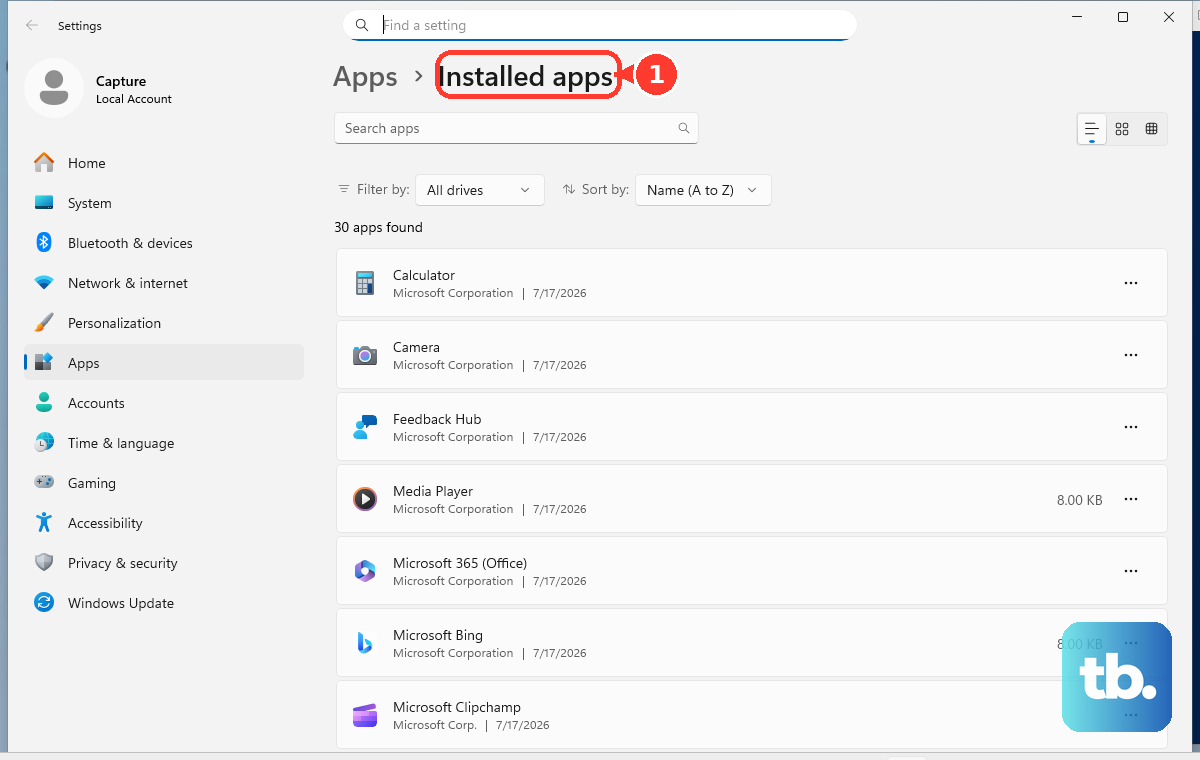
On Windows 11, go to Start > Settings > Apps > Installed apps > OMEN Gaming Hub > More > Advanced options > Repair. If Repair does not fix the app, select Reset from the same screen.
On Windows 10, use Start > Settings > Apps > Apps & features > OMEN Gaming Hub > Advanced options > Repair, then use Reset when repair is unavailable or unsuccessful.
4. Reinstall OMEN Gaming Hub cleanly
Select the Windows Start icon and open Settings. Select Apps, open Installed Apps, and find OMEN Gaming Hub.
Select the three dots next to OMEN Gaming Hub. Select Uninstall and follow the prompts, then restart the PC.
Install the latest version again from Microsoft Store or HP's official OMEN Gaming Hub page.
5. Check the Windows version first
OMEN Gaming Hub requires Windows 10 version 18362.0 or higher, and HP says some features depend on newer Windows versions, hardware, drivers, software, or BIOS. Check the build by pressing Windows key + R, typing winver, then selecting OK.
If the build is lower than 18362, update Windows before installing OMEN Gaming Hub again.
6. Restore missing HP services
Open OMEN Gaming Hub and read the error prompt shown in the app. When the pop-up says HP System Event Utility is required to enable full functionality, select Install to finish installing or updating that component.
You can also get HP System Event Utility from the Microsoft Store. When the error instead appears after you select Update on a feature such as Network Booster, select the update package link shown in the message.
Follow the installer prompts and restart the PC when prompted. After that, open Microsoft Store, select Library, then select Get updates.
Install the OMEN Gaming Hub update when it appears. If feature access is still blocked, install the OMEN Gaming Hub SDK Package from HP's support document for that specific issue, then restart.
Use this path when Performance Control, Network Booster, Overclocking, Undervolting, Lighting, or Graphics Switcher throws an error after you select Update. HP ties that message to an OMEN SDK update failure on a specific list of OMEN, Victus, and HP Pavilion Gaming models, so confirm your model is listed in HP's document before you install the SDK package.
7. Update drivers and firmware
This fixes OMEN Gaming Hub features that depend on current HP, Realtek, Intel, AMD, NVIDIA, BIOS, or HP software components. Open Start and go to Settings.
On Windows 11, select Windows Update and open Advanced options. Under Additional options, select Optional updates.
On Windows 10, go to Update & Security > Windows Update > Advanced options, turn on Receive updates for other Microsoft products when you update Windows, return to Windows Update, select Check for updates, then select View optional updates when it appears.
Select available driver or firmware updates, install the selected updates, and restart the PC. Then search for and open HP Support Assistant, open My Dashboard, select your computer, and open Updates.
Install available updates.
8. Update through Store or WinGet
Open Microsoft Store, select Library, then select Get updates. Install the OMEN Gaming Hub update when it appears.
Open Profile and go to Store Settings. Turn App updates to On.
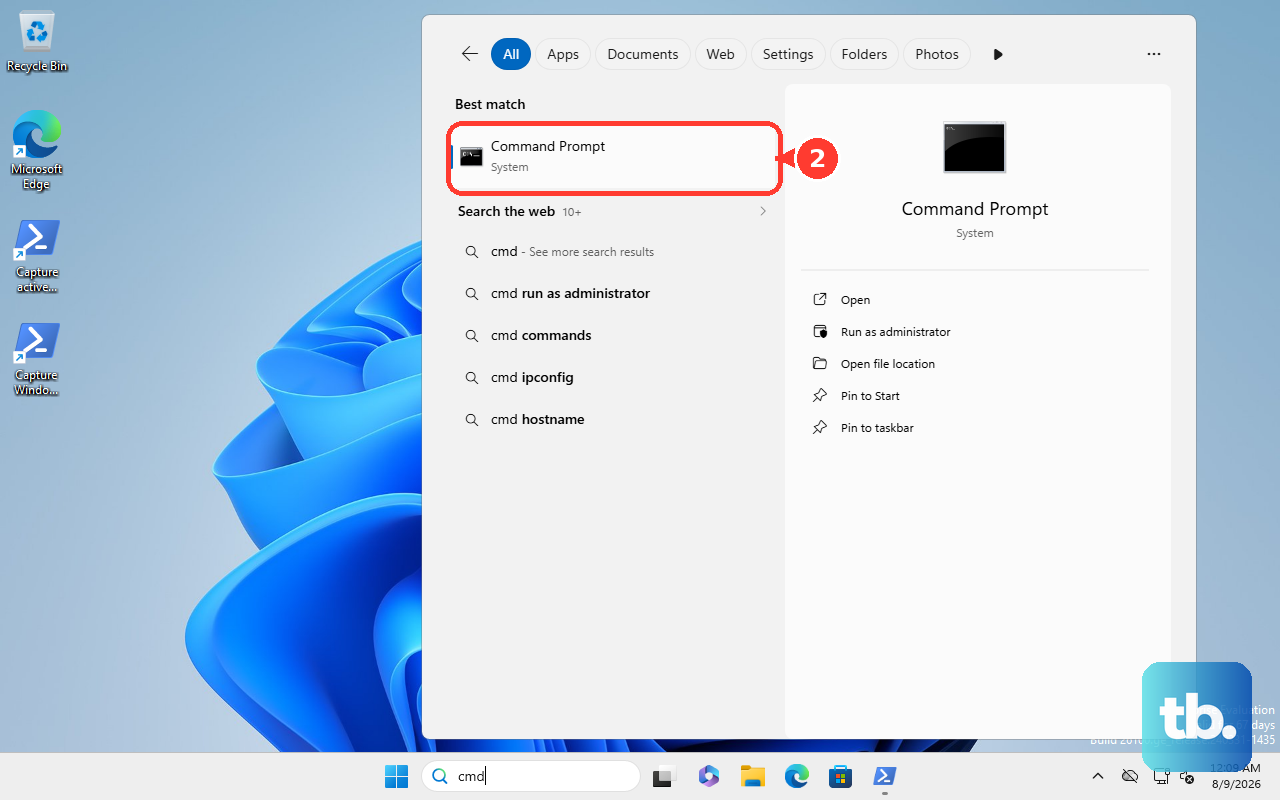
For a command-line install, open Command Prompt or Terminal. Run winget search "OMEN Gaming Hub" --source msstore, then install the Microsoft Store package with winget install <OMEN Gaming Hub msstore ID> -s msstore.
9. Reduce startup impact or handle a Store block
This fixes resource complaints and explains why Microsoft Store is unavailable on school or work PCs. Update OMEN Gaming Hub, then update Windows, games, and drivers.
Open Task Manager and System Vitals to identify bottlenecks. On an OMEN notebook, switch OMEN Notebook Performance Control between Balanced, Performance, and ECO.
On an OMEN desktop, OMEN Desktop Performance Control offers Balanced, Performance, and, on select models, Extreme. Disable streaming functionality when you do not use it, and close OMEN Light Studio when you are not changing lighting.
Disable OMEN Gaming Hub from starting automatically with Windows and launch it manually when needed. On a school or work PC where Microsoft Store is blocked, ask the device owner or admin to allow Store access or deploy OMEN Gaming Hub.
Older fixes that point to OMEN Command Center, Oasis Live, or third-party Store package download sites are the wrong path now. HP ended the Oasis Live service on April 26, 2023, so any guide that still treats it as a live feature is out of date.
Use OMEN Gaming Hub from HP, Microsoft Store, or WinGet with the Microsoft Store source.
Frequently Asked Questions
Is OMEN Gaming Hub the same as OMEN Command Center?
No. Older guides mention OMEN Command Center, but HP's current replacement is OMEN Gaming Hub.
Will uninstalling OMEN Gaming Hub remove my custom settings?
Yes. HP states that removing OMEN Gaming Hub resets custom power, lighting, or thermal profiles.
Can I open OMEN Gaming Hub from my keyboard?
On supported OMEN laptops or keyboards, the dedicated OMEN key opens OMEN Gaming Hub after the app is installed.
Does OMEN Light Studio fix the main OMEN Gaming Hub app?
No. Installing OMEN Light Studio from inside OMEN Gaming Hub fixes the lighting component, not the base app installation.











