AMD graphics driver problems can look like crashes, flickering, blank screens, missing AMD Software controls, or games that run worse right after an update. Start with the official driver path, then use the repair route that matches your PC. The steps below keep you on AMD, Microsoft, Apple, or PC-maker tools only.
Download the Correct AMD Driver First
Start here when you want the fastest official Windows download.
- 1.Go to AMD Drivers and Support and click Download Windows Drivers under Windows 10/11 Drivers.
- 2.Open the downloaded file, click Install, and let AMD Software Installer check your hardware.
- 3.Choose the Recommended or Optional driver package.
- 4.Select Default, Minimal, or Driver Only.
- 5.Click Accept & Install, then click Close when setup finishes.
Use the Driver From Your PC Maker
The most common cause on laptops, all-in-one PCs, handhelds, and some OEM desktops is a customized AMD graphics setup that needs the manufacturer’s driver.
Go to your PC maker’s support site or companion app and look up the exact model. AMD reference drivers have broad compatibility, but some OEM products need custom drivers from the manufacturer for vendor-specific features.
On Dell or Alienware PCs, use SupportAssist or the Dell support site’s driver scan for your Service Tag or model. Do not use the older Dell/Alienware Update route; Dell support for that app expired at the end of 2024.
On Lenovo PCs, open Lenovo Vantage, choose System Update, and click Check for Updates.
On HP PCs, open HP Support Assistant, go to My Dashboard, select your computer, and click Updates.
On ASUS PCs, open MyASUS, choose System Update, select the updates you want, and click Update Selected Items. If System Update does not appear, use the official ASUS support download page for your model.
Pick the Exact AMD Model Manually
This fixes missed detections and takes you straight to the driver page for your graphics product.
Open AMD Drivers and Support and choose Search or Browse Drivers and Support by Product. Choose Graphics, then select the product family and exact model. Click Submit.
Choose your Operating System, then click the driver’s Download button. Open the saved AMD Software file and click Yes to unpack setup files. Review the EULA and policies. Click Accept & Express Install for the default install, or open Additional Options and choose Default, Minimal, or Driver Only.
Clean Install AMD Software After Bad Updates
Use this when an upgrade leaves driver conflicts, AMD Software stops behaving normally, or you want to replace older AMD software cleanly. AMD’s installer includes Factory Reset for that job.
Run AMD Software Installer and open Additional Options. Enable Factory Reset (Optional). Enable Keep user settings when you want the installer to preserve available settings. Click Accept & Install.
Factory Reset removes previous AMD Software Package versions, temporarily pauses Windows Updates, restarts the PC, and continues installation after reboot. Use Factory Reset carefully because AMD says it is not reversible through driver rollback after use.
Repair the AMD Software Mismatch
Open AMD Software Compatibility Tool when AMD Software says it is not compatible with the installed AMD graphics driver.
Run AMD Software Compatibility Tool. Let the tool find a compatible AMD Software version for the AMD graphics driver already installed on the PC. Install the version the tool provides, then open AMD Software again.
If you use a Windows Insider preview driver, a matching AMD Software version may not be available. After the app opens normally, update from AMD Software instead of mixing app and driver packages manually.
Let Windows Install the Driver
Windows can install AMD display drivers through Windows Update or Device Manager. Use this route when AMD Software does not find a package or your PC maker supplies the driver through Microsoft.
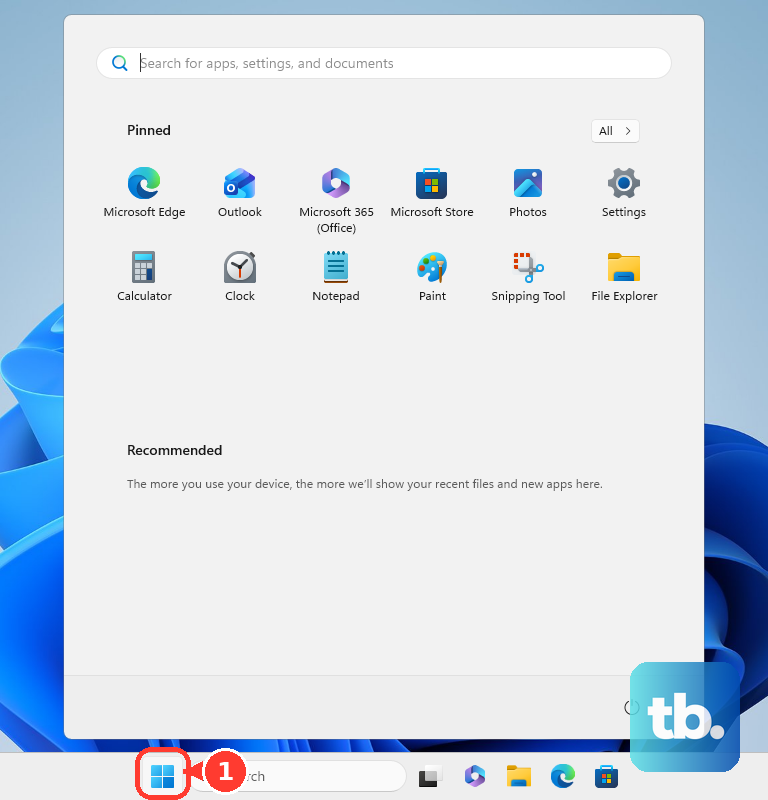
On Windows 11, open Start, then Settings, then Windows Update, then Advanced options.
Turn Receive updates for other Microsoft products on. Open Optional updates, then select the listed driver update and click Download and install.
To use Device Manager instead, right-click Start and open Device Manager. Expand Display adapters, then right-click the AMD graphics device and choose Update driver. Select Search automatically for updated driver software.
For a driver package you already downloaded from AMD or the PC manufacturer, choose Browse my computer for drivers, click Browse..., select the extracted folder, click OK, and click Next. If Windows does not solve it, try a clean AMD install or the PC maker’s driver for your exact model.
Roll Back the Driver That Broke Your Display
The most common cause after a sudden new flicker, crash, or game problem is a driver update that introduced the issue.
Open Device Manager and expand Display adapters. Right-click the AMD adapter and choose Properties. Open the Driver tab, then click Roll Back Driver. Choose Yes and restart your device.
If Roll Back Driver is unavailable, Windows has no previous driver to restore. Use AMD’s product driver page, select Previous Drivers near the bottom of the page, and install the last version that worked properly.
For a blank screen, flickering, or a temporary display-driver hang, press Windows logo key + Ctrl + Shift + B. You should hear a beep or see the screen flicker if the reset works; restart the PC if it does not.
Remove AMD Software and Start Fresh
Open Start, type Installed Apps, and select Installed apps. Find AMD Software in the app list and choose Uninstall. If multiple AMD Radeon software versions appear, select all available versions and click Uninstall. Click Restart, then install the fresh AMD or OEM graphics driver package.
For a deeper cleanup, download AMD Cleanup Utility for Windows, run amdcleanuputility.exe, click Yes to reboot and run in safe mode or No for normal mode, click OK, then click Finish and reboot when prompted.
AMD Cleanup Utility removes previously installed AMD graphics and audio drivers/software, but it does not remove or modify AMD chipset drivers on AMD-powered systems. After cleanup, install only the official AMD, OEM, Linux, or Boot Camp package that matches your device.
Handle Linux Boot Camp and Managed PCs
For Linux, use AMD’s Linux driver page, choose the correct OS button such as Ubuntu x86 64-Bit or RHEL x86 64-Bit, download the listed Radeon Software for Linux package, and open Radeon Software for Linux Driver installation instructions. The AMD Linux installer path includes amdgpu-install -y --usecase=graphics, followed by a reboot.
For Windows on an Intel Mac with AMD graphics, open AMD’s Apple Boot Camp Software Graphics Drivers page and download the Boot Camp package listed for your exact Mac model and Windows version; AMD publishes these Boot Camp packages for specific Mac models on Windows 10. Do not install the normal AMD Software: Adrenalin Edition PC package on Boot Camp systems.
For work, school, or family-managed Windows PCs, driver updates may be controlled by an administrator. Windows driver policies can control whether optional driver updates appear, so ask the admin before forcing an AMD graphics driver change.
Frequently Asked Questions
Should I use AMD Auto-Detect or the manual product selector?
Use Auto-Detect first on a normal Windows 10 or Windows 11 PC. Use the manual product selector when detection fails, you know the exact AMD graphics model, or you need a previous driver version.
What is the difference between Default, Minimal, and Driver Only?
AMD’s installer offers these as install-type choices. Pick Default for the normal AMD Software install, Minimal for a smaller AMD Software setup, or Driver Only when you only want the graphics driver package.
Why does AMD Software say it is not compatible with my driver?
The installed AMD Software version does not match the installed AMD graphics driver. Run AMD Software Compatibility Tool to install a compatible AMD Software version for the current driver.
Are third-party AMD driver updater tools safe to use?
Use official AMD, Microsoft, Apple Boot Camp, or PC-maker driver sources. Microsoft’s driver guidance says to avoid downloading drivers from websites other than the manufacturer’s official site.