AMD Adrenalin won't open, its controls are missing, or a driver update has left you with new problems. Start with the fix that matches your symptom, whether that's installing the right package, repairing a version mismatch, or undoing an update. For a fresh installation, the download instructions come first.
Download the right AMD Adrenalin package
A package that doesn't support your graphics hardware or Windows version blocks installation. On the PC you want to update, open AMD Drivers and Support. Select Download Windows Drivers to download the Auto-Detect and Install tool, then run the downloaded tool.
Select Install. The tool detects your hardware and Windows version before offering compatible drivers and components. Choose Recommended for AMD's stability-focused package, or Optional for newer features and fixes when both are available. Review the selected package's release notes before installing.
Select Accept & Install, and when installation finishes, select Close. Know your exact graphics model? For a manual download, select Search or Browse Drivers and Support by Product on AMD's download page.
Select your product category, then select your exact graphics model. Click Submit and open the section for your operating system.
Check the package's hardware and Windows requirements. Adrenalin 26.9.1 requires supported hardware and either Windows 11 21H2 or later, or Windows 10 64-bit 21H2 or later. Download the compatible AMD Software package, then run the downloaded installer while signed in with administrator rights.
Select Yes at the Windows prompt and review the license terms. Select Accept & Express Install, then select Close when setup finishes.
For a laptop or all-in-one that has problems with AMD's reference package, download the graphics package for your exact model from the computer manufacturer's support site. Handheld gaming devices and Apple Boot Camp need manufacturer-specific support; AMD's generic 26.9.1 package excludes them.
Bring back the missing Adrenalin interface
Changing the installation type restores the interface left out by a Driver Only installation. Rerun the compatible AMD installer and open Additional Options.
Under Software Type, choose Default for the complete interface. Minimal provides basic controls, while Driver Only installs no AMD Software interface. Individual features also depend on GPU support. Select Accept & Install.
After installation, open Windows Start.
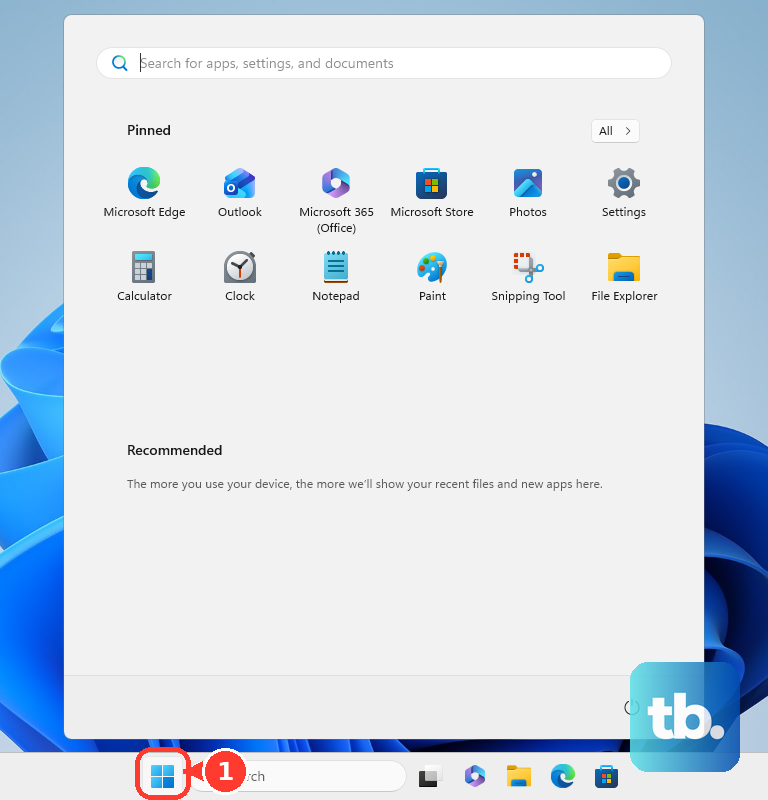
Search for AMD Software, then open AMD Software.
Clear the software compatibility warning
A popup saying AMD Software is incompatible with the installed graphics driver calls for matching software. AMD Software Compatibility Tool automatically finds and installs software compatible with the driver already on your PC.
Download the tool from AMD's Software Compatibility Tool page, then run AMD Software Compatibility Tool to install the matching software. If the warning remains, reinstall the compatible package for your exact graphics model and operating system using the download instructions above. If that reinstall also fails to clear the warning, try the AMD Cleanup Utility procedure below.
Update an installation that still opens
When AMD Software still opens, use its update controls to install an available newer package.
- 1.Open Windows Start, search for AMD Software, and open it.
- 2.Search for System inside the app and select System Settings.
- 3.Expand Software and Drivers to inspect the installed version, then open its release-notes link for documented fixes and known issues.
- 4.Select Manage Updates.
- 5.In AMD Install Manager, use the down-arrow control beside the available software to update it.
If your installation has no Manage Updates control, download the compatible package from AMD Drivers and Support.
Undo settings and tuning changes
Use a settings reset when trouble starts after changes inside AMD Software and the app still opens. This resets application settings without reinstalling the drivers.
Search for Factory Reset in AMD Software and open Factory Reset - System Settings. Select Perform Reset, then choose Proceed to confirm.
After the reset, select Skip This to use the defaults, or Quick Setup to choose a profile. If instability started after GPU tuning changes, undo those changes. Tuning controls require a Default installation and a supported GPU.
Search for Tuning in AMD Software, then open Performance Tuning. Select the affected GPU and choose Default or the Reset arrow.
Only one game affected? Its own settings override your global settings. Search for Game in AMD Software, then open Gaming.
Select the affected game and inspect its graphics and display settings. Open Tune Game Performance to inspect its tuning override. To remove a game-specific tuning override, select it in the Tuning drop-down, then choose Delete Profile.
Clean reinstall when ordinary setup fails
Let active Windows updates finish first; AMD Cleanup Utility removes AMD graphics and audio software while leaving chipset drivers in place.
- 1.Download the compatible AMD Software package you intend to install from AMD Drivers and Support.
- 2.Download AMD Cleanup Utility.
- 3.Run amdcleanuputility.exe and choose Yes to use Safe Mode, which AMD recommends.
- 4.Select OK to begin cleanup. Allow up to 15–20 minutes if it appears stalled.
- 5.Select Finish, then Yes to restart.
- 6.Install the compatible AMD Software package you downloaded, following the installation instructions above.
If cleanup causes problems, use Windows System Restore with AMD Cleanup Utility Restore Point, provided the utility created that restore point.
The installer offers another cleanup method in configurations with Factory Reset. It removes existing AMD packages, temporarily pauses Windows Update, restarts the PC, and resumes setup. It also removes the ability to roll back to the previous driver.
To use the installer method, open Additional Options in setup. Select Factory Reset, then continue installation with Accept & Install.
Match the installation error to its fix
Check the error number before running setup again. Each code below points to a specific installation problem.
For Error 202, search Windows for Windows Update Settings and open Windows Update Settings. Let active updates finish, then restart Windows. Error 206 also requires a restart to complete pending software changes. Run AMD setup again.
For Errors 98, 186, 193, or 194, download a fresh, full AMD Software package for your exact GPU and operating system from AMD Drivers and Support. Run the new package.
For download Errors 195 or 196, retry with the latest installer or the full compatible package. The full package bypasses the download step associated with Error 196. If Error 195 persists, check your antivirus or firewall rules for anything blocking setup's access to AMD servers. The controls depend on your security software.
Update your antivirus definitions. Retry later if AMD's servers are unavailable.
Error 205 flags a driver replacement by Windows Update during installation. AMD's workaround temporarily changes Windows device installation settings; it does not block every form of driver replacement. Search Windows for sysdm.cpl, then open sysdm.cpl.
Select Hardware and open Device Installation Settings. Choose No, then select Save Changes. Restart the PC and reinstall AMD Software.
For Error 1604, run AMD Cleanup Utility using the procedure above. Restart the PC, then reinstall the compatible AMD Software package.
For Error 176, free enough space on the installation drive for your selected package and components. Run setup again.
For Error 184, run Windows Update through Windows Update Settings. Download a package that explicitly supports your graphics model and operating system. Updating Windows does not make unsupported hardware compatible.
For an error that survives its targeted fix, open AMD's Online Service Request. Enter the error code in Subject and explain the failure in Description. Attach C:\Program Files\AMD\CIM\Log\Install.log. Use Installer.log instead when the instructions for your specific error request it.
If setup still fails after the relevant fix, select Submit to ask AMD support to investigate.
Recover after a troublesome driver update
If problems began immediately after an update, return to an earlier compatible driver. Windows rollback requires a retained previous driver; downloading an older package requires AMD to offer one for your GPU.
Open Device Manager and expand Display adapters. Right-click your AMD GPU, then select Properties. Open Driver and select Roll Back Driver. This requires administrator rights, and an installer Factory Reset removes the rollback option.
Choose a reason, then select Yes. Restart if prompted. If rollback is unavailable, select your exact graphics model through AMD's Search or Browse Drivers and Support by Product selector.
Select Submit and open your operating-system section. Select Previous Drivers near the bottom of the product page. Previous downloads are available only for products where AMD offers them.
Download an earlier compatible package, then run AMD Cleanup Utility using the procedure above. AMD recommends cleanup before downgrading. Restart the PC and install the older package.
For a blank display, press Windows+Ctrl+Shift+B to reset the graphics driver. If the screen stays blank, check the monitor's power and check its cable connections.
If the update prevents normal startup and you have a restore point, open Troubleshoot in Windows Recovery Environment. Select Advanced Options, then open System Restore. Select a restore point from before the problem.
Frequently Asked Questions
Will updating the driver through Windows install the full Adrenalin app?
Windows Update does not guarantee the complete Adrenalin interface. Device Manager updates the display driver without installing the full AMD Software application.
Can I stop AMD Software from updating automatically?
Yes. In AMD Software, search for System, open System Settings, and select Manage Updates. In installations using AMD Install Manager, clear Automatically keep AMD Software up to date.
Does disabling the overlay fix Adrenalin crashes?
AMD does not guarantee that disabling the overlay fixes crashes. To turn it off, search for Preferences in AMD Software, open Preferences Settings, and disable In-Game overlay where available.
Do the Auto-Detect tool's Windows requirements apply to every driver it offers?
No. The tool supports Windows 11 21H2 or later and Windows 10 64-bit 1809 or later. Individual driver packages have their own requirements, so the tool's minimum Windows version is not enough to establish package compatibility.











