


To downgrade iOS software, restore a compatible older IPSW that Apple still signs using Apple Configurator on a Mac, or restore an iOS beta to the current public release using a computer. A full restore erases your iPhone, and a backup made on newer iOS may not restore onto the older version. Your destination must be authorized by Apple for your exact iPhone when you restore it.
The short version
- Check eligibility: The older firmware must match your iPhone and still be authorized by Apple.
- Expect data loss: A downgrade erases device data, so keep a compatible backup available.
- Choose your route: Apple Configurator accepts a selected IPSW, while beta recovery restores the current public release.
- Consider waiting: Turning off beta updates lets you wait for a suitable public update without immediately restoring the phone.
| Option | Result | Main requirement or limit |
|---|---|---|
| Apple Configurator | Restores a selected compatible IPSW | macOS 15.7 or later for version 2.21, plus Apple authorization |
| Configurator Blueprint | Runs an IPSW restore when applied | Compatible signed firmware and a connected device |
| Beta recovery restore | Installs the current public release | Erases the iPhone |
| Ordinary computer restore | Installs the latest available software | A downgrade only when leaving a beta ahead of that software |
| Fixppo | Installs an offered compatible older firmware | Signed firmware, suitable licensing and data erasure |
| ReiBoot | Offers a dedicated downgrade workflow | Unsigned firmware excluded, with conflicting vendor limits |
| AnyFix | Installs an offered compatible older firmware | Activated software, signed firmware and a guide warning of data erasure |
| Turn off beta updates | Stops beta delivery while you wait | iOS 16.4 or later, with the installed beta left in place |
| Background Security Improvement removal | Returns to the base software-update state | iOS 26.1 or later with a removable improvement installed |
| Managed update targeting | Enforces eligible software updates | Targets equal to or older than installed software are ignored |
| Recovery mode | Enables restoration when a normal restore fails | Does not select an older release or bypass signing |
Prepare your firmware and compatible backup
Start with firmware that matches your particular iPhone. An IPSW is the firmware file used for restoration, and Apple must authorize its installation when the restore takes place. Saving the file beforehand does not preserve its signing status, and availability for download does not establish permission to install it.
Decide how you will recover your data before proceeding. A full restore erases the iPhone, and newer or beta backups may not work on older iOS. For a beta-to-public restore, keep a compatible pre-beta backup available; otherwise, be prepared to set up the phone afresh.
A backup prompt during restoration does not remove that compatibility limit. A fresh backup made on newer software may still require newer software when you restore it. Keep the compatible backup you intend to use available before starting.
For the beta recovery route, update macOS on your Mac or Apple Devices on your Windows PC. If you need Apple Devices, open Apple's Windows app download page, follow its Microsoft Store link and install the app. Check the Store listing for current Windows requirements and have a USB connection ready.
Restore a selected IPSW with Apple Configurator
For a particular eligible older build, install Apple Configurator for Mac. Version 2.21 requires macOS 15.7 or later. Have the compatible, still-signed IPSW ready before connecting your iPhone.
Connect the iPhone to your Mac and open Apple Configurator. Select the iPhone in the device window. Apple warns that restoring older software can cause operating-system problems.
Restoring erases the iPhone's data, so keep a compatible backup available before proceeding. Drag the compatible, still-signed .ipsw file onto the selected iPhone and choose the restore operation. If the restore fails, check that the firmware matches your device and remains authorized by Apple.
For an administrator or repeat deployment, you can also put the restore operation in a Configurator Blueprint. Applying that restore erases the target iPhone, so keep a compatible backup available first. Select the Blueprint in the device window, drag the .ipsw file onto it. Apply the Blueprint to the connected device to run the update or restore action; compatibility and signing requirements still apply.
Return from an iOS beta to the public release
Use recovery restoration when you want to leave a beta immediately and return to the current non-beta release. Apple supplies the public release for this operation, so you do not choose a historical version. The following button sequence applies to iPhone 8 and later, including iPhone SE from the second generation onward.
Connect the iPhone to your computer by USB, then open Finder on a Mac or Apple Devices on Windows. Quickly press and release Volume Up, then quickly press and release Volume Down. Hold the Side button until the recovery screen appears.
The next step erases the phone, so have a compatible pre-beta backup ready if you want to restore your data afterward. Select the iPhone on your computer and click Restore. Allow the computer to install the current public release, then restore a compatible backup or set up the iPhone afresh.
If the download takes more than 15 minutes and the iPhone leaves recovery mode, let the download finish. Repeat the same button sequence to enter recovery mode again. Continue the restore after the device returns to the recovery screen.
Restore normally through Finder or Apple Devices
An ordinary computer restore installs the latest available software and does not present a historical-version selector. It is relevant to downgrading when your installed beta is ahead of the public software Apple supplies. For a particular eligible older build, use the selected-IPSW route instead.
On the iPhone, open Settings, select your name, then select Find My and turn off Find My iPhone. Connect the phone by USB, open Finder on your Mac or Apple Devices on Windows, and select the iPhone in the sidebar. Click Trust on the computer, tap Trust on the iPhone and enter its passcode.
Restoring erases the iPhone, so keep a compatible backup available before proceeding. Click Restore iPhone; if a backup prompt appears, click Back Up. Click Restore, review the terms and click Agree. A backup made at this point may still be incompatible with the older software you intend to run.
Use Fixppo for an offered signed firmware
Fixppo provides a dedicated downgrade workflow on Mac and Windows. Get the appropriate installer from the official Fixppo product page and check licensing before relying on the downgrade feature. A compatible older signed firmware must actually be available.
Open Fixppo and select iOS Upgrade/Downgrade > Downgrade iOS. Connect the iPhone by USB and follow the recovery-mode instructions if the app requests them. Select an available compatible firmware and click Download.
iMyFone says downgrading erases device data, so keep a compatible backup available before starting. Click Start Downgrade iOS and keep the phone connected until the process finishes. Broader data-preservation claims do not change the downgrade workflow's erasure warning.
If a suitable older signed firmware is not available, downloading another copy of the same IPSW does not change Apple's authorization. When leaving a beta, use Apple's current public-release restore or wait for a suitable public update.
Use the ReiBoot or AnyFix downgrade workflow
ReiBoot runs on Mac and Windows; obtain the matching installer from Tenorshare's product page and check licensing before proceeding. Tenorshare's downgrade instructions describe broader firmware choices, but its FAQ restricts downgrades to beta-to-latest-public restoration. Its downgrade guide also states that unsigned IPSWs cannot be restored through ReiBoot.
Connect your iPhone to the computer and open ReiBoot. Select iOS Upgrade/Downgrade, then select the downgrade mode. Click Download for an offered compatible firmware, or use the local-file import option for an existing compatible, signed IPSW.
Tenorshare's downgrade warning says the operation causes all data and settings loss, so keep a compatible backup available before proceeding. Click Initiating Downgrade, read the data-loss warning and click Continue. Leave the device connected until the operation finishes.
AnyFix also runs on Mac and Windows; obtain the appropriate installer from iMobie's product page. Its downgrade workflow requires an activated version and applies to iOS 12.3 or later. You still need compatible firmware that Apple signs.
Open AnyFix and select Upgrade/Downgrade iOS, then connect the iPhone by USB. Select 1 click to downgrade iOS/iPadOS and click Start Now. Choose an offered compatible firmware and click Download.
iMobie's downgrade guide says this downgrade erases all device data, so keep a compatible backup available before continuing. When the download finishes, click Downgrade and keep the phone connected until it restarts. If either app cannot offer an eligible destination, return to a compatible release that Apple authorizes.
Stop beta updates and wait instead
On iOS 16.4 and later, you can stop receiving betas and wait for a suitable public release. Open Settings > General > Software Update > Beta Updates, then tap Off. This leaves the beta that is already installed in place.
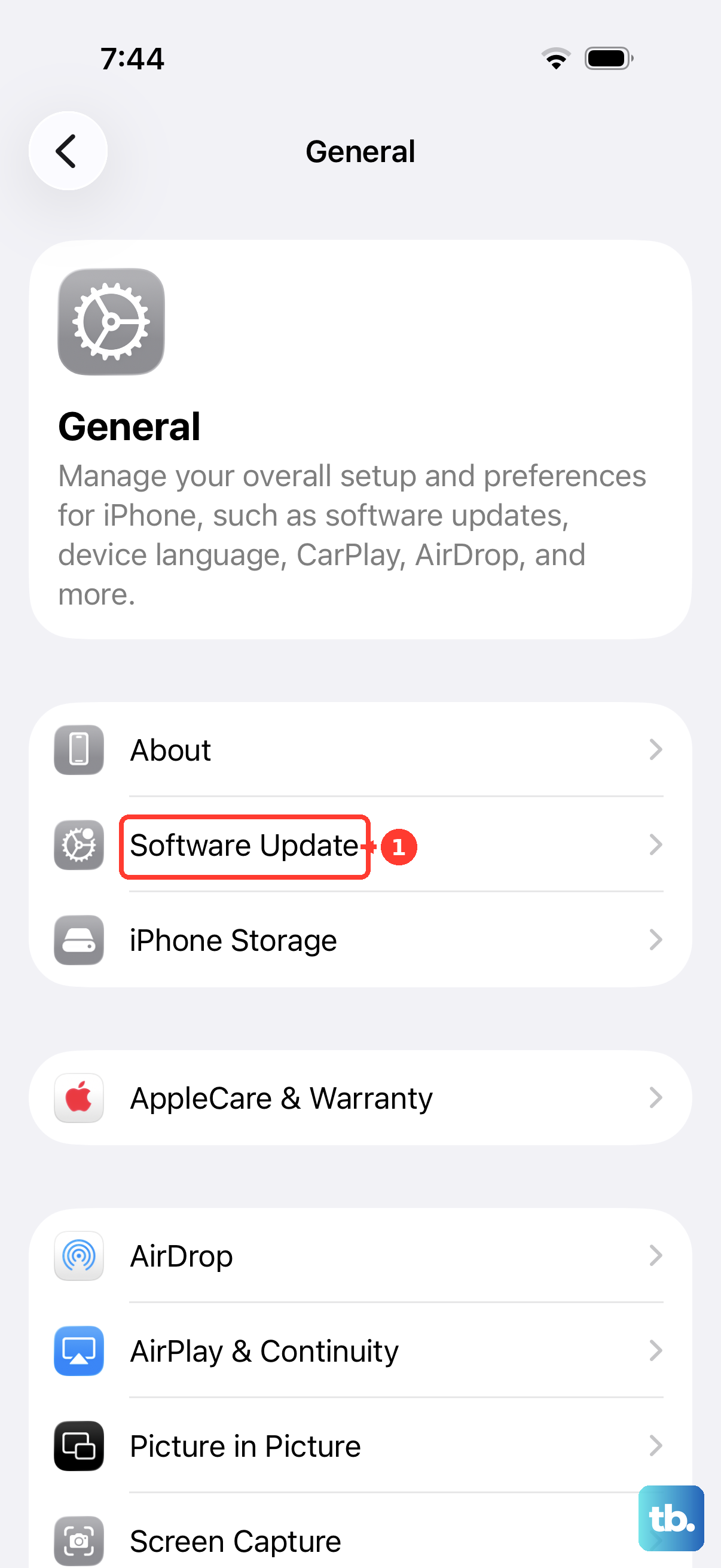
Install the next suitable public release when it becomes available through Software Update. This route lets you wait instead of immediately erasing and restoring the phone. Turning off beta delivery does not itself downgrade iOS.
Check the limits of security and managed updates
Removing a Background Security Improvement removes that improvement and returns the device to its base software-update state. On iOS 26.1 and later, when a removable improvement is installed, open Settings > Privacy & Security > Background Security Improvements to manage it. This limited rollback does not change the underlying major or minor iOS release.
If your iPhone uses declarative software-update enforcement, an administrator's update target cannot perform an OS downgrade. Apple says a target operating-system or build version equal to or older than the installed version is ignored. You still need an eligible restore route to install older software.
Fix a failed restore with recovery mode
Recovery mode is a fallback when your iPhone cannot update or restore normally. Connect it to your computer by USB and open Finder or Apple Devices. On iPhone 8 and later, including iPhone SE from the second generation onward, quickly press and release Volume Up, then quickly press and release Volume Down. Hold the Side button until the Connect to computer screen appears.
Choosing a recovery restore erases the iPhone, so keep a compatible backup available if you plan to recover your data. Select the device on your computer and choose Restore. Recovery mode enables restoration but does not independently select an older release or bypass signing.
If the obstacle is an unsigned or incompatible IPSW, entering recovery mode does not remove it. Choose a compatible release that Apple authorizes for the device. When leaving a beta, the current public-release restore remains the relevant Apple route.
Frequently Asked Questions
Does restoring an older backup downgrade iOS?
No, restoring a backup does not reinstall an older operating system. Restoring the software and restoring your saved data are separate operations.
Can you get restore software through Apple Developer Downloads?
You can open Apple Developer Downloads, select the relevant software category and sign in if requested. Access and available packages vary, so the portal does not guarantee that a particular historical iPhone restore image will be available.
Can an administrator prevent security improvement removal?
Yes, on supervised iPhones managed through compatible device-management services, an administrator can prevent users from removing Background Security Improvements. That restriction controls the limited component rollback and does not provide a full iOS downgrade.
Does DFU mode allow unsigned firmware?
No, DFU mode does not establish permission to install unsigned firmware. It appears as a recovery fallback in companion-tool documentation, but Apple's authorization requirement still applies.
Why do older instructions mention a beta configuration profile?
Beta configuration profiles belong to the older enrollment mechanism that predates the Beta Updates setting in iOS 16.4. Removing that profile stops beta delivery but does not uninstall the operating system already on the phone.