

To change the lock screen on Windows 11, open Settings > Personalization > Lock screen, then choose Picture, Slideshow, or Windows spotlight under Personalize your lock screen. These steps use Windows 11 menus, with some widget and background controls depending on your installed version and device.
The short version
- One photo: Choose Picture and select an existing image or browse for your own.
- Changing backgrounds: Choose Slideshow for your picture folders or Windows spotlight for automatically changing images.
- Widgets: Use the Widgets section to add, arrange, customize, or hide widgets in the current experience.
- Preview: Press Windows + L to lock your PC and inspect the result.
| Background option | What it displays | What you choose |
|---|---|---|
| Picture | One image | An existing image or your own photo |
| Slideshow | Rotating personal pictures | Folders containing your pictures |
| Windows spotlight | Automatically changing images | The automatic background option |
Choose a single lock screen picture
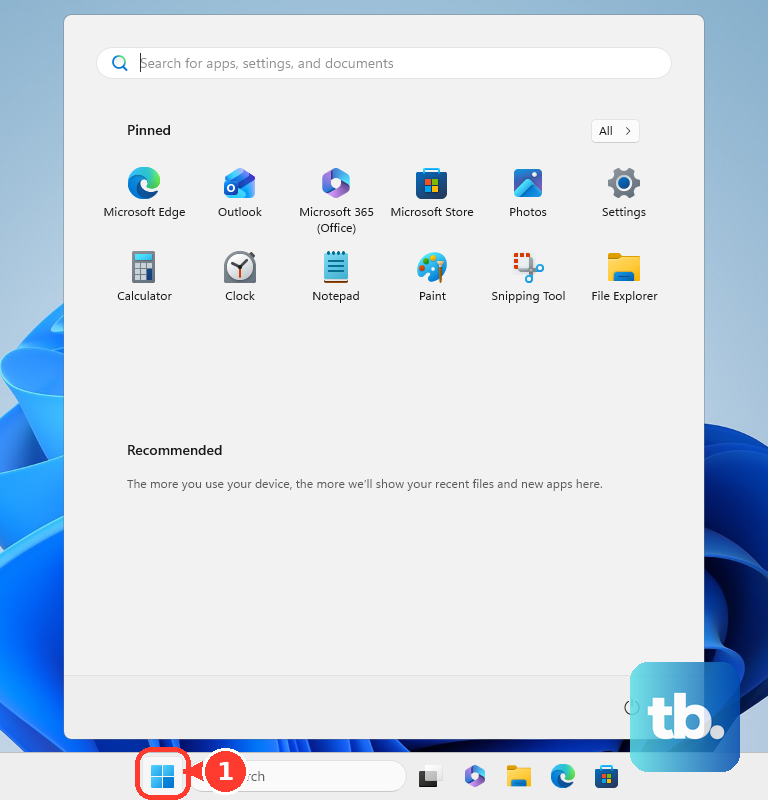
Open Start, select Settings, then open Personalization > Lock screen. Under Personalize your lock screen, choose Picture. Select an existing image or browse for a photo of your own.
You can also reach the background controls through Windows search. Search for Lock screen settings, then select Open to reach the same page.
Rotate your pictures with a slideshow
On the Lock screen settings page, choose Slideshow under Personalize your lock screen. Select the folders containing the pictures you want Windows to display.
Folder selection and additional slideshow controls depend on your installed Settings version, so follow the folder controls displayed on your PC. To return to a single image, choose Picture and select the image you want.
Use Windows spotlight for automatic images
Choose Windows spotlight under Personalize your lock screen to use automatically changing backgrounds. To replace Spotlight with a particular photo or your own collection, return to the same menu and choose Picture or Slideshow. On an organization-managed PC, policy can restrict Spotlight availability.
Add and arrange lock screen widgets
In the current widget experience, open Settings > Personalization > Lock screen and go to the Widgets section. Select Add widget below the widget list, then choose an available widget. Only widgets that support the small size qualify for the lock screen.
Drag the widgets into your preferred order. To customize an individual widget, open its … menu and choose the customization option if the provider offers one. The available adjustments depend on that widget's provider.
Removing a widget takes it off your lock screen. To remove one, open its … menu and choose the removal option. To hide the whole group, return to Lock screen and turn off Widgets.
Microsoft first brought individually configurable widgets, which replace the older fixed Weather and more bundle, to devices in the European Economic Area in March 2025, then began expanding them to all regions with the August 2025 Windows 11 24H2 update. If your PC still shows the older interface, the individual widget controls above apply after that experience reaches your installation. You can still use the background controls to change your picture.
Control tips and other Microsoft content
Some background modes expose a control for facts, tips, tricks, and other additional content from Microsoft on the Lock screen settings page. Where it appears, turn off Get Fun Facts, Tips, Tricks, and More on Your Lock Screen to hide that content, or turn it on to show it. If your selected mode does not expose the control, manage any widgets separately through Widgets.
The newer Tips widget is a separate option for Windows 11 versions 24H2, 25H2, and 26H2 receiving the September 2026 widget rollout. On a PC that has received it, open Settings > Personalization > Lock screen, select Add widget, then choose Tips. If it is missing from the choices, select another available widget.
Match the sign in background to your picture
On the Lock screen settings page, turn on Show the lock screen background picture on the sign-in screen to carry your picture onto the sign-in screen. Turn this setting off if you prefer a plain sign-in background.
Hide notification content on the lock screen
Open Start > Settings > System > Notifications, then select an app under Notifications from apps and other senders. For apps that expose the option, turn on Hide content when notifications are on lock screen. This controls notification content separately from your background and widgets.
To stop an app's notifications altogether, select that application and turn off its notifications. You can also turn off the main Notifications setting to disable notifications globally. Both choices affect notifications outside the lock screen too, so choose the content-hiding option when you only want to conceal lock-screen content.
Resolve restrictions on a managed PC
If your work or school PC restricts picture changes, an administrator may need to adjust its personalization policies. Your choice of background can be controlled by organizational policy even when the ordinary customization controls are present.
For administrators on Windows 11 Pro, Enterprise, Education, and applicable IoT editions, open Local Group Policy Editor and go to Computer Configuration > Administrative Templates > Control Panel > Personalization. Open Prevent changing lock screen and logon image, then disable it or leave it unconfigured to permit changes, subject to other policies. Enabling this policy blocks user image changes.
Preview your finished lock screen
Press Windows + L to lock your computer and inspect the background. If you have the current widget experience, check the widgets you selected and their order too.
To make another adjustment, return to Settings > Personalization > Lock screen and change the relevant option. For notification content, return to Settings > System > Notifications and select the app.
Frequently Asked Questions
Can you open lock screen settings with a command?
Enter ms-settings:lockscreen in the Windows Run dialog to open the lock-screen settings page directly. This command opens the controls; it does not change the picture by itself.
Does changing the lock screen also change the screen saver?
The screen saver has separate controls for the idle display and resume behavior. Open Settings > Personalization > Lock screen, then under Related settings, select Screen saver. In Screen Saver Settings, choose a screen saver, use Settings... for its options, and set Wait. You can also check On resume, display logon screen.
Can you customize the lock screen using your voice?
You can operate the customization controls on Windows 11 version 22H2 and later with Voice access configured and running. Open the relevant Settings page, say Show numbers, then speak a control's displayed number to select it. Repeat as needed to move through the ordinary settings.
Do you need to download or reinstall Windows to change the lock screen?
Ordinary lock-screen customization does not require downloading or reinstalling Windows. You can make these changes through the personalization controls already on your PC.
Can the lock screen background respond when you move your PC?
Open Settings > Personalization > Lock screen. Turn on the setting that reads "Make the lock screen image react when I move my PC" to enable movement-responsive motion. Turn it off if you prefer the image not to respond to movement.