To customize Apple CarPlay, open Settings > General > CarPlay on your iPhone, select your vehicle, and choose Customize to arrange apps; use CarPlay’s Settings on the vehicle display to change wallpaper and appearance. Make your changes while parked, starting with app order before adjusting widgets, readability, and notifications.
The short version
- App layout: Arrange or hide app icons through your vehicle’s CarPlay settings on iPhone.
- Display appearance: Change wallpaper, dark appearance, and readability settings on the vehicle display.
- Widgets and activities: With supported CarPlay software, customize widgets on iPhone and manage Live Activities by app.
- Driving interruptions: Adjust Driving Focus and spoken message announcements separately.
| Customization | Where to change it | What you can adjust |
|---|---|---|
| App order | iPhone vehicle settings > Customize | Position of CarPlay Home icons |
| App visibility | iPhone vehicle settings > Customize | Hide or restore removable icons |
| Additional apps | iPhone App Store | Install compatible apps |
| Wallpaper | CarPlay Settings > Wallpaper | Available display backgrounds |
| Dark appearance | CarPlay Settings > Appearance | Always Dark appearance |
| Album artwork | CarPlay Settings | Show Album Art |
| Dashboard navigation | A compatible navigation app in CarPlay | The map app shown in Dashboard |
| Dashboard suggestions | CarPlay Settings | Suggestions in CarPlay |
| Apple Maps presentation | Map controls in CarPlay | View, orientation, zoom, and panning |
| Widget selection | iPhone vehicle settings > Widgets | Add and configure widgets |
| Widget arrangement | iPhone vehicle settings > Widgets | Reorder or remove widgets |
| Widget automation | iPhone vehicle settings > Widgets | Smart Rotate and Widget Suggestions |
| Live Activities | iPhone app settings > Live Activities | Shared iPhone and CarPlay activity controls |
| Text size | CarPlay Accessibility > Text Size | Text sizing with a preview |
| Bold text | CarPlay Accessibility | Bold Text |
| Color filters | CarPlay Accessibility > Color Filters | Filter and intensity |
| Voice Control | CarPlay Accessibility | Spoken interface commands |
| Sound recognition | CarPlay Accessibility > Sound Recognition | Alerts for selected sounds |
| Focus activation through CarPlay | CarPlay Settings > Driving Focus | Activate With CarPlay |
| Other Driving Focus triggers | iPhone Settings > Focus > Driving | Automatic, Bluetooth, or manual activation |
| Driving auto replies | iPhone Driving settings > Auto-Reply | Recipients and reply text |
| Announcements from the car | CarPlay Settings > Announce Messages | Announcement behavior when a drive begins |
| Announcements from iPhone | iPhone Notifications > Announce Notifications | Timing and which messages are announced |
| Connection automations | iPhone Shortcuts: a shortcut’s Edit > Automation (iOS 27) | Actions triggered by connecting or disconnecting |
Arrange the apps on CarPlay Home
On your iPhone, open Settings > General > CarPlay, select your vehicle, then tap Customize. Drag an app’s reorder handle up or down to place it where you want it. The revised order appears the next time your iPhone connects to CarPlay.
To hide an app, tap its minus button and then tap Remove. To bring it back, tap its plus button under More Apps. Only apps with a minus button can be removed this way, and hiding an icon does not uninstall the app from your iPhone.
Make sure you select the correct vehicle in the CarPlay list before editing. If your phone charges but CarPlay never connects, follow the steps to fix CarPlay while your phone charges before checking the revised layout.
For additional apps, open the App Store on iPhone and download an app that specifically supports CarPlay. Compatible apps appear automatically on CarPlay Home. Complete any required account or content setup on your phone, following that app’s instructions.
Change the wallpaper and appearance
On the vehicle display, open Settings > Wallpaper. Choose one of the available backgrounds, then select Set.
For a consistently dark display, open Settings > Appearance in CarPlay and select Always Dark. To control music artwork separately, return to Settings and turn Show Album Art on or off.
Choose what appears in Dashboard and Maps
To change the navigation app shown in Dashboard, open and use a compatible navigation app in CarPlay. Dashboard displays that app during navigation. When navigation is inactive, or more than one navigation app is active, Dashboard uses the last compatible navigation app you used.
For suggested items, open Settings in CarPlay and look for Suggestions in CarPlay, the label Apple uses for this control. Turn the switch on or off if it appears under that name on your display.
Within Apple Maps, touch the display or turn the rotary knob to reveal the map controls. During navigation, select the detailed-view button or the route-overview button to switch between a detailed 3D map and a 2D route overview. Outside navigation, tap 3D or 2D to change the map presentation.
Outside navigation, you can also use the tracking button to change map orientation and the plus or minus controls to zoom. To move around the map, select the scroll button and use the direction arrows, then tap Done after panning.
Add widgets and adjust Live Activities
With widget-capable CarPlay on iOS 26 or iOS 27, open Settings > General > CarPlay on your iPhone while parked. Choose your car, open Widgets, then tap Add Widgets. Select a widget and complete its onscreen configuration; the number of widget stacks depends on your vehicle display.
Return to your car’s Widgets settings to change the arrangement. Drag a widget’s reorder handle to move it, or tap its remove button to take it out. Adjust Smart Rotate and Widget Suggestions there to control automatic rotation and suggestions.
Live Activities, introduced in CarPlay with iOS 26, use app-specific controls. On iPhone, open Settings > Apps, select an app that offers Live Activities, then open Live Activities. Adjust the available controls, keeping in mind that these settings apply to both iPhone and CarPlay.
Make the display and controls easier to use
For larger or smaller text on CarPlay with iOS 26 or later, open Settings > Accessibility > Text Size on the vehicle display. Tap a size and check the preview below its number. To make text heavier, return to Accessibility and turn on Bold Text.
For color adjustments, open Settings > Accessibility > Color Filters. Turn on Color Filters, choose a filter, and select Low, Medium, or High for its intensity. You can choose a filter for color-vision differences or use grayscale.
In supported languages and regions, open Settings > Accessibility and turn on Voice Control to operate CarPlay with spoken commands. Say Go Home to return home, then say Swipe left to change pages. Say Stop listening to pause listening and Start listening to resume it.
On supported iPhone models, open CarPlay’s Settings > Accessibility > Sound Recognition. Turn on Sound Recognition, then enable the sounds you want detected, which can include car horns, sirens, and a baby crying. Apple cautions against relying on this feature for emergencies or navigation.
Set up Driving Focus and auto replies
To activate Driving Focus when CarPlay connects, open Settings > Driving Focus on the vehicle display. Select Activate With CarPlay. Driving Focus limits notifications and messages while connected.
On iPhone, open Settings > Focus > Driving; if it is absent, tap the add button and choose Driving. Under Turn On Automatically, open While Driving. Choose Automatically, When Connected to Car Bluetooth, or Manually, or enable Activate With CarPlay for CarPlay activation.
For an automatic reply during drives, open Settings > Focus > Driving > Auto-Reply on iPhone. Choose the recipients and edit the reply message. These replies apply during CarPlay sessions when Driving Focus is enabled.
Choose how messages are announced
With iOS 15 or later, you can configure spoken message announcements from the vehicle display. Open Settings > Announce Messages and enable Announce Messages. Open Announce Options to choose how announcements behave at the beginning of a drive.
For the iPhone controls, open Settings > Notifications > Announce Notifications > CarPlay. Turn on Announce Messages and adjust when announcements begin. Tap Back, open Messages, and choose Time Sensitive and Direct Messages or All Notifications.
Create actions for connecting and disconnecting
For a routine triggered by CarPlay on iOS 27, open Shortcuts on iPhone and tap an existing shortcut or create a new one. Tap Edit, then Automation, and choose the CarPlay trigger. Select Connects or Disconnects to set when the shortcut runs.
On iOS 26, Shortcuts uses a separate automation flow: tap Automation (then the add button if you already have automations), tap Create Personal Automation, and choose CarPlay. Select Connects or Disconnects, then tap Next. Choose an existing shortcut or select Add Action to build the routine, then tap Next and Done. The actions you can run depend on your installed apps and their permissions.
Frequently Asked Questions
Can deleting a built-in iPhone app remove it from CarPlay?
Yes, on iOS 14 and later, deleting Apple Books, Maps, Music, or Podcasts from iPhone removes its CarPlay availability and can affect related data and functionality. Touch and hold the app, tap Remove App or Delete App as shown, then tap Delete App or Delete in the submenu.
How do you restore a deleted Apple app for CarPlay?
Open the App Store on iPhone and search for the app by its exact name. Tap the redownload button, then open the app after it is restored.
Does CarPlay Ultra offer more customization?
Yes, CarPlay Ultra-equipped Aston Martin vehicles let you personalize instrument-cluster themes, colors, textures, backgrounds, and widgets. Availability depends on your model, market, and vehicle software, and these options are specific to CarPlay Ultra. Follow your vehicle’s manual for the exact menus.
How do you remove a saved car from CarPlay?
On iPhone, open Settings > General > CarPlay, select your car, and tap Forget This Car. This removes the saved vehicle connection.
How do you activate Siri in CarPlay?
Hold the steering-wheel voice-command button, or touch and hold the onscreen Home or Dashboard button, then make your request. In vehicles that support voice activation, say Hey Siri and then make your request.
How do you switch between CarPlay and the vehicle interface?
To switch between CarPlay Home and Dashboard, tap the onscreen Home or Dashboard button, or select it with the rotary knob and press the knob. To return to the vehicle interface, select the vehicle’s logo on CarPlay Home or press the radio’s physical Home button where available.
Can Screen Time prevent CarPlay from appearing?
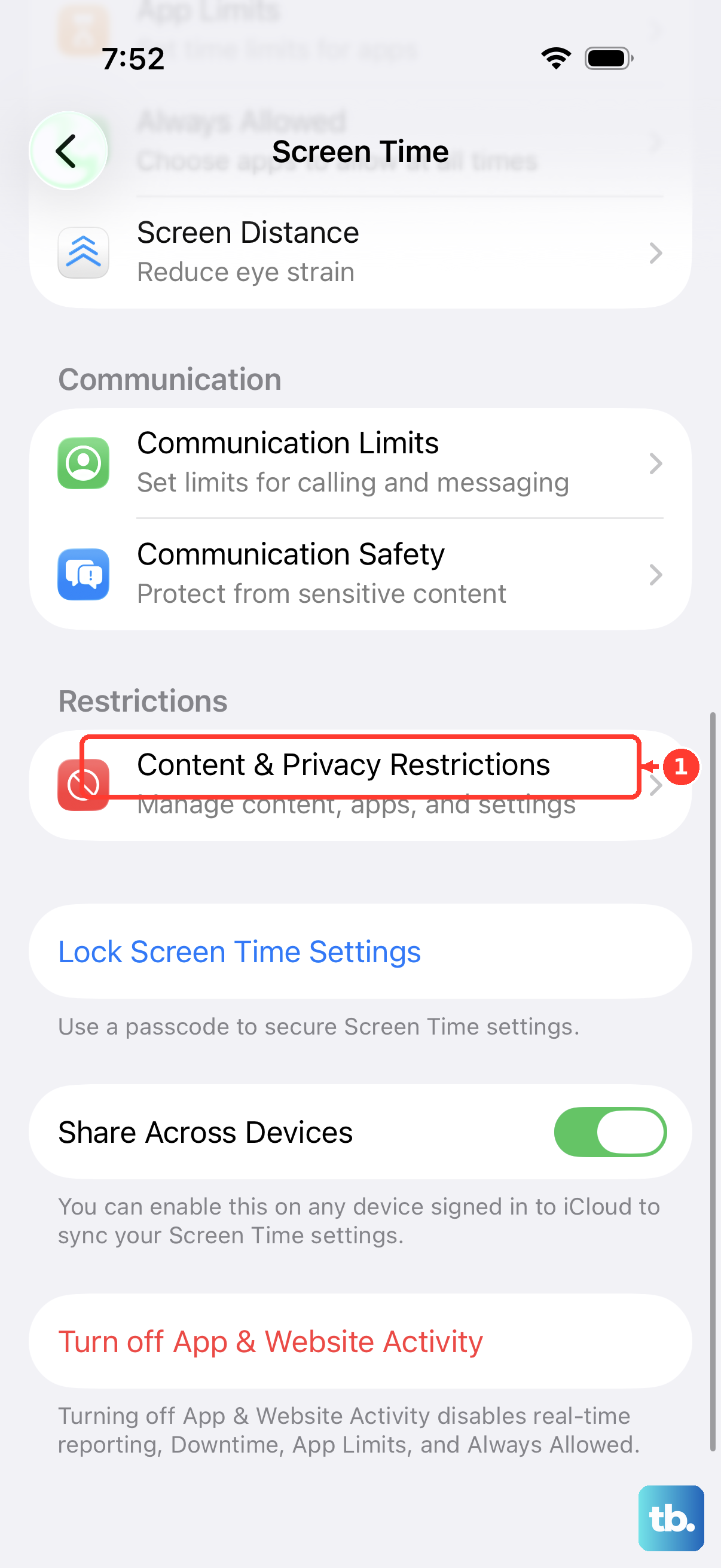
Yes, Screen Time restrictions can control CarPlay availability. On iPhone, open Settings > Screen Time > Content & Privacy Restrictions, then look for Allowed Apps, the menu Apple names in its CarPlay troubleshooting instructions, and enable CarPlay. You may need the Screen Time passcode or a parent’s access.