A shared folder gives another Windows PC a direct path to files on your local network. Cloud sharing works differently, so OneDrive belongs in the mix when the folder needs to follow people outside your home network. Start with the Windows sharing switches, then create the folder share and open it from the other PC.
1. Prepare Windows for local folder sharing
This fixes the setup problem where the other PC cannot see or reach the shared folder. Open Start > Settings > Network & internet > Wi-Fi > your connected Wi-Fi network > Network profile type, then choose Private network. For Ethernet, open Start > Settings > Network & internet > Ethernet > your connected Ethernet network > Network profile type, then choose Private network.
On Windows 11, go to Start > Settings > Network & internet > Advanced network settings > Advanced sharing settings > Private networks. On Windows 10, go to Start > Settings > Network & internet > Sharing options > Private. Turn Network discovery on, then turn File and printer sharing on.
For password-free home sharing, go to Advanced sharing settings > All Networks and turn Password protected sharing off.
2. Create a shared folder in File Explorer
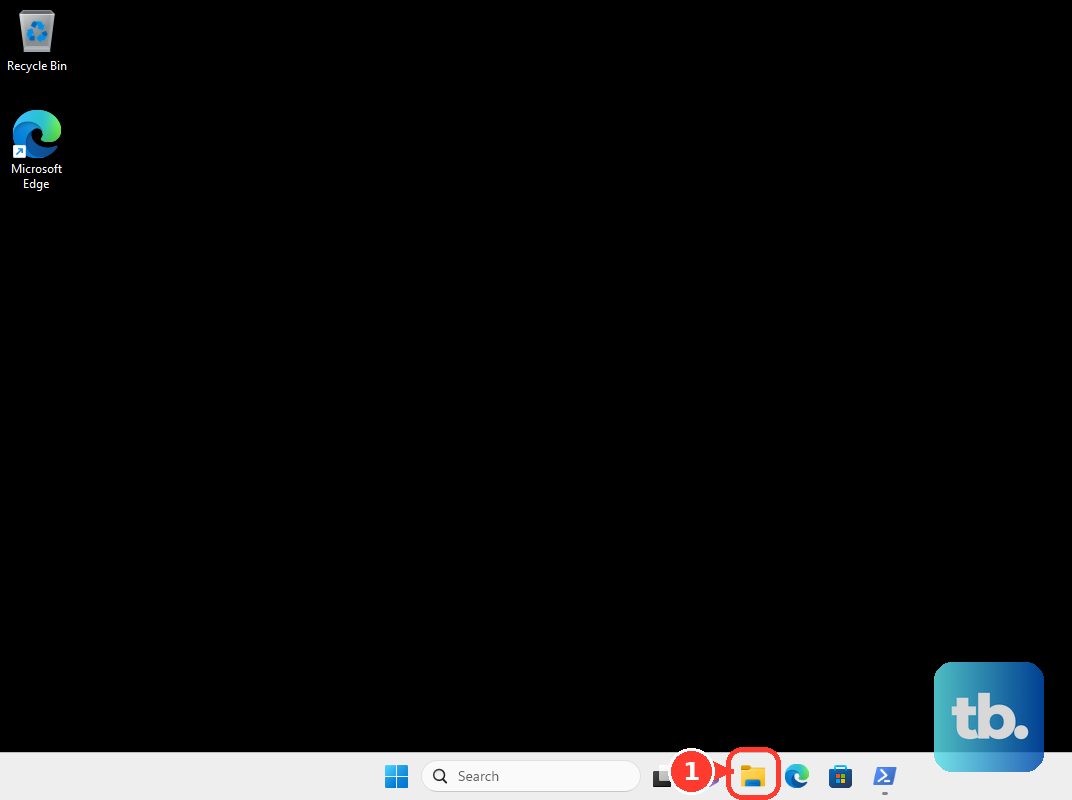
Open File Explorer, then right-click or long-press the folder you want to share. On Windows 11, select Show more options, then select Give access to > Specific people. On Windows 10, select Give access to > Specific people straight from the context menu, or select the folder and use the Share tab > Share with > Specific people.
Choose a user on the network, or choose Everyone. Select Share. Use Everyone only when you want that folder available broadly on the local network.
3. Set custom sharing permissions
Open File Explorer, then right-click the folder and select Properties. Open the Sharing tab and select Advanced Sharing. Select Share this folder, then select Permissions.
Add or remove users and groups. Allow Full Control, Change, or Read. Select Apply > OK > OK > Close.
4. Check what your PC is sharing
Open File Explorer > address bar > \\localhost > Enter to see the shared folders on your own PC. Run this check before moving to another computer, because it confirms that Windows is exposing the folder as a share. It also shows older local shares you no longer need.
5. Open a shared folder from another PC
- 1.Open File Explorer on the other Windows PC.
- 2.Select the address bar.
- 3.Type \\ComputerName\SharedFolderName or \\IPAddress\SharedFolderName.
- 4.Press Enter.
- 5.Enter network credentials when Windows prompts for them.
6. Map the shared folder as a drive
This fixes the extra typing when you use the same network folder often. Open File Explorer from the taskbar or Start, or press Windows logo key + E. Go to This PC.
On Windows 11, select More > Map network drive on the File Explorer ribbon. On Windows 10, open the Computer tab and select Map network drive. Choose a drive letter under Drive.
In Folder, enter \\ComputerName\ShareName, or select Browse. Select Reconnect at sign-in when you want Windows to keep the mapping after restart. Select Finish.
7. Share a OneDrive folder outside your home network
In File Explorer, open your OneDrive folder. Right-click or press a OneDrive file or folder, then select Share a OneDrive link. For OneDrive for Business, right-click the folder and select Share > Copy Link > Copy.
On the web, go to onedrive.com, sign in, select the circle icon for the folder, then select Share > Copy Link. To change link permissions on the web, select the settings gear icon, choose Anyone, People in [your organization] with the link on a work or school account, People with existing access, or Specific people, then select Apply, then Copy.
To send access to named people, select Share, enter names, groups, or email addresses in Name, group or email, choose Can edit or Can view, then select Send. To open a OneDrive folder someone shared with edit permission, go to OneDrive.com > Shared, select the circle in the folder tile, then select Add shortcut to My files.
On Windows, open File Explorer > OneDrive or OneDrive - [organization name] to find the synced shortcut. Work and school account admins control which OneDrive sharing options appear.
8. Remove sharing when you are done
For a local network folder on Windows 11, use File Explorer > right-click or press the folder > Show more options > Give access to > Remove access. On Windows 10, use right-click the folder > Give access to > Remove access, which older Windows 10 versions label Stop sharing.
For a OneDrive shortcut, use OneDrive.com > My files > select the shared folder shortcut > Remove shortcut from My files on a personal account. On a work or school account, use OneDrive.com > My files > select the shared folder shortcut > Remove shortcut. Removing the shortcut does not delete the owner’s folder.
If you own the OneDrive folder, open Information > Manage access, then remove a link or change its link settings.
9. Skip older sharing methods
Do not use HomeGroup instructions from older guides. Microsoft removed HomeGroup starting with Windows 10 Version 1803, and current Windows uses Give access to > Specific people or direct paths like \\ComputerName\SharedFolderName instead.
Do not reinstall SMB 1.0/CIFS File Sharing Support to reach old router or NAS shares. SMBv1 is not installed by default in Windows 11, and Microsoft recommends updating or replacing the old SMB device so it supports SMB2 or SMB3.
Treat net share and net use commands as legacy command-line guidance for this consumer task. Use File Explorer sharing, mapped drives, OneDrive, or current PowerShell SMB commands in admin environments.
Frequently Asked Questions
What is a shared folder in Windows?
A shared folder is a folder Windows makes available to other users or devices through local network sharing, or through OneDrive when you share a cloud folder.
Why can’t another PC see my shared folder?
Set the network profile to Private, then turn on Network discovery and File and printer sharing under Advanced sharing settings for Private networks.
Do I need the computer name to open a shared folder?
No. You can use either \\ComputerName\SharedFolderName or \\IPAddress\SharedFolderName in File Explorer’s address bar.
Can I make a shared folder show up like a normal drive?
Yes. On Windows 11, use File Explorer > This PC > More > Map network drive. On Windows 10, use This PC > Computer tab > Map network drive. Then choose a drive letter, enter the shared folder path, and select Finish.