Some programs and tools won't work until Windows gives them a named value, like a folder path or a setting, through an environment variable. The fastest dependable way to create one is the Environment Variables editor that's already built into Windows. The command-line, PowerToys and app-specific options follow it, along with fixes for when a new variable doesn't show up.
Use the built-in Environment Variables editor
This creates a permanent variable on Windows 11 and Windows 10, Home and Pro alike.
Press Win+R to open the Run box.
Type SystemPropertiesAdvanced and press Enter.
On the Advanced tab, select Environment Variables....
To create a variable for your account only, select New... under User variables for [username].
To create one for every account on the PC, select New... under System variables instead. This requires administrator permission.
Type the Variable name and the Variable value.
Select OK in each open dialog to save your changes.
Reach the same window another way
If you'd rather not use Run, open Start and search for advanced system settings. Open the matching result, then select Advanced > Environment Variables... and use New... as above.
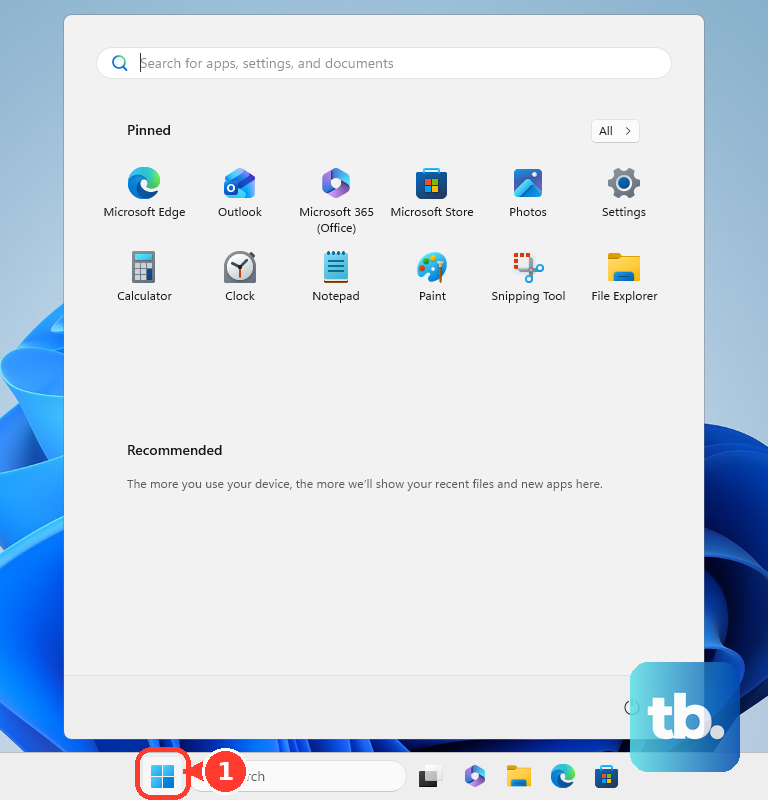
Control Panel works too. Go to Control Panel > System > Advanced system settings > Advanced > Environment Variables.... Clicking System may send you into Windows Settings first, and the spot where the Advanced system settings link appears can vary.
Whichever way you get in, pick the right scope. A user variable covers only your account, and a system variable covers all accounts. A temporary variable exists only in the window where you set it and the programs launched from it.
Create a permanent variable from Command Prompt
Open Command Prompt.
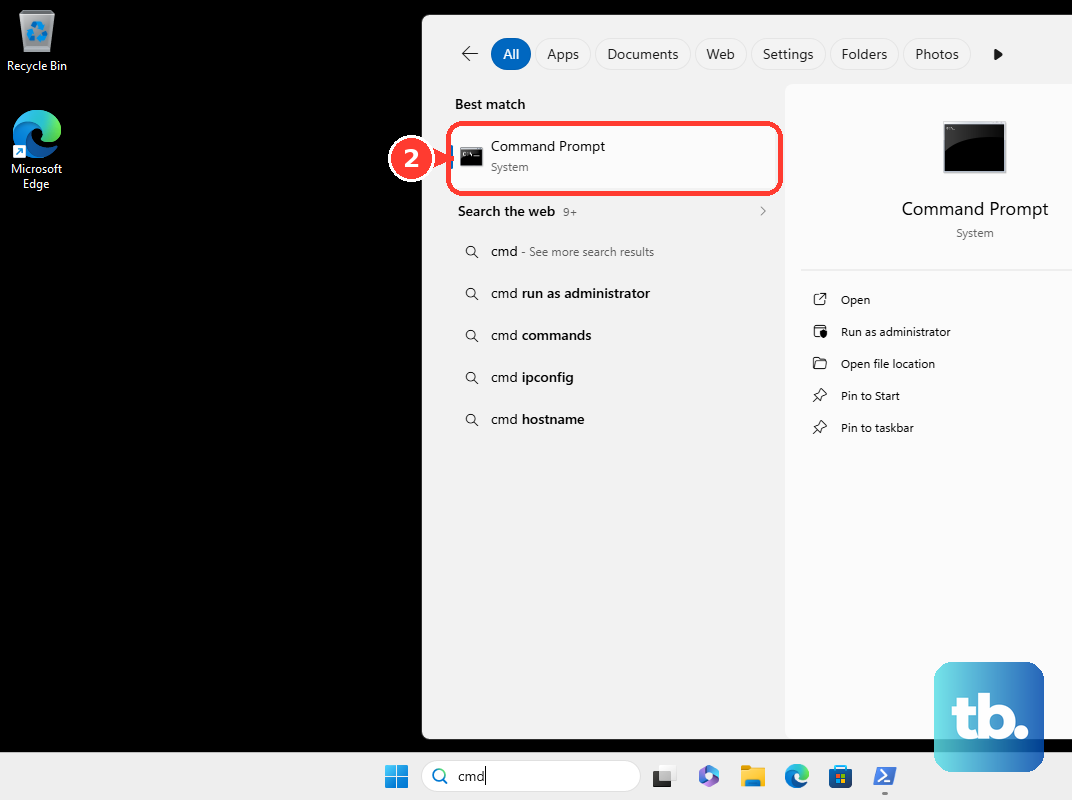
For a variable on your own account, run setx MY_VARIABLE "My value", swapping in your own name and value.
For a variable covering all accounts, open Command Prompt with Run as administrator and run setx MY_VARIABLE "My value" /M.
Open a brand-new Command Prompt window and run echo %MY_VARIABLE% to confirm it worked, since SETX doesn't update the window you ran it in.
Skip SETX for rewriting a long PATH, because its 1,024-character limit and the way it expands variable references can mangle the result.
Save a permanent variable with PowerShell
PowerShell writes permanent variables directly through .NET.
- 1.Open Windows PowerShell or PowerShell. For a system variable, run it as administrator.
- 2.Run [Environment]::SetEnvironmentVariable('MY_VARIABLE','My value','User') for your account, or replace 'User' with 'Machine' to cover all accounts.
- 3.Confirm it saved with [Environment]::GetEnvironmentVariable('MY_VARIABLE','User'), using the same scope you set.
- 4.Start a fresh copy of any app that needs the new value.
Set a temporary variable for one window
This creates a variable that lives only in the current window and the programs you launch from it, with no administrator rights needed.
In Command Prompt, run set "MY_VARIABLE=My value".
Check that it took with echo %MY_VARIABLE%.
Clear it when you're finished with set "MY_VARIABLE=".
In PowerShell, run $env:MY_VARIABLE = 'My value' instead.
Read it back with $env:MY_VARIABLE.
Remove it with Remove-Item Env:\MY_VARIABLE.
Manage variables visually with PowerToys
Install PowerToys, optional Microsoft software for Windows 11 or Windows 10 version 2004 or later on x64 or ARM64, by selecting Install PowerToys on Microsoft's official PowerToys page. It offers Microsoft Store and GitHub options.
Alternatively, run winget install --id Microsoft.PowerToys --source winget.
Open the Environment Variables utility in PowerToys.
Turn on Open as administrator if you plan to add a system variable.
Under Default variables, select Add variable in the User or System section.
Enter the variable's name and value.
For setups you switch on and off, select New profile to group user variables together; only one profile can be active, and turning a profile off restores any values it replaced.
Add a system variable in Registry Editor
Windows stores system variables in the registry, so you can create one there directly. Open Registry Editor as administrator and go to HKEY_LOCAL_MACHINE\SYSTEM\CurrentControlSet\Control\Session Manager\Environment.
Select Edit > New > String Value and name it. Double-click the new entry and type your value under Value data. Choose Expandable String Value instead if the value includes references like %SystemRoot%.
Sign out and back in when you're done so Windows picks up the change.
If the variable still doesn't show up, or you'd rather not edit the registry at all, create it with the built-in Environment Variables editor instead.
Limit a variable to one app
Sometimes a single program or terminal needs the variable, not the whole PC. None of these options create a Windows user or system variable, which keeps them contained.
A small batch file works for any app that inherits its launcher's environment. Create a .cmd file with set "MY_VARIABLE=My value" on the first line and the quoted path to the app's executable on the second. Run the file, or a shortcut to it, to launch the app with that variable.
In Windows Terminal, open Settings > Open JSON file and add "environment": { "MY_VARIABLE": "My value" } inside a profile under profiles.list. Put it under profiles.defaults to apply it to every profile. Save and open a new tab.
In VS Code, add "terminal.integrated.env.windows": { "MY_VARIABLE": "My value" } to settings.json, save, and open a new terminal. Use user or workspace settings depending on how far you want it to reach.
PowerShell 7.4 and later can launch one program with its own variable: Start-Process -FilePath 'C:\Path\App.exe' -Environment @{ MY_VARIABLE = 'My value' }. This doesn't work in the Windows PowerShell 5.1 built into Windows.
Fix a new variable your apps can't see
Many programs that were already open when you created the variable keep their old environment, so they may not see it until you reopen them.
Close and reopen the app, or open a new terminal window. After a direct registry edit, sign out and back in.
If the variable disappears when you close the window, you used a temporary method. Create it again with the built-in editor, SETX, or PowerShell's SetEnvironmentVariable to make it stick.
Older guides may point you to an Environment tab in Control Panel, to Dev Home, or to WMIC commands. That Environment tab path is outdated. Microsoft ended Dev Home support in May 2025, and starting in August 2026 WMIC is no longer included in Windows 11 versions 24H2 and 25H2. Use the built-in editor, PowerToys, or PowerShell instead.
On a work or school PC, your organization may restrict these changes, especially for system variables. Ask your IT team if you're blocked.
Frequently Asked Questions
How do I delete an environment variable I created?
In the built-in Environment Variables editor, select the variable and use Delete. PowerToys lets you remove it through the ••• menu next to it. For a temporary variable, run set "MY_VARIABLE=" in Command Prompt or Remove-Item Env:\MY_VARIABLE in PowerShell.
Do I need administrator rights to create an environment variable?
Not for a user variable or a temporary variable. Creating a system variable that applies to every account requires administrator permission.
What's the difference between a user variable and a system variable?
A user variable applies only to your Windows account. A system variable applies to every account on the PC. A temporary variable set in a Command Prompt or PowerShell window lasts only in that window and the programs launched from it.
Do these steps work on Windows 10?
Yes. The built-in editor, Command Prompt, and PowerShell methods work on Windows 10 as well as Windows 11. Windows 10 reached general end of support on October 14, 2025.