

To connect your iPhone to Delta inflight Wi-Fi, turn on Airplane Mode after the boarding door closes, enable Wi-Fi, select DeltaWiFi.com, and complete the onboard portal login. On Delta Sync-equipped flights, sign in with your SkyMiles account or enroll free to connect. Installing the Fly Delta app is optional for this browser connection process.
The short version
- Connect in Settings: Turn on Airplane Mode, enable Wi-Fi, and select DeltaWiFi.com after the boarding door closes.
- Open the portal: Enter
deltawifi.comin your browser if the login page does not open automatically. - Use SkyMiles: Sign in or enroll free for Wi-Fi on Delta Sync-equipped flights, regardless of your mobile carrier.
- Keep the app optional: Fly Delta can show your SkyMiles number, while the onboard portal handles the Wi-Fi login.
| Option | When it helps |
|---|---|
| iPhone Settings | Connecting to a Wi-Fi-equipped Delta flight |
| Control Center | Switching on Airplane Mode and Wi-Fi |
| Browser portal | The login page does not appear automatically |
| SkyMiles login | Getting free access on Delta Sync-equipped flights |
| Flight pass | Purchasing internet access where offered |
| Free messaging | Using messaging-only access on Wi-Fi Onboard aircraft |
| Fly Delta account lookup | Finding your SkyMiles number |
| Fly Delta download | Getting the optional iPhone app |
| Captive-network login | Reopening authentication through network details |
| Automatic connection controls | Managing reconnection and welcome-screen display |
| Connection without internet | Staying associated when the captive login offers that choice |
| Forget and reconnect | A saved network connection keeps failing |
| VPN connection order | Authenticating before starting your VPN |
| Private Relay controls | Exclusive offers or content fail after login |
| Network-specific Private Relay controls | Adjusting Private Relay for the aircraft network |
| VPN or security app removal | Interfering software causes persistent connectivity failures |
| iPhone restart | Wi-Fi is unresponsive or unavailable |
| Network settings reset | Simpler troubleshooting has not resolved persistent failures |
| Administrator assistance | A managed iPhone restricts which networks you can join |
Join the aircraft WiFi network
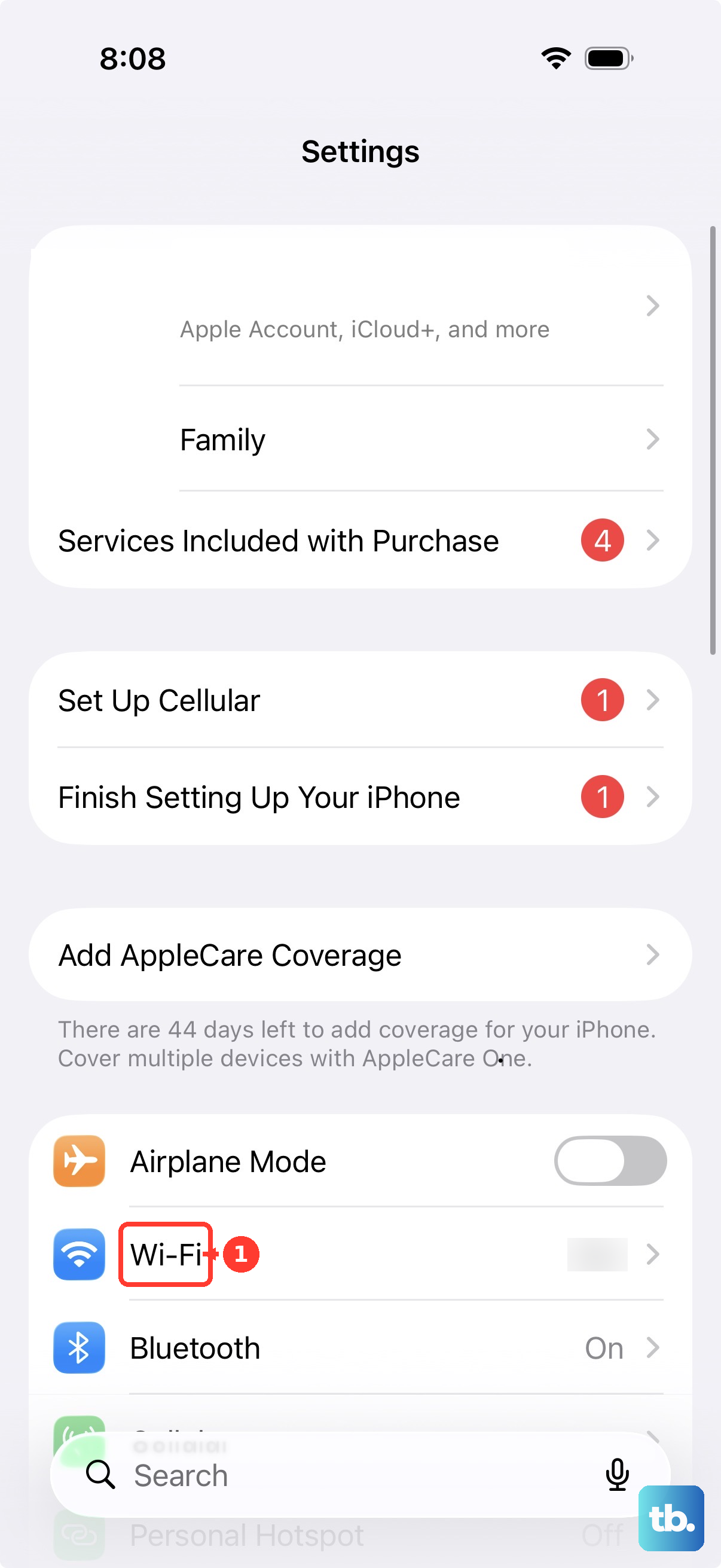
After the boarding door closes, open Settings and turn on Airplane Mode. Open Wi-Fi, turn on Wi-Fi, and select DeltaWiFi.com. These steps apply on Wi-Fi-equipped Delta flights.
Complete the login in the onboard portal that opens after you join. Joining the aircraft network does not by itself complete the authentication needed for internet access. If you use a VPN, authenticate to the onboard Wi-Fi before starting it.
Choose your onboard access
On a Delta Sync-equipped flight, sign in with SkyMiles or enroll free, then connect through the portal. You can use this access with any mobile carrier. Messaging is included with Delta Sync.
On paid-service aircraft, join the network and open its portal to purchase the offered flight pass. Delta Sync passes are also an option where offered. For messaging-only access on a Wi-Fi Onboard aircraft, choose the free messaging option in its portal.
Find your SkyMiles number in Fly Delta
If you already use Fly Delta and are signed in, open the app and select Account to find your SkyMiles number. On Delta Sync-equipped flights, use that account for authentication in the onboard portal. The app supports account lookup; your browser handles this Wi-Fi connection workflow.
To get the optional app, open Delta’s official Fly Delta download page and select Visit the App Store. Sign in only through Delta’s own app or website, and never share a code, password, or remote access with someone who contacts you.
Open the login page manually
If the login page does not open automatically, first make sure you have joined DeltaWiFi.com. Open Safari or another browser and enter deltawifi.com in the address bar. Complete the onboard authentication there.
You can also reopen the captive-network login from Settings > Wi-Fi. Tap the More Info button beside DeltaWiFi.com, then tap Join Network when that control is available. If it is absent, use the browser address above to open the portal.
Reconnect a saved network that keeps failing
For a saved connection that continues to fail, you can remove the network and reconnect. If your managed iPhone prohibits removal, use the browser portal to authenticate and contact your administrator about the restriction.
Forgetting the network removes its saved connection, and that removal can propagate through iCloud Keychain. Open Settings > Wi-Fi > Edit, then tap the More Info button beside DeltaWiFi.com. Tap Forget This Network, then tap Forget.
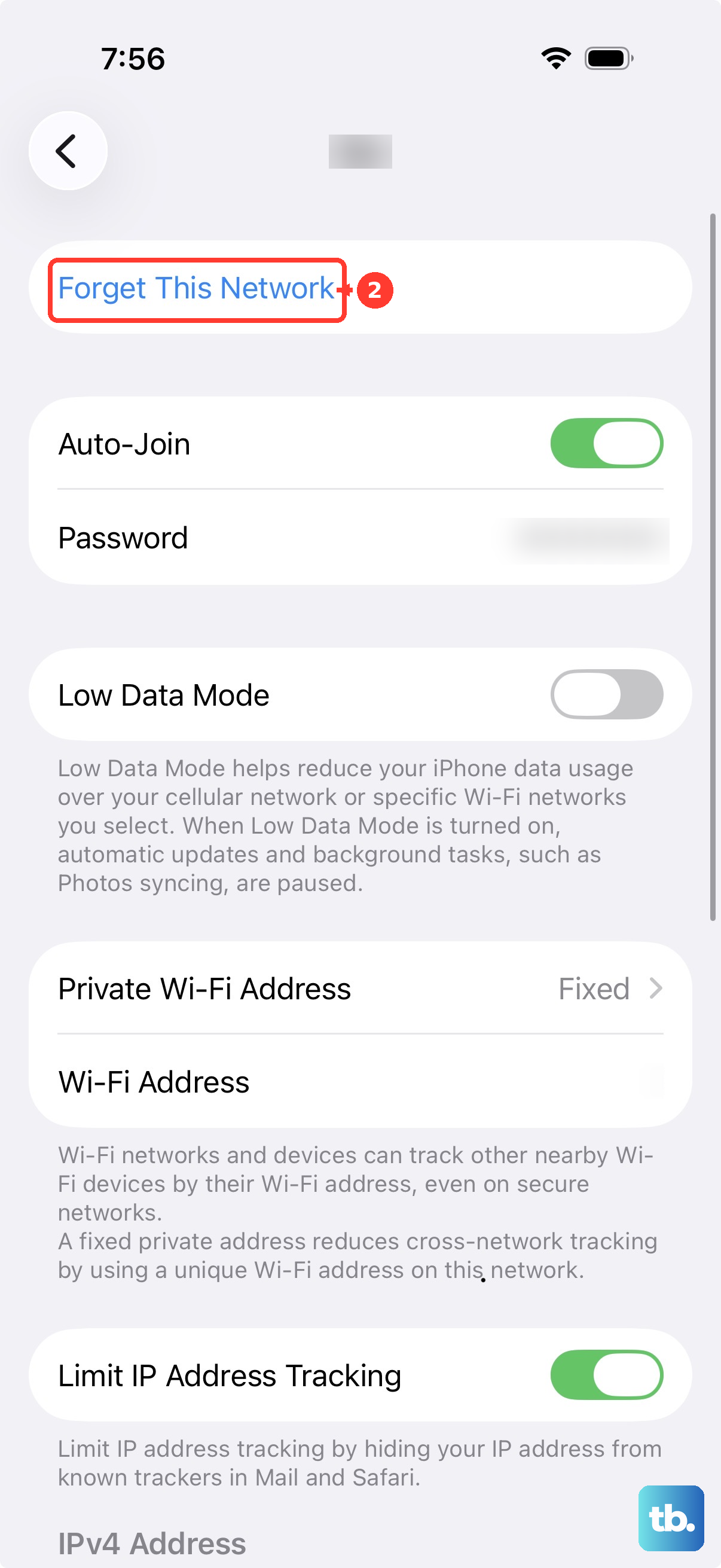
Return to the available networks and select DeltaWiFi.com again. Finish the portal login, entering deltawifi.com in your browser if the page does not open automatically.
Fix exclusive content that will not open
If you have iCloud+ and exclusive offers or content will not open after login, Delta recommends turning off Private Relay. This adjustment addresses access to that content after you have connected.
Open Settings, tap your name, then open iCloud > Private Relay. Tap Private Relay, then tap Turn Off Until Tomorrow for the temporary option. Alternatively, tap Turn Off Private Relay.
To disable Private Relay for the aircraft network instead, open Settings > Wi-Fi and tap the details button beside DeltaWiFi.com. Turn off Limit IP Address Tracking. This network-specific change affects that network across devices using the same Apple Account.
Restart if WiFi is unresponsive
If Wi-Fi itself is unresponsive or unavailable, restart your iPhone. On a Face ID model, hold either volume button and the side button until the power slider appears. Drag the slider and wait 30 seconds, then hold the side button until the Apple logo appears.
On an iPhone SE of the second or third generation, hold the side button alone to display the power slider. Drag it, wait 30 seconds, and hold the side button until the Apple logo appears. Reconnect through Settings > Wi-Fi and complete the onboard portal login.
Check interfering software and device restrictions
For persistent Wi-Fi failures caused by VPN or security software, Apple recommends uninstalling the interfering software, restarting, and trying the connection again. If the software is required on a managed iPhone, contact your administrator before removing it.
Deleting the VPN or security app removes that software from your iPhone. On the Home Screen, hold the app, tap Remove App, then tap Delete App. Tap Delete, restart using the buttons described above, and reconnect to check whether the Wi-Fi connection works.
On a supervised, Intune-managed iPhone running iOS 14.5 or later, ask IT to review Require devices to use Wi-Fi networks set up via configuration profiles if you cannot join the aircraft network. When that restriction is enforced, IT must provide an allowed Wi-Fi configuration or change the restriction. You still need to complete the onboard portal authentication afterward.
Reset network settings only as a last resort
Reserve a network settings reset for persistent iPhone networking failures after simpler troubleshooting. If you use a managed iPhone, consult IT first.
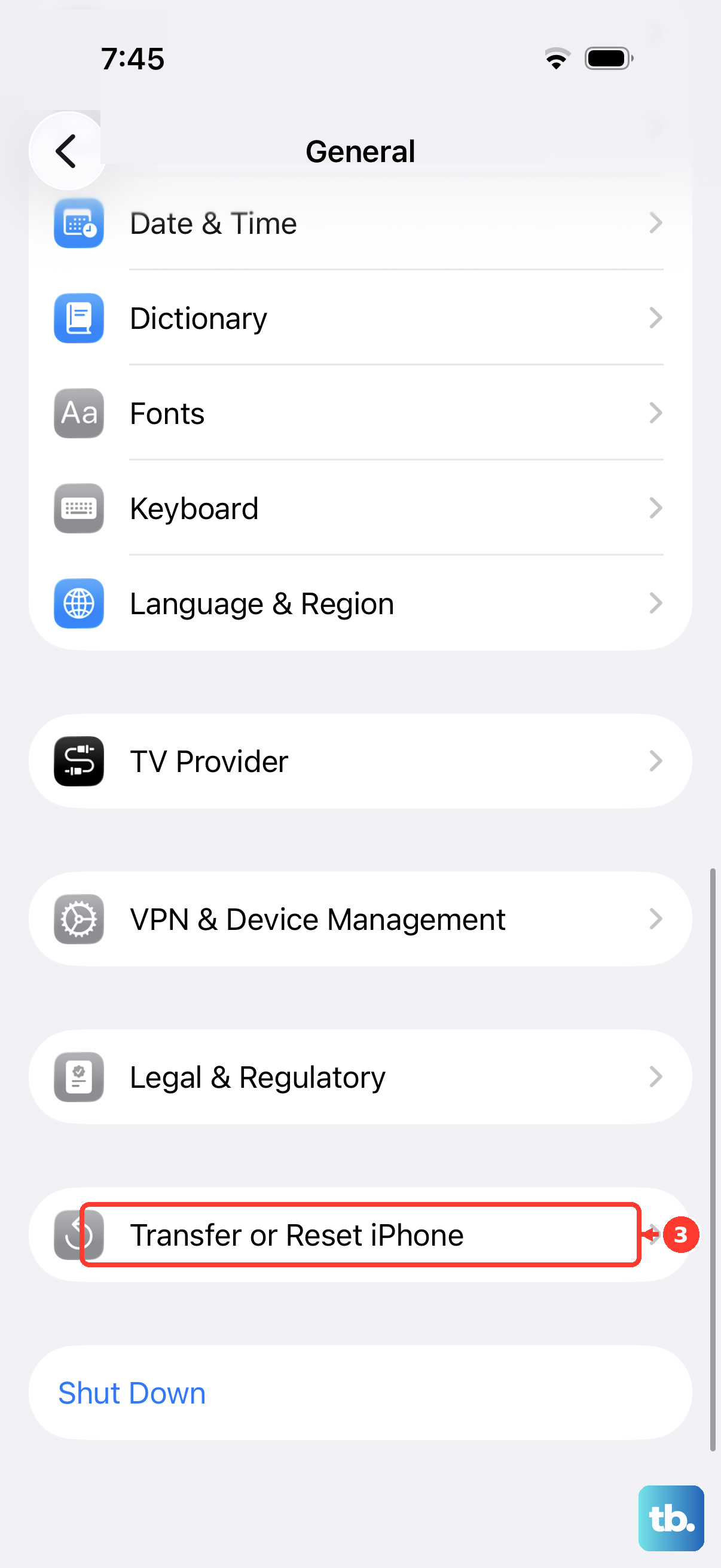
Resetting network settings removes saved Wi-Fi networks and passwords and resets cellular, VPN, and APN settings. To proceed, open Settings > General > Transfer or Reset iPhone > Reset > Reset Network Settings. Afterward, join DeltaWiFi.com again and complete the onboard authentication.
Frequently Asked Questions
How do you start the connection from Control Center?
Open Control Center, tap the Airplane Mode button, then enable Wi-Fi using its button. Continue through Settings > Wi-Fi to select DeltaWiFi.com and authenticate through the portal.
Can you make your iPhone reconnect automatically and show the login screen?
For a saved captive network, open Settings > Wi-Fi and tap More Info beside the network. Enable Auto-Join when available for automatic network association, which does not guarantee an authenticated internet session. Turn off Auto-Login when that control appears to show the welcome screen on the next connection.
What happens if you stay connected without completing the captive login?
After joining through More Info, if canceling the captive login presents network options, select Without Internet to remain associated with the network. This disables Auto-Login and does not grant internet access. Open the browser portal afterward to authenticate.
Should T-Mobile customers enter a phone number and one-time PIN?
Delta’s portal offers these options: on Delta Sync-equipped flights, sign in with SkyMiles, enroll free, or pay for a Wi-Fi Flight Pass; on Wi-Fi Onboard aircraft, purchase a flight pass or select free messaging.