Trying to connect your Xbox 360 to Wi-Fi without the dedicated wireless adapter? The answer depends on which console you own. Here are the equipment options and setup steps for sharing Wi-Fi through a computer or compatible networking device.
Check which Xbox 360 you have
The Xbox 360 S and Xbox 360 E have built-in Wi-Fi. The original Xbox 360 does not, so changing a console setting cannot add wireless hardware.
For an original console, “without an adapter” means avoiding the dedicated Xbox wireless adapter. You still need an Ethernet cable and a device that shares or bridges Wi-Fi, such as a computer, compatible extender, or router.
Already have a Linksys Intelligent Mesh node with a working wireless connection and an available Ethernet port? Connect the Xbox to that port. On the console, open Settings > System > Network Settings > Wired Network and select Test Xbox Live Connection.
Share a Windows PC's Wi-Fi connection
Connect a Windows 11 PC with an Ethernet port to your Wi-Fi network. Open Start.
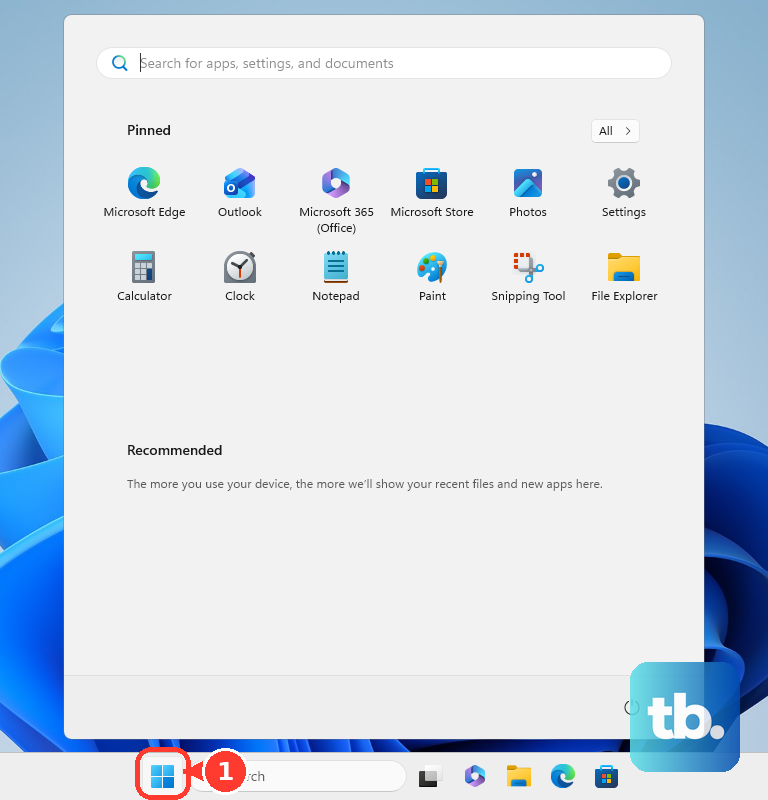
Search for ncpa.cpl. Press Enter to open the network connections window. Right-click the Wi-Fi connection that provides internet access. Select Properties.
Open the Sharing tab. Select Allow other network users to connect through this computer's Internet connection. Click OK. Wait for the connection to show Shared.
Connect an Ethernet cable between the PC and the Xbox 360. Keep the PC powered on and connected to Wi-Fi whenever the Xbox uses its shared connection.
Correct the Xbox's wired network settings
Incorrect wired network settings prevent the Xbox from using the shared connection. On the Xbox 360, open Settings > System > Network Settings.
Select Wired Network. Open Configure Network > Basic Settings. Set IP Settings to Automatic. Set DNS Settings to Automatic.
Return to the network screen. Select Test Xbox Live Connection.
Use these automatic settings for the Ethernet methods below, too. The Xbox's connection to the intermediary is wired; the intermediary supplies the Wi-Fi link.
Use a Mac to share Wi-Fi through Ethernet
A Mac's Internet Sharing feature supplies Wi-Fi internet access through Ethernet to any Xbox 360 model. These steps use macOS Tahoe 26; a Mac without an Ethernet port needs an Ethernet adapter.
Connect the Mac to Wi-Fi. Connect an Ethernet cable between the Mac's Ethernet interface and the Xbox. Open the Apple menu > System Settings > General > Sharing. Turn on Internet Sharing.
Click Configure. Set Share your connection from to Wi-Fi. Under To devices using, enable the Ethernet interface connected to the console. Click Done.
On the Xbox, open Settings > System > Network Settings > Wired Network > Configure Network > Basic Settings. Set IP Settings to Automatic. Set DNS Settings to Automatic. Keep the Mac awake while the Xbox uses its connection.
Connect through an Ethernet-equipped extender
A compatible range extender handles the wireless connection without a computer running. These steps apply to the TP-Link RE615X and a router with a WPS button.
Power the extender near your router. Press the router's WPS button. Within two minutes, press the extender's WPS button for one second. Wait for the LEDs to indicate a successful connection.
Reposition the extender within the router's wireless range. Connect the Xbox to the extender's Ethernet port.
If WPS setup fails, join TP-Link_Extender from a computer to use browser setup. Open tplinkrepeater.net or 192.168.0.254 in the browser. Create the extender's login password. Follow Quick Setup to connect the extender to your home router.
Connect the Xbox to the extender's Ethernet port. If the extender method fails, try Windows or Mac connection sharing with the Xbox's IP Settings and DNS Settings set to Automatic.
Turn a compatible travel router into a wireless bridge
Client mode supplies a Wi-Fi-to-Ethernet connection for the Xbox. On a TP-Link TL-WR1502X, set the physical Mode Switch to AP/RE.
Power the travel router near your main wireless access point. Connect a computer to the travel router's WAN or LAN port with an Ethernet cable. Open tplinkwifi.net or 192.168.0.1 in a browser. Create a login password.
Select your time zone. Click NEXT. Select Exit Setup, then click EXIT in the dialog. Open Advanced > System > Operation Mode.
Select AP/RE/Client Mode. Click SAVE, then confirm the reboot. Reconnect the computer to the travel router’s LAN port. Select your time zone again.
Set the network mode to Client. Click NEXT. Choose your home Wi-Fi network.
Enter its Wi-Fi password. Complete the setup prompts. Connect the Xbox to the travel router by Ethernet.
On the console, open Settings > System > Network Settings. Select Wired Network. Run Test Xbox Live Connection.
Frequently Asked Questions
Can I use a phone hotspot with an original Xbox 360?
Yes, through an Ethernet-connected intermediary that connects to the hotspot. The original Xbox 360 lacks built-in Wi-Fi. Xbox 360 S and E models support direct wireless connections, subject to hotspot compatibility. An iPhone Personal Hotspot shares cellular data; Wi-Fi sharing on Samsung Galaxy phones depends on the model, carrier, and software.
Does the Xbox controller's pairing button connect the console to Wi-Fi?
No. The controller's pairing button does not perform router or extender WPS setup and cannot supply missing Wi-Fi hardware.
Will any spare router work as a wireless bridge?
No. The router must explicitly support wireless Client or Media bridge operation. Ordinary access-point mode does not provide the wireless upstream connection needed here.
Does passing the connection test mean every Xbox 360 game will work online?
No. Joining a network, reaching the internet, and reaching Xbox services are separate parts of connectivity. A working network connection does not establish that an individual game's online service remains available.