Connect your PS5 controller to your PC with a USB data cable plugged into the controller's USB Type-C port, or hold Create and PS until the light bar blinks, then pair it through Windows Bluetooth. USB is the best starting point if you want a wired connection. After connecting, check that your game supports the controller.
The short version
- Use a USB data cable with a Type-C connector for wired play.
- For Bluetooth, unplug USB and hold Create and PS until the light bar blinks.
- Check Steam settings for controller support if a game ignores your inputs.
- Use PlayStation Accessories to update firmware and customize DualSense Edge profiles.
- For PS Remote Play on Windows, connect the controller by USB.
| Method | What it does | Time | Use it when |
|---|---|---|---|
| USB connection | Connects by cable | Under a minute | You want wired play |
| Bluetooth pairing | Connects wirelessly | A few minutes | You want cable-free play |
| Steam settings | Configures game input | A few minutes | A game ignores inputs |
| Firmware update | Updates controller software | About 10 minutes | New firmware is available |
| Edge profiles | Saves custom controls | A few minutes | You use a DualSense Edge |
| Remote Play | Streams your PS5 to PC | About 15 minutes | You want console games on PC |
| Device slots | Switches paired devices | A few minutes | You alternate PC and console |
| Bluetooth repair | Fixes discovery or pairing | A few minutes | Windows cannot connect |
Connect with a USB cable
Insert a USB data cable into the controller's USB Type-C port, then connect the other end to a compatible USB port on your PC. This is a direct connection, so you can skip the Bluetooth pairing steps below. If the controller only charges, try another data cable marked charge and sync or charging and data.
DualSense supports Windows 11 and Windows 10 in its 64-bit version, with compatible games and applications. Connecting the controller does not guarantee that every game supports it. If one game ignores your inputs, check its controller support before changing Windows settings.
Choose USB when you want haptic feedback in supported PC games or want to use the controller's headset jack. Adaptive triggers also depend on game support, so the cable alone does not enable every feature. Keep the connection method and the game's supported features in mind when comparing wired and wireless play.
Pair through Bluetooth in Windows
Prepare the controller
Disconnect the USB cable and make sure the player indicator is off. If it is lit, hold PS until it turns off. Hold Create, then hold PS as well until the light bar blinks.
Pair in Windows 11
On Windows 11, open Start > Settings > Bluetooth & devices and turn Bluetooth on. Select the Network, Sound or Battery icon beside the clock to open quick settings. Select the Manage Bluetooth devices chevron beside Bluetooth, choose your controller under New devices and select Done if prompted.
Pair in Windows 10
On Windows 10, use Start > Settings > Devices > Bluetooth & other devices. Select Add Bluetooth or other device, choose Bluetooth, then select your controller and finish with Done. Use the same controller button combination before opening either Windows pairing screen.
Your PC needs built-in Bluetooth or a USB Bluetooth adapter for wireless pairing. If Windows does not show the controller, follow the discovery and repair steps below. You can use USB in the meantime instead of waiting for the wireless connection to work.
Make Steam recognize the controller
Check detection and configuration support
Connect the controller through USB or Bluetooth before opening Steam. In the desktop client, select Steam > Settings > Controller and check that the controller appears. If PlayStation controller configuration support or Steam Input support is disabled, enable the relevant support option before configuring the game. This separates a connection problem from a game that needs a different controller configuration.
Configure a Steam game
Open the game in your Library and select the controller configuration button beside the settings button on its play bar. Use that screen to configure the game's controller layout. Check the game's controller compatibility information there before changing your bindings.
Valve also retains older instructions using Edit Steam Controller Configuration in the Library context menu. Its older Big Picture route is Manage Game > Controller Configuration. Use those paths if your older client shows those labels.
Steam Input can map controller buttons to keyboard, mouse or gamepad input, including XInput. That provides an option for games that expect Xbox style input. Choose bindings appropriate to the game rather than assuming a successful Bluetooth pairing is all the setup it needs.
Add a game installed outside Steam
For a game installed outside Steam, select Add a Game at the bottom left of the Steam client, then Add a Non-Steam Game and follow the prompts. Launch the added game from your Steam Library. This gives you a route to try Steam's controller configuration without promising that every game will work.
Before buying or troubleshooting a title, open its Steam store page and check Controller Support on the right. Support differs by game, and a controller support label does not promise every DualSense feature. If the connection works but the sticks need attention, see how to calibrate a PS5 controller for the relevant controller checks.
Update firmware with PlayStation Accessories
Open the PlayStation Accessories download page and select Download for Windows. Install the app and connect your DualSense or DualSense Edge through USB or Bluetooth. Follow the installer prompts before opening the app.
Check Firmware for your controller on the controller screen. It shows the installed version, and Update appears when new firmware is available. Select it and keep your PC on and the controller connected until the update finishes.
You can also look under Connected controllers to confirm the app sees your controller. Update firmware before setting up the multiple-device slots described below. If a game behaves incorrectly while PlayStation Accessories is open, close the app and reconnect the controller before trying the game again.
Create profiles for DualSense Edge
DualSense Edge uses the same USB and Bluetooth connection choices, with additional customization in PlayStation Accessories. You can change button assignments, stick sensitivity and deadzones. These profile controls apply to Edge, while the standard DualSense gets firmware updates through the app.
Connect the Edge controller and open PlayStation Accessories. Select Create Profile or an entry marked Not assigned, enter a profile name and select Next. Choose a shortcut and select Create Profile to start customizing.
Select Apply after changing each item, because returning to the previous screen without applying it does not save the change. Select Done when finished. During play, hold Fn and press Triangle, Circle, Cross or Square to switch to the corresponding profile.
Use USB for PS Remote Play
Remote Play is the option for controlling your PS5 from a Windows PC. Download and install PS Remote Play, then connect the controller to your PC with USB. Use the same PlayStation account on the app and console.
Prepare your PS5 console
On PS5, open Settings > System > Remote Play and turn on Enable Remote Play. For rest mode access, open Settings > System > Power Saving > Features Available in Rest Mode. Turn on Stay Connected to the Internet and Enable Turning on PS5 from Network.
Connect from your PC
Turn the console on or put it into rest mode, then launch PS Remote Play on your PC. Select Sign In, sign in with your console account and select PS5. For the wider setup, follow how to set up PS Remote Play before troubleshooting the controller.
Pair the console manually
If the app cannot find your console automatically, connect both devices to the same network. On PS5, open Settings > System > Remote Play > Pair Device. Enter the number shown on the console screen in the PC app to register it manually.
Switch between your PC and PS5
With current firmware, DualSense and DualSense Edge can retain pairings for up to four devices. Update the controller first, unplug USB and turn the controller off before assigning a slot. Keep device slots separate from Edge profiles, which change controls rather than the connected device.
Hold PS with Triangle for slot one, Circle for slot two, Cross for slot three or Square for slot four. Hold both buttons for over five seconds to enter pairing mode for that slot. Then use Windows Bluetooth pairing to select the controller.
To return to a saved PC connection, turn on the PC and hold PS with its assigned action button for about three seconds. Release both when the light bar and player indicator blink. Pressing PS alone while the controller is off connects to the last connected device.
To reconnect to PS5 by cable, connect the controller to the console and press PS. You can then unplug a standard DualSense and use it wirelessly. With DualSense Edge, wait for the PS5 account selection screen before removing the cable.
Fix Bluetooth discovery and connection problems
Find a missing controller
If Windows 11 cannot find the controller, open Start > Settings > Bluetooth & devices > Devices. Under Device settings > Bluetooth devices discovery, select Advanced. Put the controller back into pairing mode and check the device list again.
Remove the old pairing and pair again
For a controller already listed but refusing to connect, use Settings > Bluetooth & devices, open its More options menu and choose Remove device. Pair it again using the button combination above. On Windows 10, remove it from Devices > Bluetooth & other devices, then add it again.
Use the troubleshooter and repair drivers
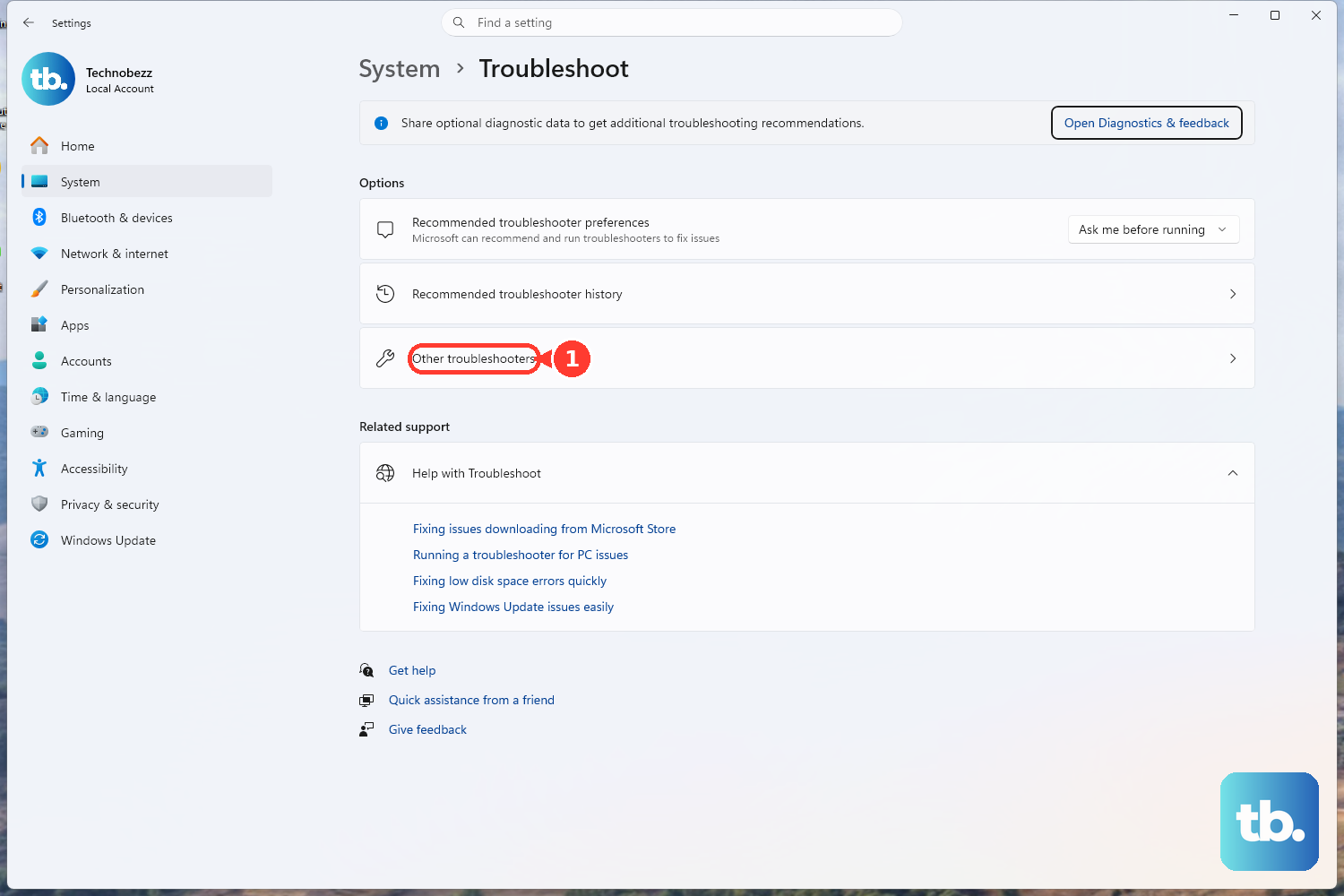
Open Get Help, search for Bluetooth troubleshooter and follow the repair prompts. Microsoft also documents the Windows 11 route through Settings > System > Troubleshoot > Other troubleshooters, where you select Run beside Bluetooth. Use the available route on your PC and follow its prompts.
If Bluetooth still fails, open Device Manager, expand Bluetooth and right-click your Bluetooth adapter. Select Update driver and choose Search automatically for updated driver software. Follow the prompts and restart if requested, then try pairing again.
Frequently Asked Questions
Does PlayStation Plus on PC support a DualSense controller directly?
Sony lists DUALSHOCK 4 for the PlayStation Plus PC app and says some third-party XInput controllers may work without guaranteed compatibility. It does not list DualSense, so do not assume Remote Play compatibility also applies to that app.
What Bluetooth PIN should I use if Windows asks for one?
Sony's DualSense pairing instructions do not specify a PIN. If a previously paired controller will not reconnect, remove its Windows Bluetooth entry and pair it again using Create and PS rather than relying on a guessed code.
Can the old DUALSHOCK 4 USB Wireless Adaptor connect a PS5 controller to PC?
Sony documents that adapter for DUALSHOCK 4, while its DualSense PC instructions offer USB Type-C and Bluetooth. Use one of those DualSense connection methods instead of treating the older adapter as a supported PS5 controller option.
Do I need an extra app just to connect the controller?
Sony documents direct USB and Bluetooth connections for compatible games and applications. Start with those connections, then use Steam for controller configuration or PlayStation Accessories for firmware updates when you need those functions.
Why are haptic feedback or headset audio missing over Bluetooth?
DualSense haptic feedback requires USB on PC and a game that supports it. The headset jack also requires a wired PC connection, so switch to USB before troubleshooting those particular features.
Can I customize a regular DualSense in PlayStation Accessories?
The app supports firmware updates for both DualSense and DualSense Edge. Its controller customization features are for DualSense Edge, so use the Edge profile steps only if that is the controller you own.