


To connect a managed Mac running macOS 27 or later to Wi-Fi before login, ask your administrator to enable Enable WiFi network selection for login and unlock, then select a network at the login screen. Your other options depend on your organization’s configuration and whether you need a connection at the normal login window, FileVault unlock, or in Recovery.
The short version
- Prepare ahead: Join your network while signed in and enable Automatically join this network.
- Know the limit: Native network selection at login on managed Macs running macOS 27 or later requires your administrator to enable the policy.
- Apple silicon: Hold the power button from shutdown, then select Options and Continue to enter Recovery and connect there.
- Intel: Restart and immediately hold Command + R to enter local Recovery, whose connection is separate from the ordinary login window.
| Option | When it applies | Main requirement or limit |
|---|---|---|
| Native network selection | Managed Macs running macOS 27 or later | Your administrator enables selection at login or unlock |
| Native captive portal access | Managed Macs running macOS 27 or later | Your administrator enables portal access separately |
| Platform SSO at FileVault unlock | macOS 27 Macs with compatible managed Platform SSO | Some sign-in features need the identity provider reachable before disk unlock |
| Login Window Mode | Macs configured through MDM for 802.1X authentication | Requires IT account setup, such as directory binding, and a network profile |
| Login window after FileVault unlock | FileVault Macs configured for Login Window Mode | Changes the automatic sign-in handoff after disk unlock |
| System Mode | Managed Macs on compatible 802.1X networks | IT configures device authentication before user login |
| Jamf Connect network selection | Macs with a supported Jamf Connect login-window deployment | The administrator enables the selector; captive portals cannot connect before login |
| Automatic joining | You can sign in and prepare a known network | Connection at every login screen is not guaranteed |
| Apple silicon Recovery | You need internet access in Recovery on Apple silicon | Connects Recovery and may require administrator authentication |
| Intel Recovery | You need internet access in Recovery on a supported Intel Mac | Uses Intel startup shortcuts and connects Recovery |
Enable network selection at login
On a managed Mac running macOS 27 or later, ask your administrator to enable Enable WiFi network selection for login and unlock. The administrator deploys the com.apple.loginwindow payload with ForceWifiConfigurationOnLockScreen set to true. You can then select a Wi-Fi network at login or unlock.
If your network requires a captive portal, ask your administrator to enable Enable captive WiFi portal for login and unlock as well. This uses the same payload with ForceCaptivePortalConnectionFromLockScreen set to true. Complete the network provider’s portal when it appears; its buttons, terms, and confirmation wording vary by provider.
Connect at FileVault unlock
If your organization uses Platform SSO on macOS 27 with a compatible identity-provider extension and device-management service, ask its administrator to enable network selection and any needed captive-portal authentication. Apple supports these controls at FileVault unlock, the Lock Screen, and the login window in that configuration.
If your organization uses Platform SSO web-based authentication, Authenticated Guest Mode, or login policies, your identity provider must be reachable before FileVault unlock without a VPN, network relay, or 802.1X authentication. If your organization’s sign-in depends on one of those services, have its administrator address that requirement before relying on the FileVault connection.
Sign in through enterprise WiFi
For a Mac configured through MDM for 802.1X Login Window Mode, IT must first complete the account setup Apple requires for this mode, such as Active Directory binding, and install a network profile that enables the mode. At the login window, select Other, enter your user name and password, select the network interface from the pop-up menu, then click Login. This procedure applies to your organization’s configured network, rather than a home-router setting.
On a FileVault-enabled Mac configured for Login Window Mode, you can change the automatic sign-in handoff so the normal login window appears after disk unlock. During an existing administrator session, run the following command in Terminal:
sudo defaults write /Library/Preferences/com.apple.loginwindow DisableFDEAutoLogin -bool YESOn subsequent startup, unlock FileVault, then authenticate at the normal login window using the configured Login Window Mode. This change does not disable encryption or connect Wi-Fi before disk unlock.
Connect enterprise WiFi automatically
For automatic enterprise Wi-Fi access before user login, ask IT to configure a Network payload for the desired network and deploy System Mode to your device or device group. This normally uses a computer certificate with EAP-TLS. It applies to managed Macs on compatible 802.1X networks.
These are normal macOS authentication modes before login, so they do not guarantee 802.1X access in FileVault’s preboot environment. Your administrator configures them through device management; a consumer login-screen toggle cannot configure these modes.
Select a network in Jamf Connect
If your Mac already uses a supported Jamf Connect login-window deployment, ask your administrator to enable Allow Network Selection. The administrator sets AllowNetworkSelection to true in com.jamf.connect.login. At the Jamf Connect login window, click the Wi-Fi icon in the top-right corner and select an available network.
Jamf says its login-window flow cannot connect to captive-portal networks before login. If your network requires a portal, ask your administrator about Apple’s separate macOS 27 captive-portal policy for managed Macs.
Prepare your network to join automatically
While signed in, open the Apple menu > System Settings > Wi-Fi, then connect to the network you want your Mac to use. Click Details for that network and turn on Automatically join this network. These steps use the macOS 27 Wi-Fi settings.
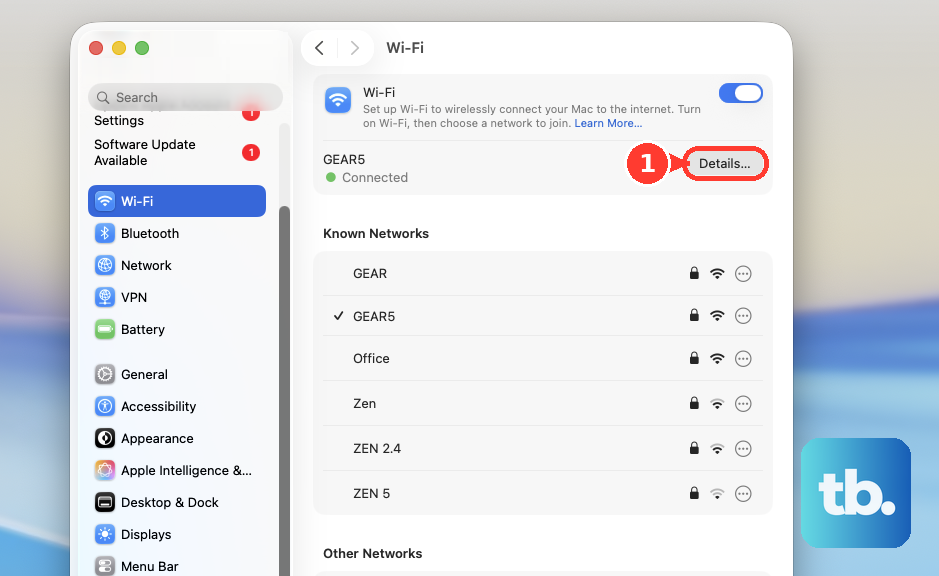
Automatic joining lets your Mac join that known network when it is available. Treat it as advance preparation, because it does not guarantee a connection at every login or FileVault unlock screen.
Open Recovery on an Apple silicon Mac
Shut down your Mac, then hold the power button until startup options appear. Click Options, then Continue. Complete any requested volume selection or administrator authentication to enter Recovery.
Open the Wi-Fi menu in the upper-right corner and choose Turn Wi-Fi On if necessary. Choose your network, then enter its password when requested. For a hidden network, choose Join Other Network, enter the network name, and enter a password if requested.
This connects Recovery, not the normal login window. Captive-portal and enterprise networks may not work in Recovery on Apple silicon, so use your organization’s applicable login-screen method if that is where you need access.
Open Recovery on an Intel Mac
Restart your Intel Mac and immediately hold Command + R for local Recovery. For Internet Recovery on a supported Intel Mac, restart and immediately hold Option + Command + R instead. Complete any authentication requested during startup.
Once Recovery opens, open the Wi-Fi menu in the upper-right corner and choose Turn Wi-Fi On if needed. Choose a network and enter its password if requested. For a hidden network, choose Join Other Network, enter the network name, and enter a password if requested.
These shortcuts apply to Intel Macs with the corresponding Recovery support. They connect you within Recovery and do not enable Wi-Fi selection in the ordinary login window.
Frequently Asked Questions
Can you manually install a profile to enable Apple’s native login-screen network controls?
The two macOS 27 policies for network selection and captive-portal access do not support manual profile installation. Both default to false, so your administrator must enable them through device management.
How do the combined enterprise authentication modes work?
System+User Mode adds user authentication after login. System+Login Window Mode changes from device authentication to user authentication at login. Your administrator configures these modes for a managed Mac on a compatible 802.1X network.
How do you use Intel Recovery to reinstall your Mac’s original macOS?
On an Intel Mac with the corresponding Recovery support, restart and immediately hold Option + Shift + Command + R. This starts macOS Recovery over the internet so you can reinstall the version of macOS that came with your Mac or the closest version that’s still available.
Can you enable automatic joining from the Known Networks list?
Yes, in the macOS 27 Wi-Fi settings, find the network under Known Networks, click its More button, and choose Auto-Join. This is an alternative to enabling Automatically join this network through Details.