System Data can make your iPhone storage look full after you have already removed photos, apps, and downloads. On iPhone, Apple groups this storage under Other, covering non-removable assets such as Siri voices, fonts, dictionaries, logs and caches, the Spotlight index, and system data such as Keychain and CloudKit, plus a separate System category for the operating system itself. (“System Data” is the label Apple uses for the equivalent catch-all on Mac.) Whichever name your phone shows you, there is no one-tap Clear System Data button, so the fix is to clear the storage areas iOS actually lets you manage.
Start with the built-in storage screen, then move through apps, browsers, files, messages, and synced media. Save erase options for the end because they remove far more than temporary storage.
Check what iPhone Storage wants removed
Use this first when you want the safest look at what is filling the phone. iOS automatically removes cached and temporary files when it needs space, so the useful move is to free storage around System Data instead of trying to delete that category directly.
Open Settings, tap General, then tap iPhone Storage. The screen shows storage recommendations and a list of apps with the space each one uses.
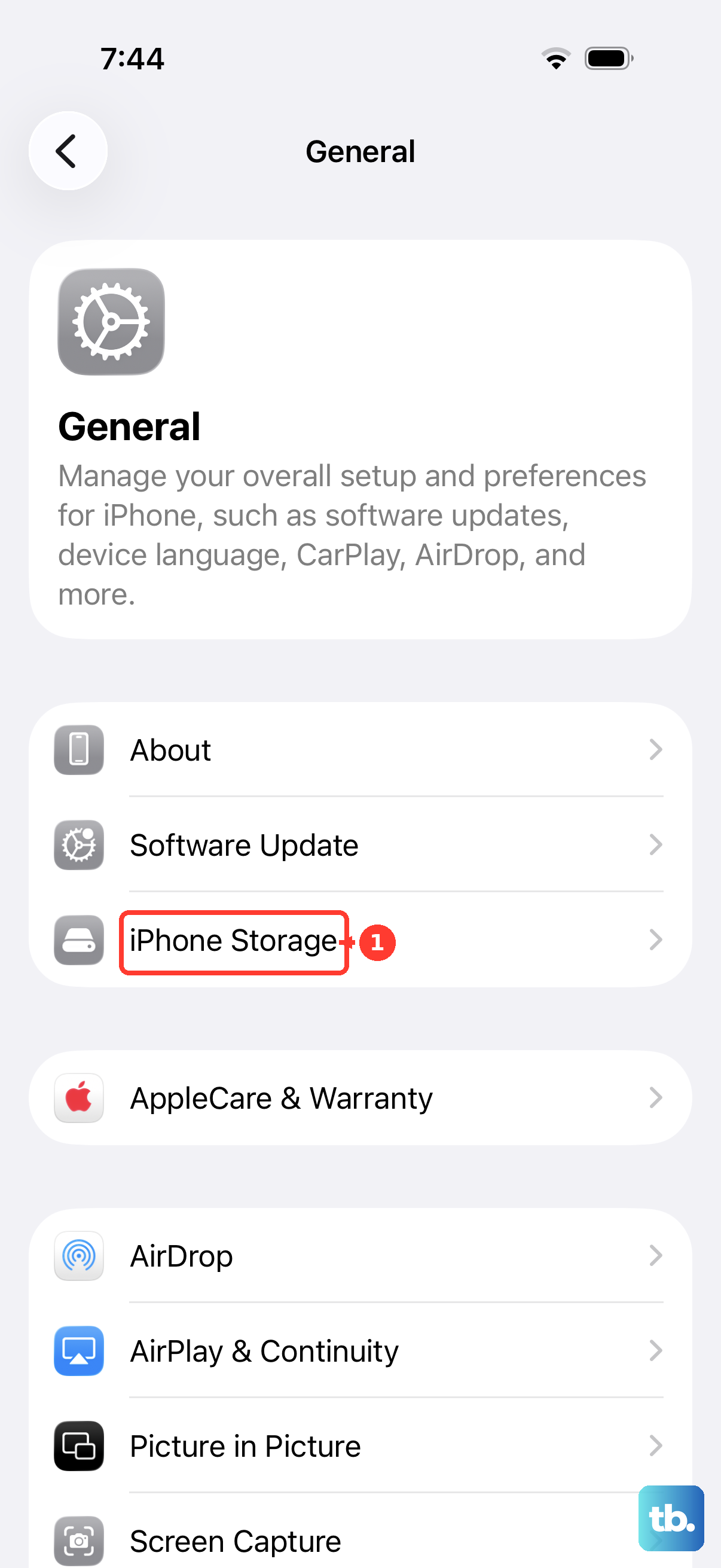
Read the categories and recommendations on the screen. Use the recommendations that match what you are ready to remove, or remove content manually from the apps taking the most space.
Skip any cleanup advice that tells you to erase System Data, erase Other, or use Reset All Settings as a storage shortcut. Apple does not provide a direct delete control for Other or System, and Reset All Settings does not delete data or media.
Use iPhone Storage recommendations
Storage recommendations are the fastest practical cleanup because iOS points to items that are ready for review. Open Settings, tap General, then tap iPhone Storage.
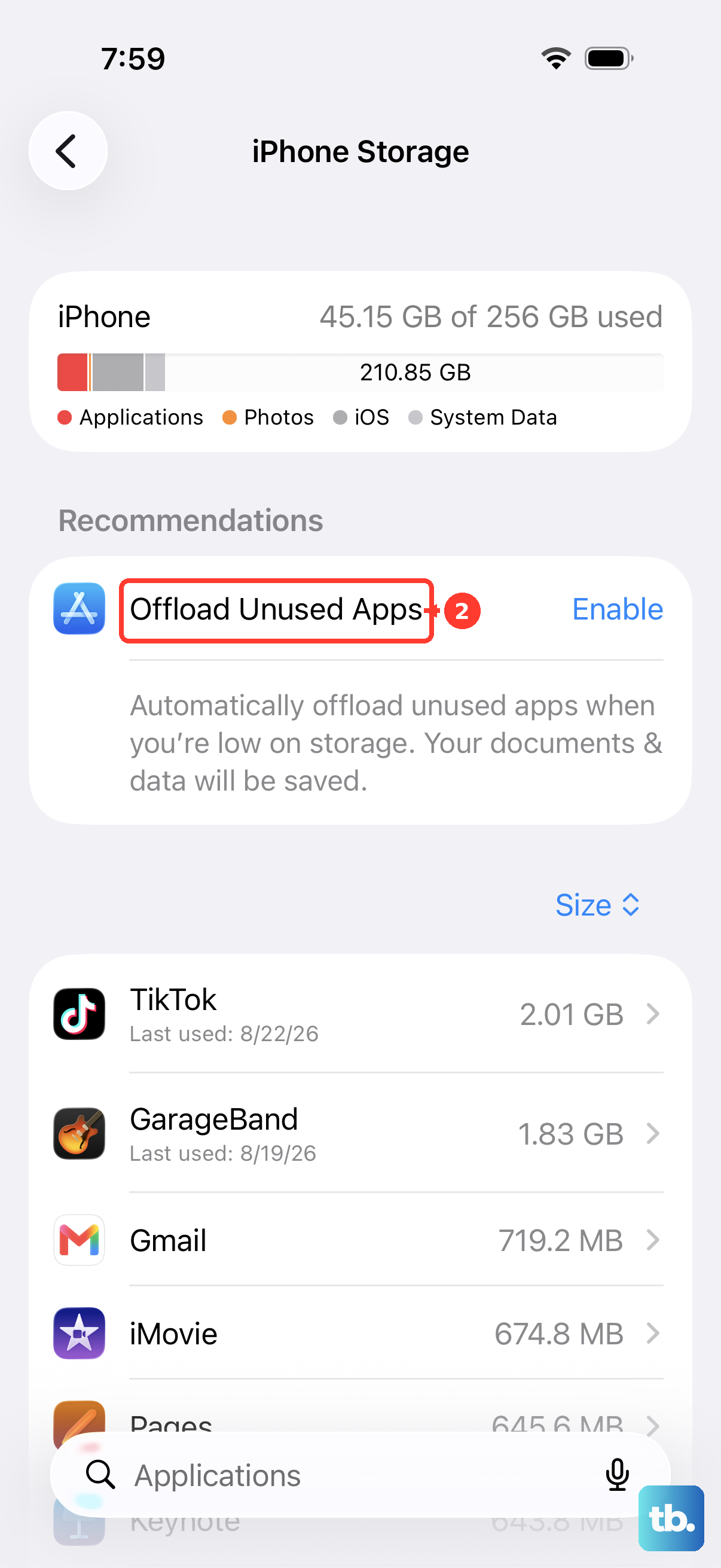
Tap Show All when it appears. Read each recommendation, then tap Enable for an automatic cleanup option or tap a recommendation to review content before deleting it.
When recommendations do not free enough space, go back to iPhone Storage and work through the largest apps one by one.
Offload apps without losing documents
Offloading fits large apps you barely use but still want to reinstall with their documents intact. Open Settings, tap General, tap iPhone Storage, then choose the app.
Tap Offload App. iPhone removes the app and keeps its documents and data.
For automatic cleanup later, open Settings, tap Apps, tap App Store, then turn on Offload Unused Apps. iPhone removes unused apps when storage is low while keeping their documents and data.
Delete apps and app data you do not need
Use deletion when an app’s stored data is the space problem.
Open Settings, tap General, then tap iPhone Storage.
Tap the app you want to remove.
Tap Delete App to delete the app and its related data.
For apps that show deletable documents or data, stay on that app’s iPhone Storage page and delete the listed items you no longer need.
From the Home Screen, touch and hold the app, tap Remove App, tap Delete App, then tap Delete to confirm. From App Library, touch and hold the app, tap Delete App, then tap Delete. In iOS 27, tap Remove App first, then Delete App.
After removing an app or its data, return to Settings > General > iPhone Storage to review storage usage.
Clear Safari website data
Use these Safari controls when website cache, cookies, and browsing data are taking space.
Open Settings, tap Apps, then tap Safari.
Tap Clear History and Website Data.
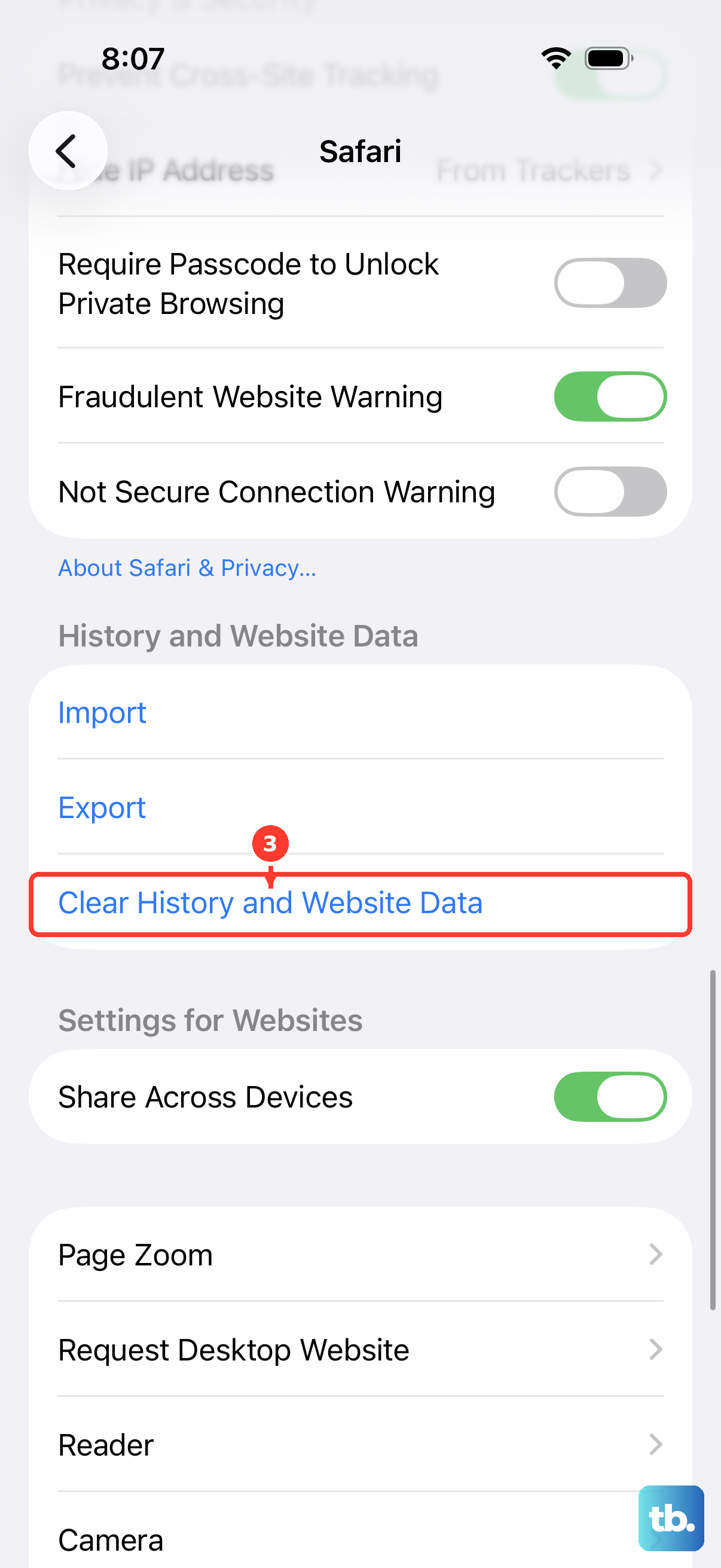
Choose the timeframe to clear, then tap Clear History.
To keep history while removing website data, open Settings > Apps > Safari > Advanced > Website Data.
Tap Remove All Website Data, then tap Remove Now.
Clean up Chrome or Firefox browsing data
Open Chrome when Chrome is where you browse most.
Tap More, then tap Delete Browsing Data.
Set Time Range, open Browsing Data, and select the data types to remove, including cache or cookies.
Tap Confirm, then tap Delete Browsing Data.
In Firefox, tap the menu button, open Settings, tap Data Management under Privacy, then tap Clear Private Data at the bottom of the list.
Keep website passwords ready: clearing cookies signs you out of websites and can remove saved site preferences.
Remove downloaded files and message attachments
This applies when storage is being squeezed by downloads, saved files, long message threads, or large attachments. Those items sit outside the direct System Data control, but removing them gives iOS more room to manage temporary storage automatically.
Open Files, tap Browse, then choose a location under Locations. Tap the More button, tap Select, select files you do not need, then tap the Delete button.
For one file, touch and hold it in Files, then tap Delete. When the file is in iCloud Drive, deleting it removes it from iCloud Drive across your devices.
To keep iCloud Drive files in iCloud but remove local downloaded copies, open Files, tap Browse, open iCloud Drive, select downloaded files, tap the More button, then tap Remove Download. For one file, touch and hold it, then tap Remove Download.
If Messages in iCloud is enabled, deleting a message or conversation also deletes it from your other devices using Messages in iCloud.
For Messages, open Messages, open a conversation, touch and hold a message bubble or attachment, tap More, select messages or attachments, then tap the Delete button.
Deleting conversations from Recently Deleted is permanent and cannot be undone. To clear deleted conversations before the 30-day retention period ends, open Messages, tap the Filter button, tap Recently Deleted, select conversations, tap the Delete button, then tap Delete.
Remove media synced from a computer
The most common cause here is music, movies, shows, photos, or other content that was synced from a computer instead of saved directly on the iPhone.
Synced content has to be removed from the computer used for syncing. Connect the iPhone to that computer, then open Finder on a Mac or Apple Devices on Windows.
Select your iPhone, deselect the synced content you no longer want on the device, then click Sync. On Windows, install Apple Devices from the Microsoft Store when you need Apple’s current app for managing, updating, backing up, restoring, or syncing an iPhone.
Use iTunes only on macOS Mojave or earlier, or on a Windows PC that is still managed through iTunes.
Restart or erase only when storage still will not budge
Use these final moves only after you have cleaned apps, browsers, files, attachments, and synced content.
Before either erase option, create a backup. Both erase information and settings; choose one method if you decide to reset the phone.
- 1.Restart iPhone: press and hold the correct power buttons for your model, drag the power-off slider, wait 30 seconds, then turn it back on.
- 2.When iPhone is unresponsive, force restart it. On iPhone 8 or later and iPhone SE (2nd generation or later), press and quickly release Volume Up, press and quickly release Volume Down, then hold the Side button until the Apple logo appears. On iPhone 7 and iPhone 7 Plus, hold the Side button and Volume Down together until the Apple logo appears. On iPhone 6s or earlier and iPhone SE (1st generation), hold the Home button and the Side or Top button together until the Apple logo appears.
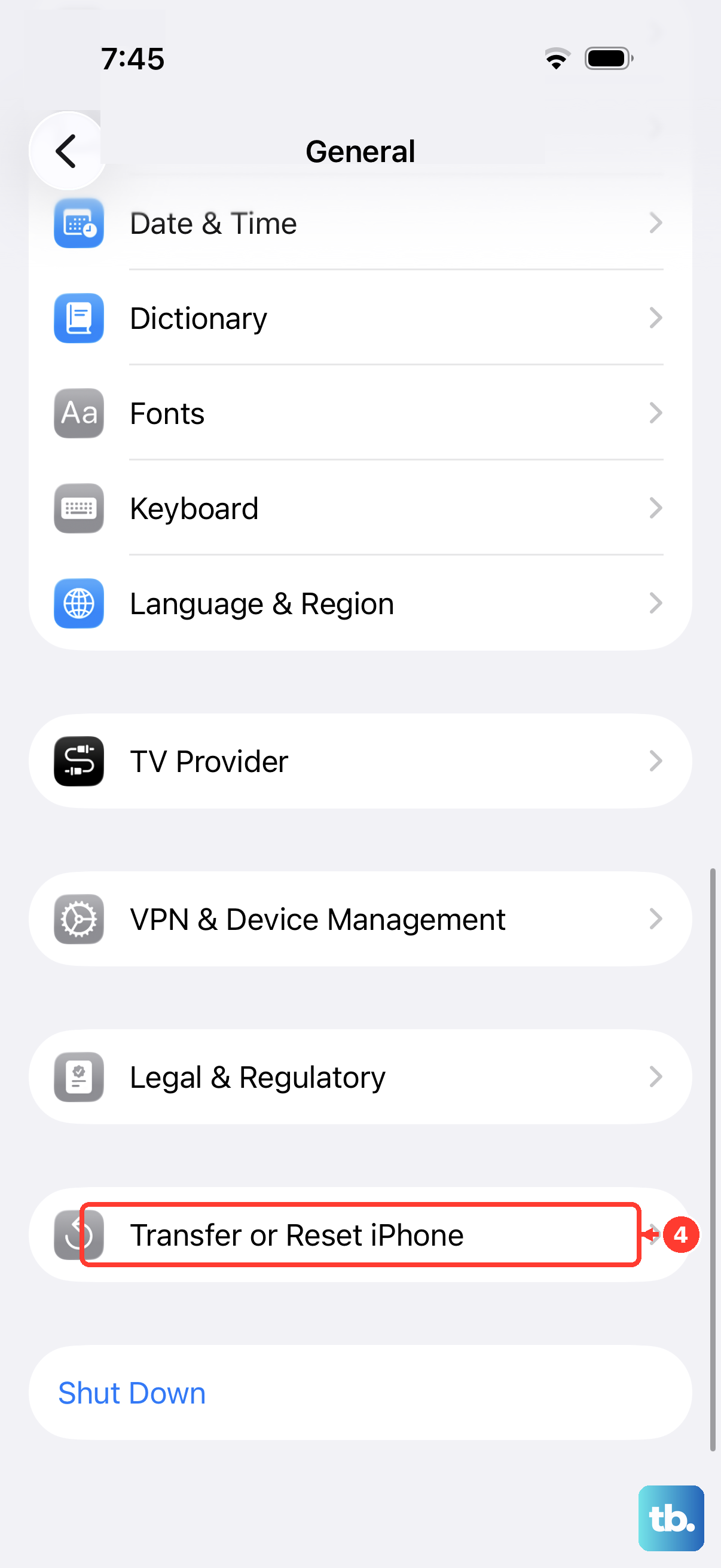
- 3.For a full on-device wipe, open Settings > General > Transfer or Reset iPhone > Erase All Content and Settings.
- 4.Tap Continue and follow the onscreen prompts. Choose whether to keep or delete your eSIM when prompted; deleting it means you must contact your carrier to reactivate your cellular plan. Enter your device passcode and Apple Account password when asked, and let any backup finish before completing the erase.
- 5.To restore with a computer, back up first, turn off Find My, connect the iPhone, open Finder or Apple Devices, select the device, then choose Restore.
For a work or school iPhone, cleanup and erase options belong to the organization managing the device.
Frequently Asked Questions
Can I delete System Data directly on iPhone?
No. Apple does not provide a supported control that manually deletes the System Data category. iOS removes cached and temporary files automatically when it needs space.
Why is System Data still large after I delete apps?
Deleting apps does not remove all system storage. Other holds non-removable assets, logs, caches and some system data, and System holds the operating system itself. iOS automatically removes eligible cached and temporary files when it needs space.
Does offloading an app clear its documents and data?
No. Offloading removes the app but keeps its documents and data. Use Delete App when you want to remove the app and its related data.
Is erasing the iPhone the best way to clear System Data?
No. Erase All Content and Settings removes local content and settings, so it belongs at the end after safer cleanup steps and a backup.











