

To clear File Explorer history, open File Explorer, select the three-dot menu, choose Options > General, and select Clear under Privacy. This removes existing local File Explorer history, but subsequent activity can populate it again. These steps use Windows 11 menus. On Windows 10, open Start, type File Explorer options, select General, and select Clear.
Clearing history, hiding recent files, and removing pinned folders are separate actions. Start with the cleanup, then change the display settings if you also want recent files and frequently used folders hidden.
The short version
- Clear existing history: Open Options > General and select Clear beside Clear File Explorer history.
- Hide recent lists: Uncheck Show recently used files and Show frequently used folders in the same window.
- Remove one entry: Right-click a file under Home > Recent and select Remove from Recent.
- Handle remaining items: Pinned folders and account-based recommendations have separate controls.
| Option | Where to find it | What it changes |
|---|---|---|
| Clear local history | Options > General > Privacy | Clears existing local Explorer history once |
| Open cleanup through search | Start, search for File Explorer options | Reaches the same cleanup button |
| Hide recent files and frequent folders | Options > General > Privacy | Hides Explorer’s automatically populated lists |
| Remove one recent file | Home > Recent | Removes an individual list entry |
| Unpin a folder | Folder’s right-click menu | Removes a saved Quick access pin |
| Hide recent items across Windows | On Windows 11, Settings > Personalization > Start | Changes visibility in Explorer, Start, and Jump Lists |
| Hide account-based content | Options > General > Privacy | Hides cloud content in Explorer |
| Prevent search-query storage through Group Policy | User policies for File Explorer | Stops past-query suggestions and storage of new search-box entries |
| Prevent search-query storage through MDM | Administrator’s user policy configuration | Applies the search policy to managed devices |
| Clear recent-document history at sign-out | User policies for Start Menu and Taskbar | Clears recent-document shortcuts and recent or frequent Jump List entries |
| Prevent recent-document shortcut tracking | User policies for Start Menu and Taskbar | Controls recent-document and Jump List tracking |
| Block account-based content through Group Policy | Computer policies for File Explorer | Blocks retrieval and display of cloud metadata |
| Block account-based content through MDM | Administrator’s device policy configuration | Blocks cloud metadata on managed devices |
Clear your local File Explorer history
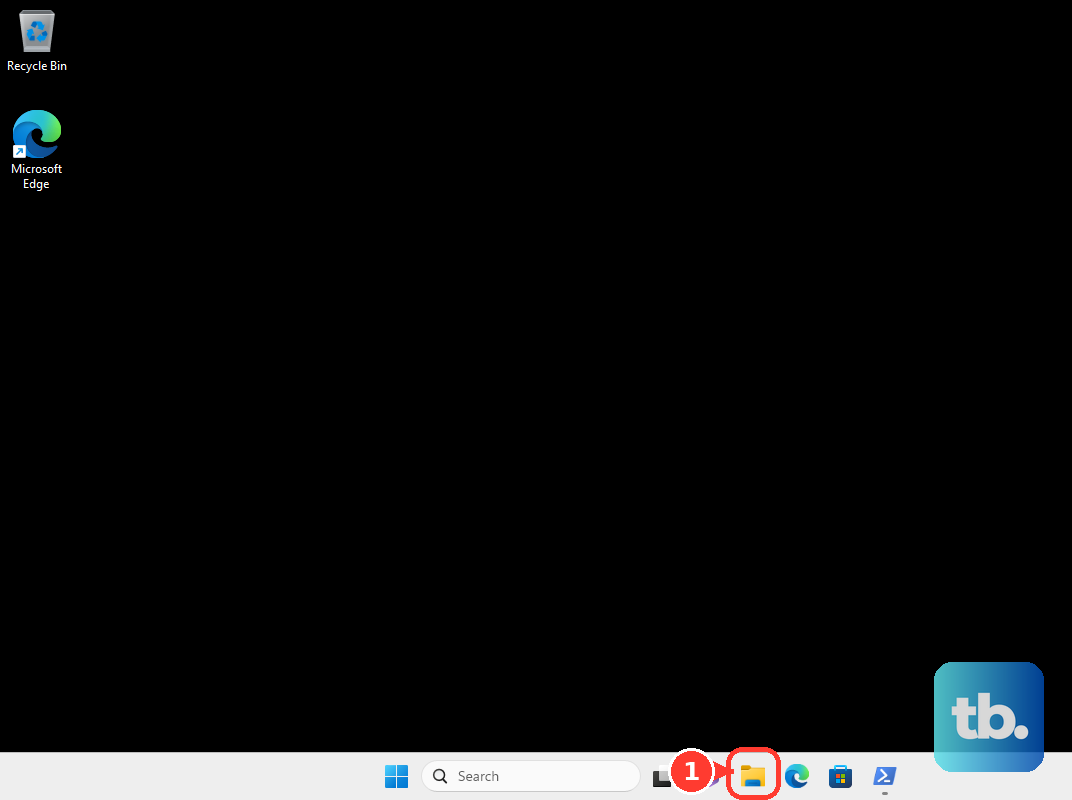
Clearing removes your existing local File Explorer history. On Windows 11, press Windows + E to open File Explorer, select the three-dot menu, and choose Options. Select the General tab, then find Privacy.
Click Clear beside Clear File Explorer history, then select OK. This is a one-time cleanup, so new activity can add entries again. Change the recent-file and frequent-folder checkboxes below if you want those lists to stay hidden.
If you use Windows 10 or cannot find the menu, open Start, type File Explorer options, and open the matching File Explorer Options result. Select General to reach the same history controls. This route opens the same cleanup button, so you only need to use one route.
The cleanup through search also removes existing local Explorer history. Select Clear beside Clear File Explorer history, then choose OK.
Hide recent files and frequently used folders
On Windows 11, open File Explorer’s three-dot menu and select Options > General. Under Privacy, uncheck Show recently used files and Show frequently used folders. Select Apply, then OK.
Some Windows versions label these checkboxes Show recently used files in Quick access and Show frequently used folders in Quick access. Uncheck those corresponding options when your window uses the longer wording. These settings control the displayed lists, so treat them as visibility controls rather than a way to stop all file-activity recording across Windows.
Hiding lists and clearing existing history serve different purposes. For both results, complete the cleanup above as well as changing these checkboxes.
Remove recent entries and remaining pins
Removing a recent-file entry takes it out of the list without deleting the document. Open File Explorer, select Home, and find the file under Recent. Right-click the unwanted entry and select Remove from Recent.
Cloud-backed entries can behave differently from local entries. If an account-based file remains visible, use the account-content display control below to hide that content in Explorer.
Unpinning removes the folder’s saved Quick access pin. In File Explorer, right-click or press and hold the pinned folder, then select Unpin from Quick access. Repeat for any other folders you want to unpin.
Pinned folders are saved pins rather than automatically generated history. A folder remaining pinned after cleanup therefore does not mean the cleanup failed. Use the unpin command for those folders instead of repeatedly clicking Clear.
Hide recent items in Start and Jump Lists too
On Windows 11, open Settings > Personalization > Start. Turn off Show recommended files in Start, recent files in File Explorer, and items in Jump Lists. This changes recent-item visibility across those three places.
Treat this setting as a way to hide items, rather than confirmation that every underlying history database has been erased. Complete File Explorer’s cleanup separately when you also want its existing local history cleared.
Hide account based files and recommendations
On Windows 11 with account-based File Explorer content, open File Explorer and select More > Options > General. Under Privacy, uncheck Include account-based insights, recent, favorite, and recommended files. Select OK to save the change.
This changes Explorer’s cloud-content display without deleting cloud documents or account activity. Older instructions refer to Show files from Office.com; the current control is Include account-based insights, recent, favorite, and recommended files.
Prevent recent search suggestions in File Explorer
On Windows 11 Pro, Enterprise, Education, and IoT Enterprise, you can use Group Policy to stop File Explorer from suggesting your past search-box entries and from storing new ones. Microsoft describes this as prevention, so use it for future searches rather than treating it as a cleanup of existing records. Local Group Policy Editor is not included in Windows Home; use the earlier Explorer controls for local cleanup and list visibility on that edition.
Open gpedit.msc, then go to User Configuration > Administrative Templates > Windows Components > File Explorer. Open Turn off display of recent search entries in the File Explorer search box. Select Enabled, then select Apply and OK.
For a managed Windows 11 Pro, Enterprise, Education, or IoT Enterprise device, your administrator can apply the same search policy through MDM. The administrator enables the following user policy using Microsoft’s documented ADMX-backed SyncML format:
./User/Vendor/MSFT/Policy/Config/ADMX_WindowsExplorer/DisableSearchBoxSuggestionsThis provides an administrative route that does not require opening Local Group Policy Editor on the device. Its effect remains the same: File Explorer stops showing suggestion pop-ups based on past search-box entries and stops storing new search-box entries in the registry.
Clear recent document history at sign out
On Windows editions with Group Policy, including Windows 11 Pro, Enterprise, and Education, you can schedule recent-document cleanup for sign-out. Enabling this policy removes recent-document shortcuts and recent or frequent Jump List entries when you sign out. Its cleanup covers those items rather than every Explorer history store.
Open gpedit.msc, then go to User Configuration > Administrative Templates > Start Menu and Taskbar. Open Clear history of recently opened documents on exit. Select Enabled, then select Apply and OK. Sign out to trigger the cleanup.
Prevent recent document shortcut tracking
If you want to prevent recent-document shortcut tracking, use this policy on a Windows edition supporting the relevant Group Policy setting. It controls recent-document and Jump List behavior, which is separate from File Explorer search-query suggestions.
Open gpedit.msc, then go to User Configuration > Administrative Templates > Start Menu and Taskbar. Open Do not keep history of recently opened documents. Select Enabled, then select Apply and OK.
On managed Windows editions supporting the equivalent MDM setting, your administrator can use Start/HideRecentJumplists. Microsoft notes that this MDM policy requires a reboot to take effect, so restart the device, or restart the explorer.exe process, before checking the result. Use this policy for tracking behavior and the sign-out policy above when you want the documented automatic cleanup.
Block account based Explorer content with policy
You can apply the account-content policy on Windows 11 22H2 and later in Pro, Enterprise, Education, and IoT Enterprise, including applicable LTSC editions. Microsoft says it blocks Explorer from requesting or displaying cloud-file metadata. It does not delete cloud history.
Open gpedit.msc, then go to Computer Configuration > Administrative Templates > Windows Components > File Explorer. Open Turn off account-based insights, recent, favorite, and recommended files in File Explorer. Select Enabled, then select Apply and OK.
For managed devices on those same Windows versions and editions, your administrator can apply the control through MDM instead. Set the following device policy to the integer value 1:
./Device/Vendor/MSFT/Policy/Config/FileExplorer/DisableGraphRecentItemsThis MDM setting prevents Explorer from requesting or displaying cloud-file metadata. Use it when you need to control account-based content through device management.
Frequently Asked Questions
Do you need to download a cleaner?
No download is required to clear local File Explorer history. You can complete the cleanup with the built-in File Explorer Options control.
Will clearing browser history also clear File Explorer history?
Browser history and local File Explorer history are separate surfaces, so use Explorer’s own cleanup control for its local history. Windows Search device history, Windows Activity history, Office recent lists, and Microsoft account privacy-dashboard activity are also separate.
What happens if you disable the policy that prevents recent document tracking?
Previously saved shortcuts can reappear if you disable Do not keep history of recently opened documents. Keep that possibility in mind when changing the policy, since preventing tracking is different from deleting saved shortcuts.
Does the recent document tracking policy cover pins and Open dialog shortcuts?
Pinned items and Open-dialog shortcuts are outside the documented scope of Do not keep history of recently opened documents. Treat that policy as a control for recent-document and Jump List behavior.